Commission Groups

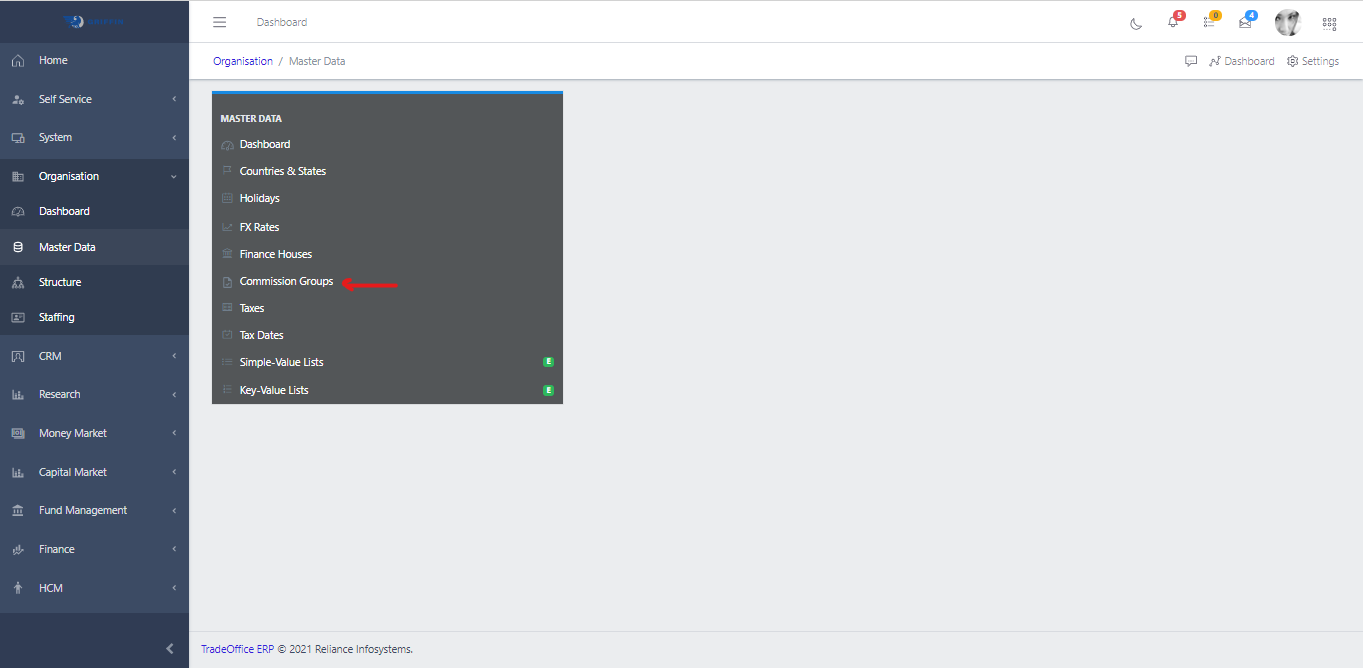
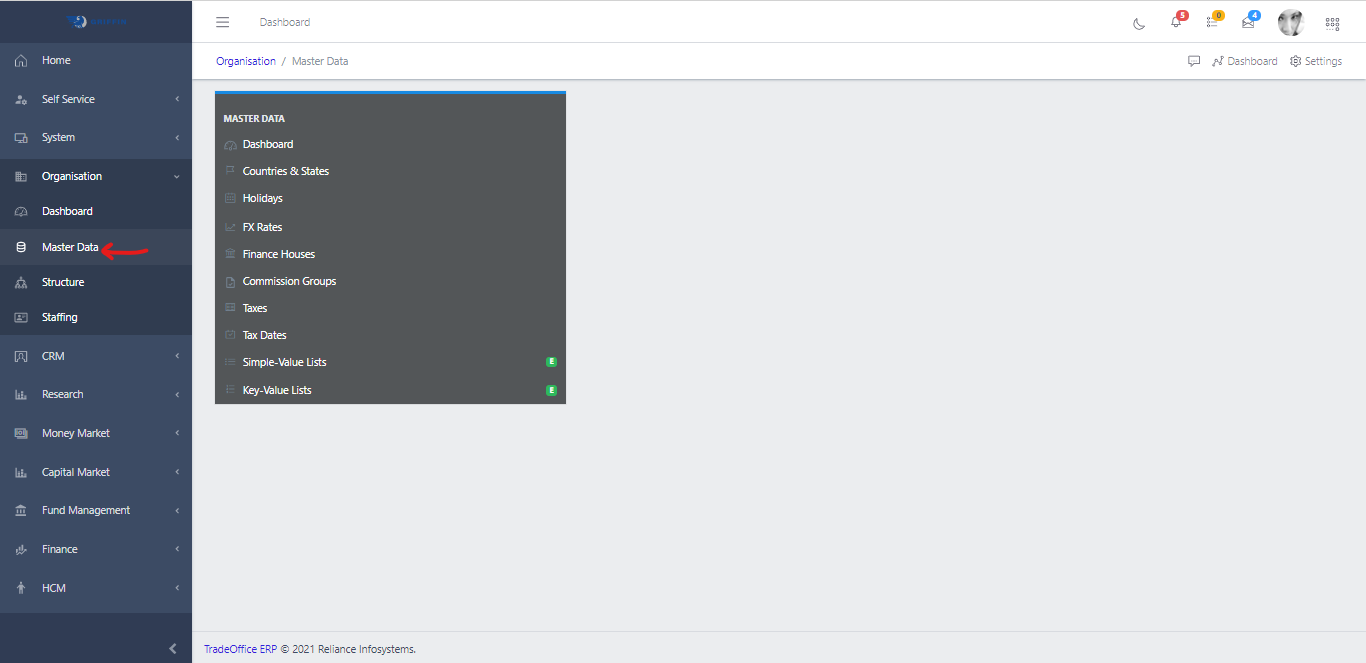
  • Access the Master Data sub-module of the Organisation module.
Master Data
Fig 1.0

  • Click on Commisions Groups.
Commission Group
Fig 1.1

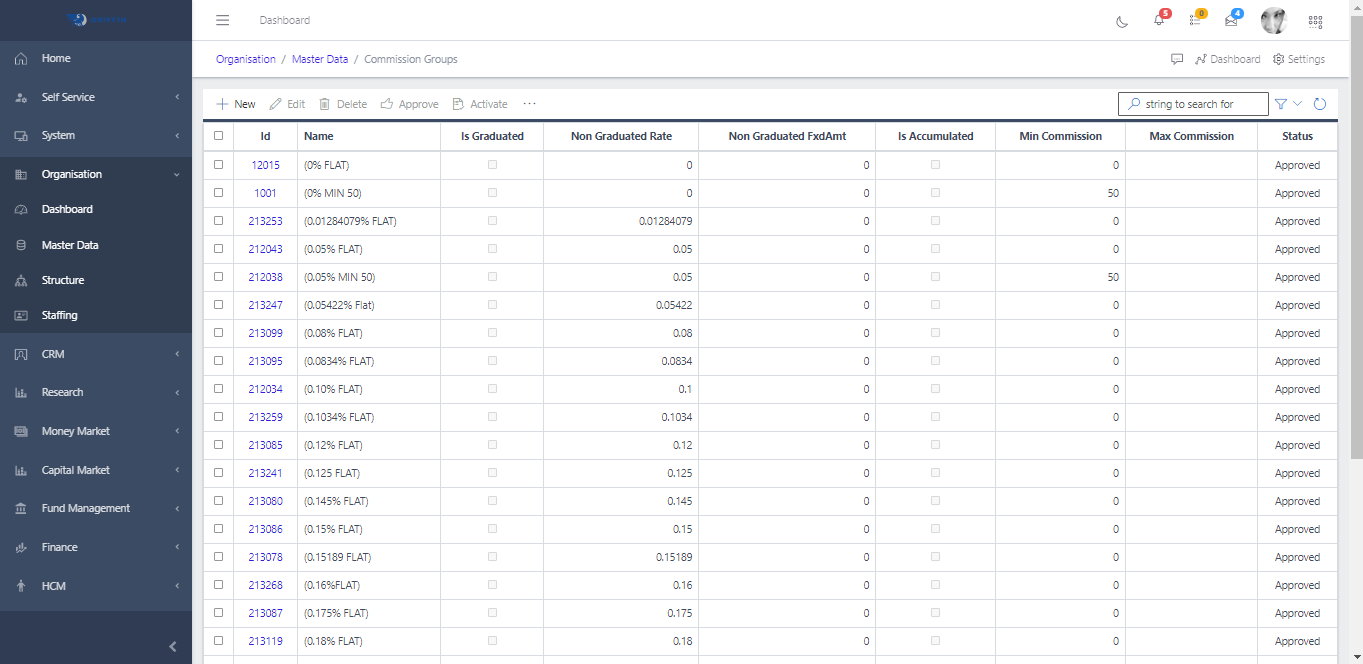
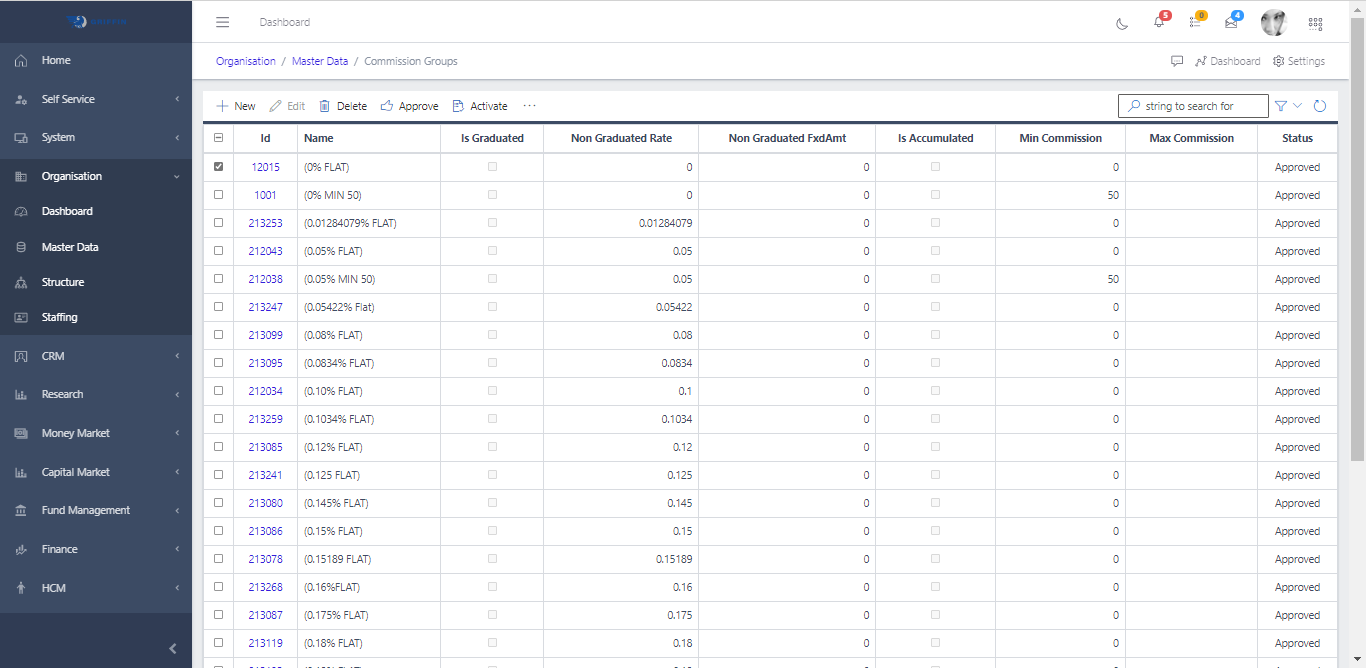
  • This displays a list view of Holidays.
Commission Group
Fig 1.2

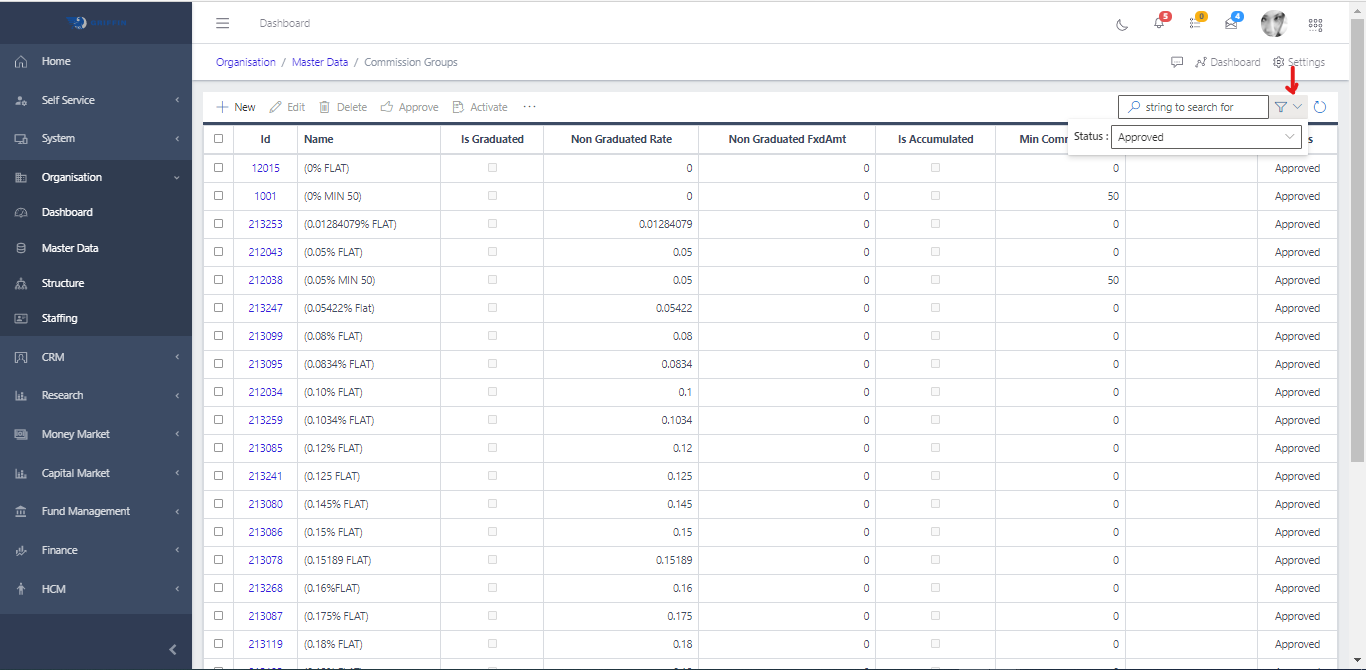
  • Use the Filter button, when clicked, gives you a dropdown where you can specify various parameters for filtering the records:
    • Search string: for filtering records
    • Country: A dropdown list of statuses
Commission Group
Fig 1.3

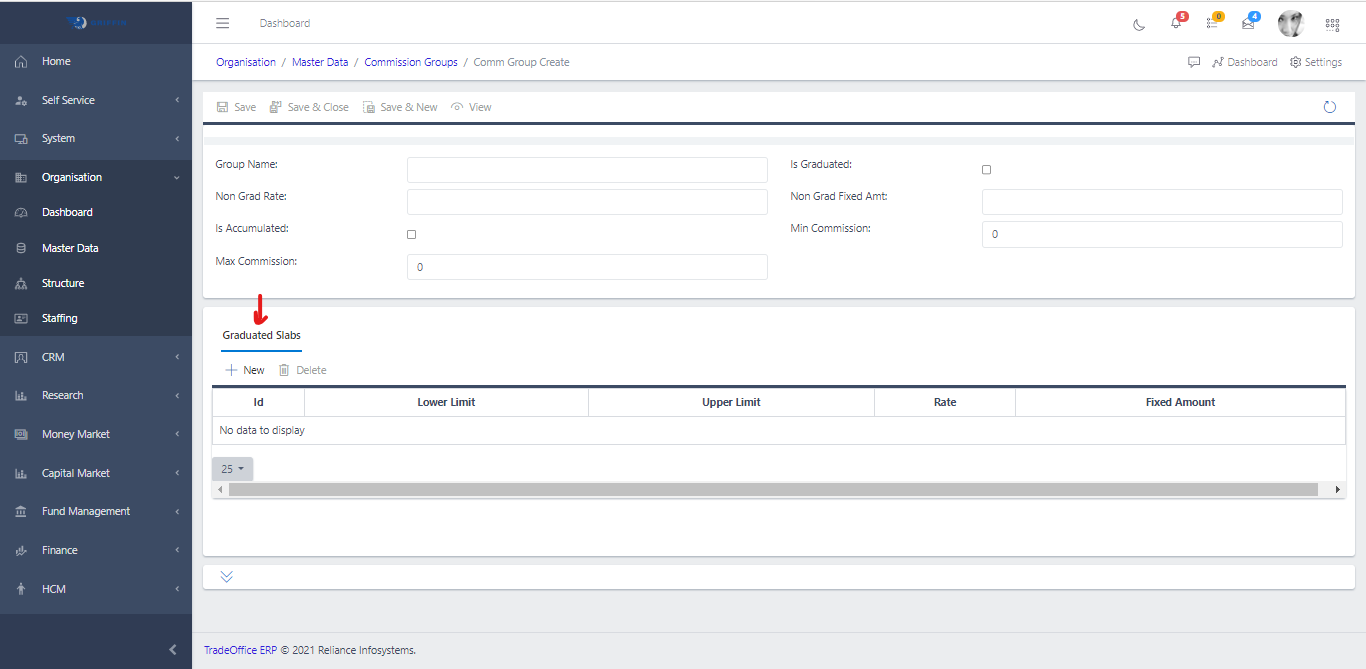
Create a new Commission Group

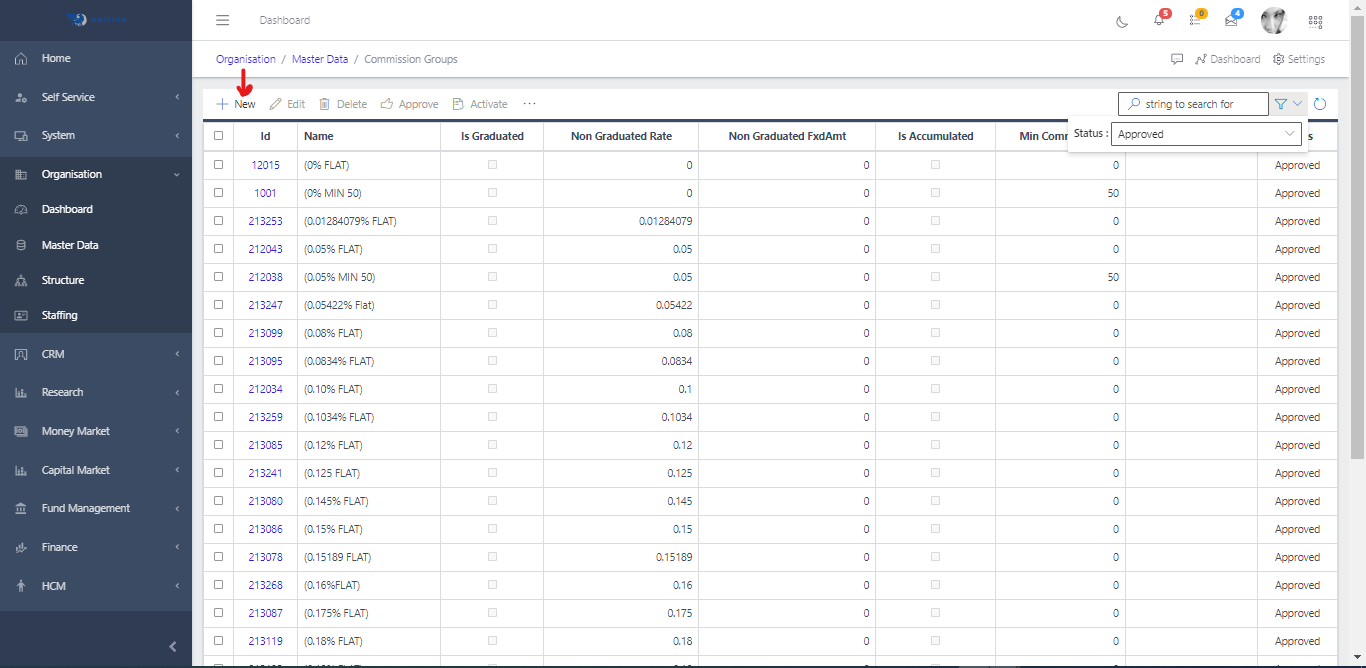
  • To create a Commission Group, hit the New button in the toolbar area and populate the form fields.
Commission Group
Fig 2

  • The following are some of the fields that needs to be populated:

    • Group Name
    • Non Grad Rate
    • Non Fixed Amount
    • Max Commission
    • Min Commission
  • You also need to populate the fields in the Graduated Slabs tabs:
    • click the Create button and fill out the Graduated Slab section.
    • Hit the Save button
Commission Group
Fig 2.1

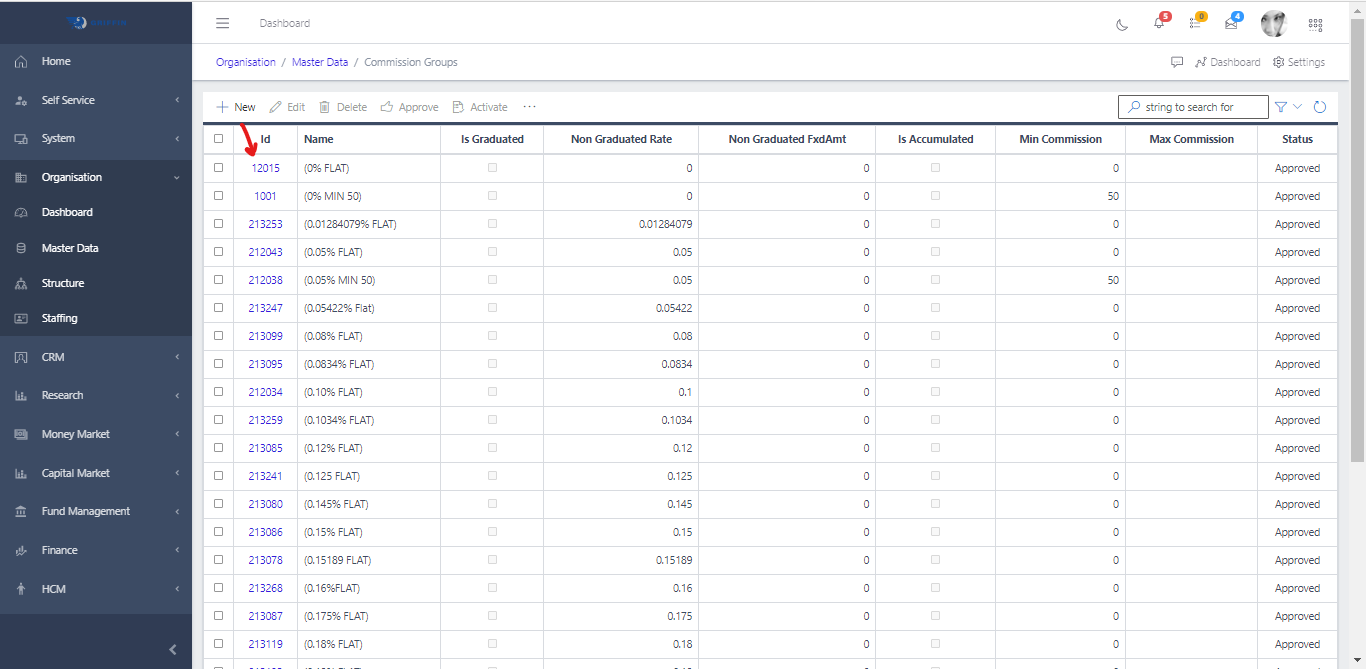
View a Commission Group

  • From the list view, click the Id of the commission group you want to view
Commission Group
Fig 3

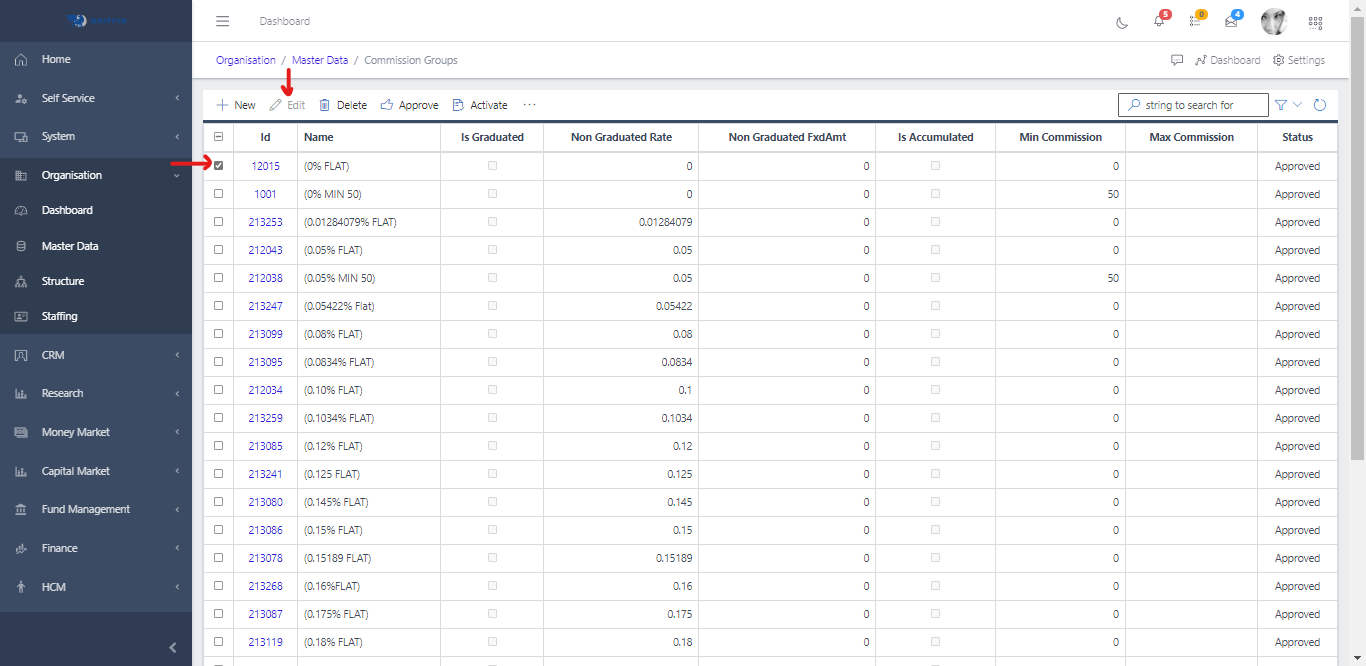
Edit a Commission Group

  • From the list view, select the commission group you want to edit
  • Click the edit button of the selected commission group
Commission Group
Fig 3.1

NOTE: An approved commission group cannot be edited

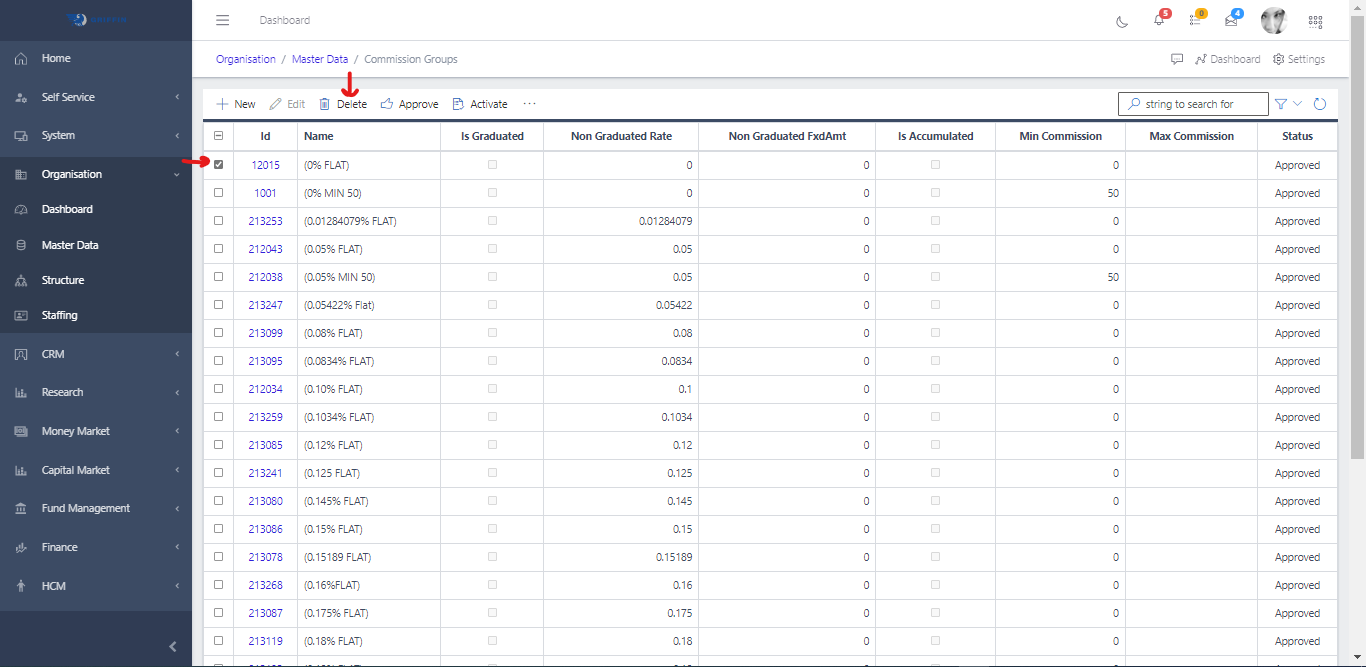
Delete a Commission Group

  • From the list view, select the commission group you want to delete
  • Click the Delete button to delete the selected commission group
Commission Group
Fig 3.2

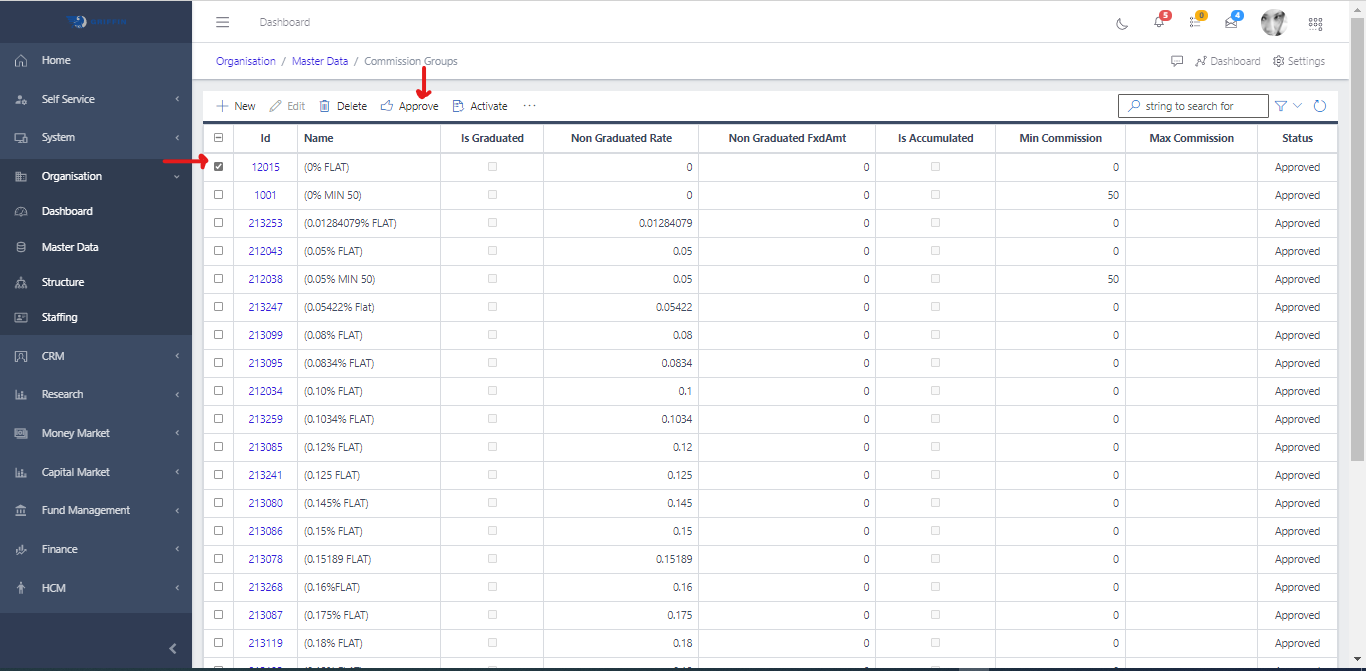
Approve a Commission Group

  • From the list view, select the commission group you want to approve
  • Click the Approve button to approve the selected commission group
Commission Group
Fig 3.3

Activate a Commission Group

  • From the list view, select the commission group you want to activate
  • Click the Activate button to avtivate the selected commission group
Commission Group
Fig 3.4

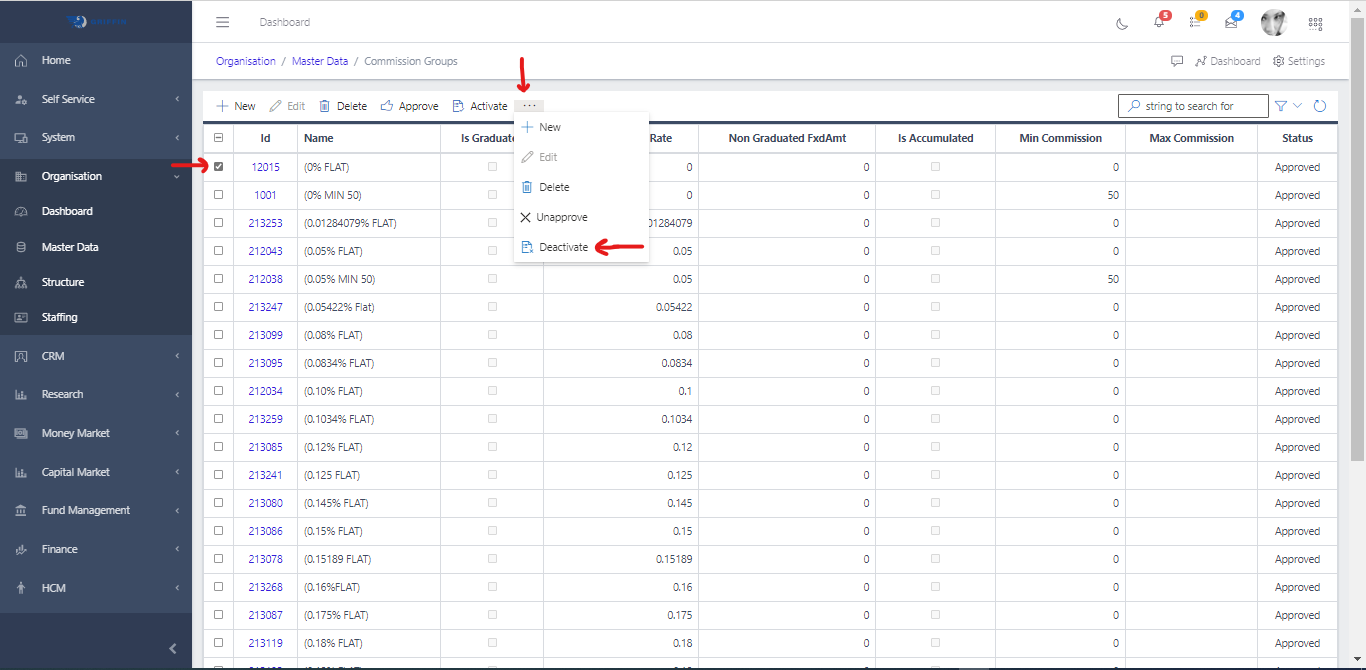
Deactivate a Commission Group

  • You can only decativate an active commission group
  • From the list view, select the commission group you want to deactivate
  • Click the elipsis(the 3 dots …) in the toolbar area and hit the deactivate
Commission Group
Fig 4

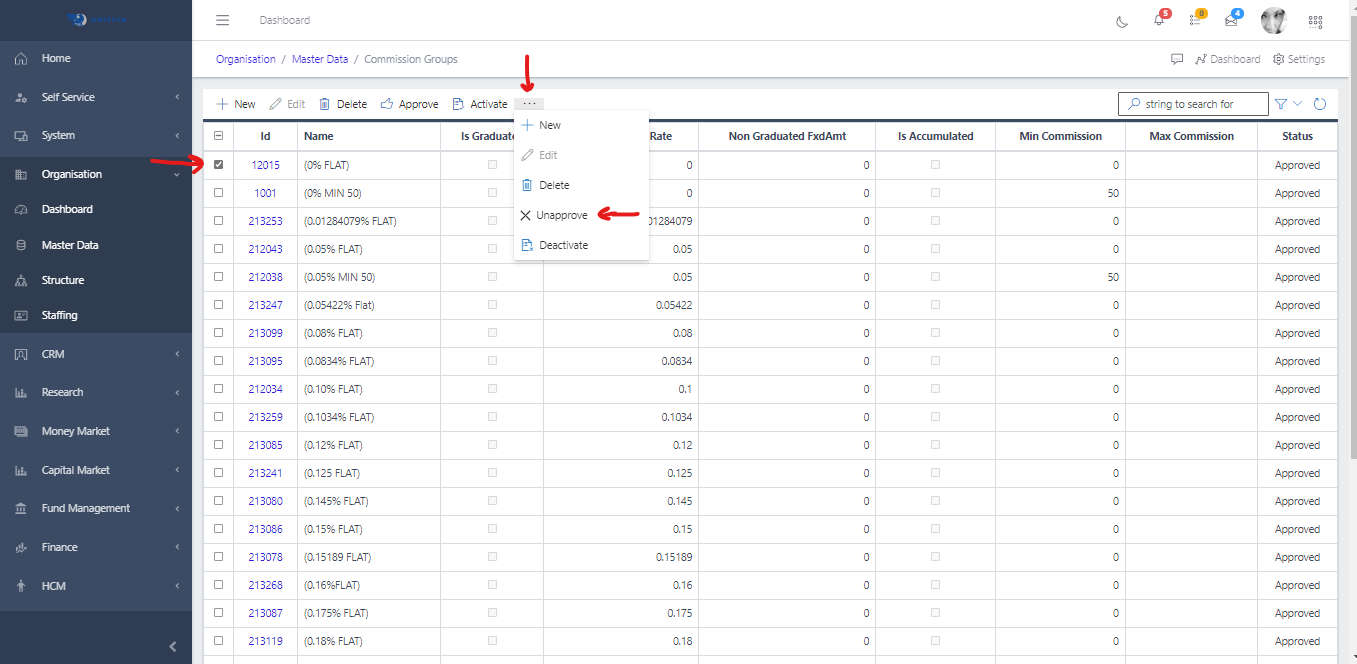
Unapprove a Commission Group

  • You can only unapprove an approved commission group
  • From the list view, select the commission group you want to unapprove
  • Click the elipsis(the 3 dots …) in the toolbar area and hit the unapprove
Commission Group
Fig 4.1