Title here
Summary here
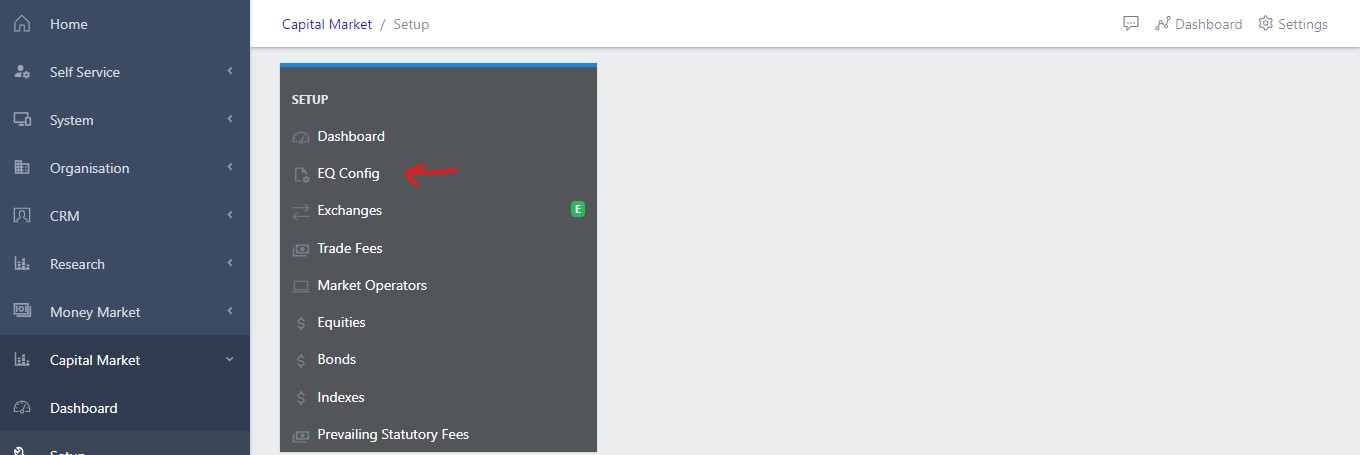
EQ Configs operations can be done by navigating to Capital Market,Setup,EQ Configs shown in Fig 1 below.
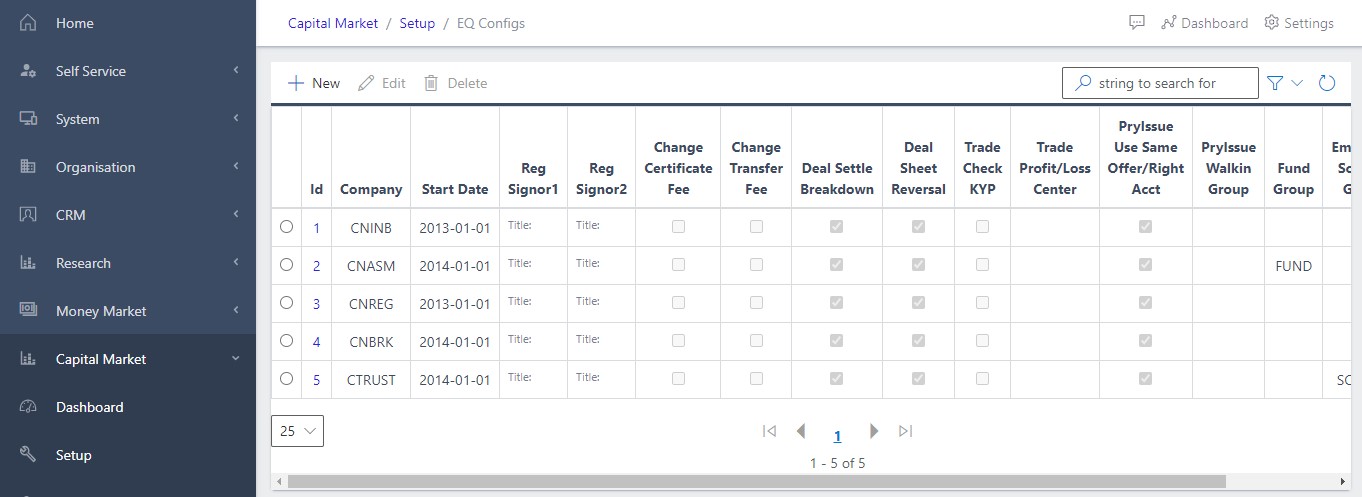
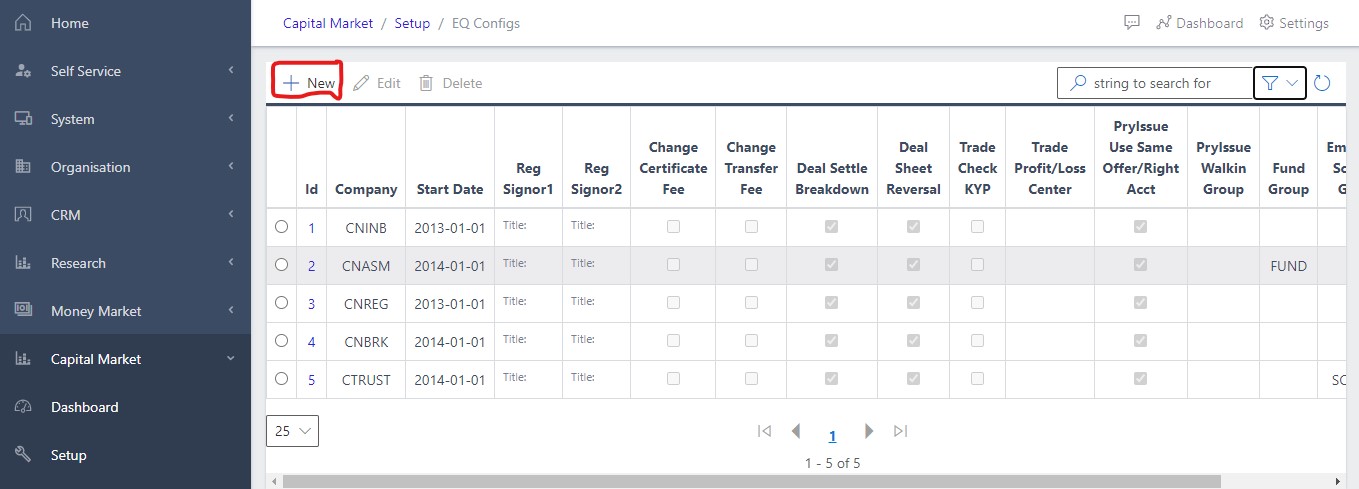
Clicking on the EQ Configs in the dashboard view as shown in fig 1 above, opens a new screen that shows a list of all the current EQ Configs that exist in the system. Fig 2 below, shows a list of all the available EQ Configs in the system.
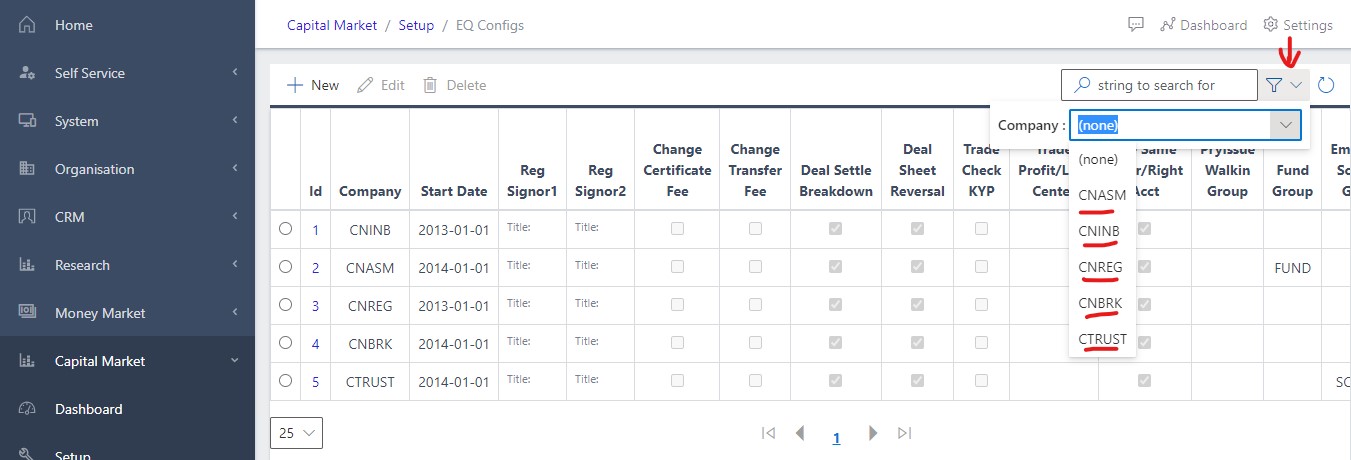
Fig 2.1, shows how the user can filter for a particular EQ Configs by simply entering the valid parameter displayed on the filter menu(parameter to be slected is Company)
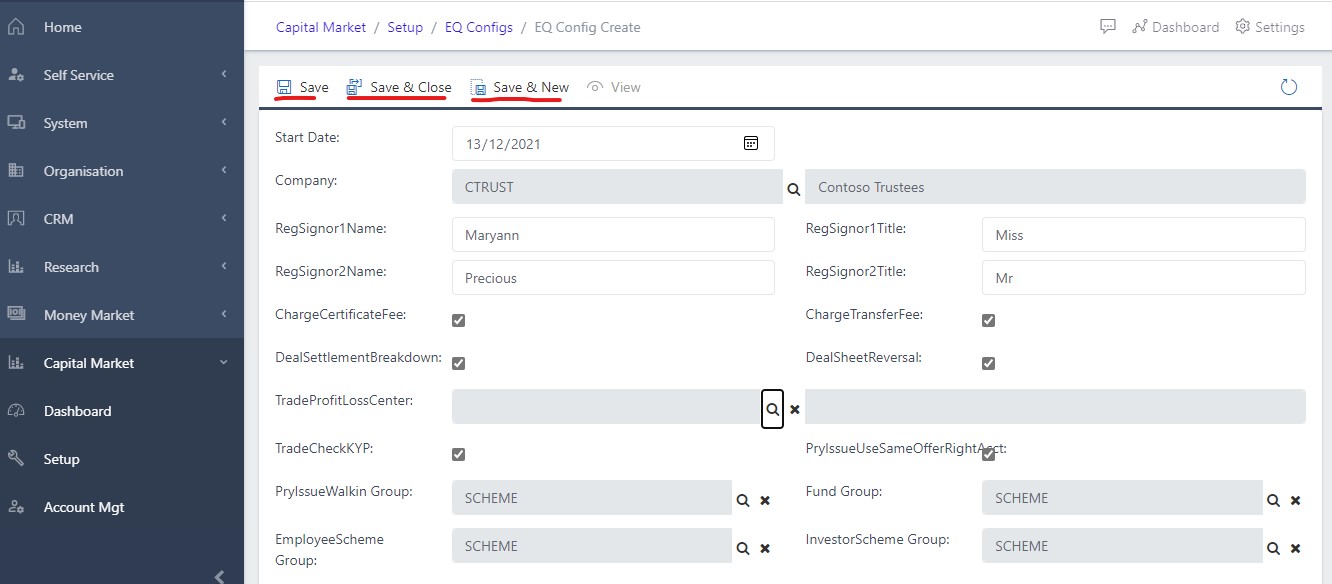
To create a new EQ Configs, Click on the create button as shown in Fig 3 below and fill out all the necessary fields (Start Date, Company, RegSignor1Name and Title, RegSignor2Name and Title, TradeProfitLossCenter, PryIssueWalkin Group, Fund Group, EmployeeScheme Group and Investor Scheme Group. Also, tick boxes where applicable) as shown in the fig 3.1 below.
After filling out all the necessary fields shown in fig 3.1 below, the various save menus become activated.Kindly choose a save option afterwards to complete the creation process. Fig 3.1 shows all activated save options.
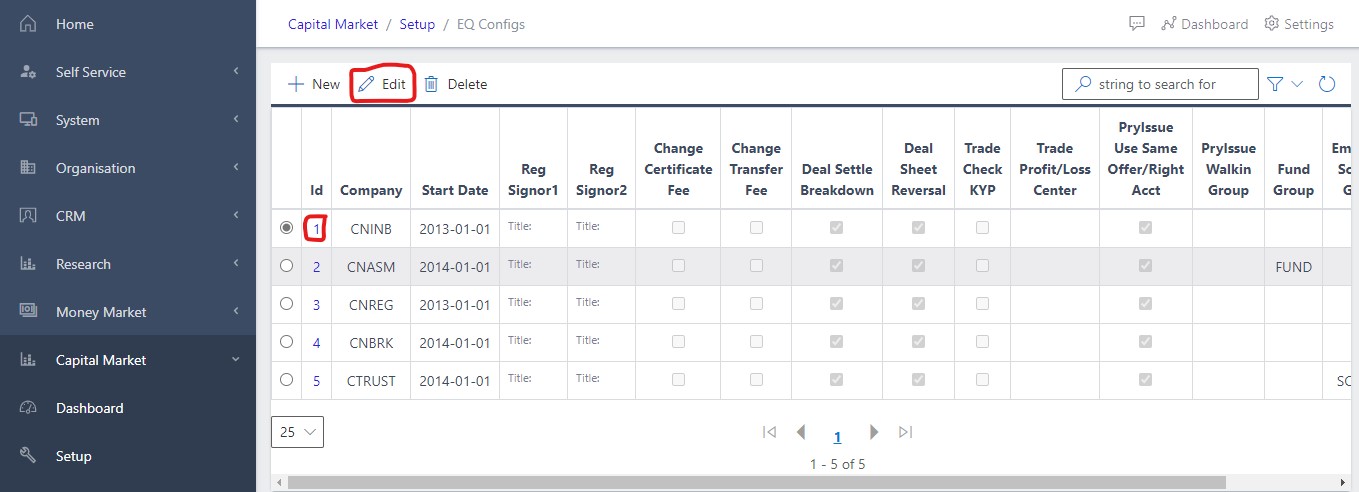
Editing an EQ Configs can only be done after the creation of a new EQ Configs. Editing the EQ Configs operations can be done by selecting any of the created config’s ID shown in fig 4 below. Seleting the ID will automatically activate the Edit button as shown below. User can then proceed to editing the selected EQ Configs.