Equities

Equities operations can be accessed by navigating to Capital Market,Setup,Equities shown in Fig 1 below. This part of the app host the various equities available to be traded on, some equities have already been loaded into the system, but users can also create new equities when they are unavailable. All of these equities have nominal values, currency and starting values attached to them.
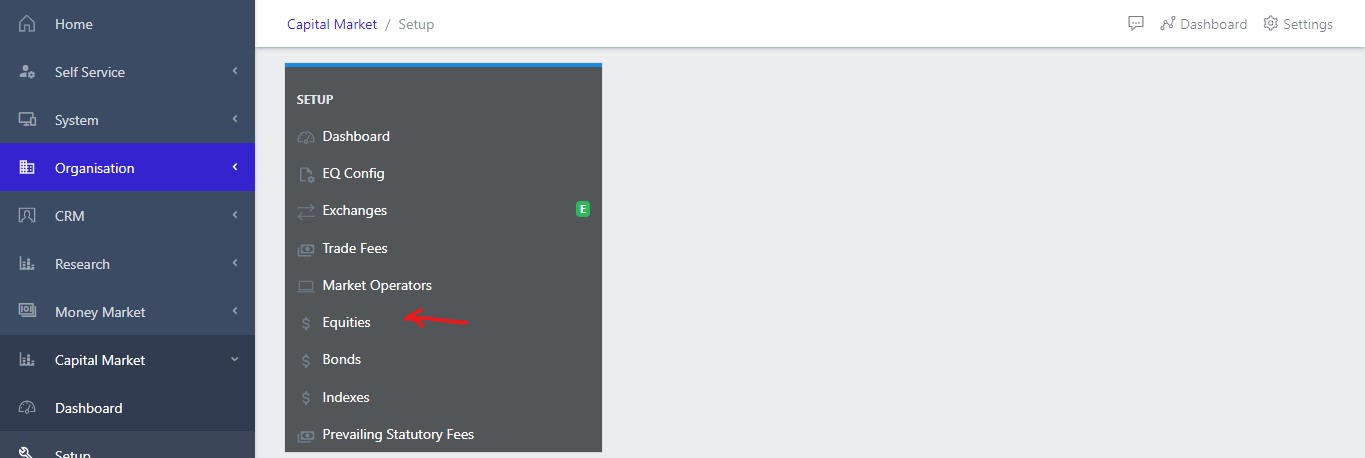
image Showing equities dashboard view
Fig 1 Showing equities view

View Equities

Clicking on the Equities in the dashboard view as shown in fig 1 above, opens a new screen that shows a list of all the current equities that exist in the system. Fig 2 below, shows a list of all the available equities in the system.

Fig 2.1, shows how the user can filter for a particular equity that has been created and loaded in the system by simply entering the valid parameter displayed on the filter menu(parameter to be slected are list exchange, instrument type and status)
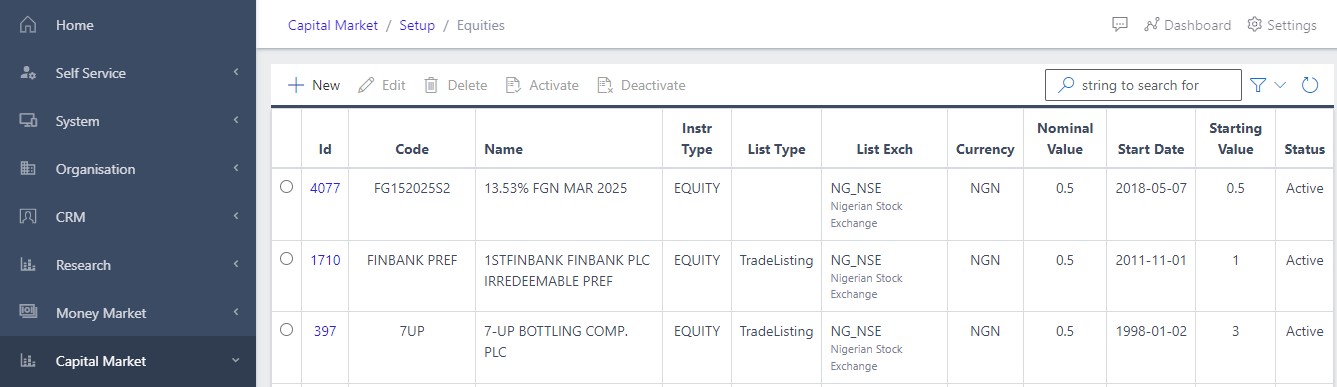
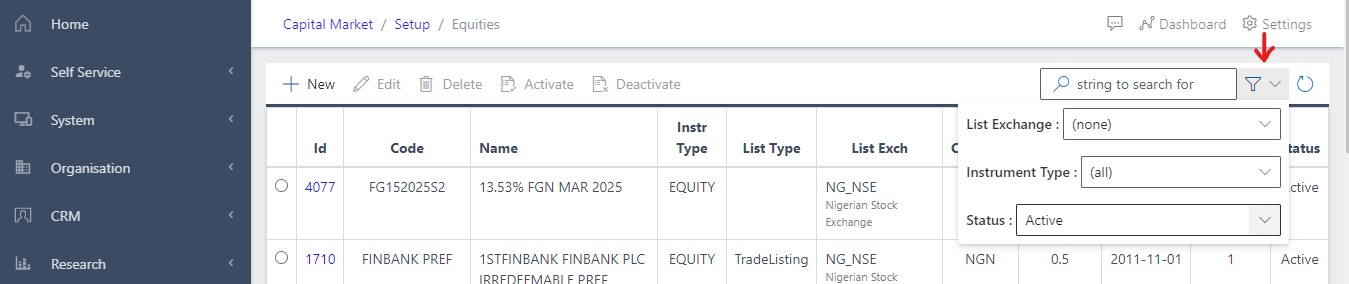
image Showing list of equities view
Fig 2 Showing list of equities

image Showing filter parameter view
Fig 2.1 Showing filter parameter

Create a New Equity

To create a new equity, user can click on the create/new button as shown in Fig 3 below and fill out all the necessary fields as shown in the fig 3.1 below. Fields to be filled out includes the following:

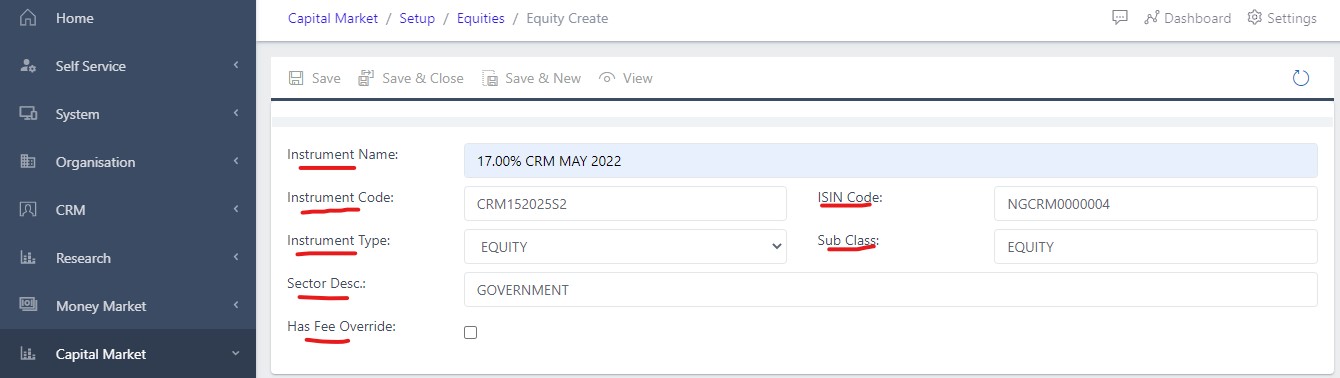
  • Instrument Name - This field represents the name of the equity that is to be created.
  • Instrument Code - Each instrument is assigned a particular code, and that code is to be filled during creation. e.g., FG152025S2, ABBEYBDS
  • ISIN Code - International securities identification number. A 12-digit alphanumeric code that uniquely identifies a specific security. User will have to input these ISIN code for every equity to be created.
  • Sector Desc. - Represents the sector description. It identifies what the sector for which the equity is created for is into. e.g., Food and Beverages, Government issues equity, Investment, Auto mobiles
  • Fee Overridden - User may/may not thick this box depending on the condition to be met
image Showing Create New equity view
Fig 3 Showing create new equity button

image Showing fields to be filled out view
Fig 3.1 Showing fields to be filled out

Next screen to be filled out, is the Details fields of the equity to be created. This fields and a couple of others, provide more clarity about the equity. Fig 3.2 below shows the Details field to be filled out.
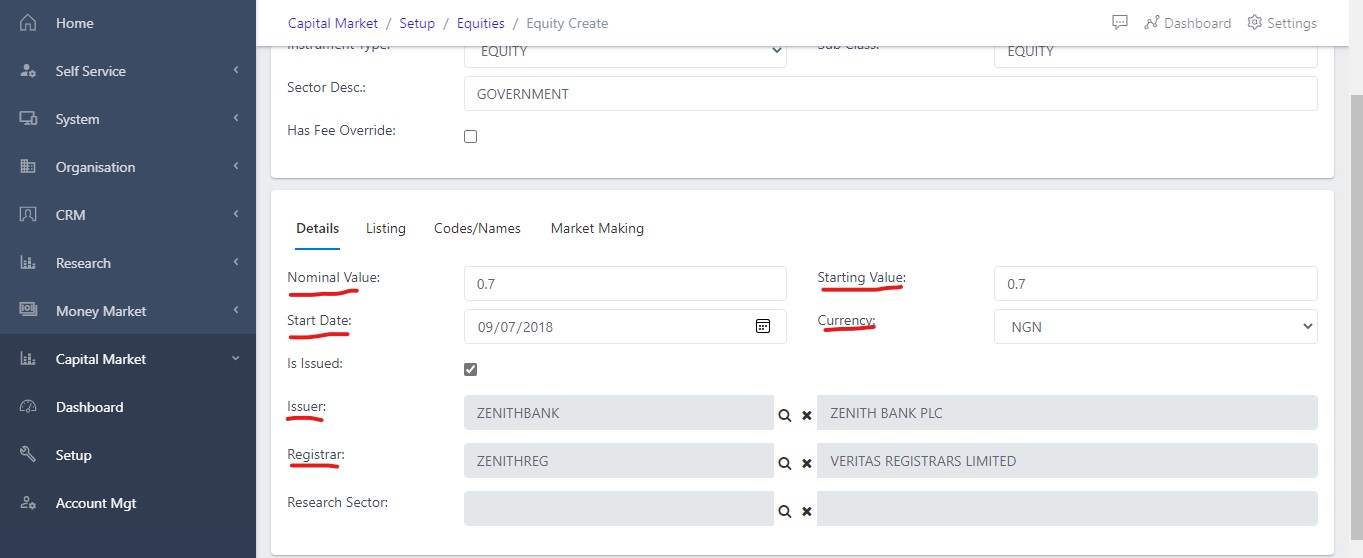
  • Nominal Value - Often referred to as the “face value” of an equity or investment. It is the upfront monetary value of the equity without adjusting for inflation
  • Starting Value - User is ti fill the starting value of the equity. These values are subject to fluctuations based on the supply and demand from investors for the securities.
  • Issuer - This signifies the company issuing out the equity to be created
  • Registrar - User is to select an institution, often a bank or trust company, responsible for keeping records of bondholders and shareholders
image Showing details field of the equity creationview
Fig 3.2 Showing details field of the equity creation

Next Screen to be filled out is the Listing screen. Fig 3.2 below shows the Listing field to be filled out. Some fields to be filled includes:
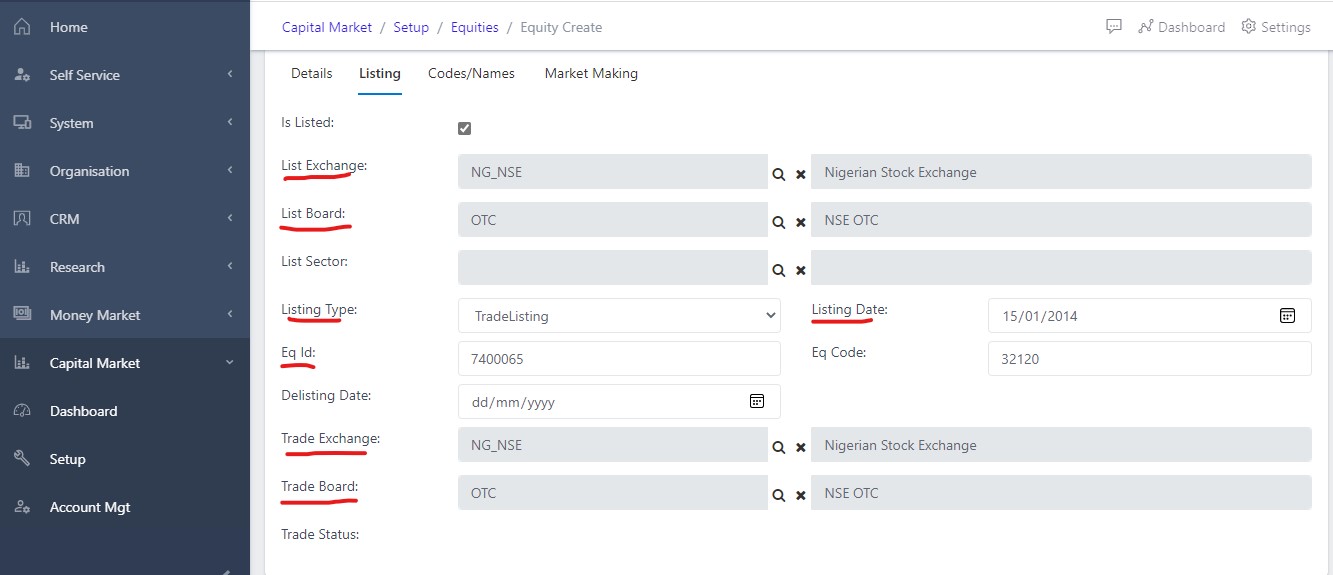
  • List Exchange - User is to choose the list exchange for which the equity to be created falls under. e.g., Nigerian stock exchange, Jamaican stock exchange, American stock exchange, National association of security dealers Nigeria etc.
  • Listing Type - This signifies the listing type of the company issuing out the equity. Users are to choose from the 3 options listed on the app (Nominal Listing, Tradelisting or Unlisted).
  • Listing Date - This contains the date for which the company was listed.
  • Delisting Date - This column should be filled if the company has been delisted from the list exchange.
  • Trade Exchange - This column should be filled with the trade platform for which the equity will be traded on.
image Showing listing field of the equity creationview
Fig 3.3 Showing Listing field of the equity creation

Activate an Equity

Every newly created equity usually takes the status of pending as seen in fig 4 below. A user who created the equity has to activate the newly created equity by using the filter menu option shown in fig 2.1 above to filter for the particular equity. Fig 4 below shows a newly created equity taking the status of pending.
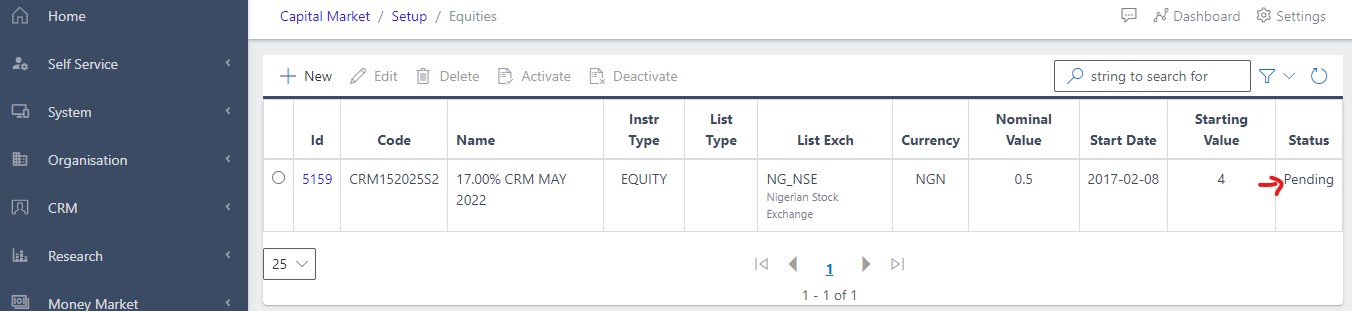
image Showing pending state of newly created equity view
Fig 4 Showing pending state of newly created equity

In activating a new Equity, user has to select the newly created equity’s ID shown in fig 4.1 below. Seleting the ID will automatically highlight the Activate button as shown below. The user can then proceed to activating the selected equity.
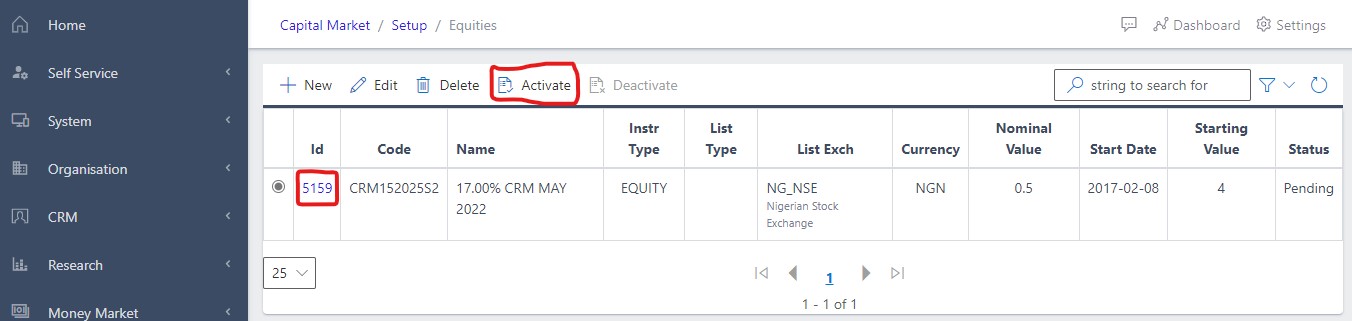
image Showing selected ID for activation view
Fig 4.1 Showing selected ID for activation

Once the user has activated the selected newly created equity, the status immediately changes from the inital pending state to an active state. Fig 4.2 below shows the new state (active state) of the activated equity.
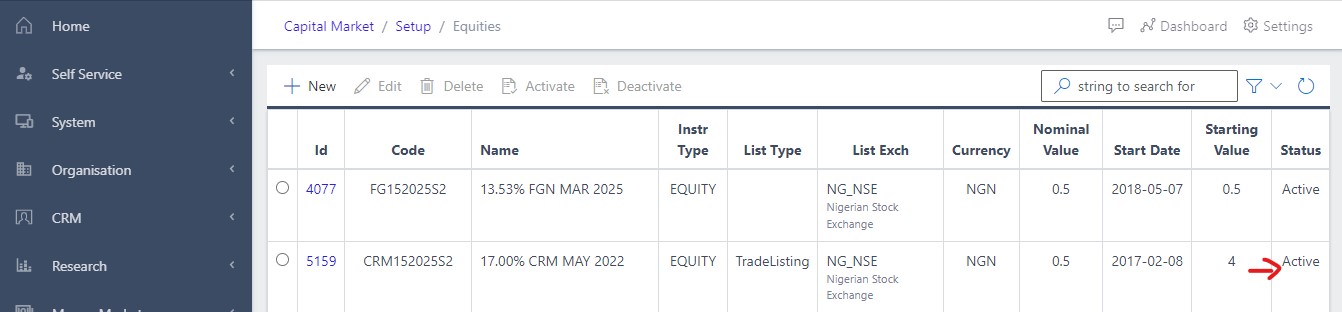
image Showing active status of the equity view
Fig 4.2 Showing active status of the equity

Deactivate an Equity

In Deactivating an equity, user has to select the active equity’s ID shown in fig 5 below. Seleting the ID will automatically highlight the Deactivate button as shown below. The user can then proceed to deactivating the selected equity.
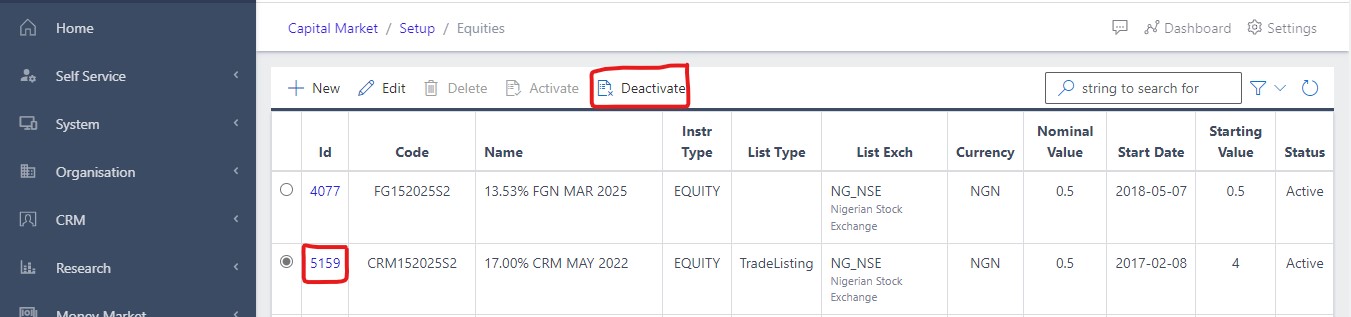
image Showing selected ID for deactivation view
Fig 5 Showing selected ID for deactivation

Once the user has deactivated the selected equities, the status immediately changes from the inital active state to an deactivated state. Fig 5.1 below shows the new state of the deactivated equities.
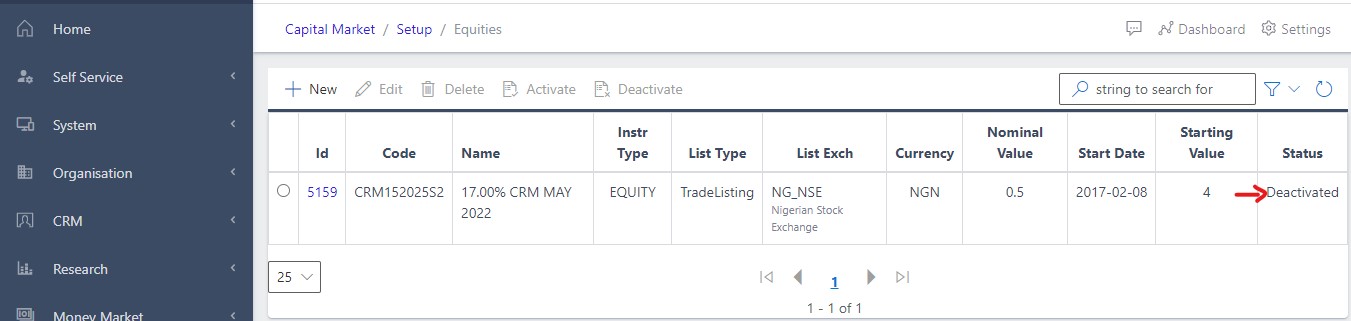
image Showing inactive status of the market operator view
Fig 5.1 Showing deactivated status of the equities