Title here
Summary here
Market Operators operations can be accessed by navigating to Capital Market,Setup,Market Operators shown in Fig 1 below. This part of the app host the various categories of market operations like the stock broking, registrar, lending agents, clearing houses, exchange, custodian, etc. All of these categories, also have their Names, Operator Number and Codes attached to them.
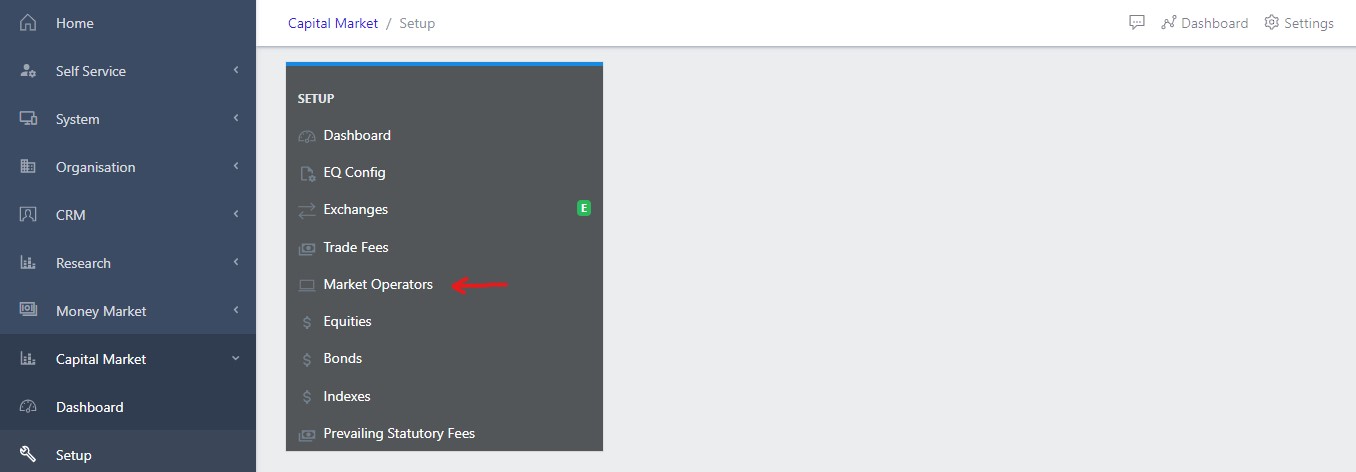
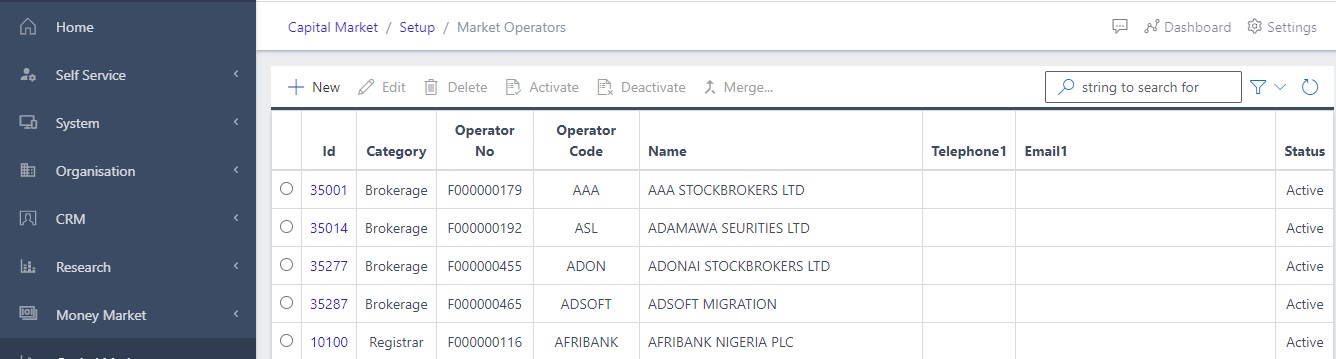
Clicking on the Market Operators in the dashboard view as shown in fig 1 above, opens a new screen that shows a list of all the current Market Operators that exist in the system. Fig 2 below, shows a list of all the available Market Operators in the system.
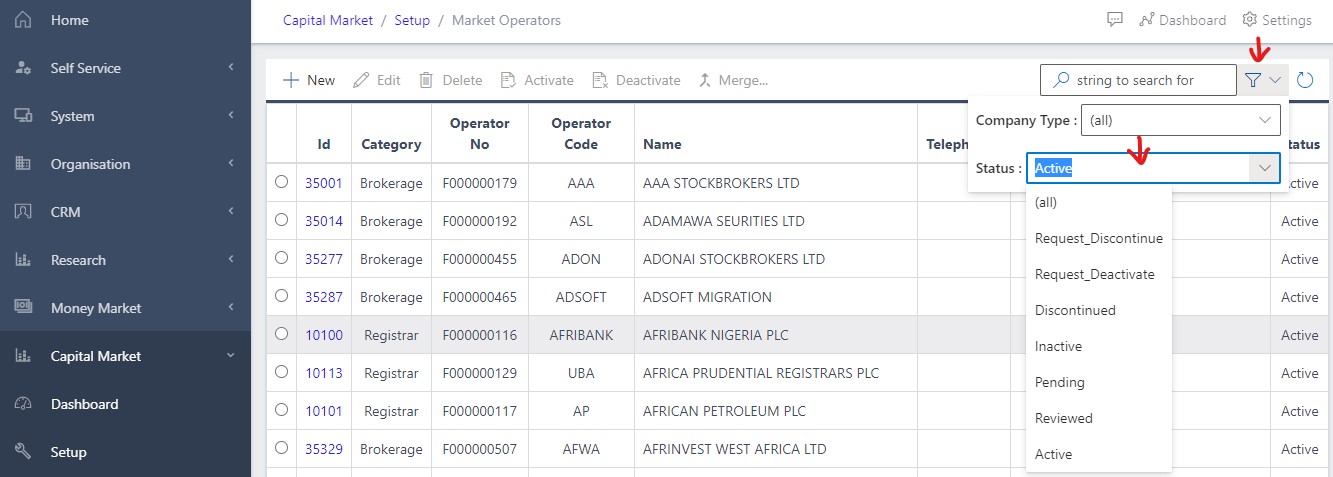
Fig 2.1, shows how the user can filter for a particular Market Operators by simply entering the valid parameter displayed on the filter menu(parameter to be slected are company type and status)
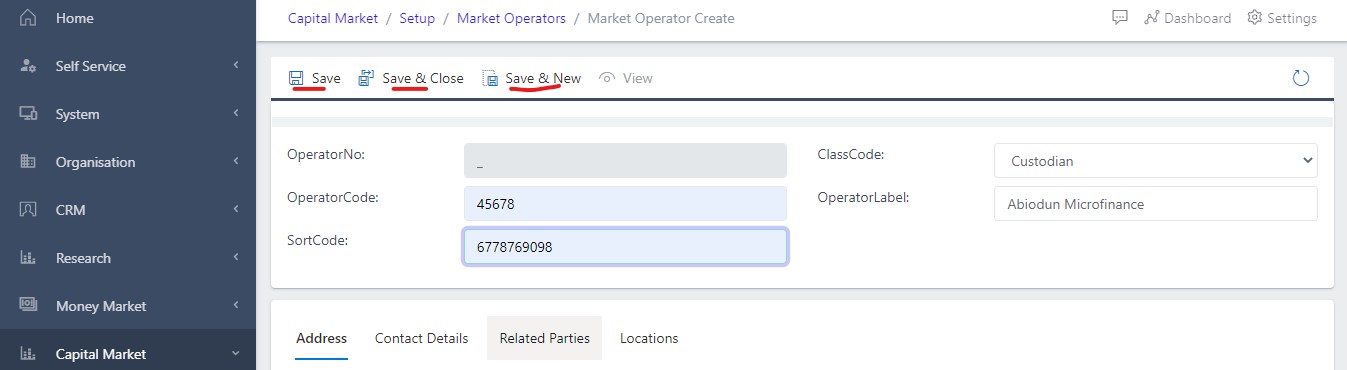
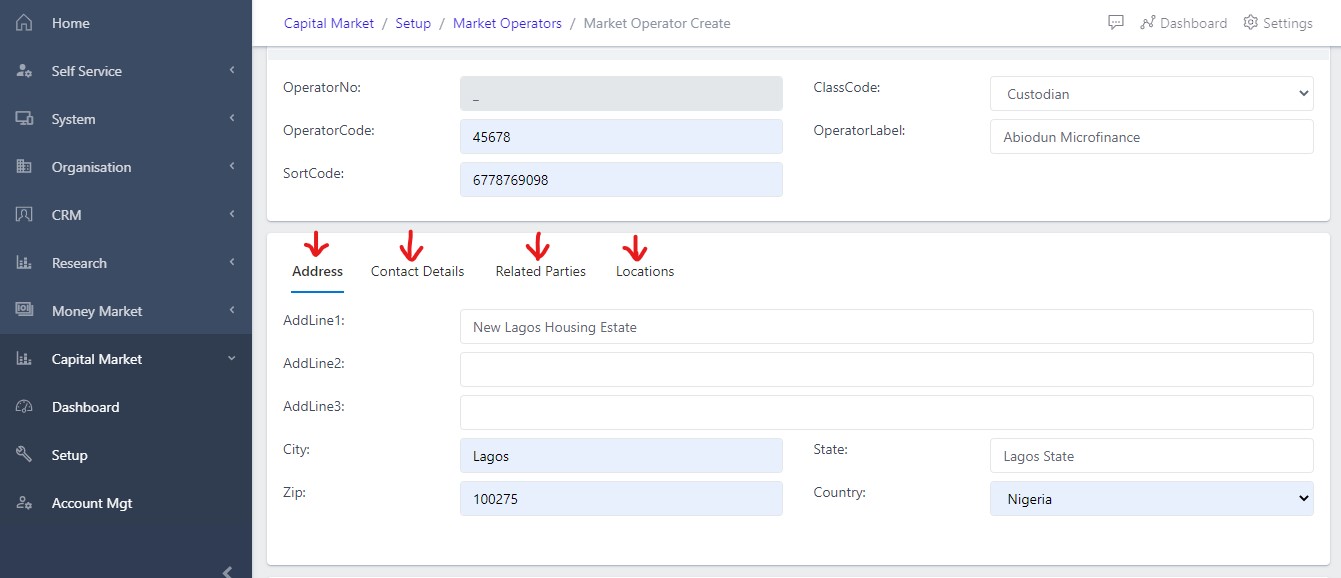
To create a new Market Operations, user can click on the create/new button as shown in Fig 3 below and fill out all the necessary fields (Operator No, Operator Code, Sort Code, Operator Label and Class Code) as shown in the fig 3.1 below.
After filling out all the necessary fields shown in fig 3.1 below, the various save menu options become activated. Fig 3.1 shows all activated save options.

Additionally, users are expected to fill out the various fields for Address, Related Parties, Contact Details and Locations as indicated in the fig 3.2 below.
Every newly created Market Operator usually takes the status of pending as seen in fig 4 below. A user who created the Market Operator has to activate the newly created Operator by using the filter menu option shown in fig 2.1 above to filter for the particular opeartor. Fig 4 below shows a newly created market operator taking the status of pending.

In activating a new Market Operations,user has to select the newly created market operator’s ID shown in fig 4.1 below. Seleting the ID will automatically highlight the Activate button as shown below. The user can then proceed to activating the selected market operator.

Once the user has activated the selected newly created market operators, the status immediately changes from the inital pending state to an active state. Fig 4.2 below shows the new state (active state) of the activated market operators.

In Deactivating a Market Operations, user has to select the active market operator’s ID shown in fig 5 below. Seleting the ID will automatically highlight the Deactivate button as shown below. The user can then proceed to deactivating the selected market operator.

Once the user has deactivated the selected market operators, the status immediately changes from the inital active state to an inactive state. Fig 5.1 below shows the new state (inactive state) of the deactivated market operators.
