Title here
Summary here
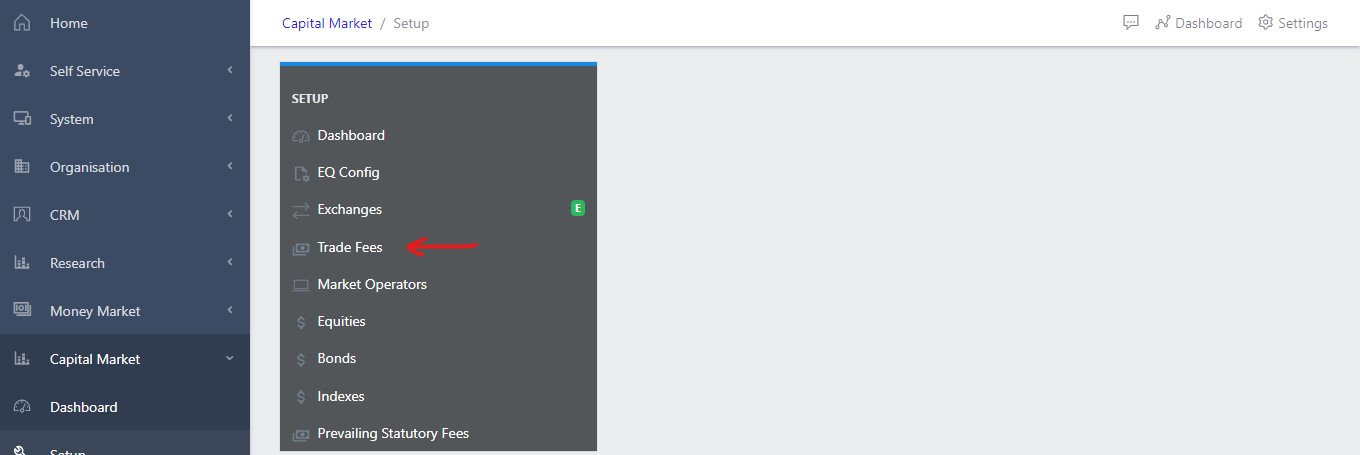
Trade Fees operations can be done by navigating to Capital Market,Setup,Trade Fees shown in Fig 1 below. This part of the app host the various trading fees for exchanges that exist in the system. Examples of such include, Nigerian stock exchange, London stock exchange, American stock exchange, etc. All of these stock exchanges, also have their Instrument Types, Fee Name, and Currency representation attached to them.
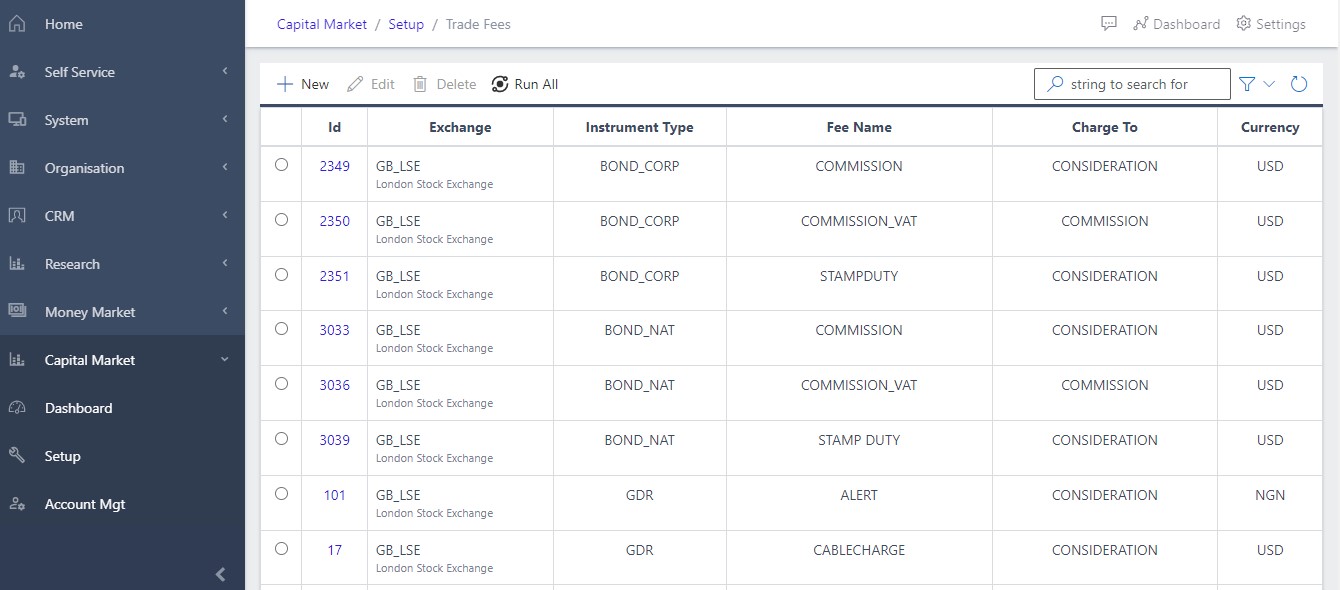
Clicking on the Trade fees in the dashboard view as shown in fig 1 above, opens a new screen that shows a list of all the current trade fees that exist in the system. Fig 2 below, shows a list of all the available trading fees in the system.
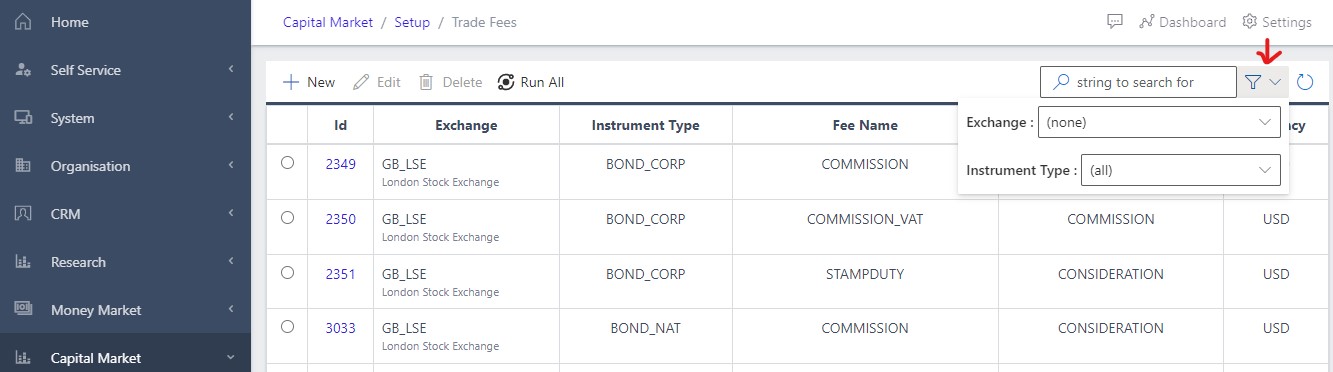
Fig 2.1, shows how the user can filter for a particular Trade fee by simply entering the valid parameter displayed on the filter menu(parameter to be slected are exchange and instrument type)
To create a new Trade fee, user can click on the create/new button as shown in Fig 3 below and fill out all the necessary fields (Exchange, Instrument Type, Fee Name, Charge To, and Currency) as shown in the fig 3.1 below.
After filling out all the necessary fields shown in fig 3.1 below, the various save menu options become activated. Fig 3.1 shows all activated save options.

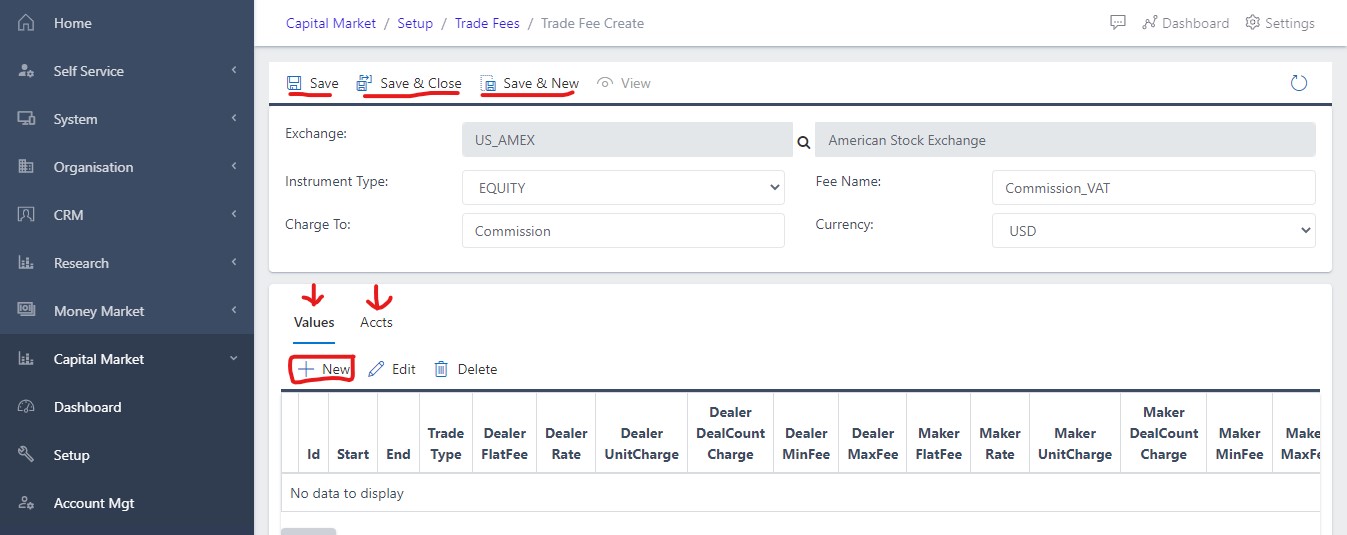
While filling out the necessary fields, shown in fig 3.1 above, users are also advised to fill out the trade fee values and Accts fields in order to complete the creation os a new tradefees.
Fig 3.2 shows the sample fields to be filled out under the trade fee values. To see this screen, user should click on the New Button highlighted in fig 3.1 above. Parameters to be filled include, Start Date, Trade type (Buy, Sell, Issue or Cancel order). Once the user has completed filling out the form, user can proceed to clicking Done.
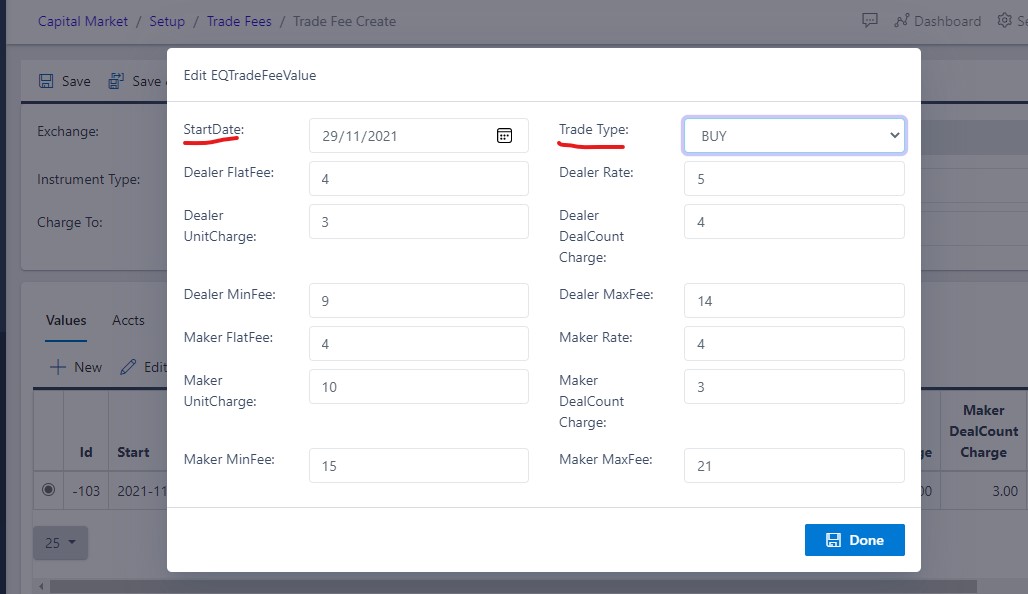
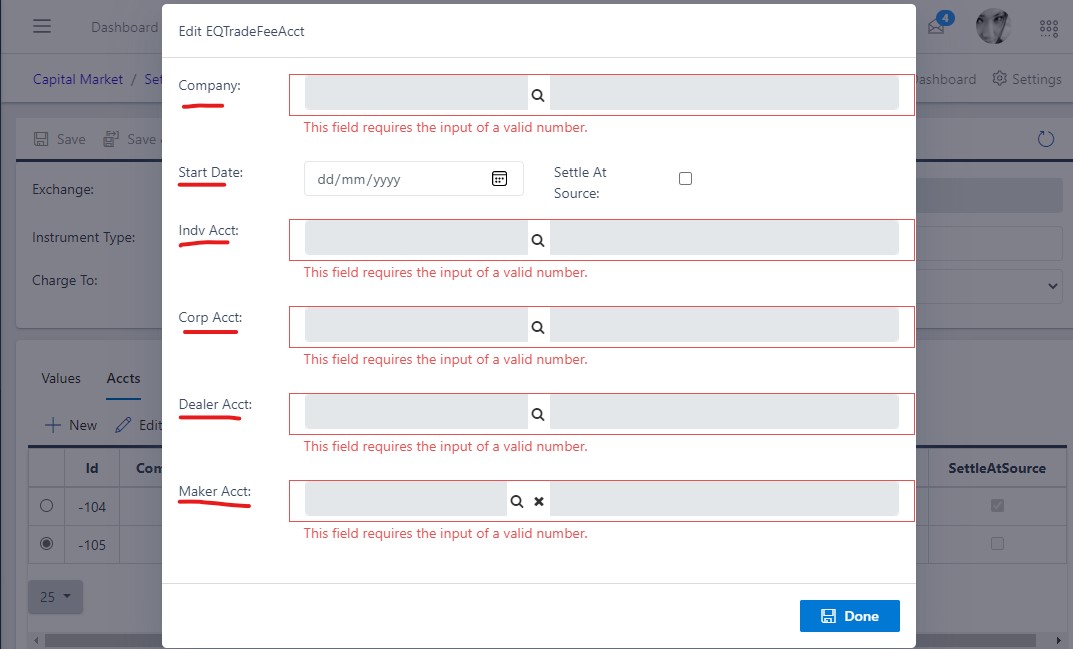
Fig 3.3 shows the sample fields to be filled out under the trade fee accts. To see this screen, user should click on the New Button highlighted in fig 3.1 above. Parameters to be filled include, Company, Start Date, Individual and Corporate Account, Dealer and Maker Account. Once the user has completed filling out the form, user can proceed to clicking Done.
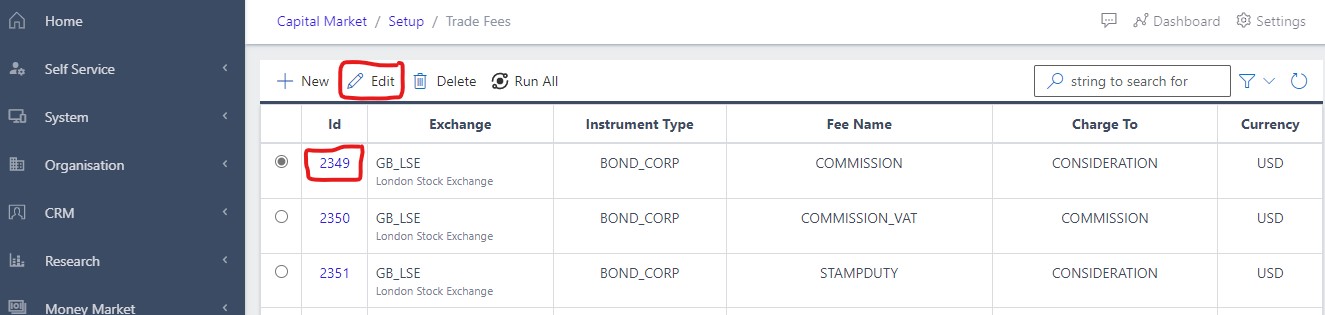
Editing a trade fee can only be done after the creation of a new trade fee. Editing the trade fee operations can be done by selecting any of the created trading fee’s ID shown in fig 4 below. Seleting the ID will automatically activate the Edit button as shown below. User can then proceed to editing the selected Trade fee.