Web Profiles

Viewing Synchronization Jobs

The Sync Job connotes scheduled tasks which synchronise/harmonize selected information from the application to the client portal and vice-visa. The sychronisation within the web application goes two ways: Upload- from the application to the client portal. Download- from the client portal to the application. From within the web application, you can navigate to the Sync Job from the CRM-> Portal module by; From the Web App, navigate to CRM->DashBoard->Portal. Clicking the dashboard in Portal as shown in FIG1 takes you to the portal sub-module dashboard in FIG2.
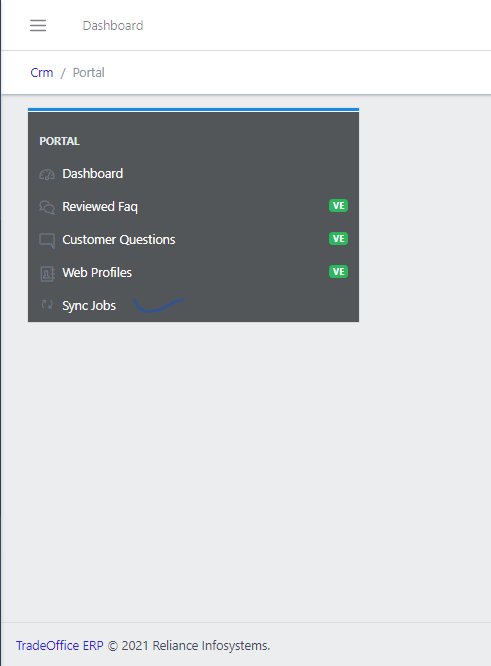
Fig 1  Navigating to Synchronization Jobs
Fig 1 Navigating to Synchronization Jobs

From the Portal sub-module, Sysnc Job is visible(as the last item on the list) as in FIG2
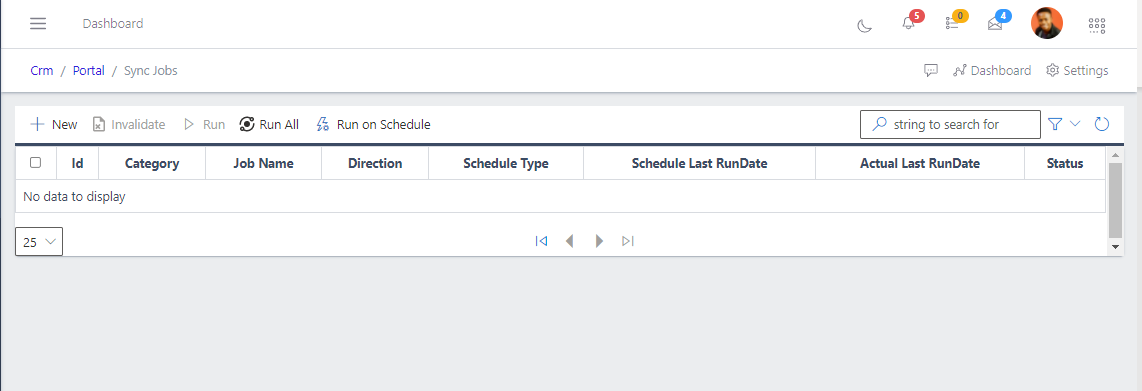
Fig 2  Listing to Synchronization Jobs
Fig 2 Listing to Synchronization Jobs

The activites that can be performed in the Sync Job

  • NEW button in the list view helps create(as the name imply) a new job to the scheduled. You can pick the date that you want the task to be done.
  • RUN button help run a specific job. Using the run the RUN button, you can choose to run a specific job from the list by picking the Job to run.
  • RUNALL button help run more than one job at a time. Instead of picking the Job one at a time, RUNALL runs all task that is within a certain category. By clicking the RUNALL button, the system will ask you to choose a category you want to run all their Sync Job.

Search Sync Jobs

SEARCH button help search from the list view Sync Job with certain status(isActive, isDisable, All). Clicking the Search button pops-up a new screen that require you to enter the Sync Job and the status it belongs to. You can, however, perform search in two ways;

  • By status- This will list all Sync Job with the status you’ve specified.
  • By Sync Job ID- This will return the exact Sync Job with the ID specified.
  • RUNSCHEDULE button help run all Sync Job as scheduled(within the time we specified).