Title here
Summary here
The prevailing relationship managers sub-module provide users with the ability to keep track of their customers and respective relationship managers, users can view and update this record where necessary. Updates can be done in bulk or individually or as the case may be.
To navigate to the prevailing relationship managers, from the homepage of the ERP, on the side bar navigation locate the “CRM” module and click on it, you will see a list of drop down menus, select the “Records” sub menu in the dropdowm menus, you will have the records dashoard displayed with different sub modules, now select the Prevailing Rel Mgrs menu. see image below
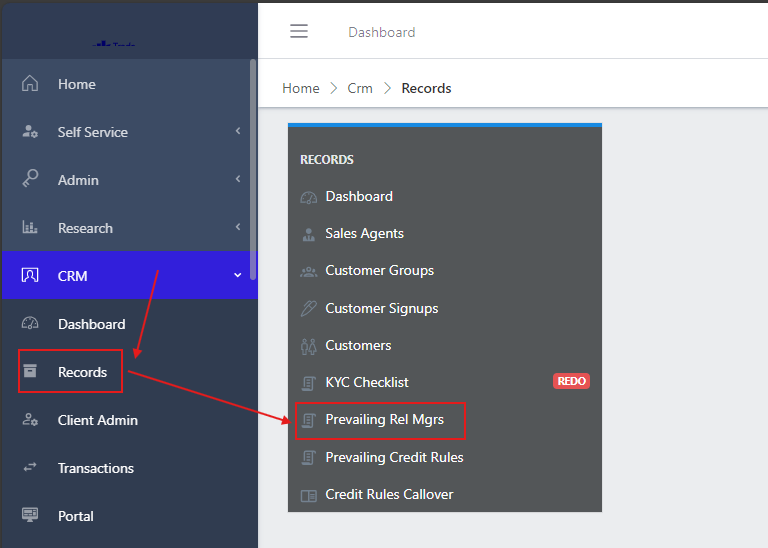
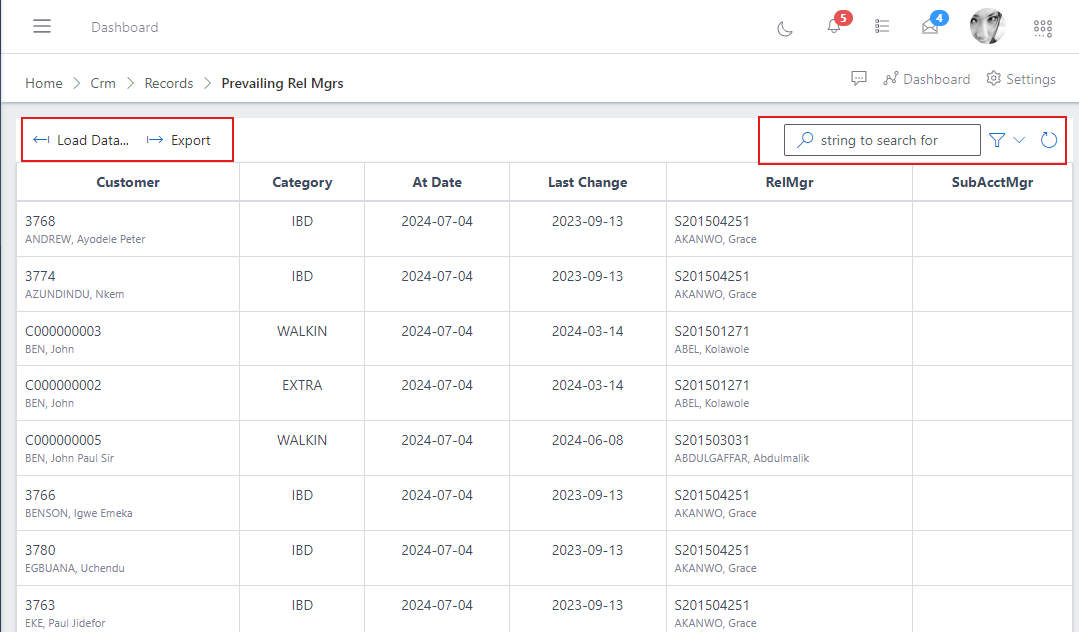
The image belows shows a table with the list of customers and their respective relationship managers from a holistic point of view, with other information such as the customer category/group, start date (At Date), Sub account manager (SubAcctMgr) and command buttons for exporting (export) or importing (load data) a list of prevailing relationship manager data via an excel document.
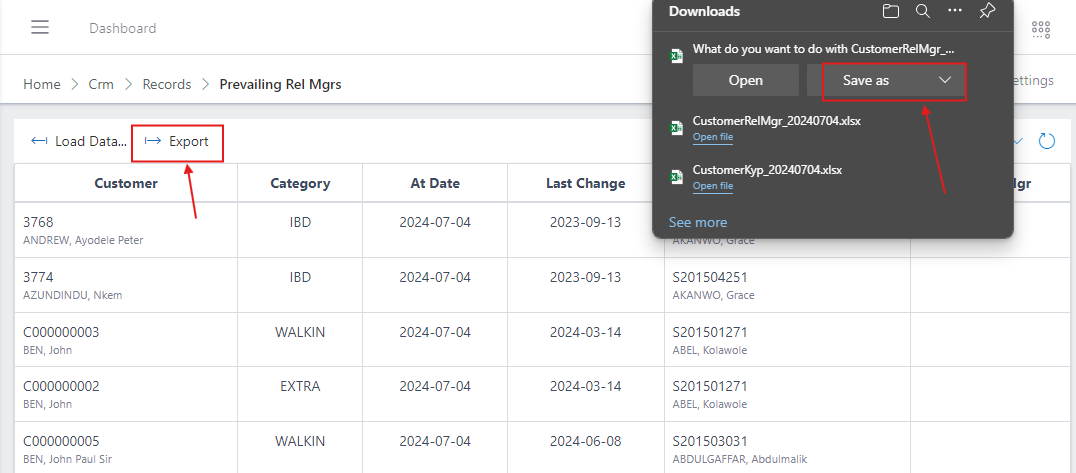
To export the data of the prevailing relationship managers, click on the export button, you will notice you browser automatically downloads a file called “CustomerRelMgr_{export date}” or shows a popup asking you to save or download the a excel document with the name as shown in the image below
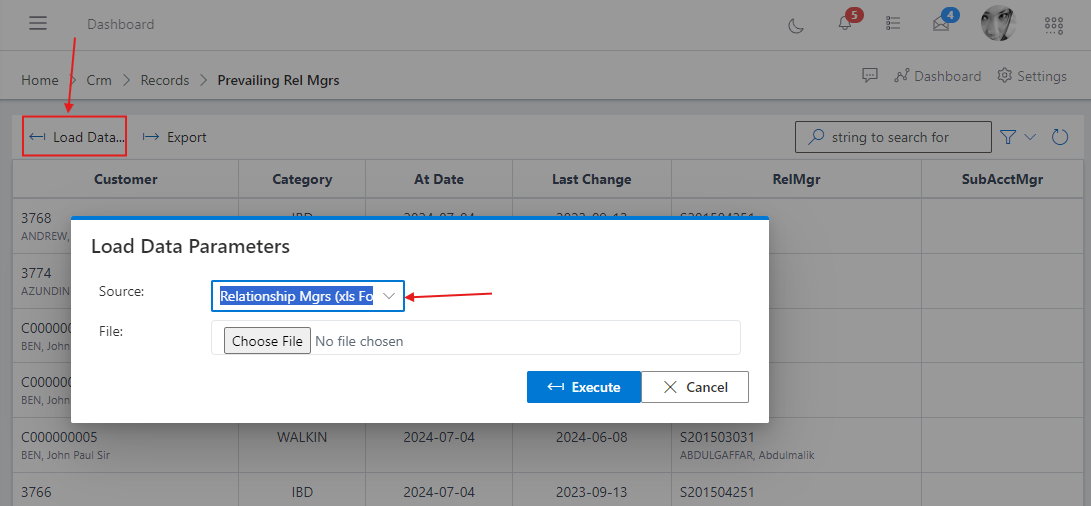
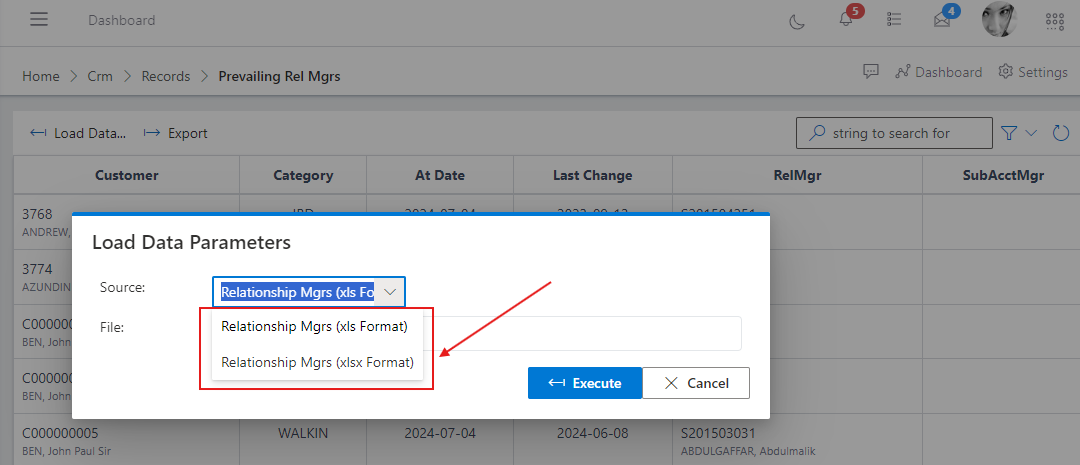
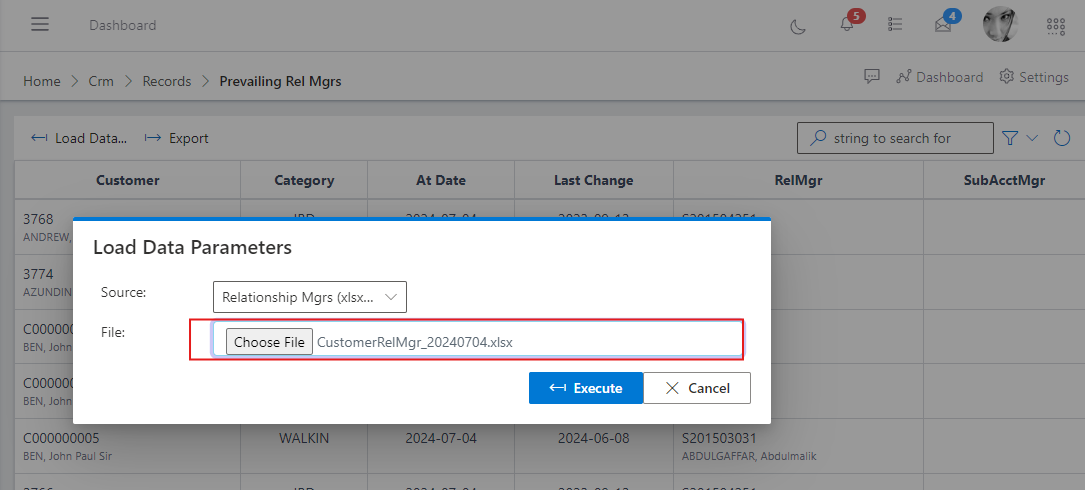
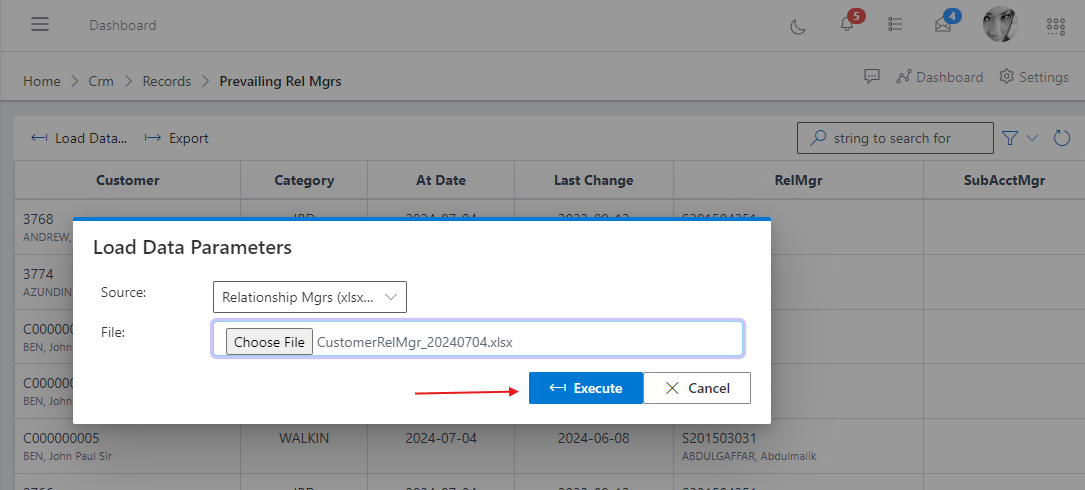
The system supports the excel file formats (.xlsx) or (.xls), To load or import the data of the prevailing relationship managers, click on the “Load Data” button, this is usually advantageous if you want to upload a list of customers and thier respective relationship managers in bulk.
Once you have clicked the “Load Data” button, you will see a modal pop-up, click on the source dropdown to choose the desired excel document format you want to upload, (.xlsx) or (.xls). see images below: