Title here
Summary here
The Call note feature provides admins the ability to log and keep track of customer calls in an organized manner. You have a centralized location within the app to save call notes and it’s necessary information, search for specific call note by using the available search filter options for ease of access.
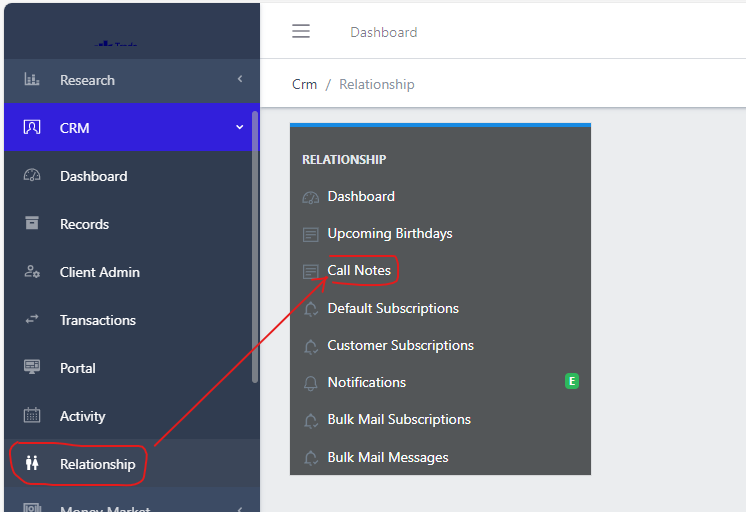
To navigate to Call note, from the homepage of the ERP, on the side bar navigation locate the “CRM” module and click on it, you will see a list of drop down menus, select the “Relationship” sub menu in the dropdowm menus, you will see a list of menus on the client admin dashboard, now select the Call note menu. see image below
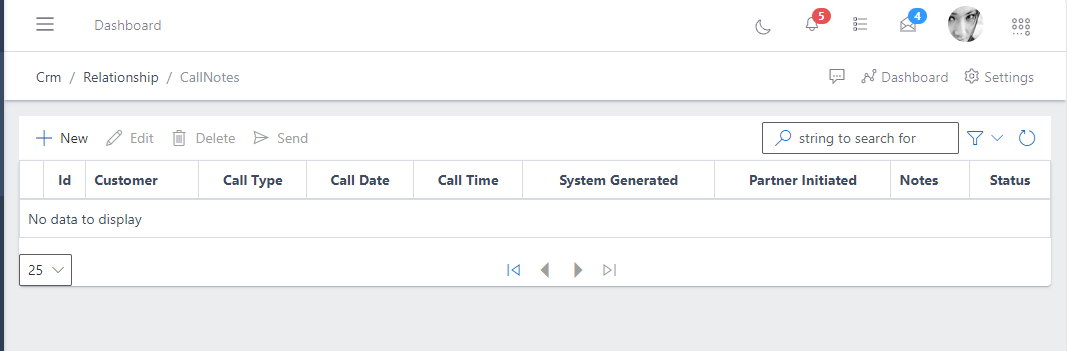
From the Image below, it shows the view where call notes are saved, note: There is currently no call note saved and by the end of this documentation guide, we will be creating and saving a call note.
You can quickly search for a specific call note by inputing the client/customer name or ID in the search box, as well as using the search filter by clicking on the filter icon (looks like a funnel) to filter your search by the available filter options, in this case either by the client/customer “group” or the call note “status”
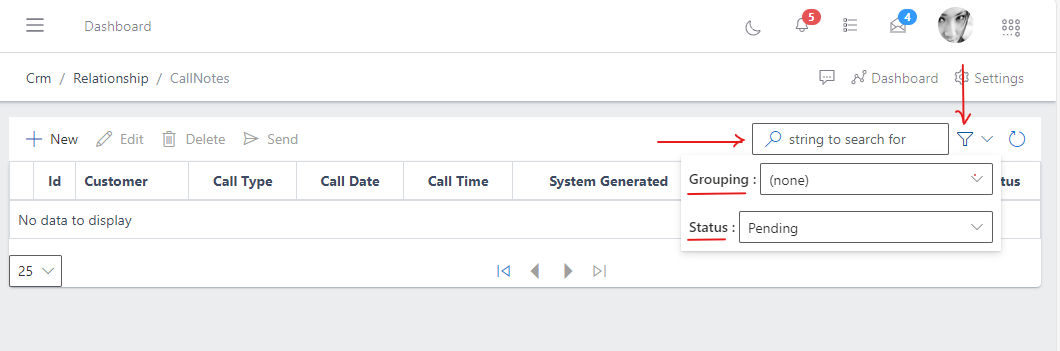
Finally to execute your search, press the enter key or the refresh icon on the right side of the filter button. see image above.
To create a call note, first click on the new button as show below,
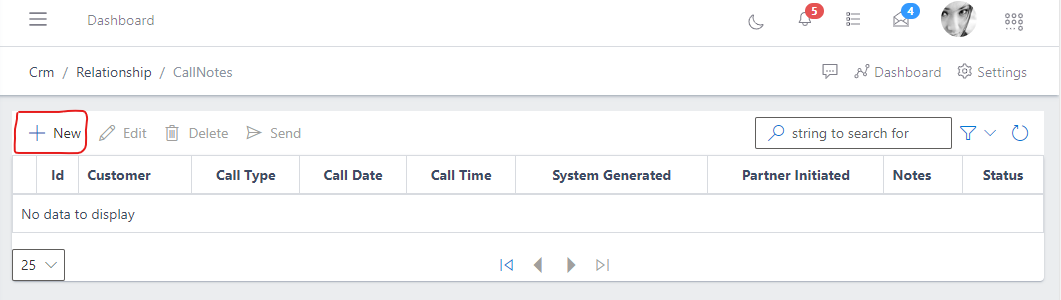
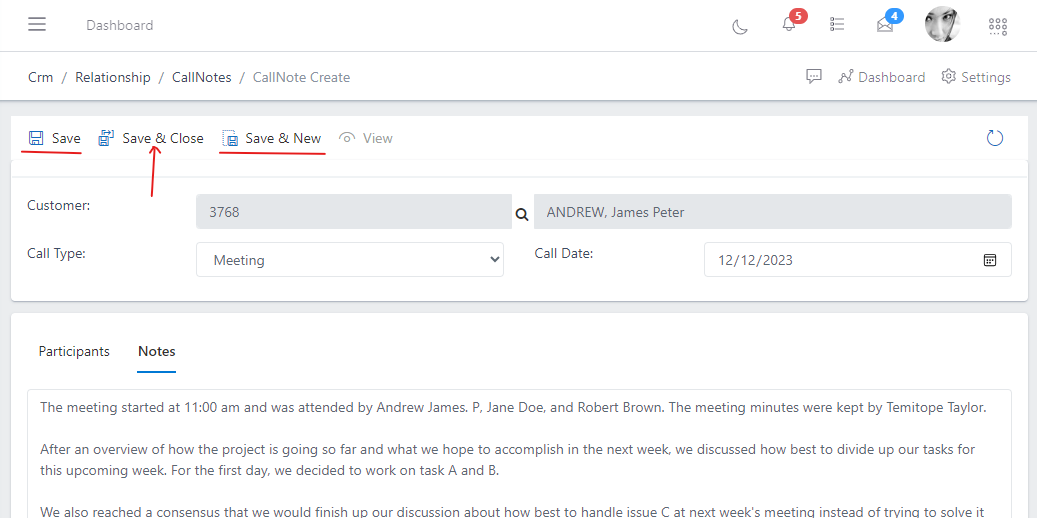
After clicking on the new button, you will be taken to a form where you will need to fill up the necessary details of the call, such as the customer involved in the call, the call type and call date. Below there is also a section to add participants and the call / meeting notes.note: All infomation must be filled in order to be saved. see image below:
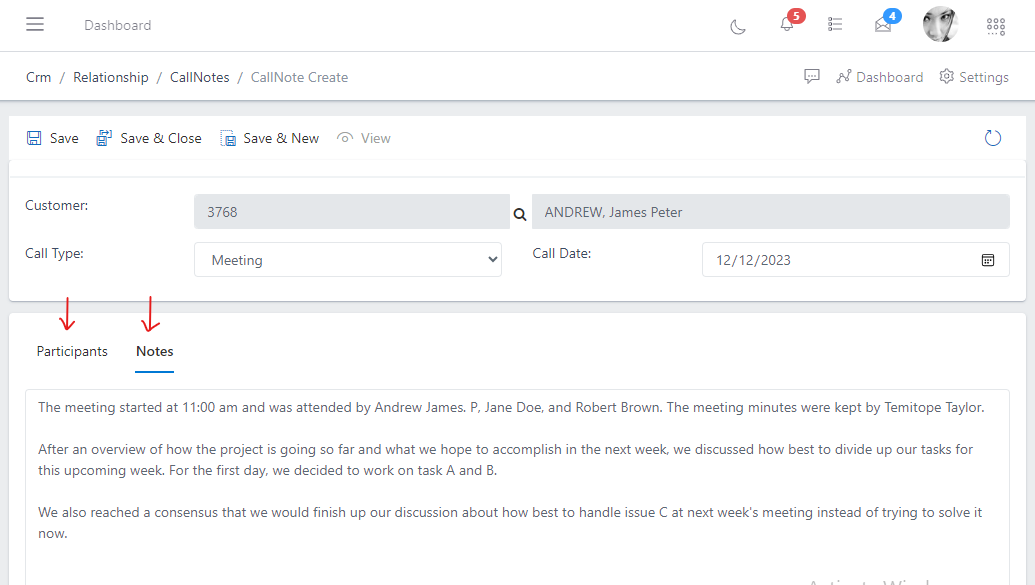
To save the call note, click on any of either “save” or “save & new” or “save & close” buttons.
Note: the save button saves the call note and remains on the same page, the save & new: saves the call note and automatically opens a new form to create another call note, save & close saves the case details and takes you back to where you can see the list of call notes. In this case we will be using the save & close button
see image below: