Title here
Summary here
The default subscription is used on a group of customers that share similar request (example include; valuation summary). These customers are grouped based on their subclass.
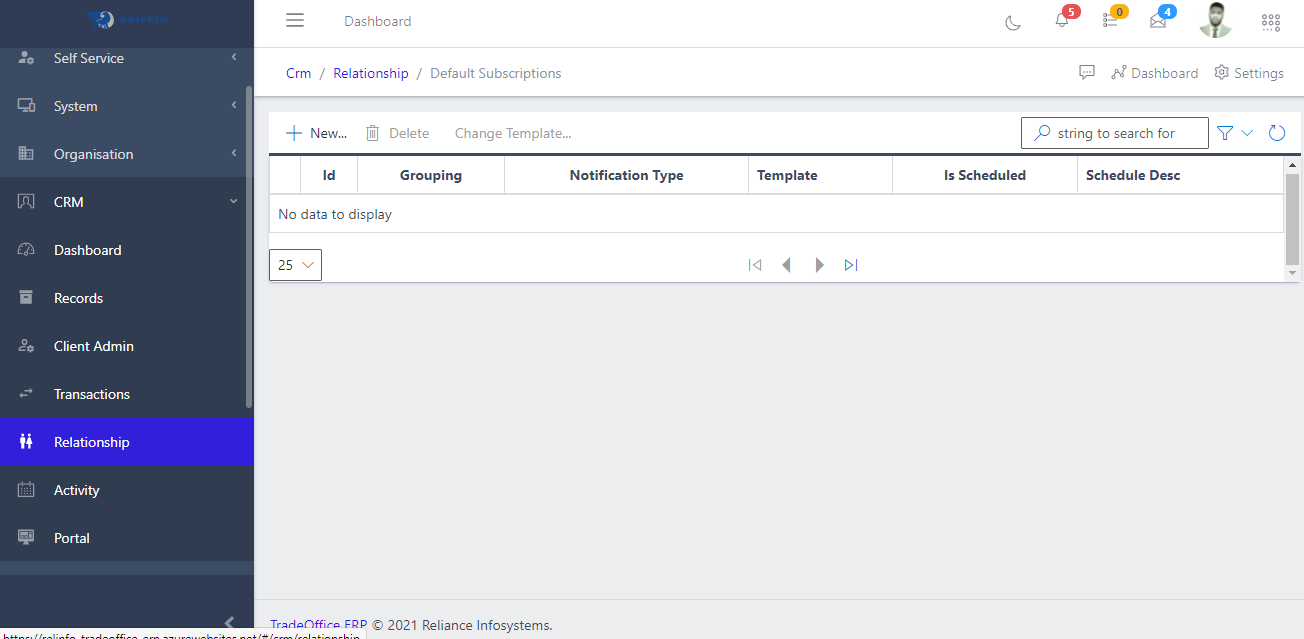
To create a default subscription, one have to navigate to Default subscription view as shown on Fig 1.0 and click the new button. On clicking the new button, a new screen appear as shown in Fig 1.1 below.
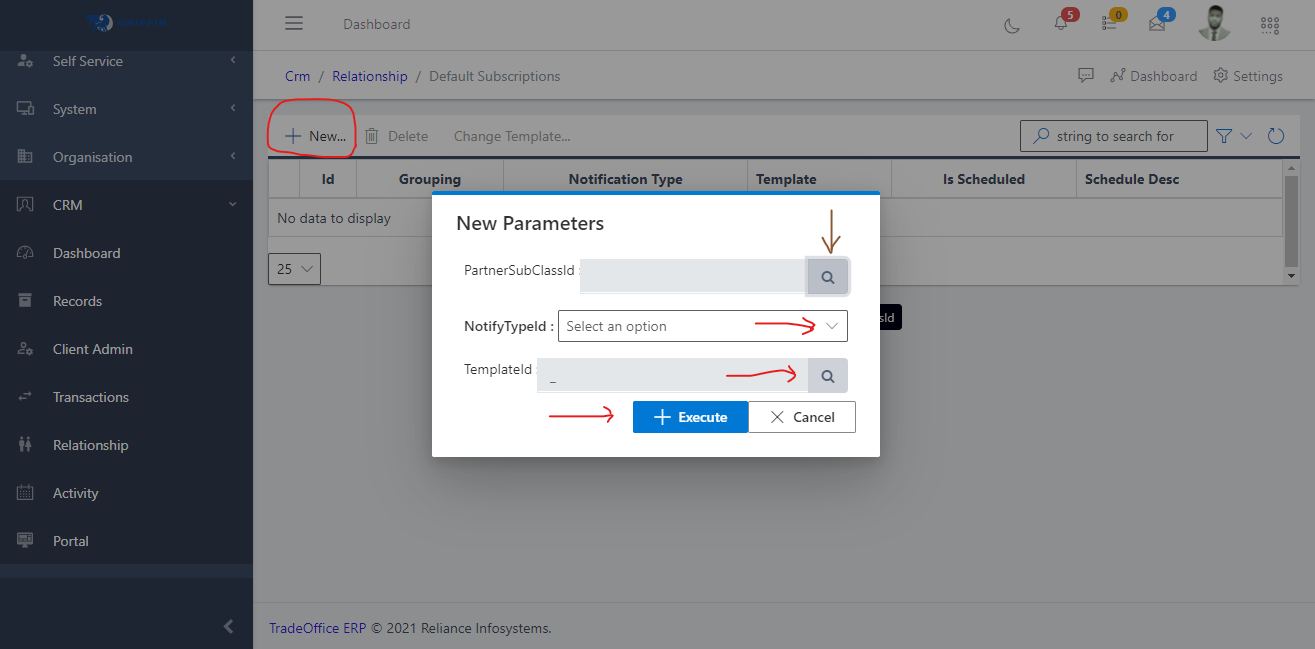
From Fig 1.1 above, you can select a partner subclassID by clicking on the search button(marked with brown arrow) to bring down a list where you can select from, select the notification type(marked with red arrow) you want all the customer of this partner class to receive by clicking the dropdown button for more options, and lastly the template format the notification will adhere to. NOTE: The notification template must have been created in order to select a templateID. Click on Execute button once you are done filling the necessary fields.
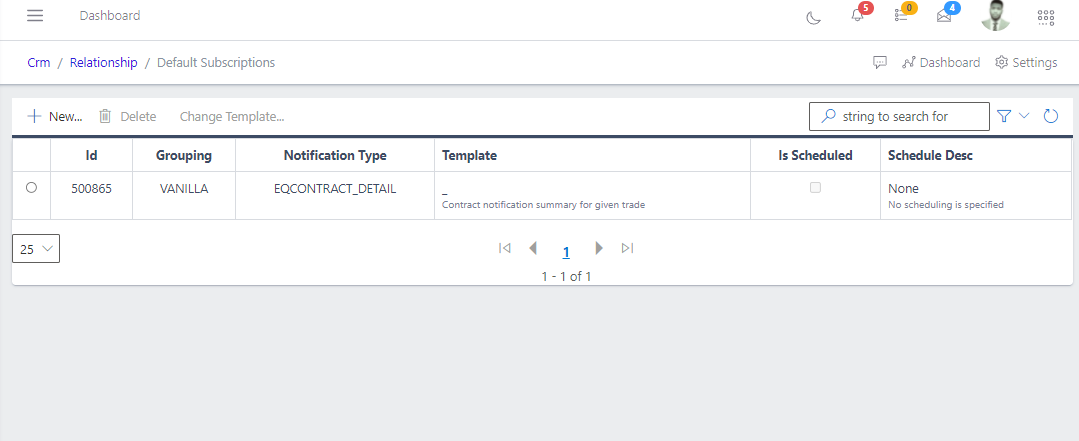
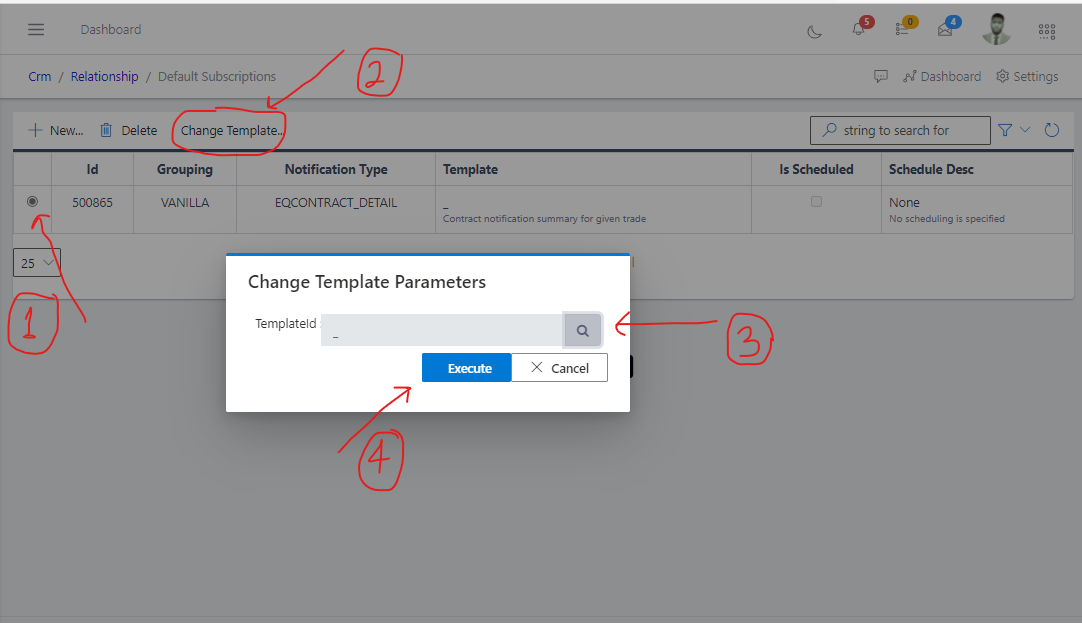
After the creation of a default subscription, you might find out you are using the wrong template for the subscription. The Change Template button help you change the template used for the subscription. On clicking the button, a new screen pop out where you can select the another templateID as shown in Fig 1.3 below.
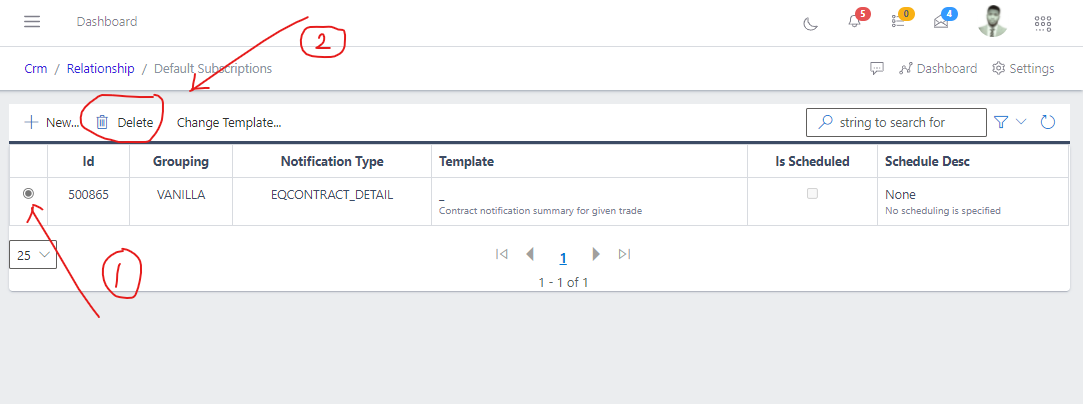
Default subscriptions can be deleted by clicking on the delete button . On clicking the delete button, the template is automatically wiped out of the list as showm in the image below: