Title here
Summary here
The Customer Cash swap section generally refers to a process where cash transactions or balances are adjusted, exchanged, or reallocated between customers.
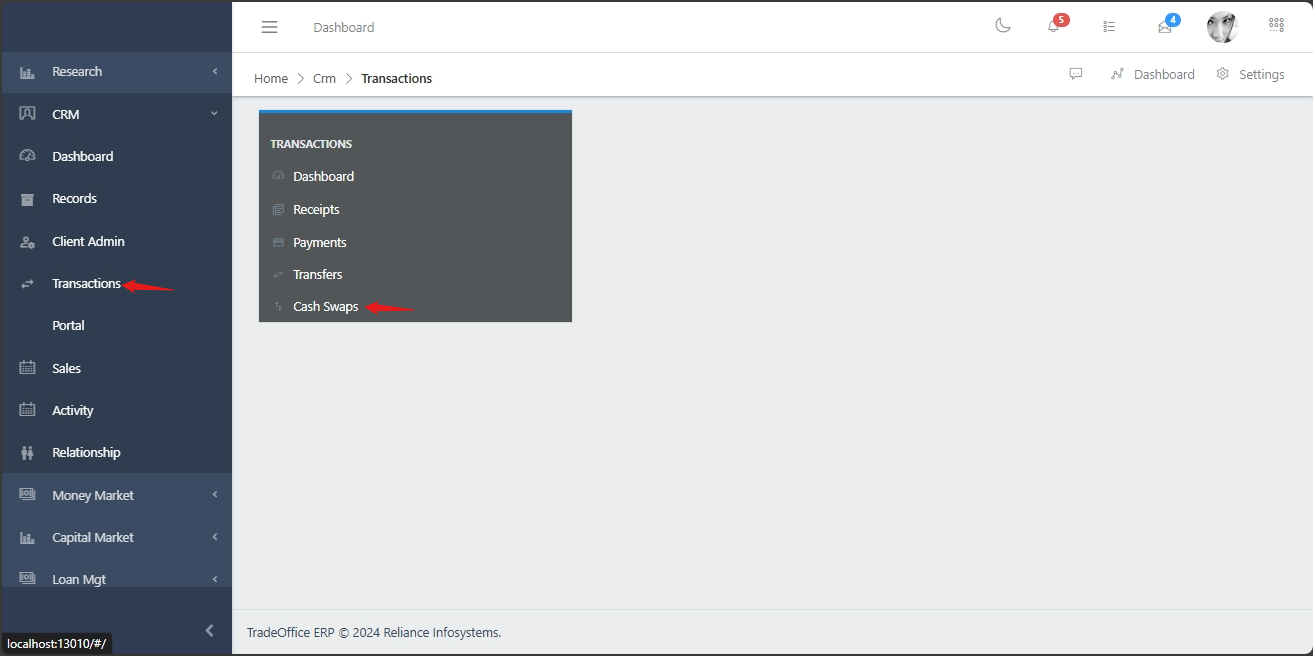
To navigate to the cash swap submodule, from the homepage of the ERP, on the side bar navigation locate the “CRM” module and click on it, you will see a list of drop down menus, select the “Transactions” sub menu in the dropdowm menus, you will have the transactions dashboard displayed with different sub modules, now select the “Cash swap” menu. see image below
When Cash swap is clicked on, you will be directed to the the page below, in the image below you have a centralized list of all cash swaps with the Voucher No, customer, channel etc. You also have a list of commands (highlighted in the image below) above the cash swaps list that you can use to perform various actions on a particular transfer by selecting the radio button on the left hand side

You can filter the transfers using the filter button (funnel icon) on the right side of the search bar. You can search for a cash swap using the voucher no or customer, you can filter your search by the date or status etc as shown in the image below.

To create cash swap, follow the steps below:


In the image below there is an description&confirmation and documentation section.

Filling the Description&Confirmation section, you click on New button and fill the required fields.

Filling the Documentation section.
