Expense Types

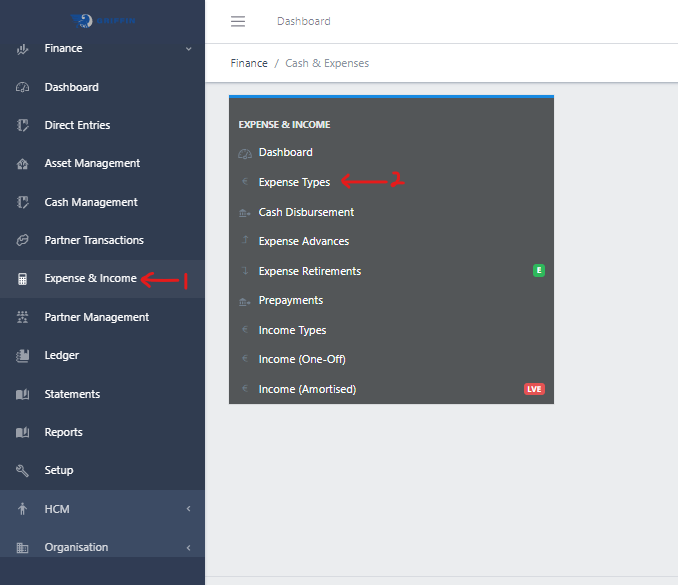
  • Step 1: Access the Expense and Income sub-module of the Finance module from the left sidemenu as shown in the fig1 below.
  • Step 2: Click on Expense Types as shown in the fig1 below.
Fig 1 Navigating to Expense Types
Fig 1.0 Navigating to Expense Types

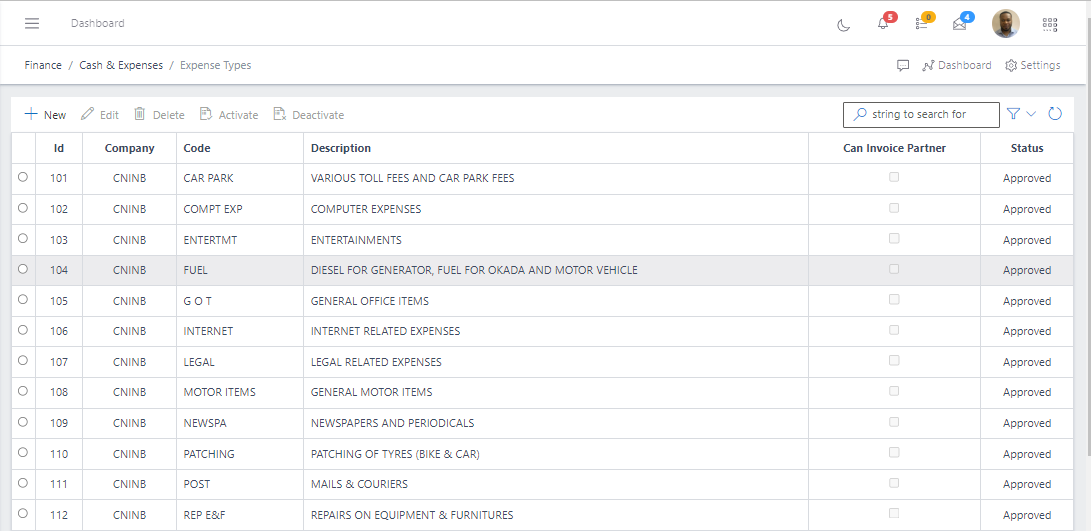
  • This displays a list view of Expense Types.
Fig 2 Listing Expense Types
Fig 1.1 Listing Expense Types

Filtering Expense Types

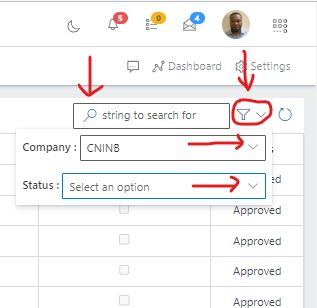
  • Use the Filter button, when clicked, gives you a dropdown where you can specify various parameters for filtering the records:
    • Search string: for filtering records
    • Company: A dropdown list of companies
    • Status: A dropdown list of statuses
Fig 3 Searching Expense Types
Fig 2.0 Searching Expense Types

Create an Expense Types

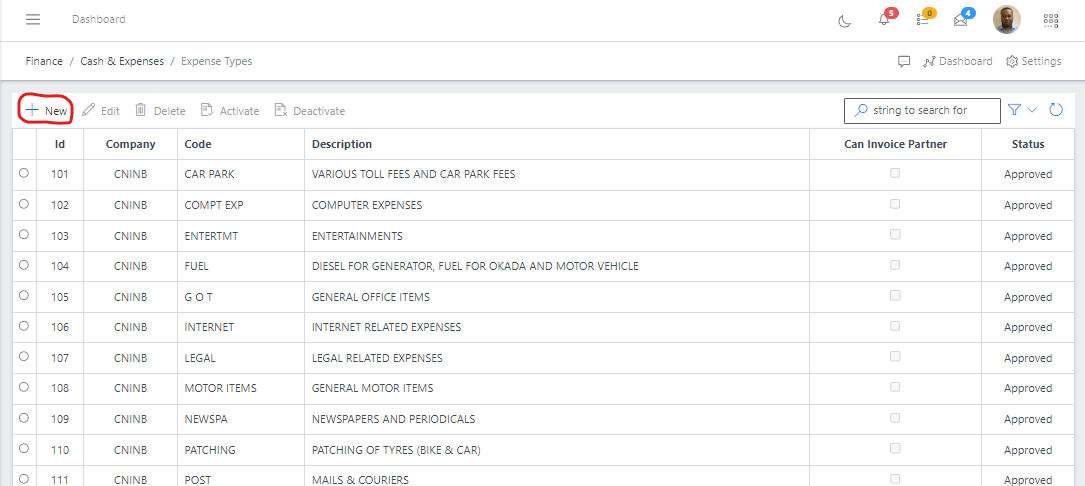
  • To create a Expense Types, hit the Create button in the toolbar area and populate the form fields.
Fig 3.0 Creating Expense Types

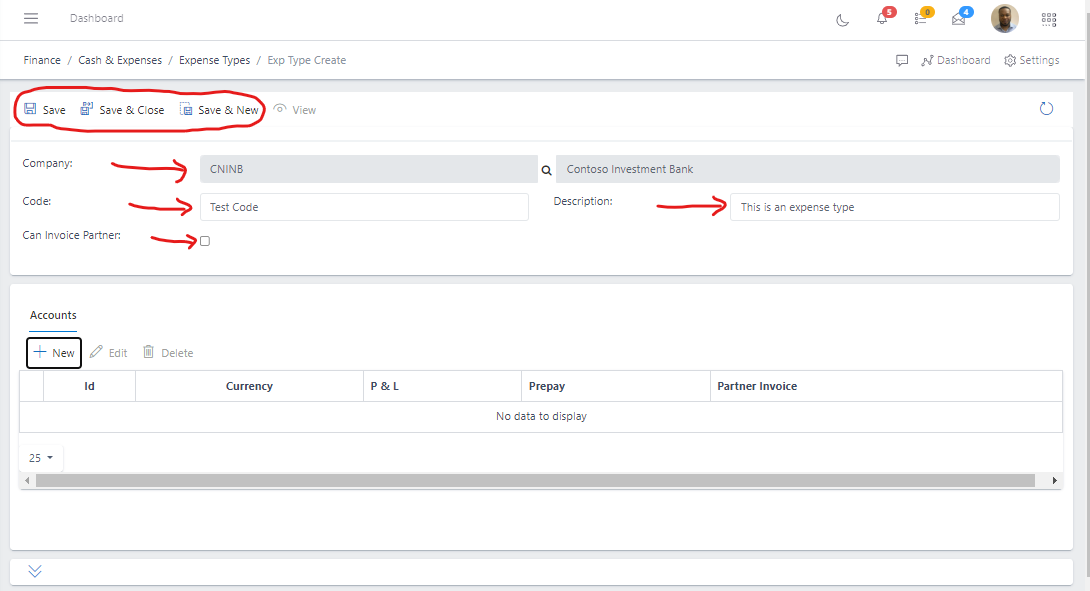
  • The following are some of the fields that needs to be populated:

    • Company
    • Code
    • Description
    • Can Invoice Partner
  • You also need to populate the fields in the Accounts tab:

    • Click the New button in the Documentation tab
    • After filling out the form, hit the Save and Close button.
Fig 3.1 Saving Expense Types

View an Expense Types

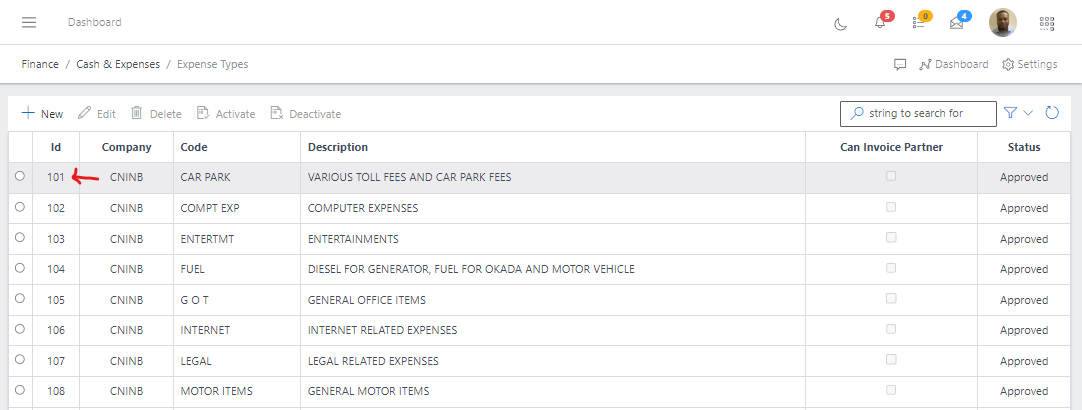
  • From the list view, click on the ID of the Recurring Journal to view it
Fig 4.0 Viewing Expense Types

Edit an Expense Types

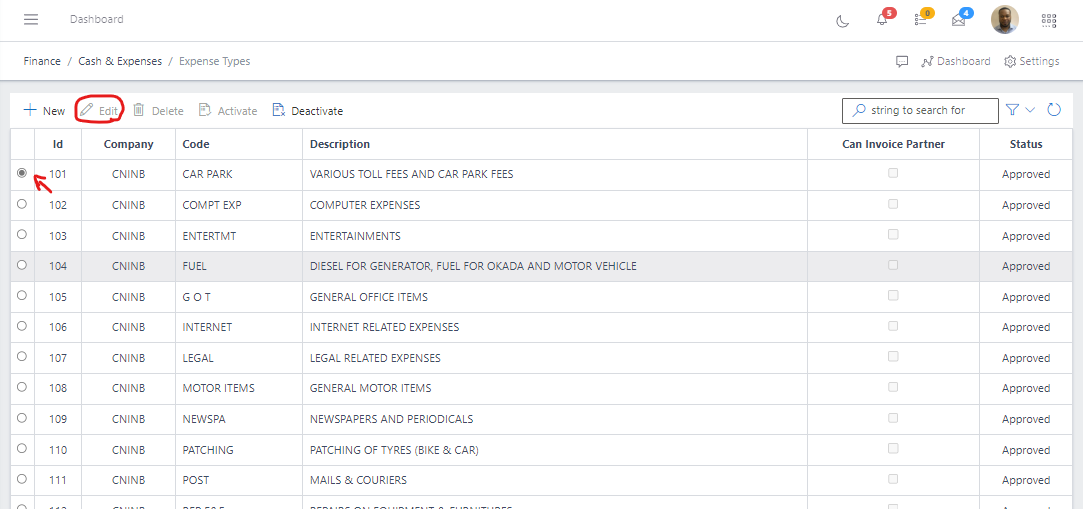
  • From the list view, select the Expense Types you want to edit by clicking on a radio button
  • Click the edit button to edit the Expense Types you just selected
  • After editing, save the changes.
Fig 5.0 Editing Expense Types

Delete an Expense Types

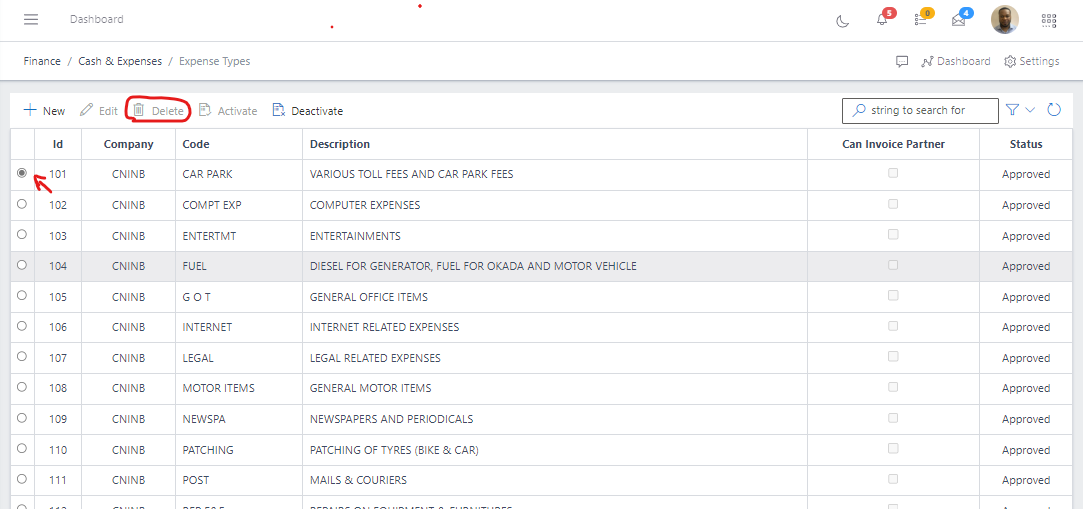
  • From the list view, select the Expense Types you want to delete by clicking on a radio button
  • Click the delete button to delete the Expense Types.
Fig 6.0 Deleting Expense Types

Activate an Expense Types

  • When you create a Expense Types, it status will be pending
  • To activate the newly created expense type, search for the expense type using the search filter
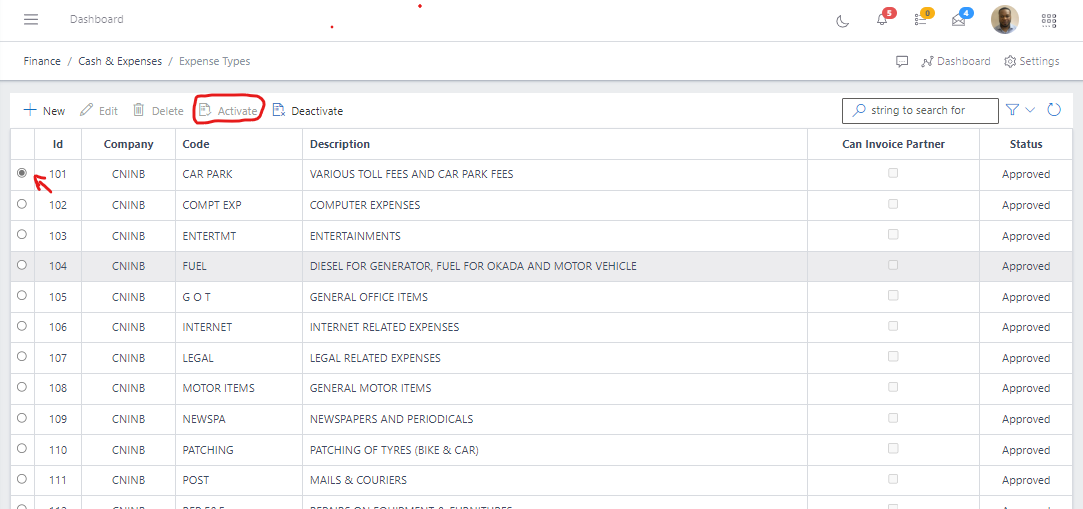
  • Then click the Activate button to activate the expense type (it status will change to Active)
 Image showing button to activate a expense type.
Fig 7.0 Image showing button to activate a expense type.

Deactivate an Expense Types

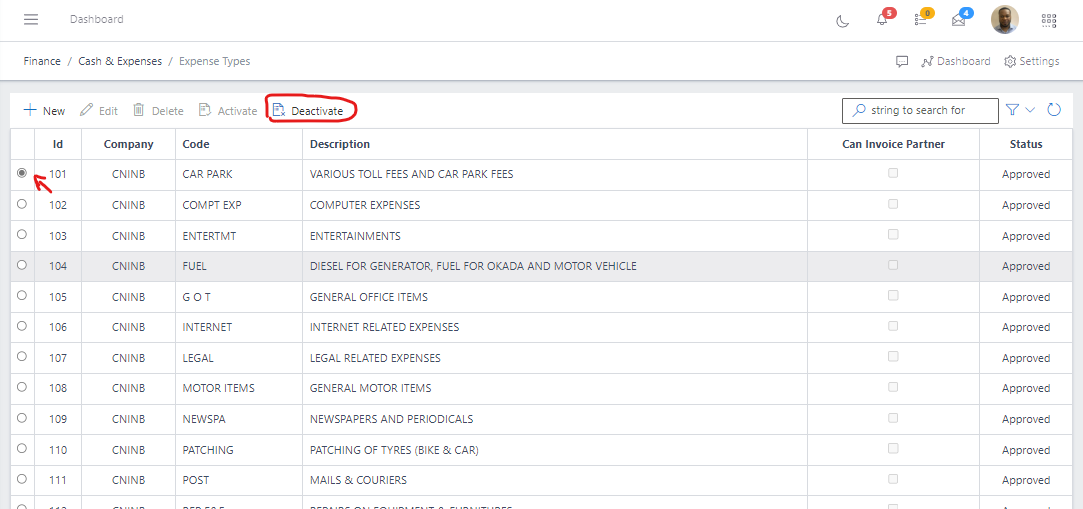
Only an active expense type can be deactivated
  • To deactivate an active expense type, search for the expense type using the search filter
  • Then click the Deactivate button to deactivate the expense type
Image showing button to deactivate a expense type
Fig 8.0 Image showing button to deactivate a expense type.