GL Revalue

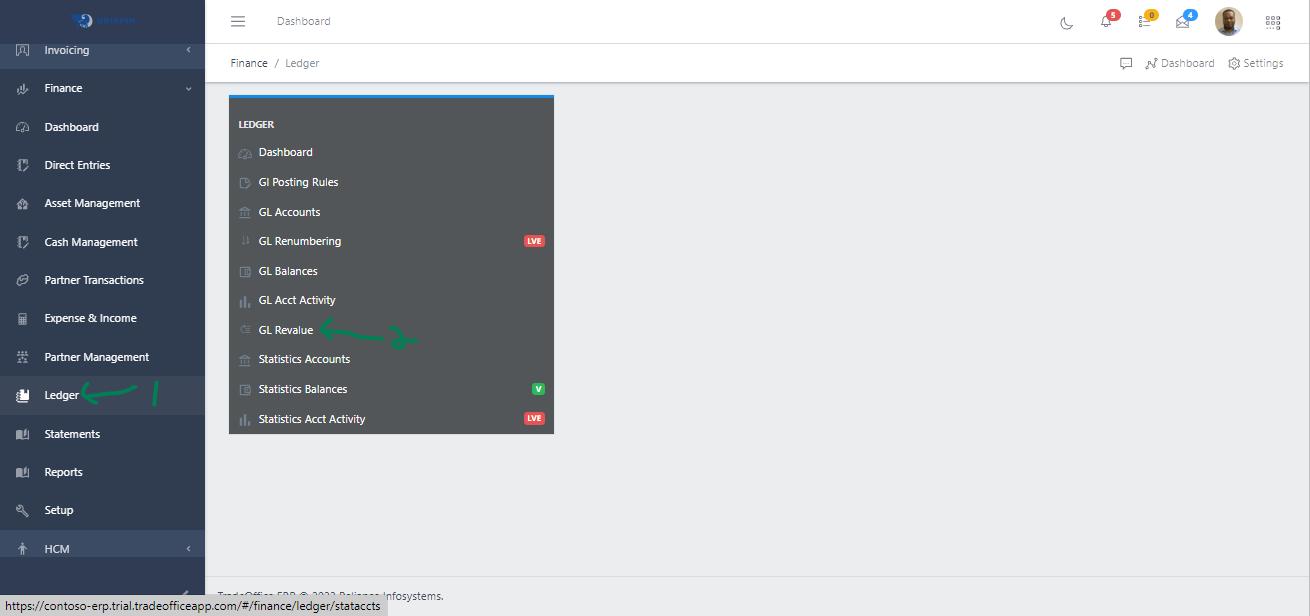
  • Access the Ledger sub-module of the Finance module
  • Click on GL Revalue
Image showing GL Revalue Navigation view
Fig 1.0 Image showing GL Revalue Navigation view.

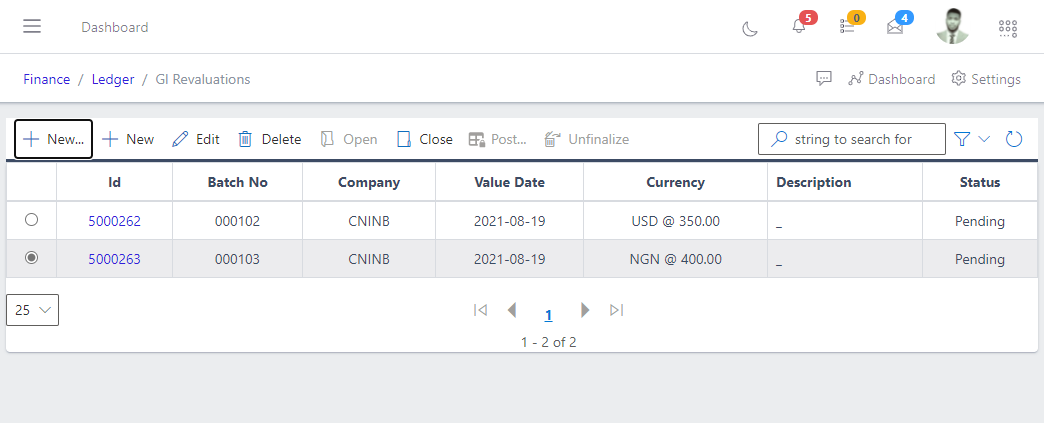
  • This displays a list view of GL Revaluations.
Image showing list of existing GL Revalues
Fig 1.1 Image showing list of existing GL Revalue.

Create a GL Revalue

  • GL Revalue can either created automatically or manually.

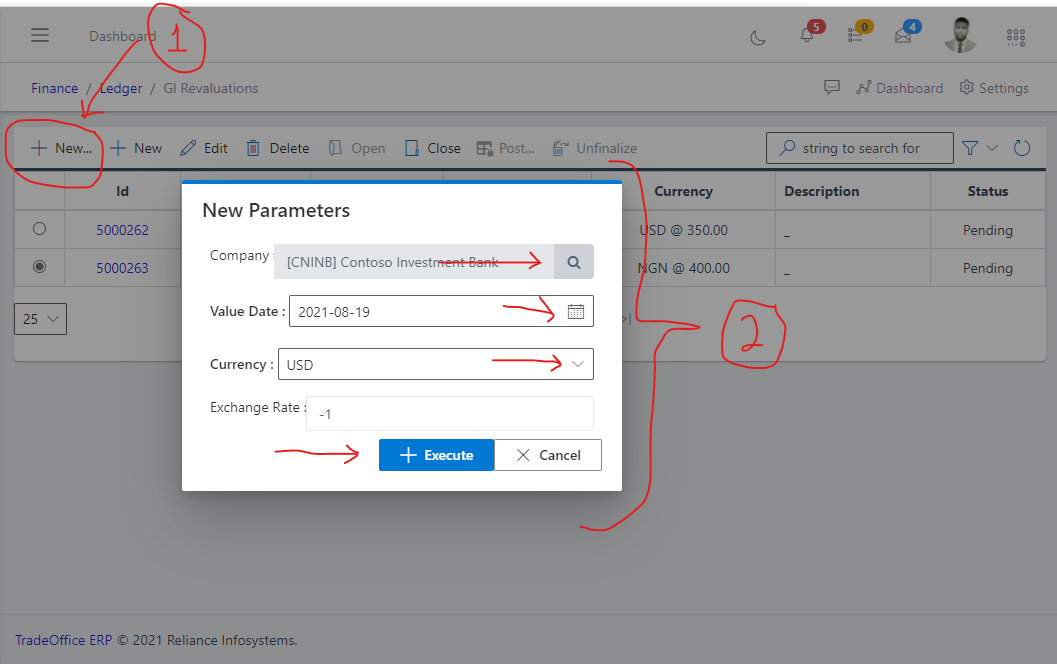
  • To create automatically hit the First New button (New…) and specify the following fields:

    • Company
    • Value Date
    • Currency
    • Exchange Rate
  • Click the Execute button

Image showing button to and fields to create GL Revalue automatically
Fig 2.0 Image showing button to and fields to create GL Revalue automatically.

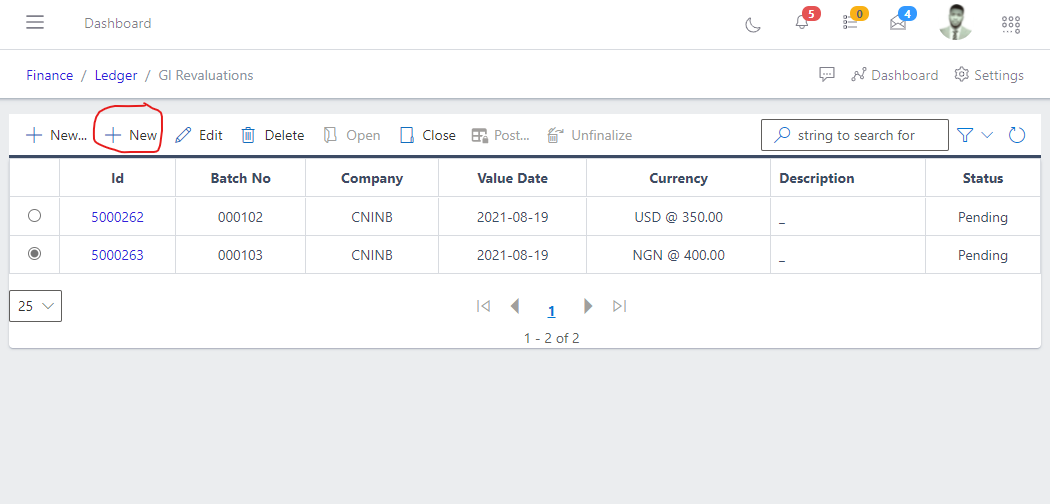
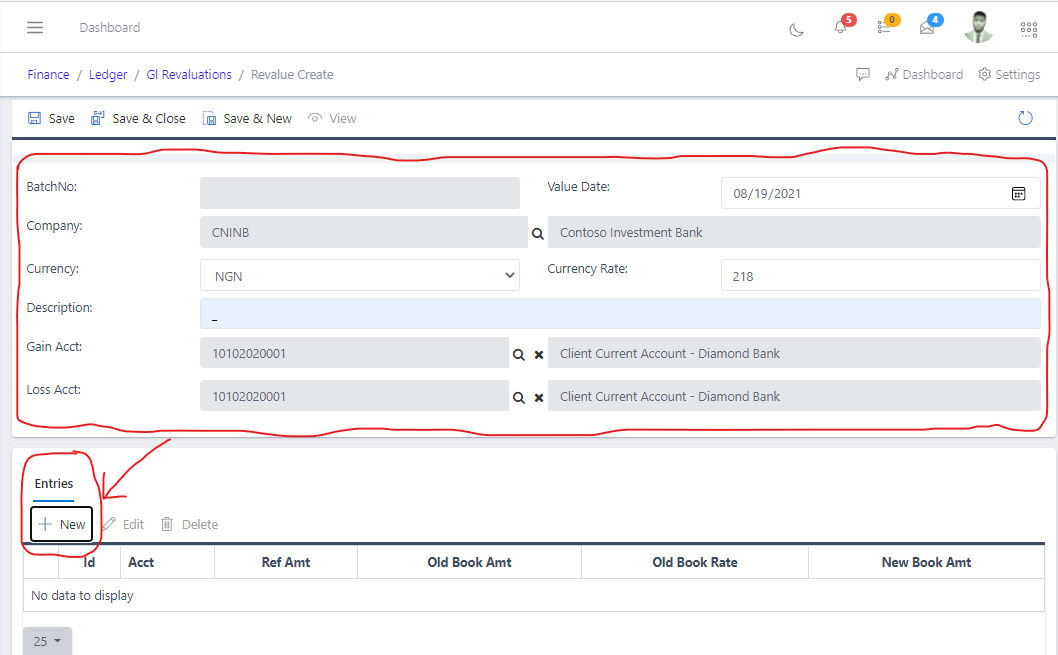
  • To create manually, hit the second new button without the three dots beneath it (New) and populate the following fields:
    • Value Date
    • Company
    • Currency
    • Currency Rate
    • Description
    • Loss Account
    • Gain Account
Image showing button to create GL Revalue manually
Fig 2.1 Image showing button to create GL Revalue manually.

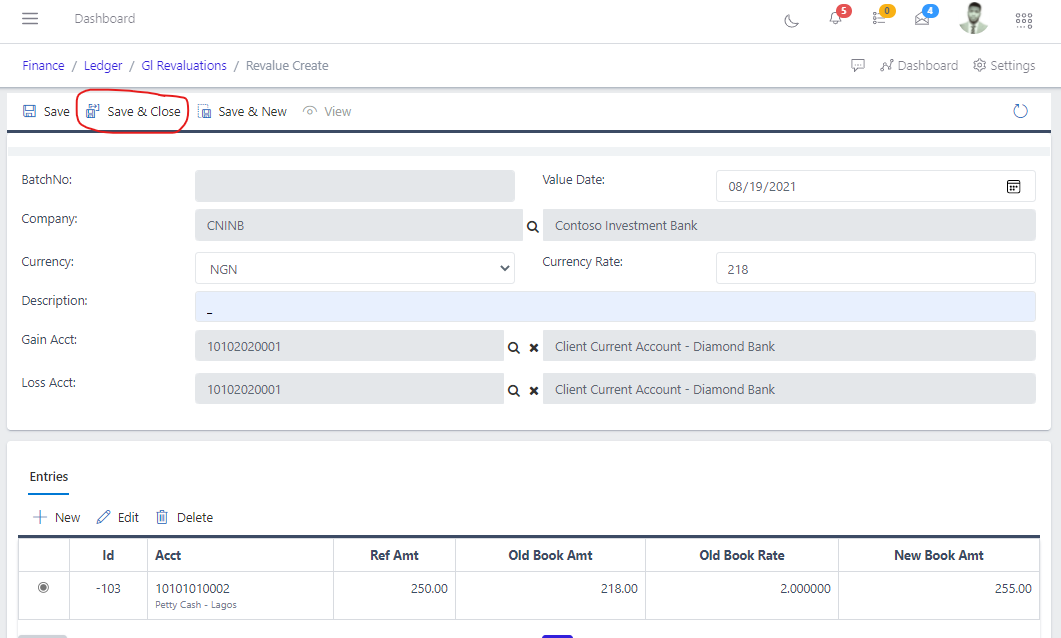
  • You also need to populate the fields in the Entries tabs
 Image showing fields in Entries tab
Fig 2.2 Image showing fields in Entries tab.

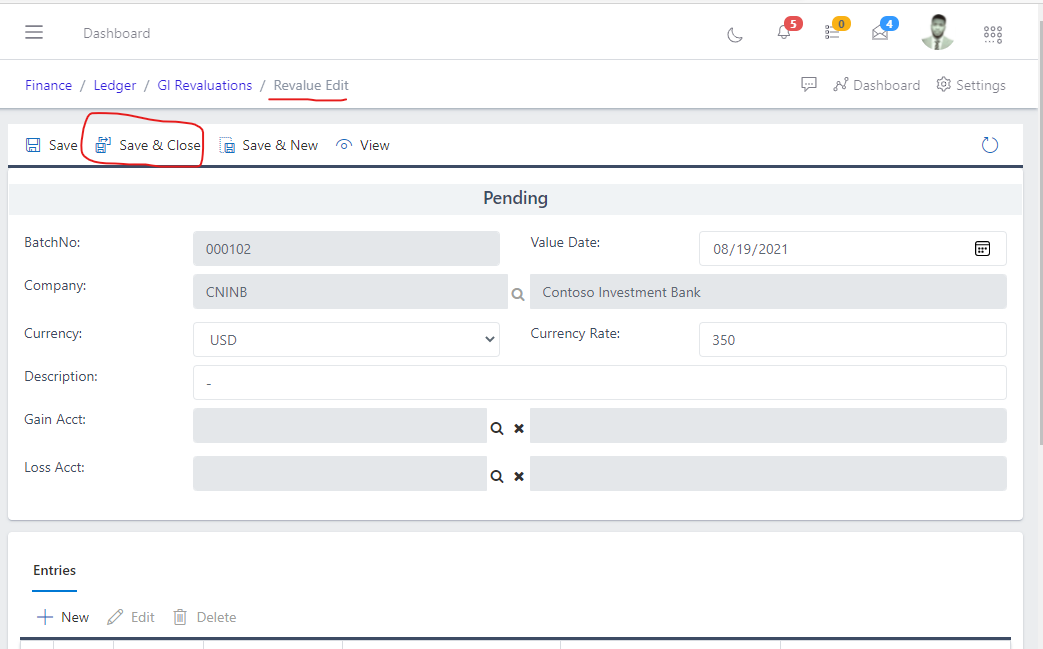
  • After filling out the forms, hit the Save and Close button.
Image showing save and close button
Fig 2.3 Image showing save and close button.

Filtering GL revalue

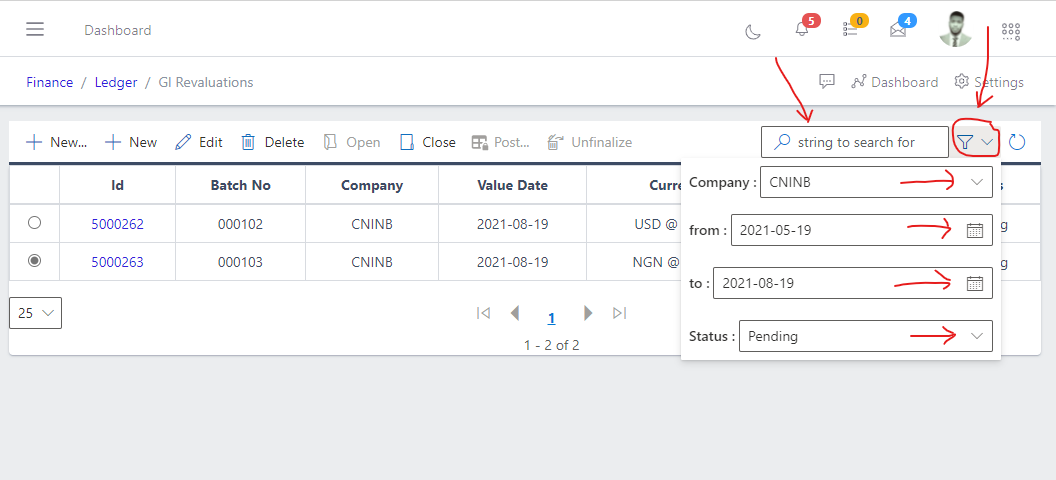
  • Use the Filter button, when clicked, gives you a dropdown where you can specify various parameters for filtering the records:
    • Search string: for filtering records
    • Company: A dropdown list of companies
    • From: Date time
    • To: Date time
    • Status
Image showing filter button and options for list of existing GL Revalue
Fig 3.0 Image showing filter button and options for list of existing GL Revalue.

View GL Revalue

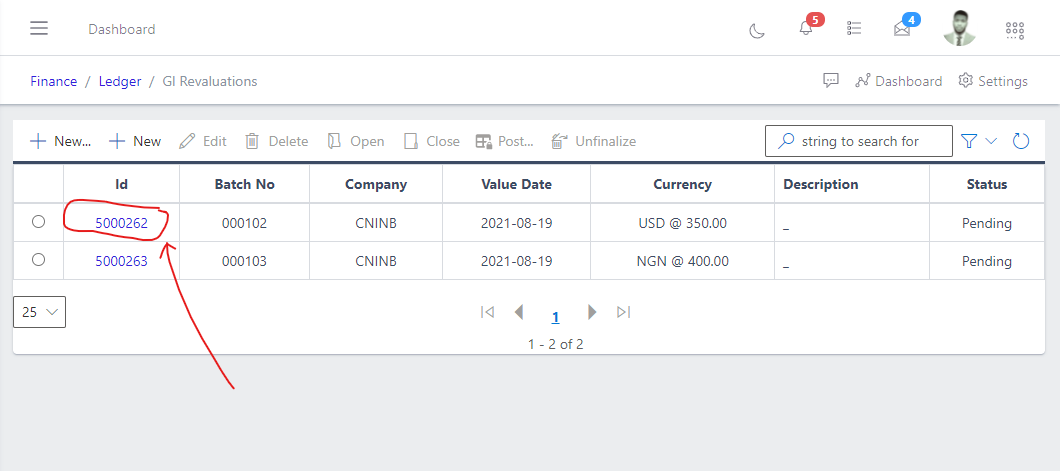
  • From the List view, click the Id of the GL revalue to view it
Image showing ID link to view existing GL Revalue.
Fig 3.1 Image showing ID link to view existing GL Revalue.

Edit GL Revalue

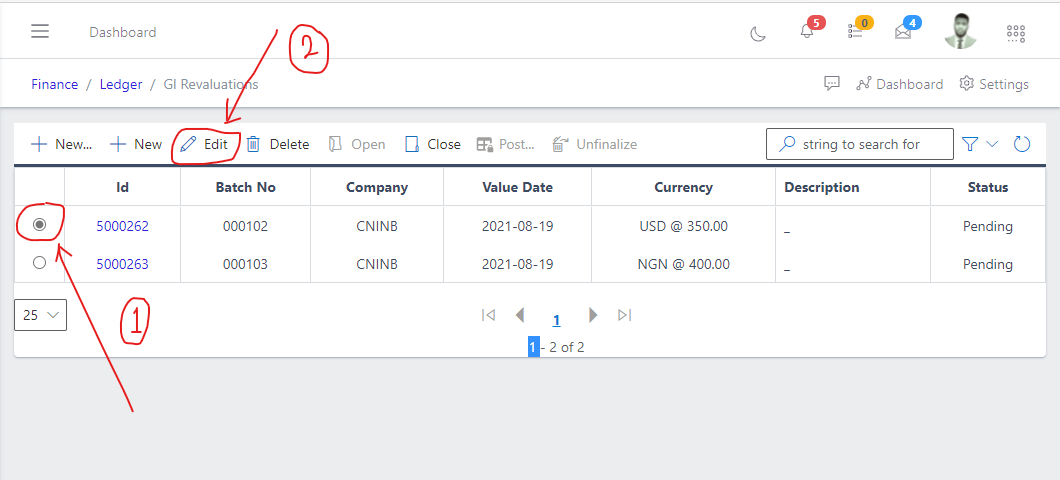
  • From the list view, select the GL revalue you want to edit by clicking on a checkbox
  • Click the edit button to edit the the one you just selected
Image showing button to edit an existing GL Revalue
Fig 4.0 Image showing button to edit an existing GL Revalue.

  • After editing, save the changes.
Image showing button to save changes to an edited GL Revalue
Fig 4.1 Image showing button to save changes to an edited GL Revalue.

Delete GL Revalue

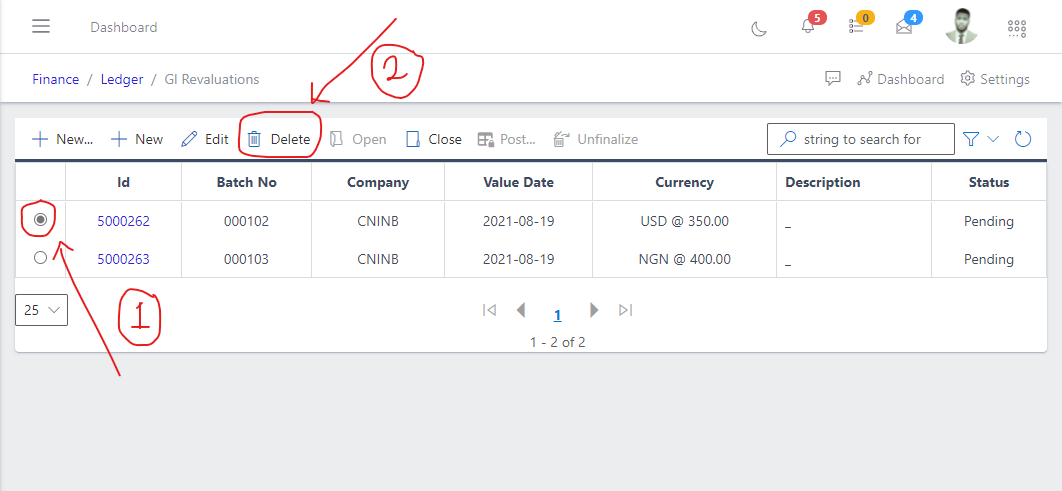
  • From the list view, select the posting rule you want to delete using the radio button
  • Click on the Delete button to delete the posting rule
Image showing button to delete an existing GL Revalue
Fig 5.0 Image showing button to delete an existing GL Revalue.

Note: Only a GL Revalue in a "Pending status" can be deleted, therefore if a GL Revalue has gone through stages of opening, closing and posting, it cannot be deleted except it is "unfinalized" for it to be reverted to a "Pending" status.

Open a GL Revalue

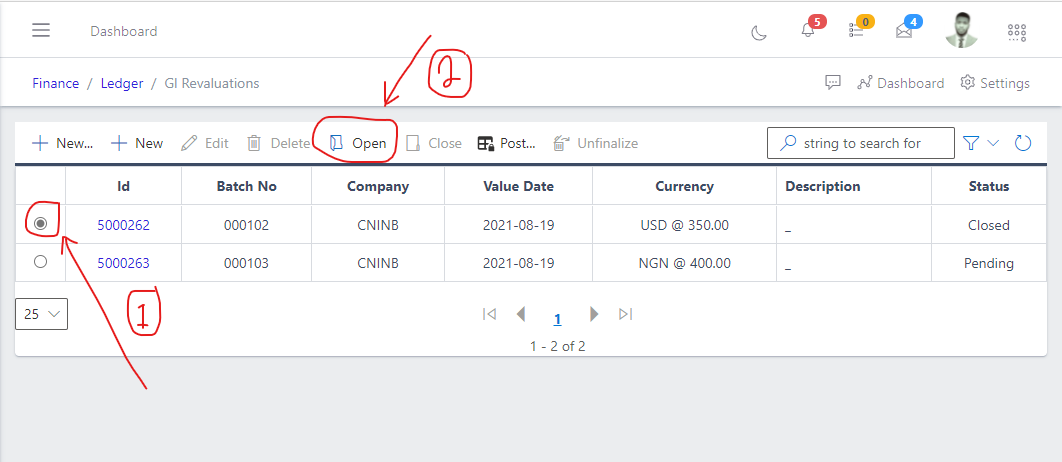
  • To open a GL revalue, select it from the list view
  • Click the Open button
Image showing button to open an existing GL Revalue
Fig 6.0 Image showing button to open an existing GL Revalue.

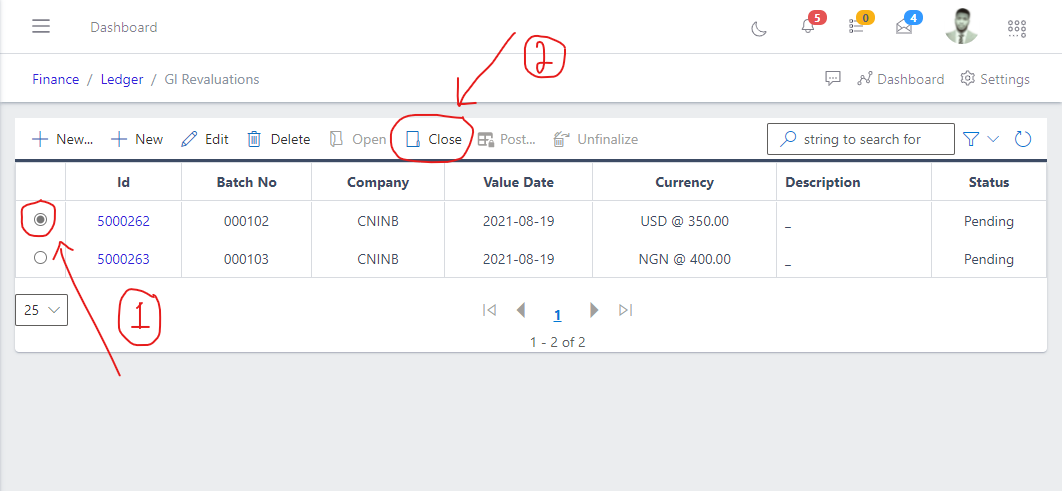
Close a GL Revalue

  • To close a GL revalue, select it from the list view
  • Click the Close button
Image showing button to close an existing GL Revalue
Fig 7.0 Image showing button to close an existing GL Revalue.

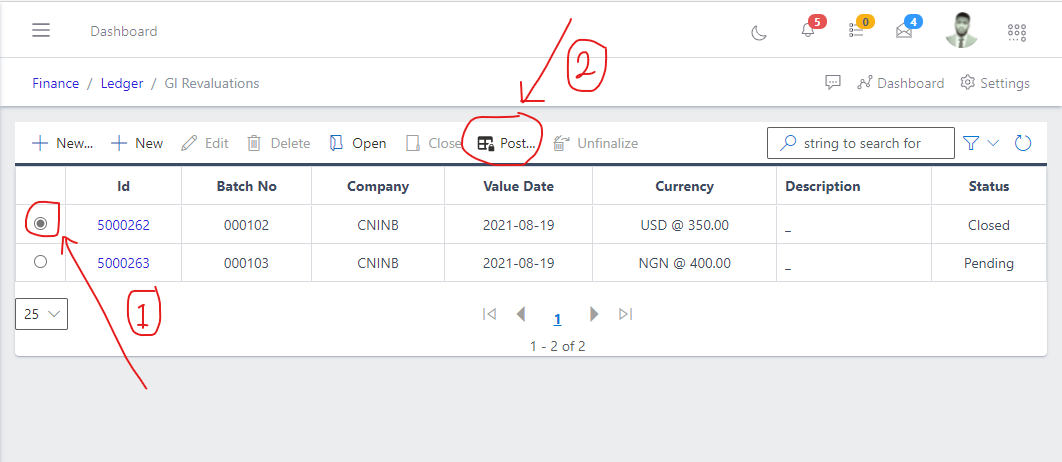
Post a GL Revalue

  • To post a GL revalue, select it from the list view
  • Click the Post button
Image showing button to post an existing GL Revalue
Fig 8.0 Image showing button to post an existing GL Revalue.

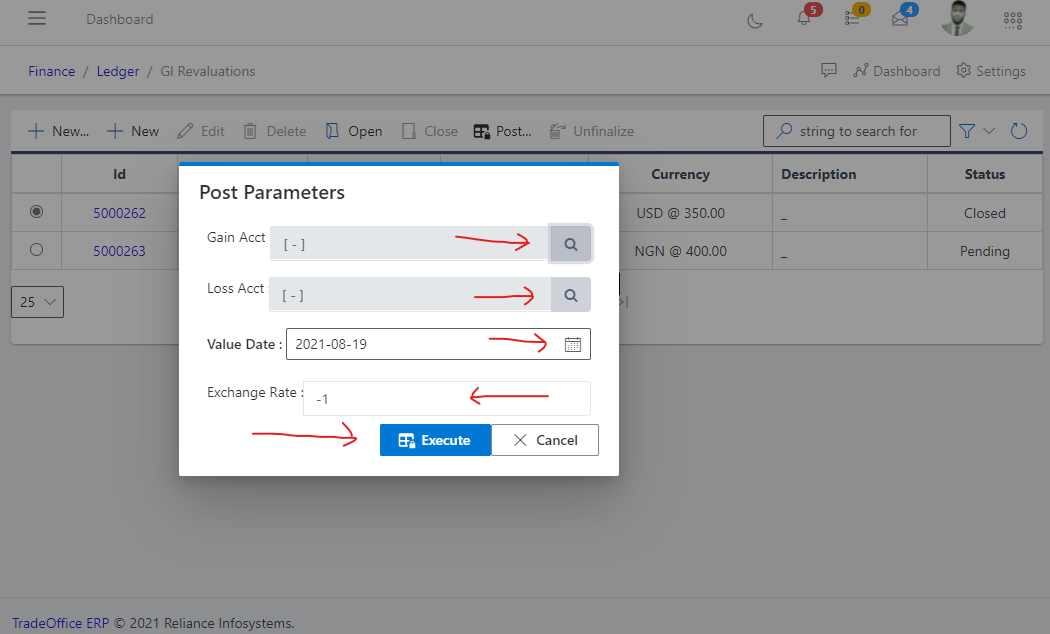
  • After clicking on the post button a form to fill the posting parameters will appear, it should be filled accordingly as shown in the image below.
Image showing posting parameters form for GL Revalue
Fig 8.1 Image showing posting parameters form for GL Revalue.

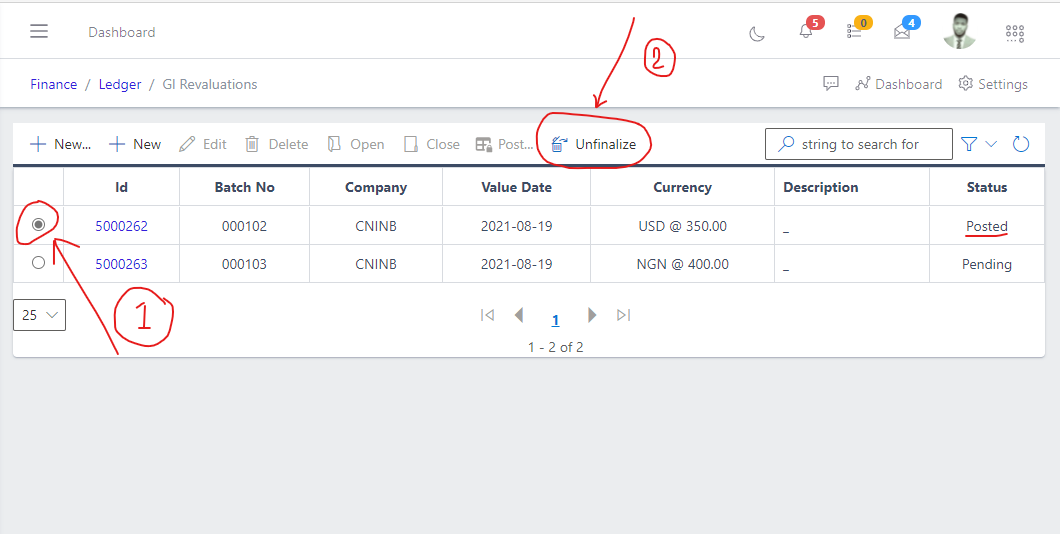
Unfinalize a GL Revalue

  • To reverse the state of a GL revalue, select it from the list view
  • Click the Unfinalize button
Image showing button to unfinalize an existing GL Revalue
Fig 9.0 Image showing button to unfinalize an existing GL Revalue.

Note:Only a GL Revalue with a “Posted” status can be unfinalized.