Customer Balances

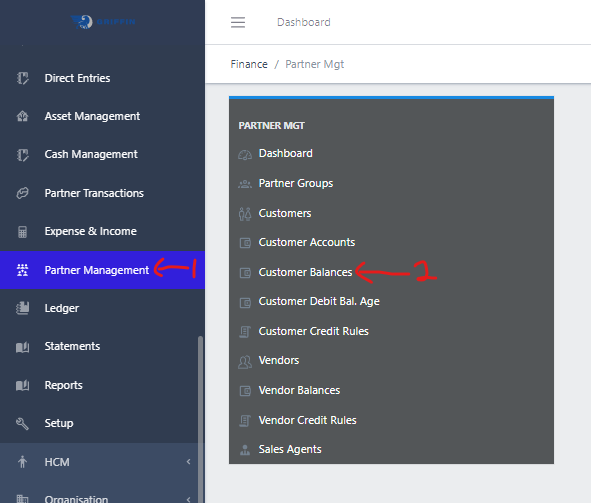
  • Step 1: Access the Partner Management sub-module of the Finance module from the left sidemenu as shown in the fig1 below.
  • Step 2: Click on Customer Balances as shown in the fig1 below.
image showing customer balances navigation
Fig 1.0 Customer balances navigation.

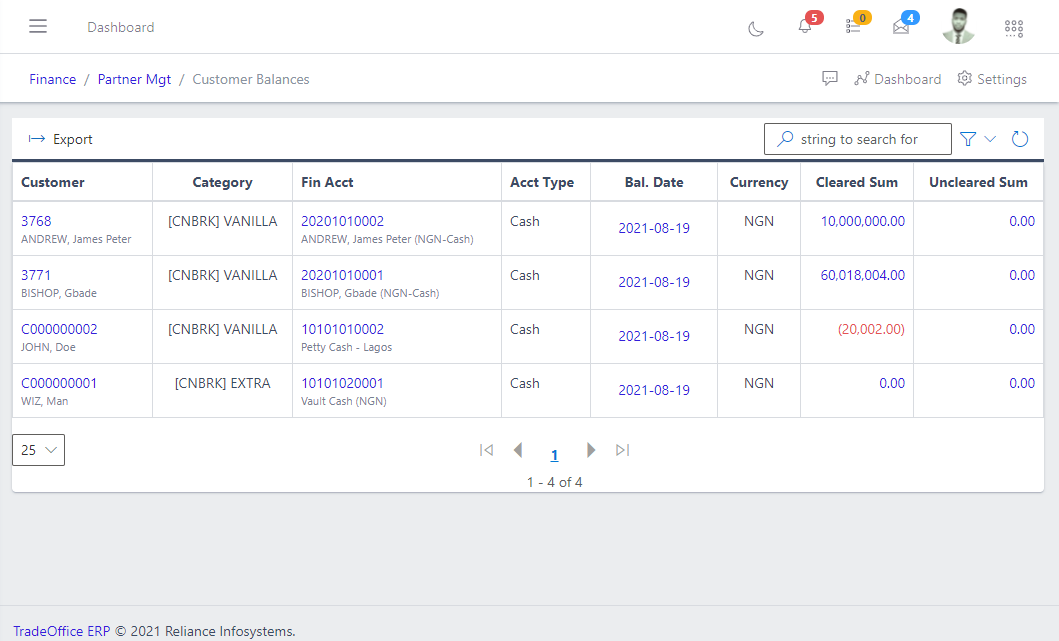
  • This displays a list view of Customers Balances.
Image showing list of existing customer balances.
Fig 1.1 Image showing list of existing customer balances.

Filter Customer Balances

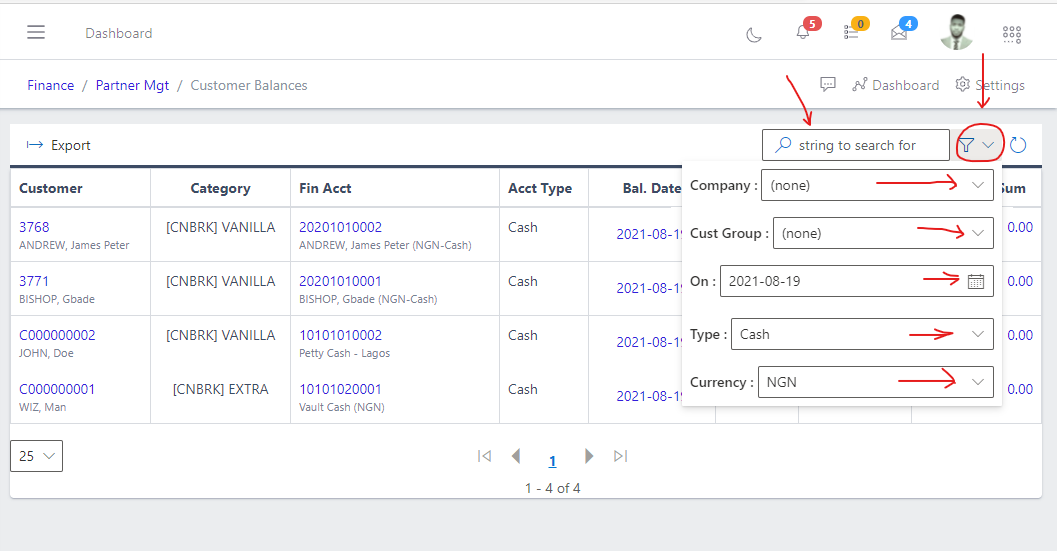
  • Use the Filter button, when clicked, gives you a dropdown where you can specify various parameters for filtering the records:
    • Search string: for filtering records
    • Company: A dropdown list of companies
    • Customer Group: A customer group to restrict to
    • On: The date on which we would like to view balances
    • Mode - The type of account we want to view (Cash, Facility, Loan, Expense, etc.)
    • Currency: The currency we want to pay attention to (NGN, USD, GBP, etc.)
Image showing filter button and options for customer balances
Fig 2.0 Image showing filter button and options for customer balances

View a Customer Balance

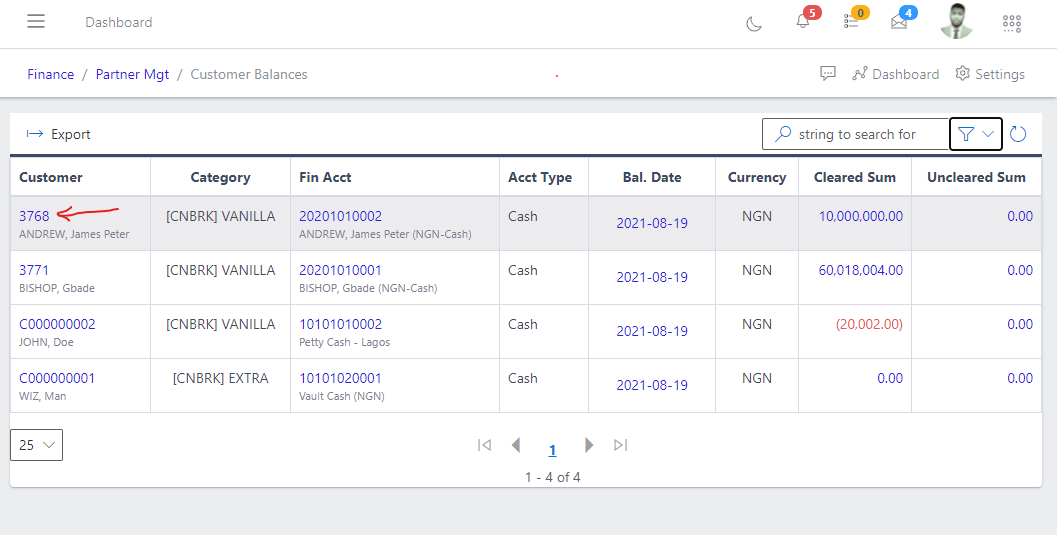
  • Click the customer number, this will redirect you to the customer view
image showing customer number.
Fig 3.0 image showing customer number.

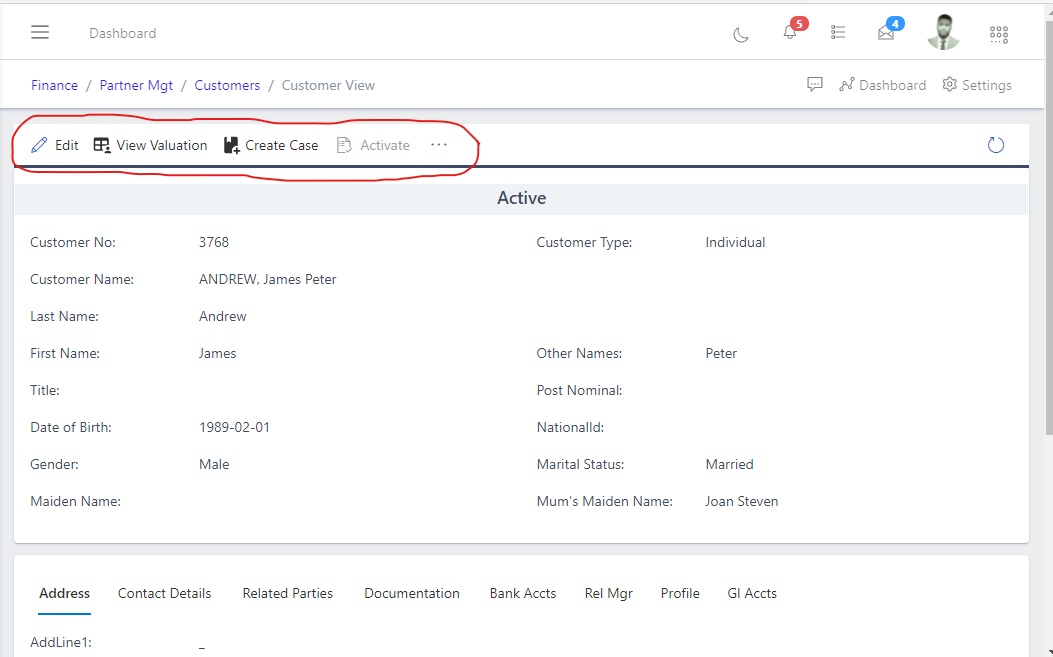
  • From the customer view, you can edit, view valuation. create case, deactivate an active customer etc.
Image showing customer view.
Fig 3.1 Image showing customer view.

Export Customer Balances

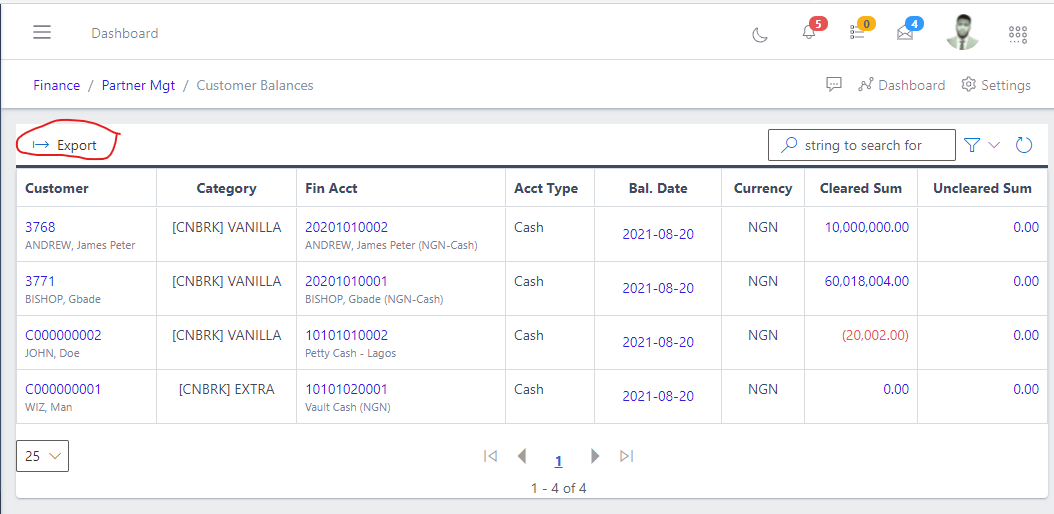
  • Users with rights can export the schedule of customer balances to Excel, based on whatever filters have been set.
image showing button to export customer balances.
Fig 4.0 image showing button to export customer balances.

NOTE: If you click the customer Fin Account, it will redirect you to the customer’s GL Account view