Customer Credit Rules

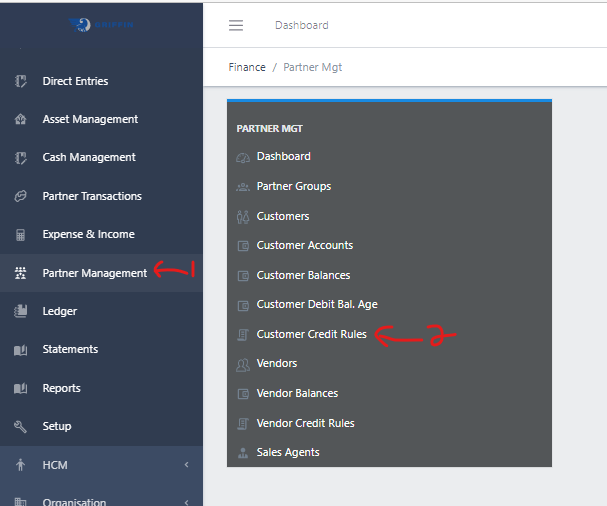
  • Step 1: Access the Partner Management sub-module of the Finance module from the left sidemenu as shown in the fig1 below.
  • Step 2: Click on Customer Credit Rules as shown in the fig1 below.
image showing Customer Credit Rules navigation
Fig 1.0 Customer Credit Rules navigation.

  • This displays a list view of Customer Credit Rules.
  • Use the Filter button, when clicked, gives you a dropdown where you can specify various parameters for filtering the records:
    • Search string: for filtering records
    • Company: A dropdown list of companies
    • On: Date time
    • Customer Group

Create a Customer Credit Rule

  • To create a transfer, hit the Create button in the toolbar area and populate the form fields.

  • The following are some of the fields that needs to be populated:

    • First Name
    • LAst Name
    • Title
    • Date of Birth
    • National ID
    • Gender
  • You also need to populate the fields in the following tabs:

    • Address
    • Contact Details
    • Related Parties
    • Documentation
    • Bank Accounts
    • First Rel Manager
    • Profile
    • GL Accounts
  • After filling out the forms, hit the Save and Close button.

View a Customer Credit Rule

  • From the list view, click on the ID of the customer credit rule to view it

Edit a Customer Credit Rule

  • From the list view, select the customer credit rule you want to edit by clicking on a checkbox
  • Click the edit button to edit the customer you just selected
  • After editing, save the changes.

Delete a Customer Credit Rule

  • From the list view, select the customer credit rule you want to delete
  • Click on the Delete button to delete it

Export Customer Credit Rules

  • Click thee Export button to export the credit rule data in excel format