Sales Agents

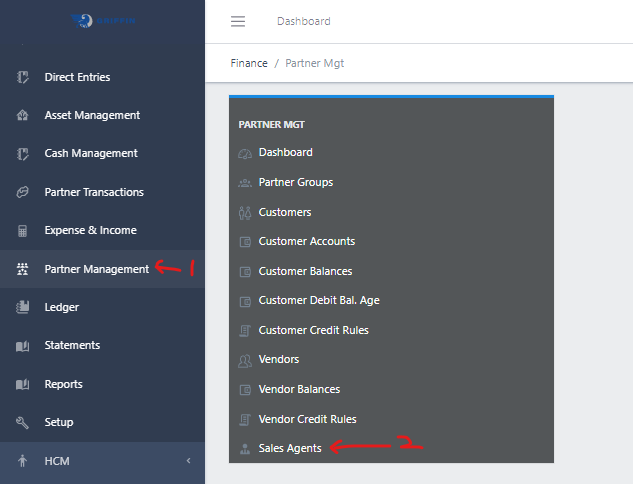
  • Access the Partner Management sub-module of the Finance module from the left sidemenu as shown in the fig1 below.
  • Click on Sales Agents as shown in the fig1 below.
image showing sales agents navigation
Fig 1.0 Sales Agents navigation.

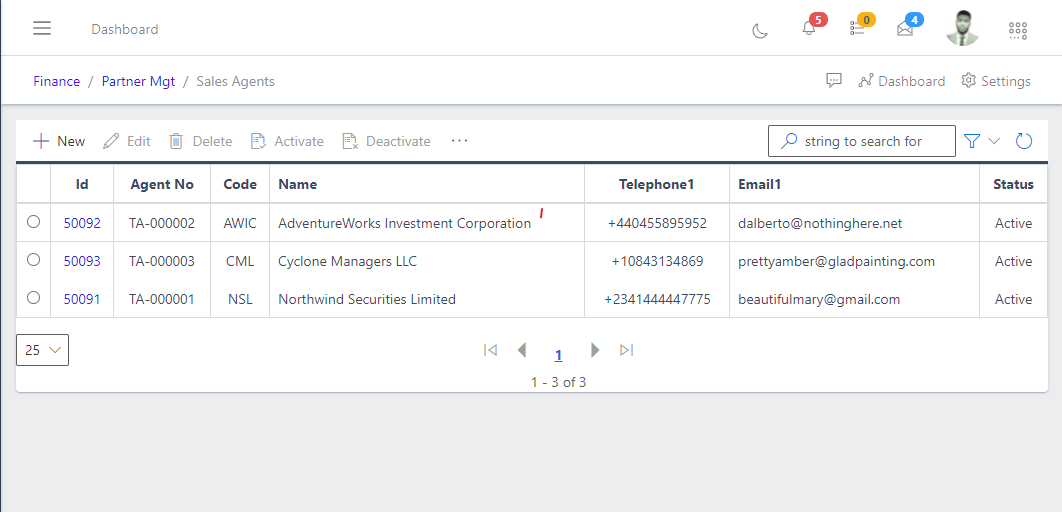
  • This displays a list view of Sales Agents.
Image showing list of existing sales agents.
Fig 1.1 Image showing list of existing sales agents.

Filter Sales Agents

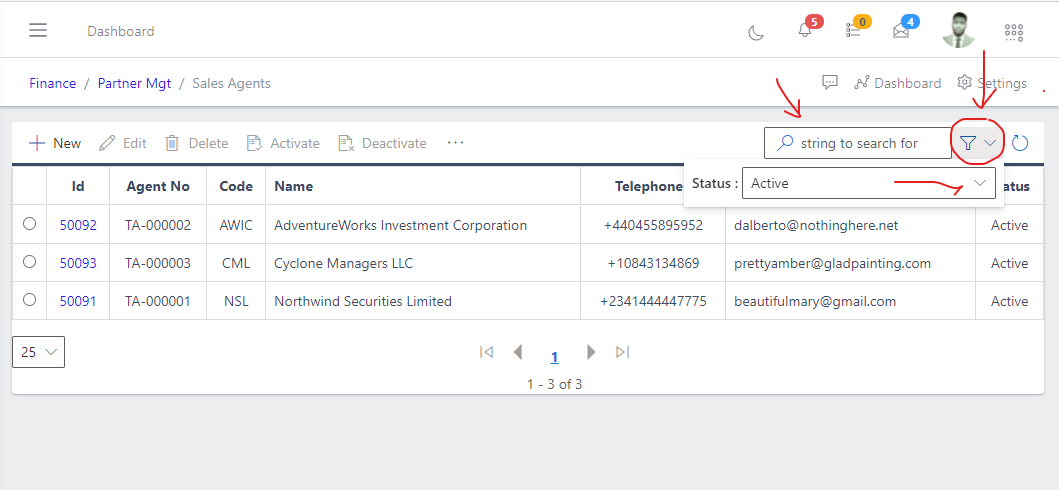
  • Use the Filter button, when clicked, gives you a dropdown where you can specify various parameters for filtering the records:
    • Search string: for filtering records
    • Status: dropdown list of status types.
Image showing filter button and options for sales agents
Fig 2.0 Image showing filter button and options for sales agents.

Create a Sales Agents

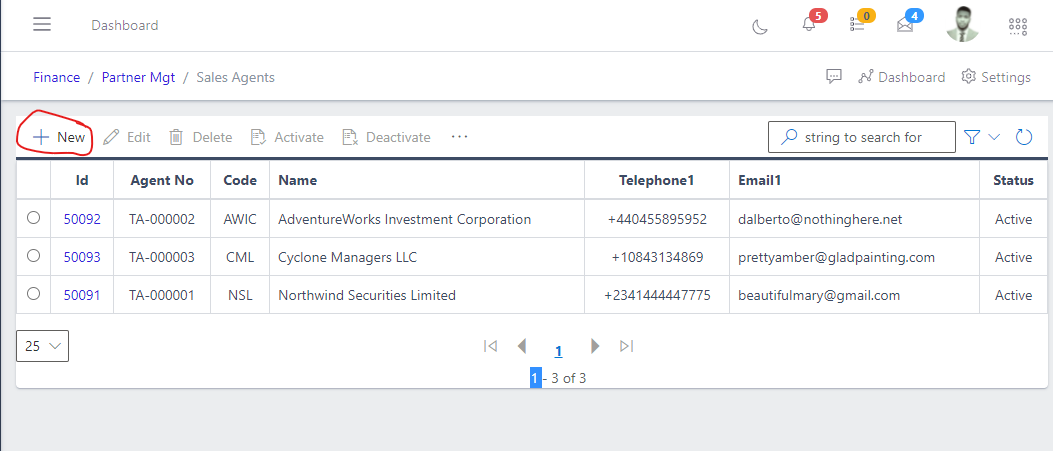
  • To create a sales agent, hit the Create button in the toolbar area and populate the form fields.
Image showing button to create sales agents
Fig 3.0 Image showing button to create sales agents.

  • The following are some of the fields that needs to be populated:

    • Agent Name
    • Agent Code
  • You also need to populate the fields in the following tabs:

    • Address
    • Contact Details
    • Related Parties
    • Location
  • After filling out the forms, hit the Save and Close button.
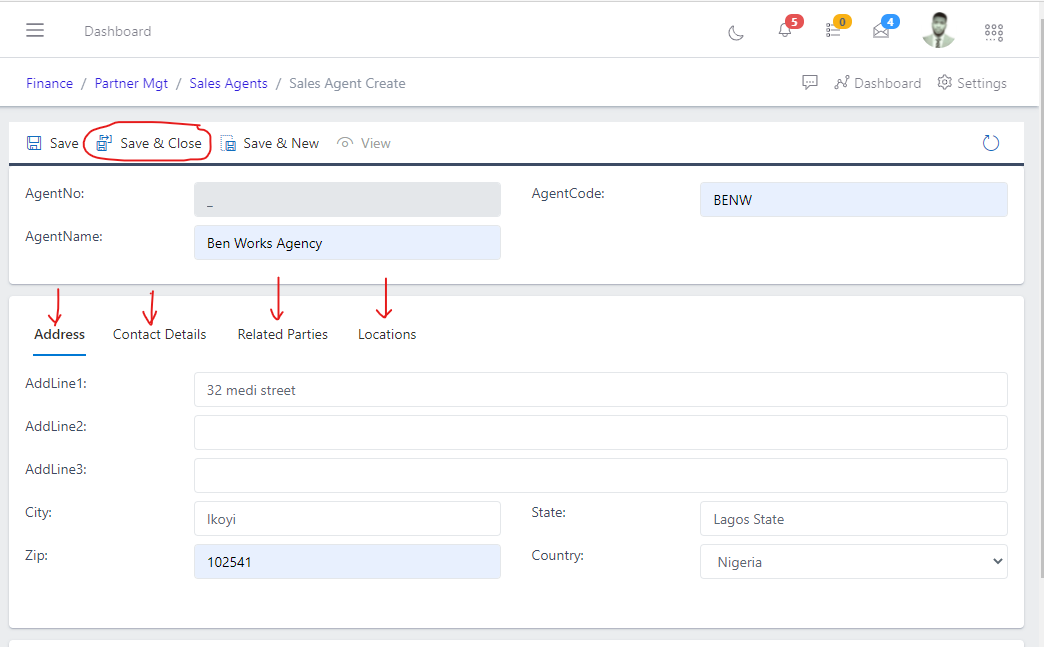
Image showing save and close button after creating sales agents
Fig 3.1 Image showing save and close button after creating sales agents.

View a Sales Agent

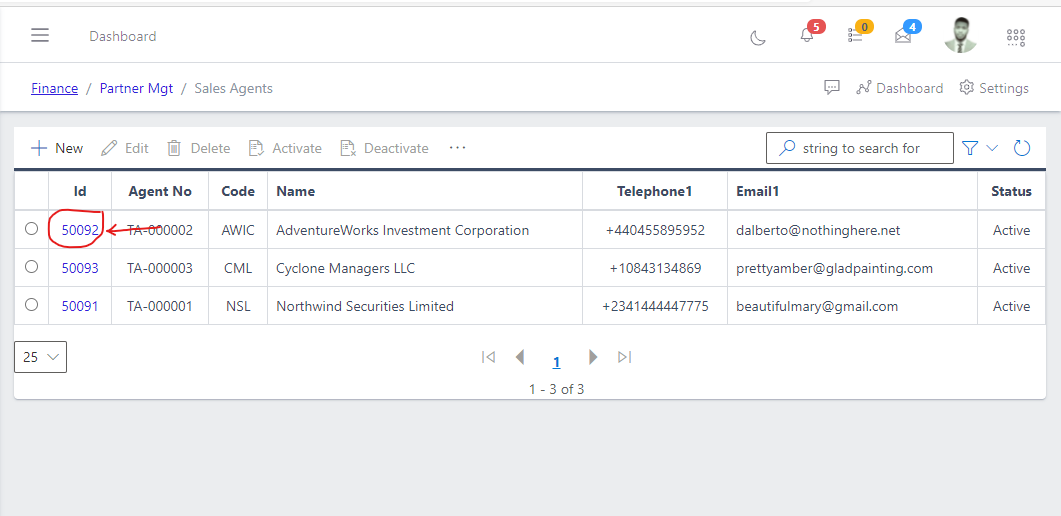
  • From the list view, click on the ID of the sales agent to view it
Image showing ID of a sales agents
Fig 4.0 Image showing ID of a sales agents.

Edit a Sales Agents

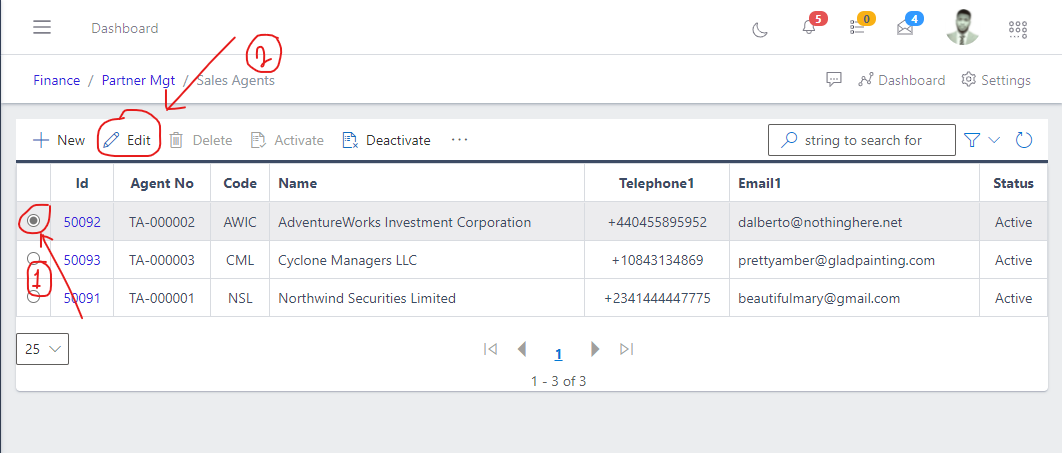
  • From the list view, select the sales agent you want to edit by clicking on a radio button
  • Click the edit button to edit the sales agent you just selected
 Image showing button to edit a sales agents
Fig 5.0 Image showing button to edit a sales agents.

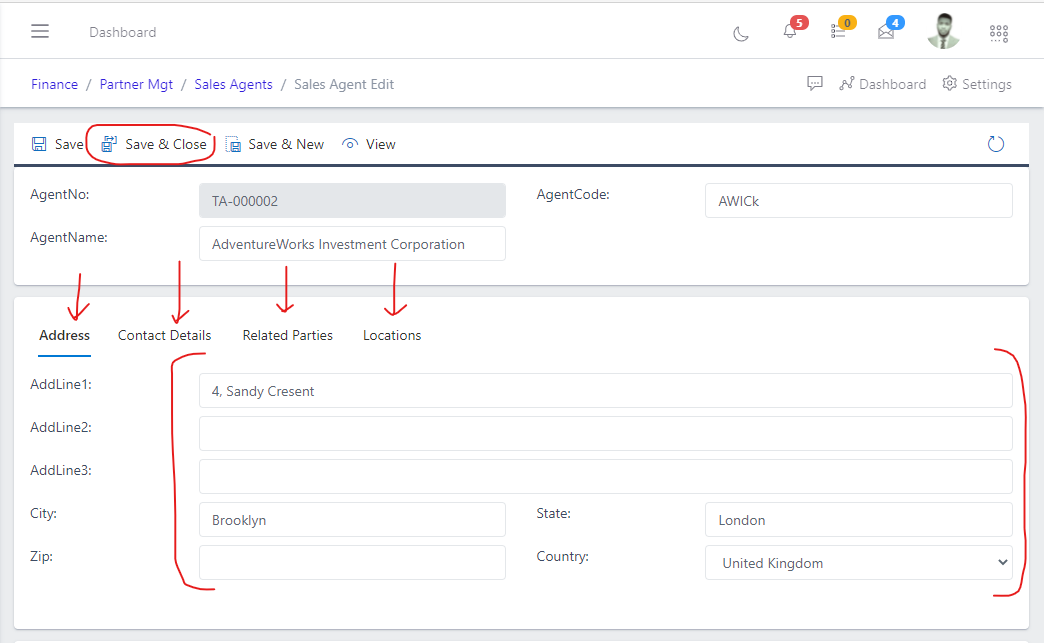
  • After editing, save the changes.
Image showing button to save changes after editing a sales agents.
Fig 5.1 Image showing button to save changes after editing a sales agents.

Delete a Sales Agent

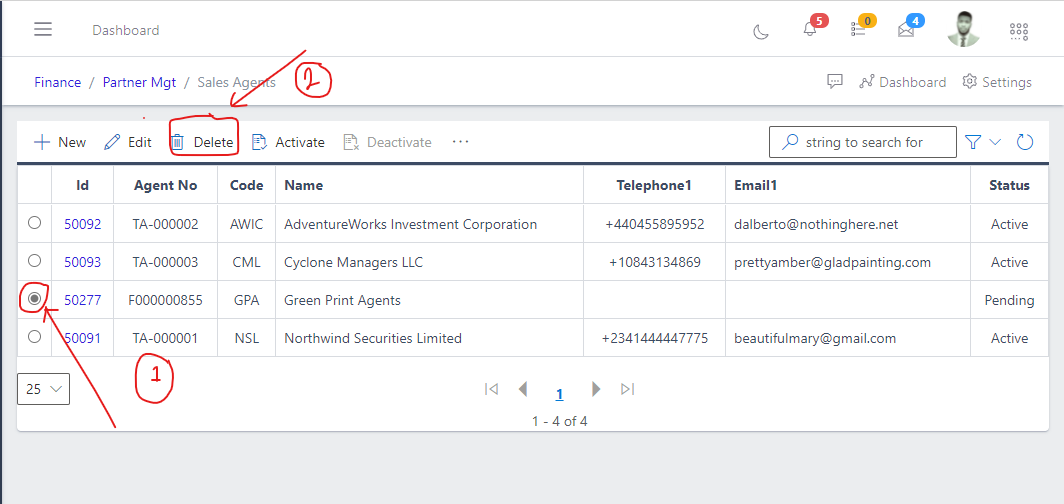
  • From the list view, select the sales agent you want to delete using the radio button
  • Click on the Delete button to delete the sales agent
Image showing button to delete a sales agents
Fig 6.0 Image showing button to delete a sales agents.

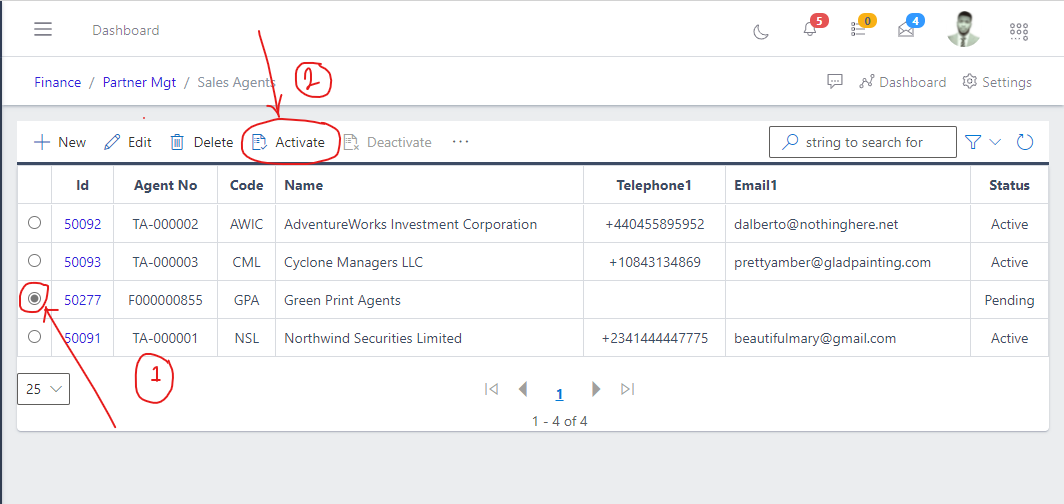
Activate a Pending Sales Agent

  • When you create a sales agent, it status will be pending
  • To activate the newly created sales agent, search for the sales agent using the search filter
  • Then click the Activate button to activate the sales agent (it status will change to Active)
 Image showing button to activate a sales agents.
Fig 7.0 Image showing button to activate a sales agents.

Deactivate an active Sales Agent

Only an active sales agent can be deactivated
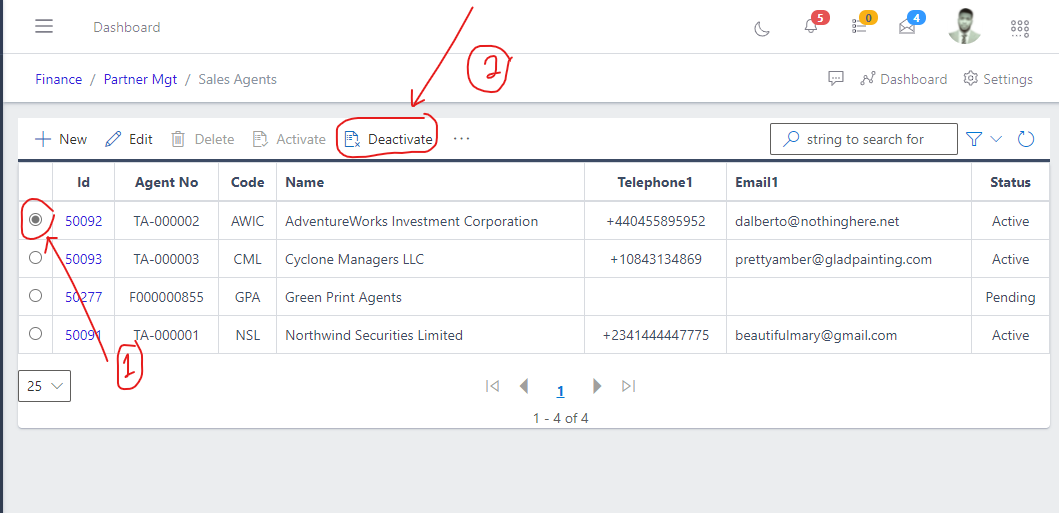
  • To deactivate an active customer, search for the sales agent using the search filter
  • Then click the Deactivate button to deactivate the sales agent
Image showing button to deactivate a sales agent
Fig 8.0 Image showing button to deactivate a sales agent.

Merge Sales Agents

Two sales agents can be merge together
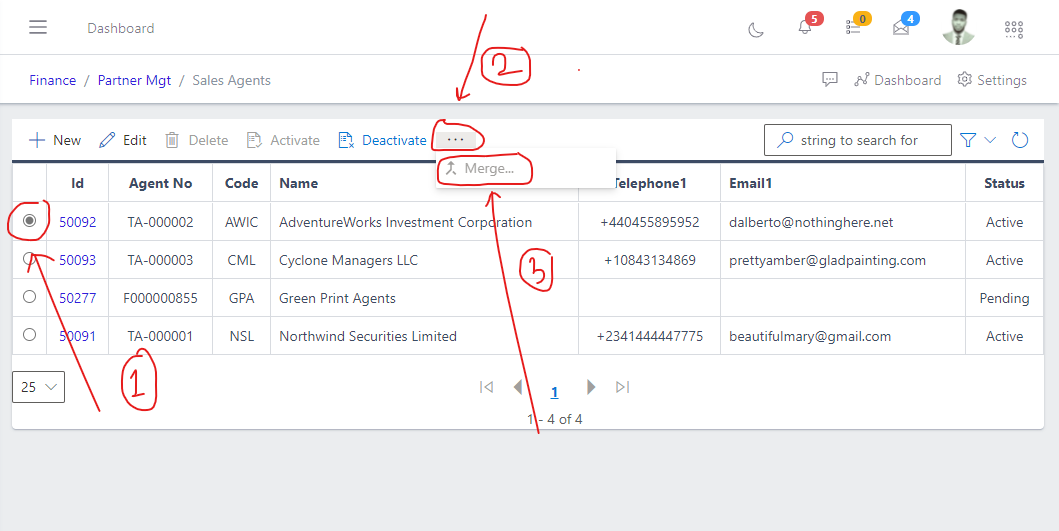
  • To merge 2 sales agents into a sales agent, select the first sales agent by clicking on the radio button
  • Then click the ellipsis(…) in the tool bar area, then click the merge button
Image showing elipse icon for extra menus
Fig 10.0 Image showing elipse icon for extra menus.

  • Specify the parameters for both;
    • DeleteSource
    • Source
  • Hit the execute button
Image showing form containing merge parameters
Fig 10.1 Image showing form containing merge parameters.