Receipts

  • Step 1: Access the Partner Transactions sub-module of the Finance module from the left sidemenu as shown in the fig1 below.
  • Step 2: Click on Receipts as shown in the fig1 below.
Fig 1 Navigating to Receipt

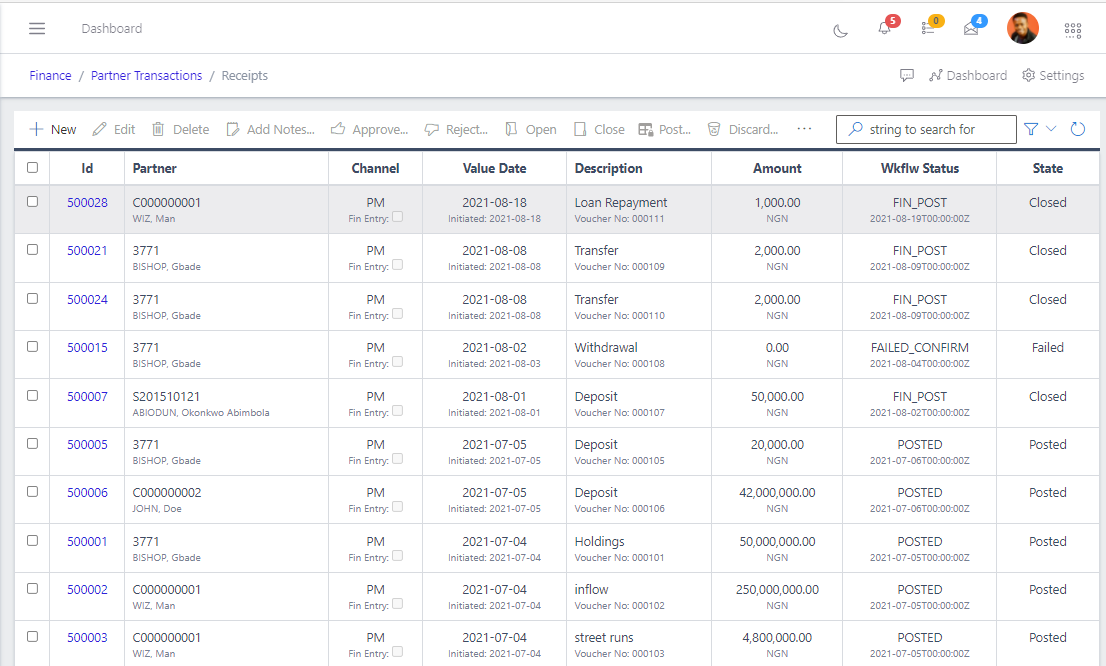
  • This displays a list view of Receipts.
Fig 2 Listing Receipt

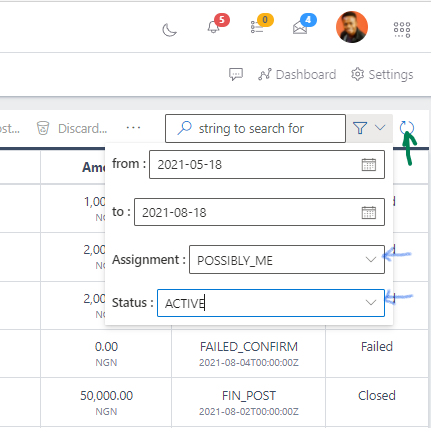
  • Use the Filter button, when clicked, gives you a dropdown where you can specify various parameters for filtering the records:
    • Search string: for filtering records
    • From
    • To
    • Assignment
    • Status
Fig 3 Searching Receipt

Create Receipt

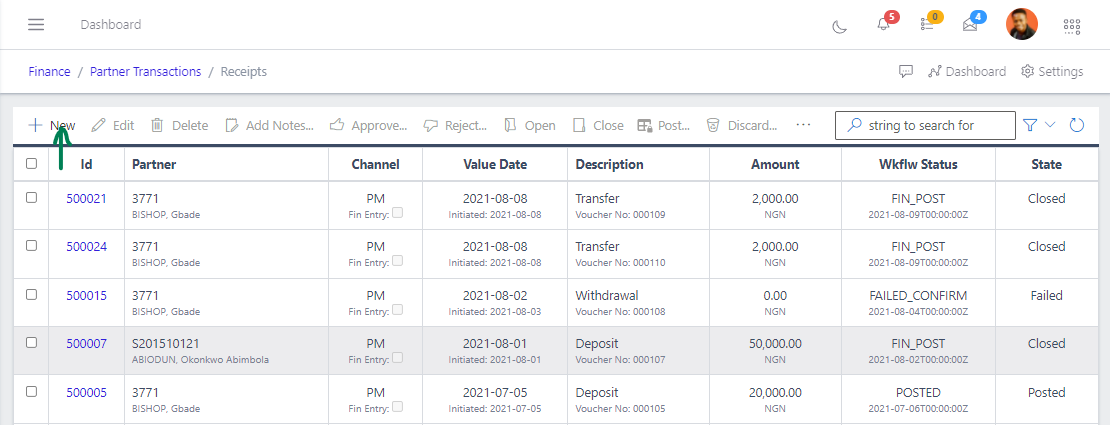
  • To create a receipt, hit the Create button in the toolbar area and populate the form fields.
Fig 4 Clicking New Button to Create a New Receipt

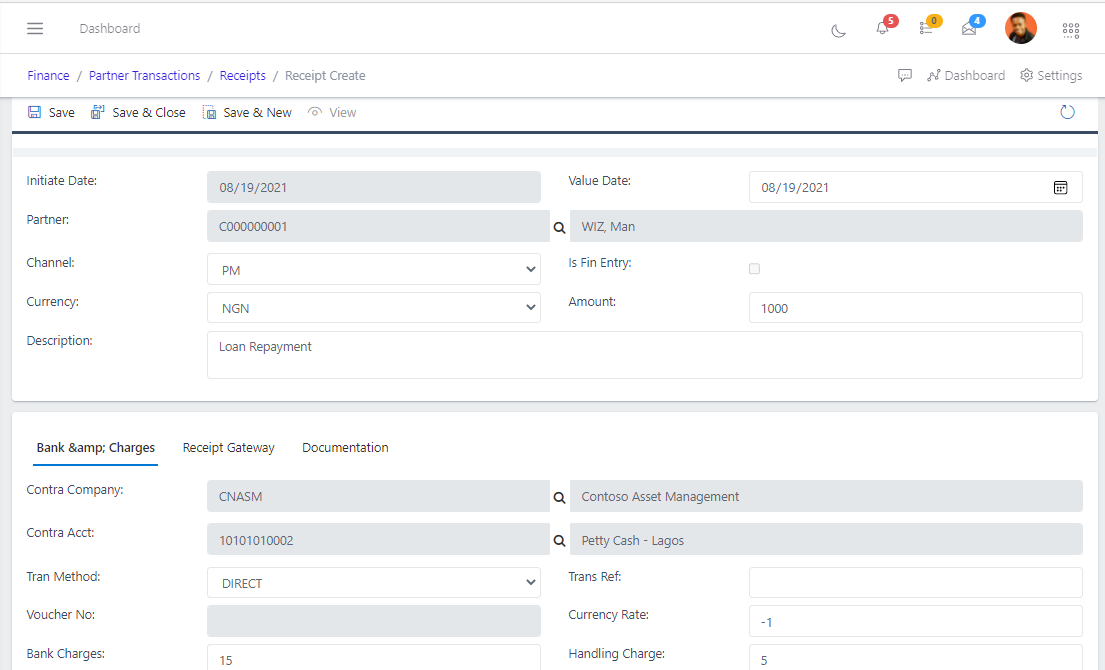
  • The following are some of the fields that needs to be populated:

    • Partner
    • Chanel
    • Currency
    • Is Fin Entry
    • Amount
    • Description
  • You also need to populate the fields in the Bank Charges, Receipt Gateway, and Documentation

    • Fill the form fields in the Bank Charges and Receipt Gateway
    • Click the New button in the Documentation tab and fill out the form fields. Documents can served and sent for approval or even posted after transactions.
    • After filling out the forms, hit the Save and Close button.
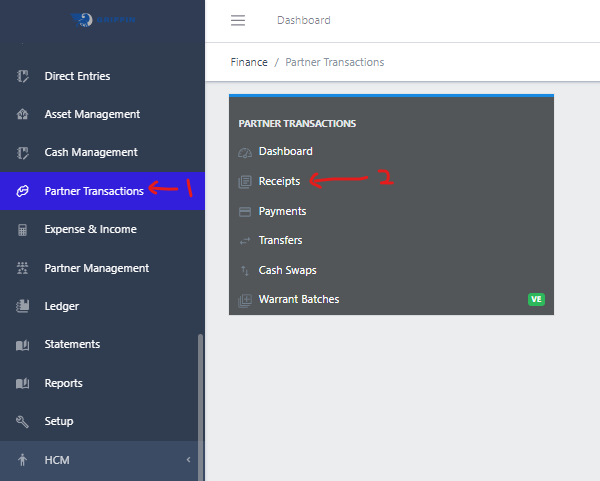
Fig 5 Creating Receipt

View a Receipt

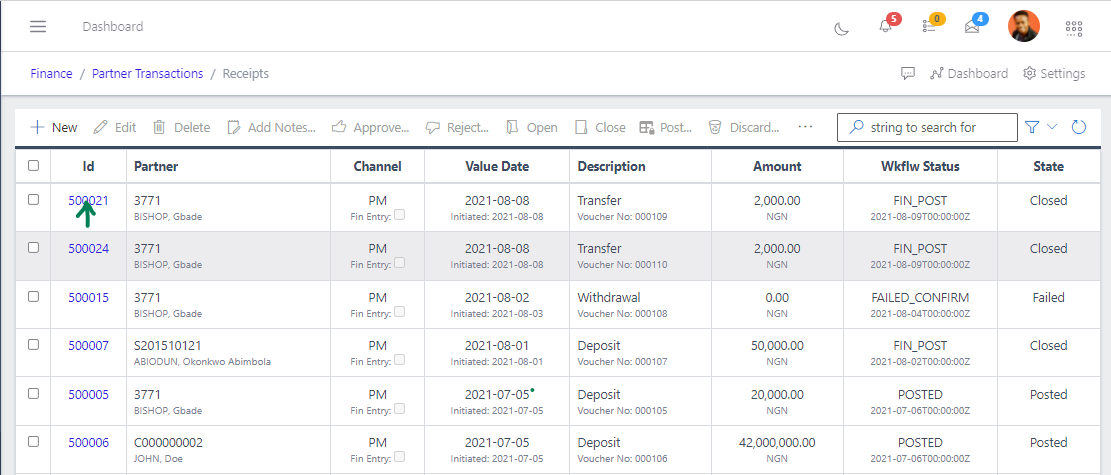
  • From the list view, click on the ID of the Receipt to view it
Fig 6 Viewing a Receipt

Edit a Receipt

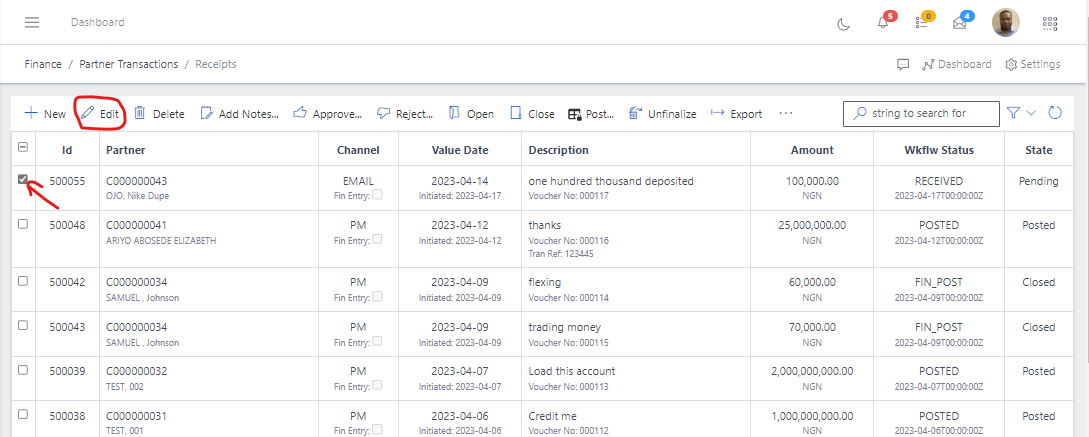
  • From the list view, select the Receipt you want to edit by clicking on a checkbox
  • Click the edit button to edit the receipt you just selected
Fig 7.0 Editing Receipt

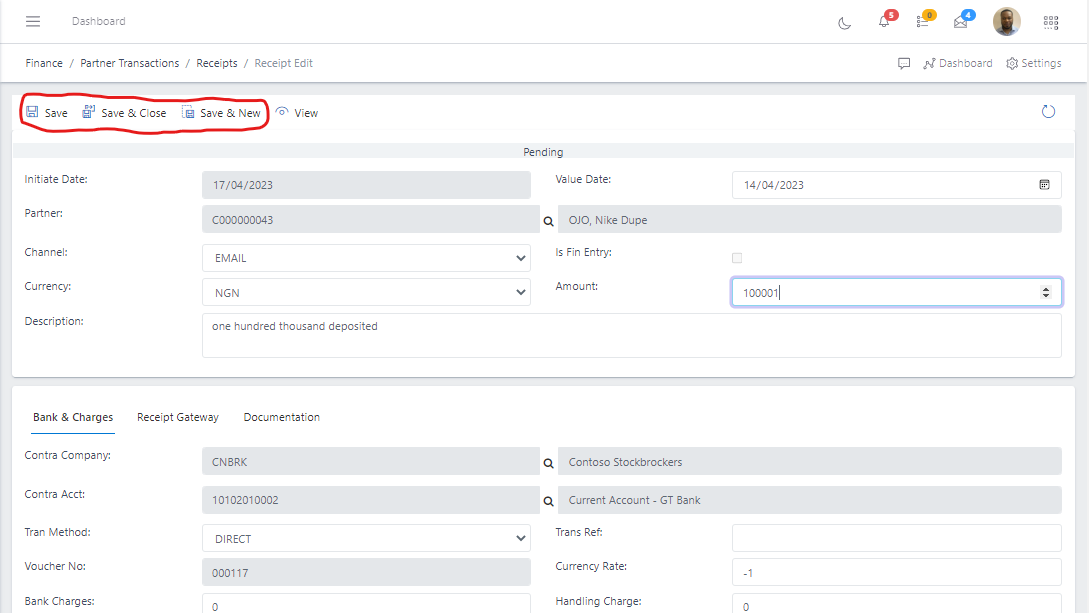
  • After editing, save the changes.
Fig 7.1  Save Receipt
Fig 7.1 Save Receipt

Delete a Receipt

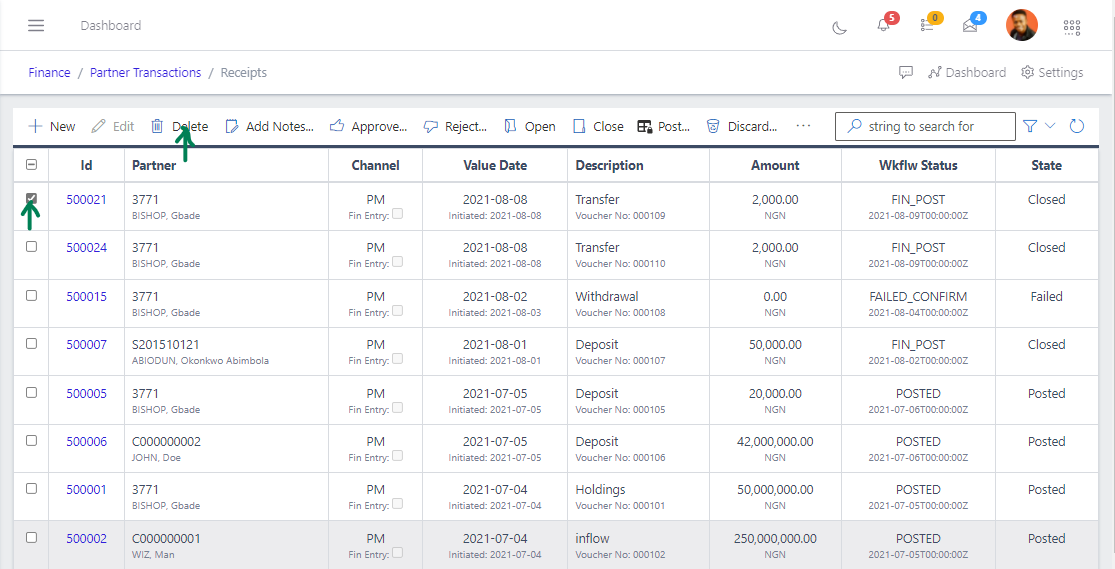
  • From the list view, select the receipt you want to open by clicking on a checkbox
  • Click on the Delete button to delete the receipt
Fig 8  Deleting Receipt
Fig 8 Deleting Receipt

Add Notes a Receipt

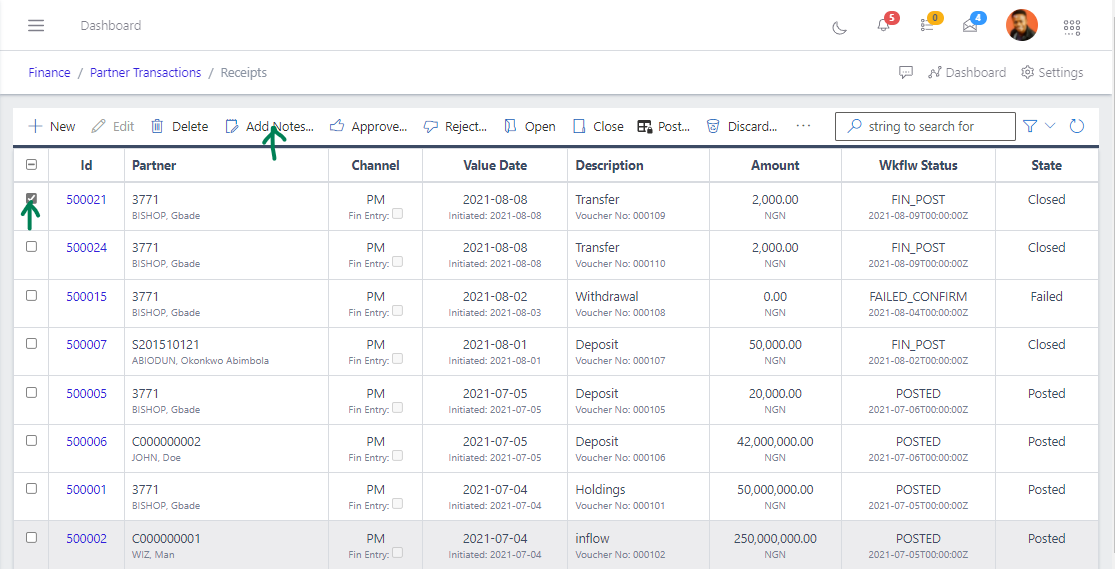
  • Notes can be added to receipts
  • From the list view, select the receipt you want to open by clicking on a checkbox
  • Click on the Add Notes button to add a note the receipt
Fig 9 Adding Notes to Receipt

Approve a Receipt

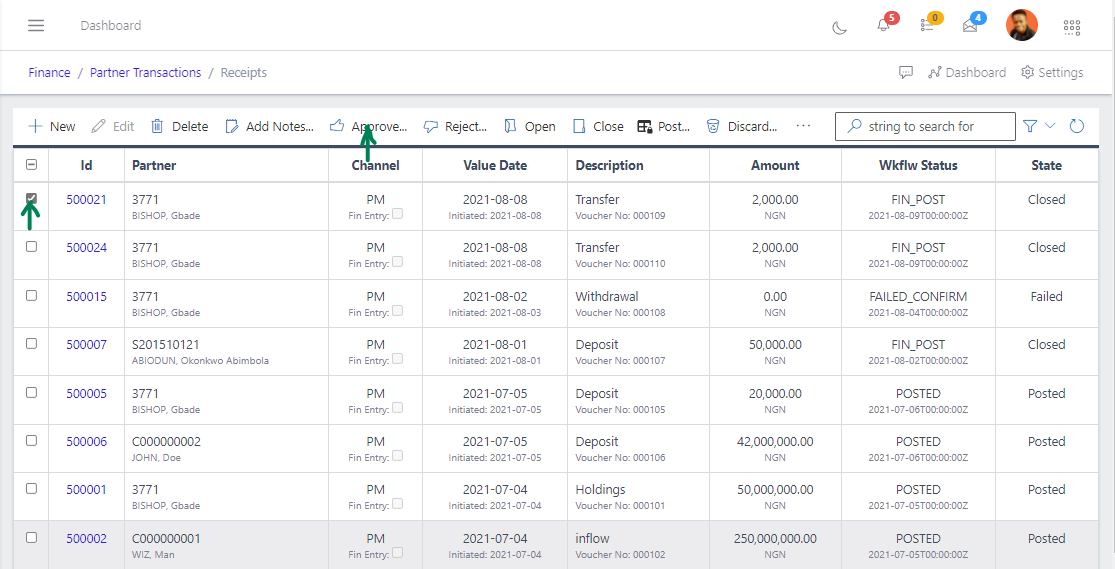
  • From the list view, select the receipt you want to open by clicking on a checkbox
  • Click on the Approve button to approve the receipt
Fig 10 Approving Receipt

Reject a Receipt

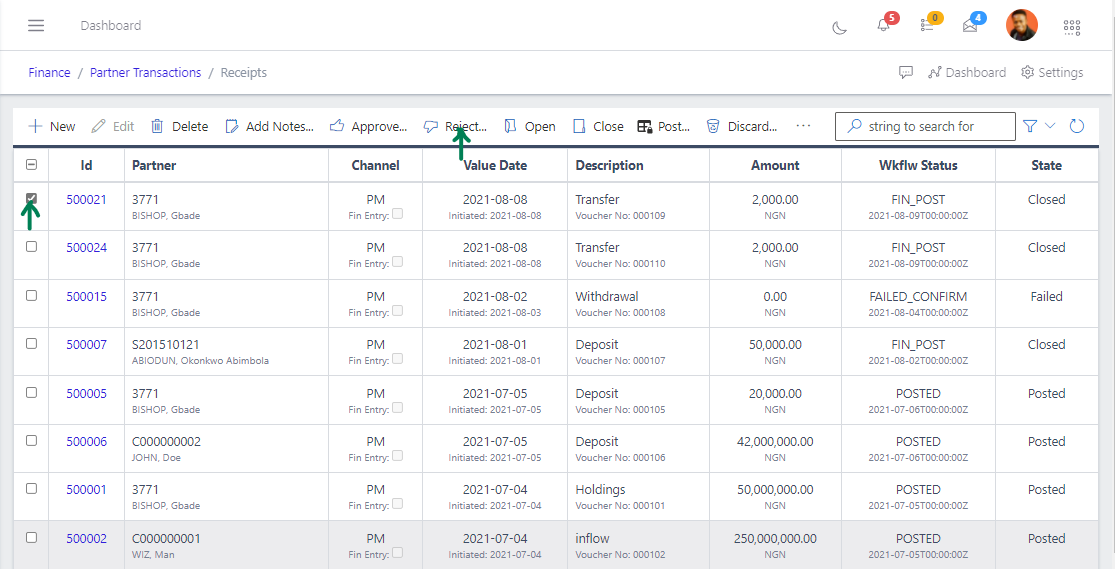
  • From the list view, select the receipt you want to open by clicking on a checkbox
  • Click on the Reject button to reject the receipt
Fig 11 Rejecting Receipt

Open a Receipt

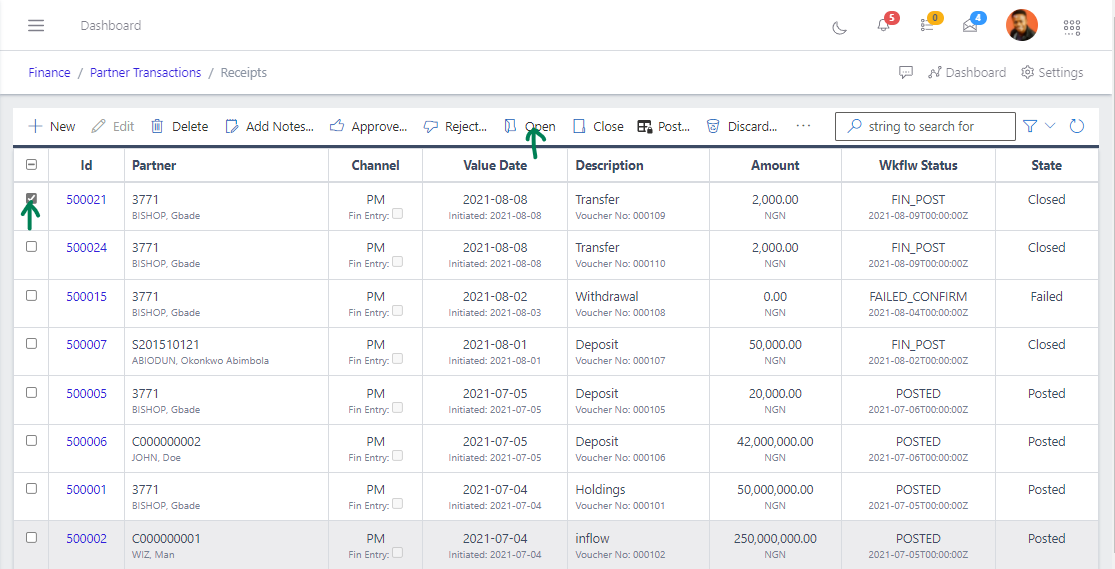
  • From the list view, select the receipt you want to open by clicking on a checkbox
  • Click the Open button to open the Receipt you just selected.
Fig 12 Opening Receipt

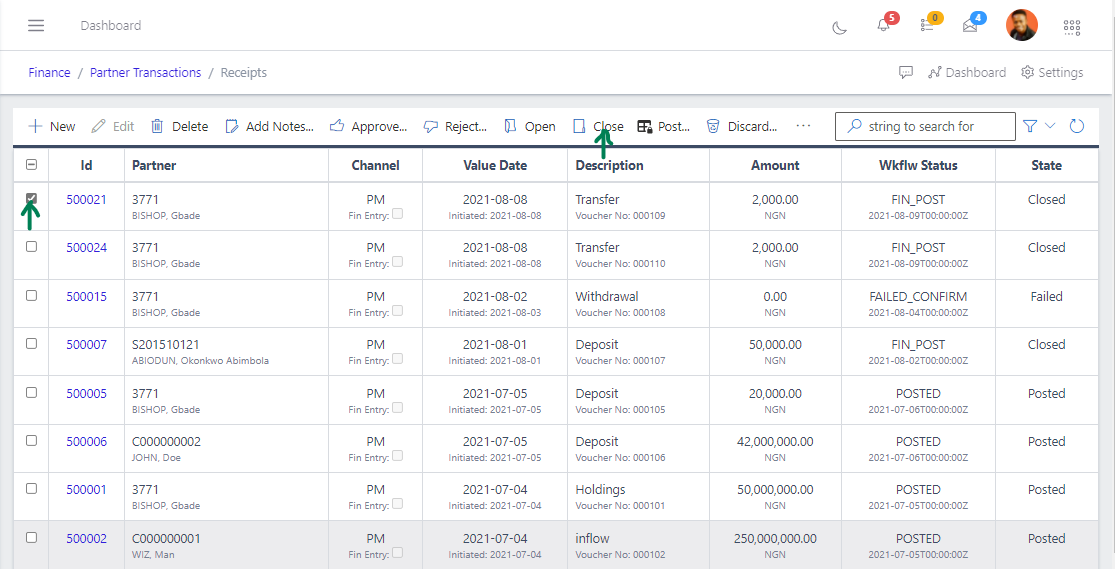
Close a Receipt

  • From the list view, select the Receipt you want to close by clicking on a radio button
  • Click the Close button to close the Receipt you just selected
Fig 13 Closing Receipt

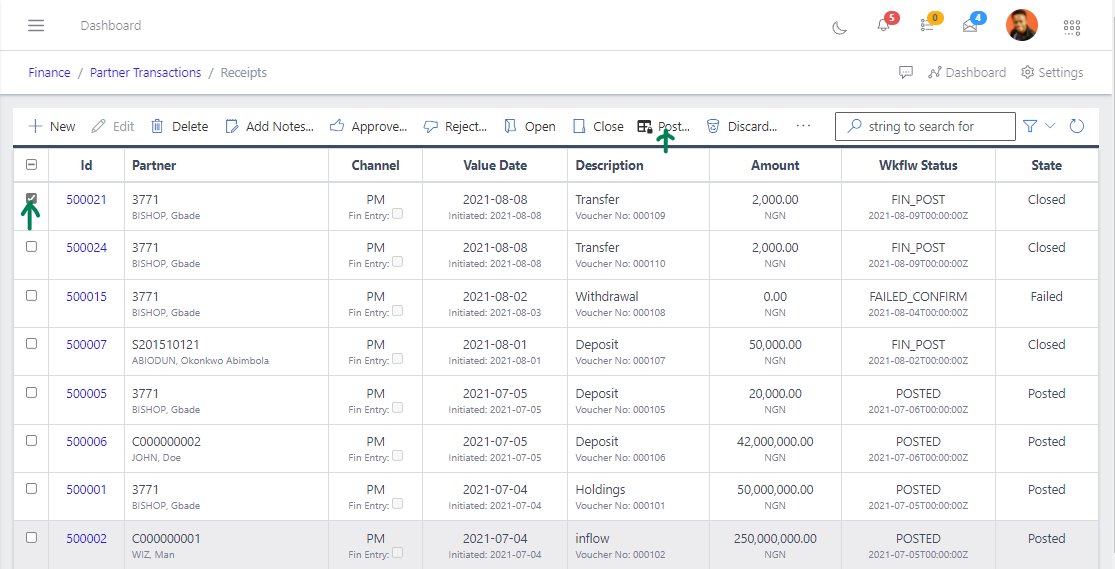
Post a Receipt

  • From the list view, select the receipt you want to open by clicking on a checkbox
  • Click on the Post button to post the receipt
Fig 14 Posting Receipt

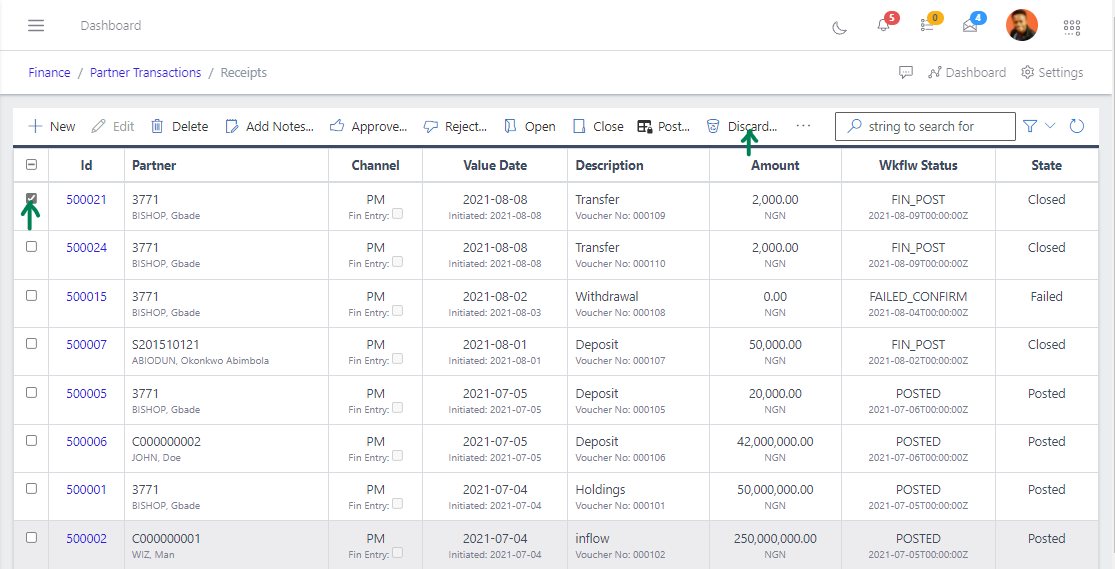
Discard a Receipt

  • From the list view, select the Receipt you want to discard by clicking on a checkbox
  • Click the on the Discard button
Fig 15 Discarding Receipt

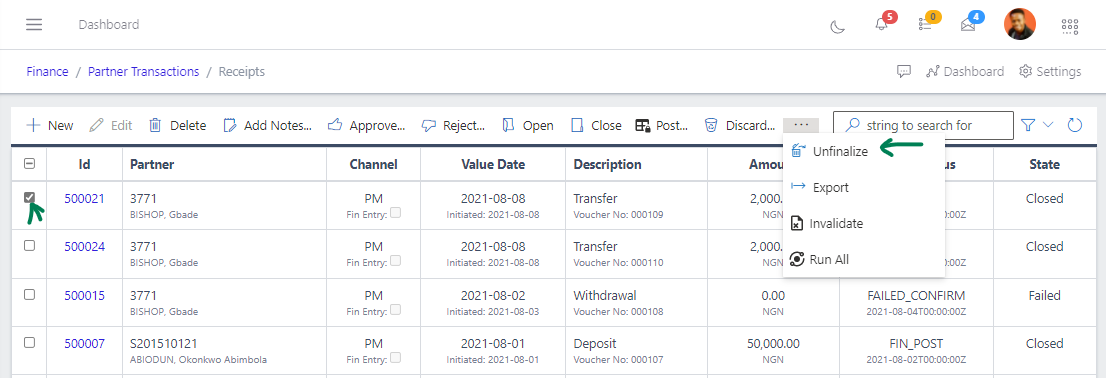
Unfinalize a Receipt

  • From the list view, select the Receipt you want to unfinalize by clicking on a checkbox
  • Click the on the Unfinalize button
Fig 16 Unfinalizing Receipt

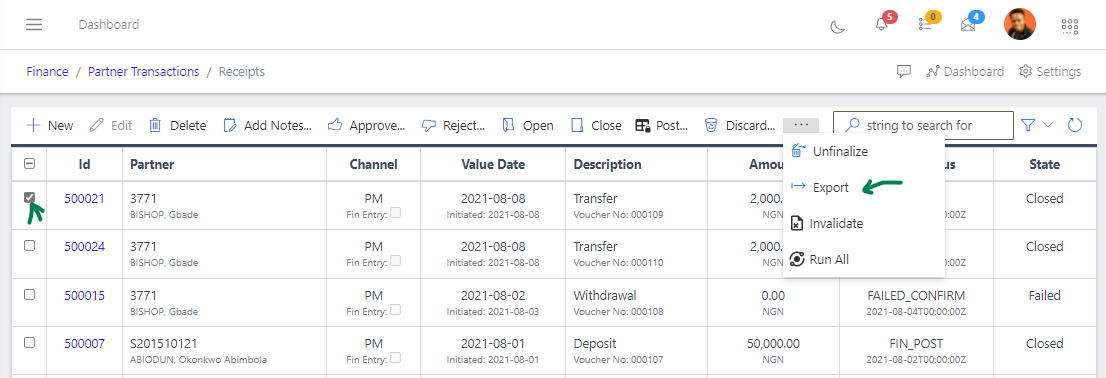
Export Receipts

  • Click the export the records of receipts
Fig 17 Exporting Receipt

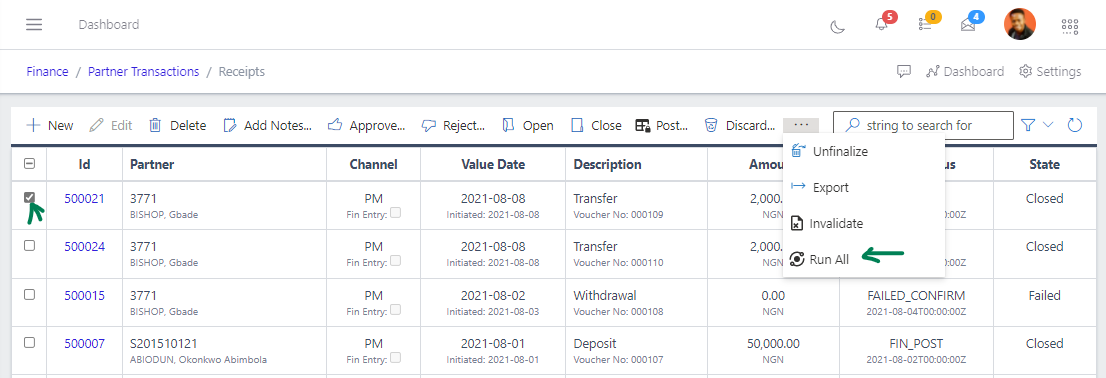
Run All Receipts

  • Click the ellipsis(…) in the tool bar area, which will show a drop down and select the Run All button
Fig 18 Running All Receipts