Statistics Posting CallOver

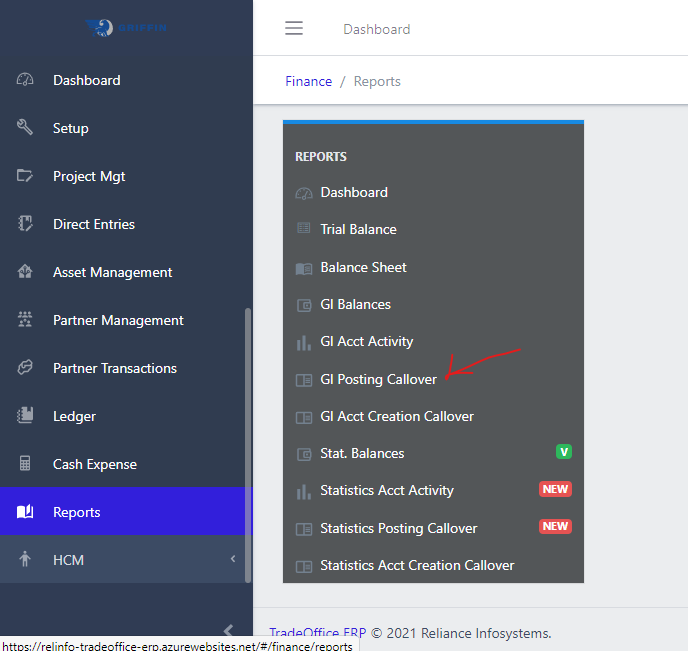
  • Access the Reports sub-module of the Finance module

  • Click on GL Posting CallOver

Image showing GL Posting CallOver
Fig 1.0 GL Posting CallOver

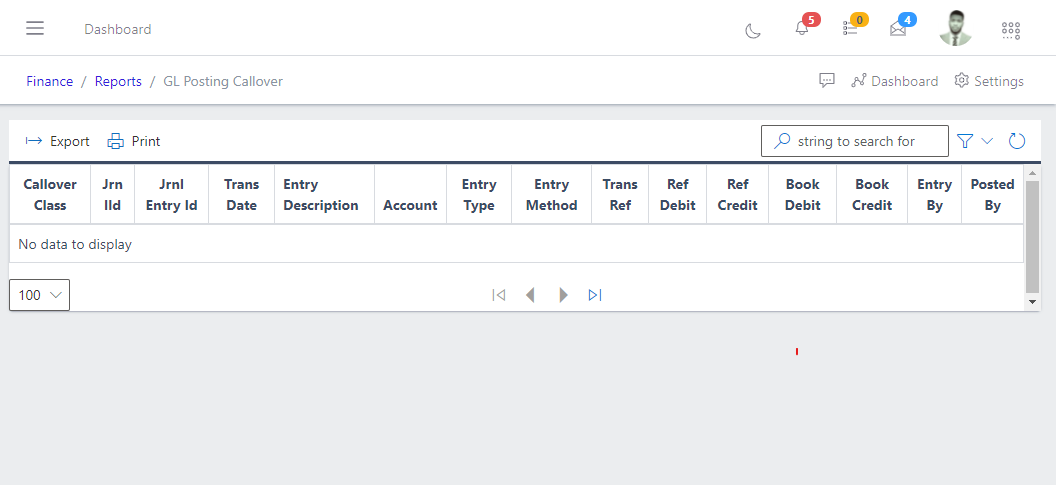
  • This displays a list view of GL Posting CallOver.
Image showing list view of GL Posting CallOver
Fig 1.1 List view of Posting CallOver

Filter list of GL Posting CallOver

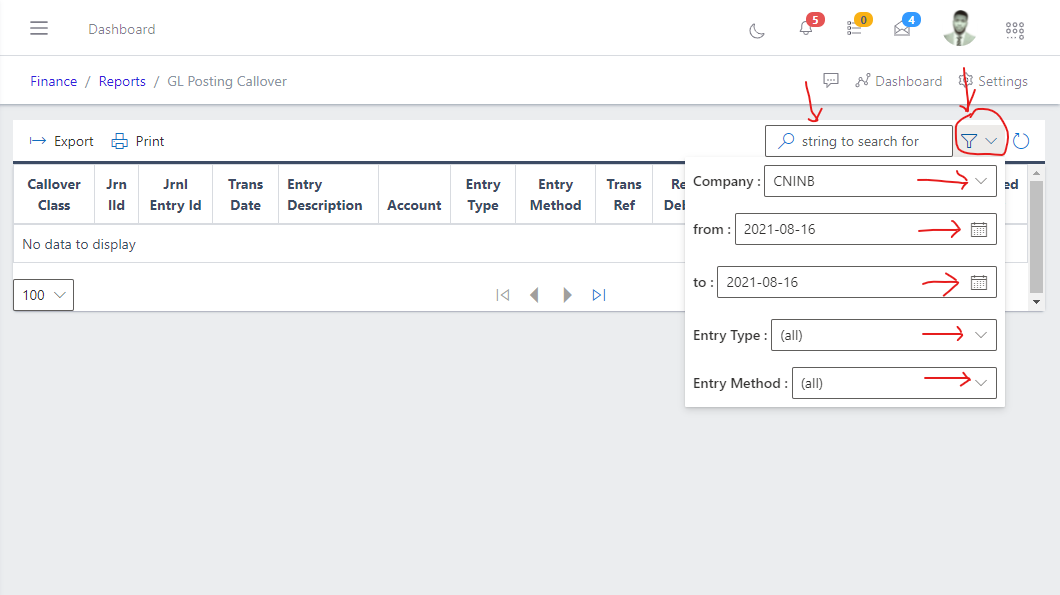
  • Use the Filter button, when clicked, gives you a dropdown where you can specify various parameters for filtering the records:
    • Search string: for filtering records
    • Company
    • From
    • to
    • Entry type
    • Entry method
Image showing Search, filter button and filter options
Fig 2.0 Image showing Search, filter button and filter options

Exporting GL Posting CallOver

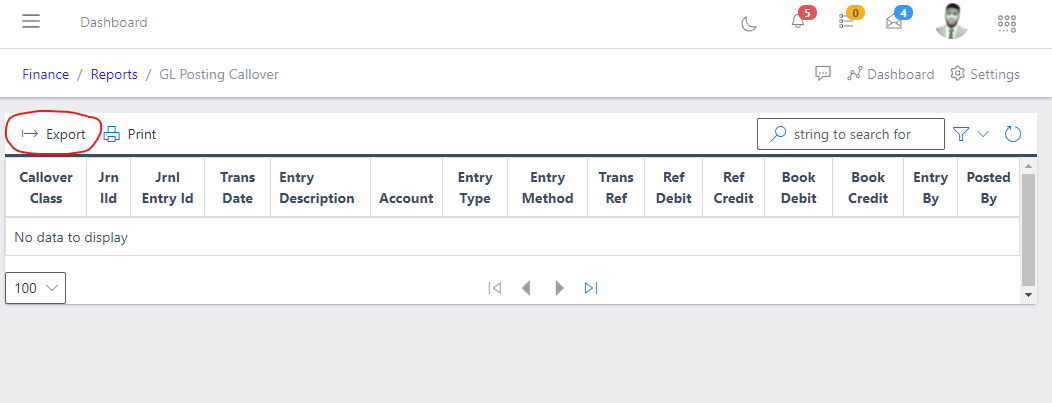
  • Export the GL Posting CallOver data to excel by clicking the Export button
Image showing GL Posting CallOver export button
Fig 3.0 Image showing GL Posting CallOver export button.

Note: Once the export button is clicked, it pops up an option to download a copy of the GL Posting CallOver to your computer system as an excel document.

Printing GL Posting CallOver

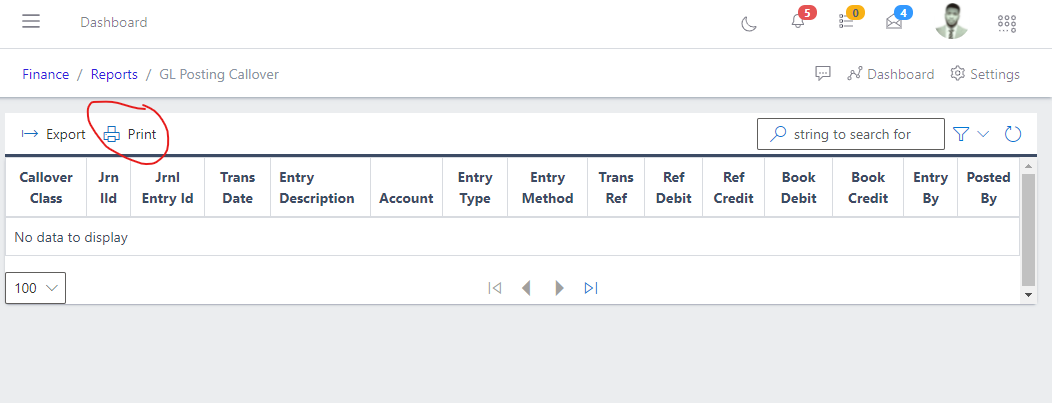
  • Print the GL Posting CallOver data by clicking the Print button.
Image showing GL Posting CallOver export button
Fig 4.0 Image showing GL Posting CallOver print button.