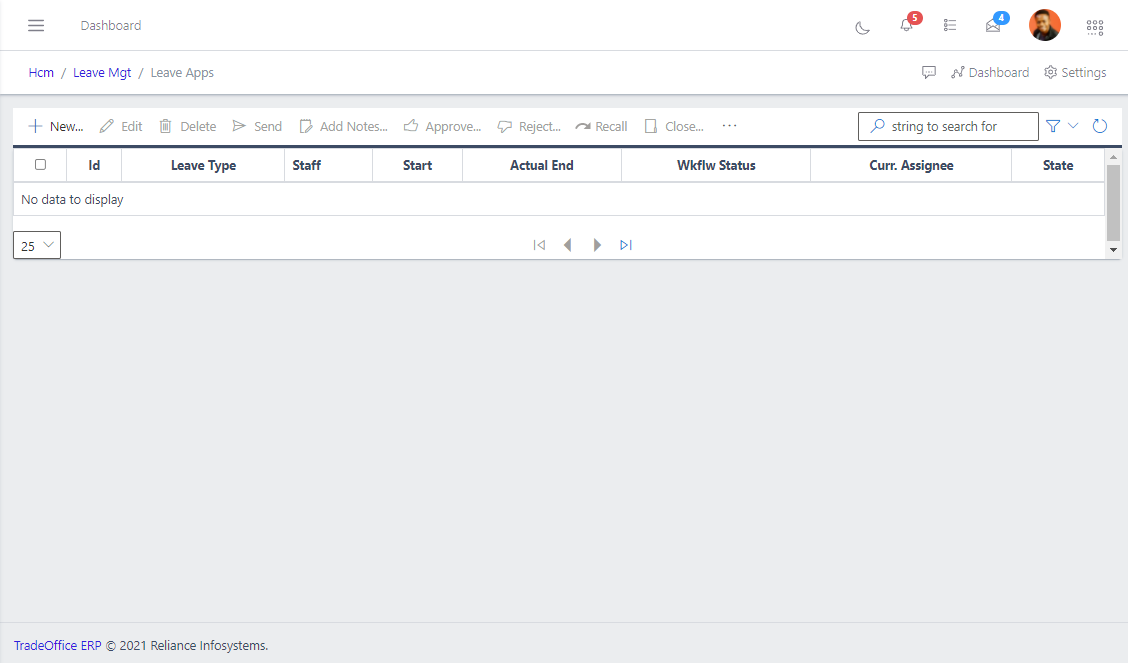
This component captures all staff status of leave applications with dates, number of leave days, status, leave start date and end date. This is where the authorizers approve, reject, discard, recall and edit staff leave application. From the FIG below, the HR can do the following:
1.	Creating a new leave

2.	Edit a Leave application

3.	Send the leave forward to the necessary reviewer for approval.

4.	Recall a leave application sent.

5.	Approve a Leave application

6.	Reject a Leave application
Sending the leave forward to the necessary approver:#
After you are done editing the necessary fields needed, you move to sending the leave application to your “Reviewer” by clicking the send button as shown in the FIG below.
The flow for Leave is create the Leave Year, and then while it is in the New state, you can edit quotas and specify Excluded dates on which staff cannot take leave…
Note: rules can be set around the various types of leave and we can filter for them:
They are supposed to review the Quota’s before they set the year running with APPROVE. They can do this by switching to the UPDATE (Edit) view.
A new LeaveYear is CREATED (this cannot be done prior to Dec 1 ie 1 month to the end of the current leave year).
HR or someone designated edits Leave Exclusion Dates (for instance people cannot go on leave during retreat or audit)
HR also edits Leave Quotas for the year for various staff (copied in or created from the Grade). The reason why we do it on a staff by staff basis is because there are usually special requests that can come at the beginning of the year - say someone taking a course who is key to the company and needs to use up all their annual leave, exam leave and more.
When all that is done, the Year is OPENED which creates a default leave rota for every qualifying staff.
Each staff (or HR if they are unavailable) then goes in and edits the created Rota (that is what preselected dates for Annual Leave are called).
When staff are done editing, they SEND to their supervisors/reviewers (this follows the same pattern as Performance - Targets and Appraisals).
A staff should be able to review and approve Rotas assigned to him.
When someone’s annual leave is approaching (2 weeks prior), the system will create the Leave record and send an email to the staff to apply for leave
Every two days, the system will send a reminder email to force the person to apply or DISCARD. Discarding kicks off another process but let’s stick with applying for now.
When applying for annual leave, they indicate whether or not they are collecting their Leave Allowance, who they will be delegating duties to, they fill in Handover Notes, etc
Then they SEND to their reviewers.
The reviewers APPROVE leave requests.
Then HR approves
Then EM approves
All this is done before the leave starts, so it enters a waiting state.
One day prior to the leave commencement, the system will fire off an email the person’s units and all those handed over to as well as HR that the staff is going on leave and all delegates persons should go into the app and read the Handover Notes.
On the day the staff is to resume from leave, a notification is sent to have them close out their leave.
When the staff closes out their leave, it moves on to HR to CLOSE. The reason for this is that HR verifies the resumption date and that is what goes on record.