Title here
Summary here
This part of the Leave management module captures all Rotas submitted by the staff stating when they will be going on leave for the year. This module gives the HR a bird view of the entire Rotas and help the HR know when each staff will be going on leave for the year.
From the fig1 below the HR can only perform the actions:
1.	Searching the Leave Rotas for a specific user

2.	Editing the Rota Submissions

3.	Sending the Rota to the necessary reviewer

4.	Recalling a Rota Submission

5.	Discarding a Rota Submission

6.	Approving a Rota Submission

7.	Rejecting a Rota Submission
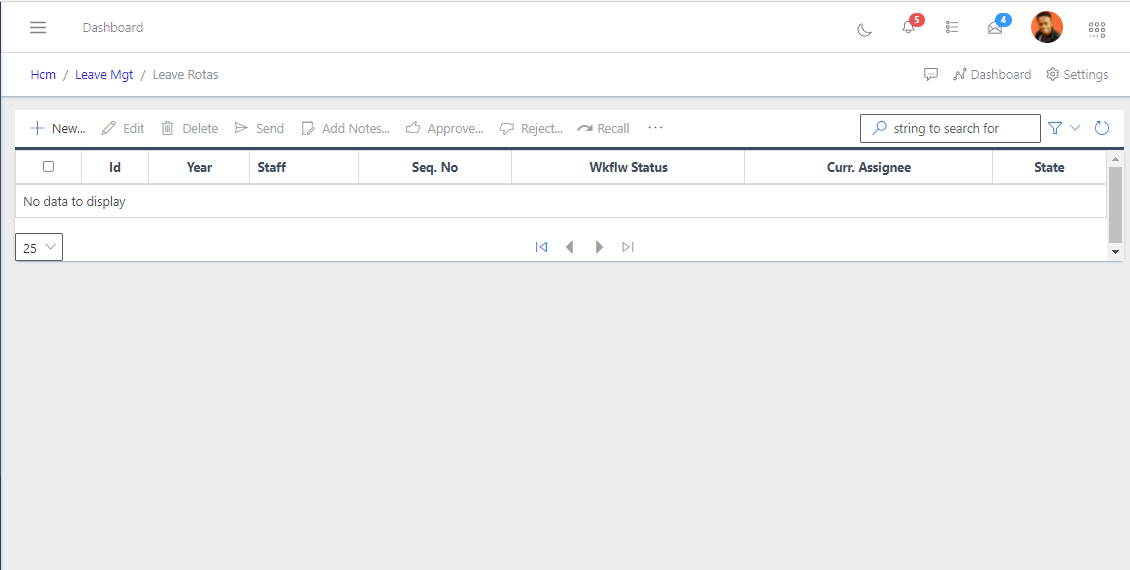
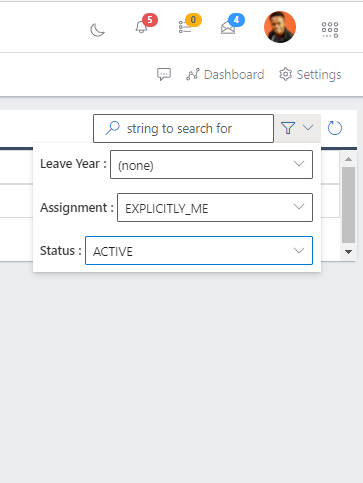
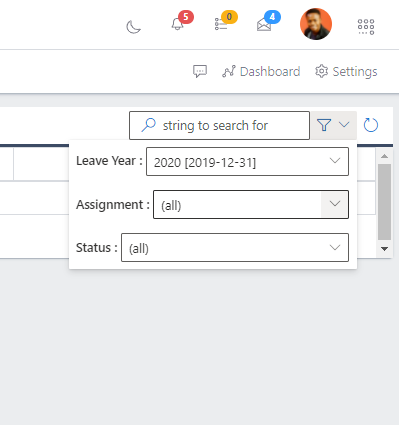
On clicking Rota submissions from leave management, you can only see the screen displayed above. To get to see data on the screen, you need to search through the list using the search drop-down button. On clicking the Search buttton, you are required to supply filters to the field displayed as shown in fig2 below to look exactly like fig3 below.
After which you are done searching the list for the staff you want to edit or update, you get to see the staffs’ information displayed as shown in FIG below.
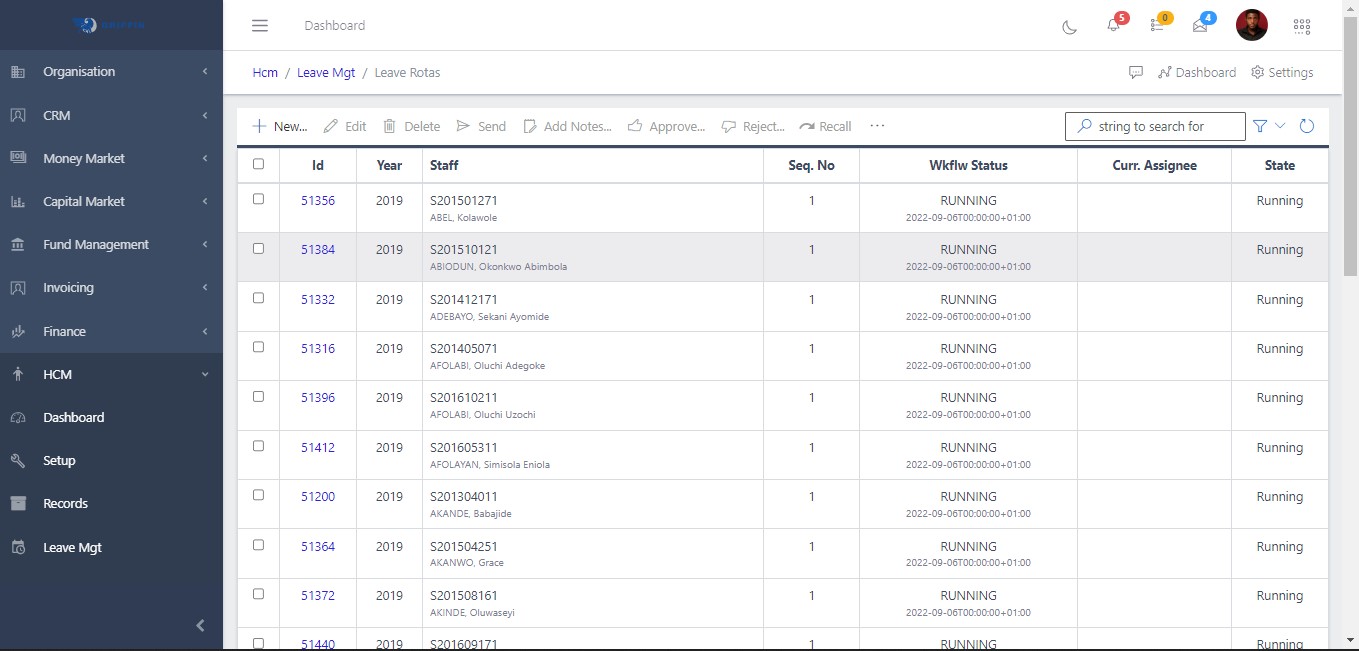
Note: remember all staff leave Rota are automatically generated when the new Leave Year was declared open.
The screen above shows a list of all generated Leave Rotas which needs to be updated by each individual staff or assisted by the HR. To edit one particular staff leave Rota, you need to, once again, use the search button by placing the staff name in the string as shown in FIG above.
This will streamline the number of staff leave rota on your screen to only the staff you supplied his/her name to filter as shown in the FIG below.
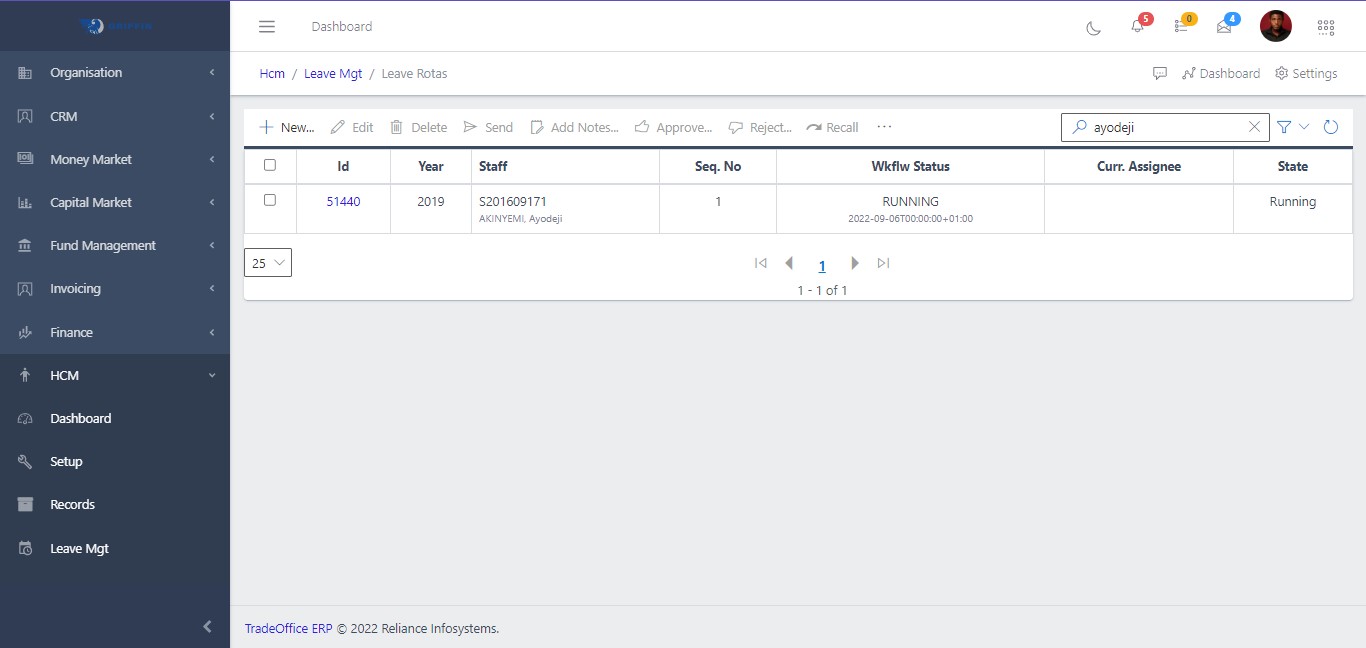
To edit this user, you can
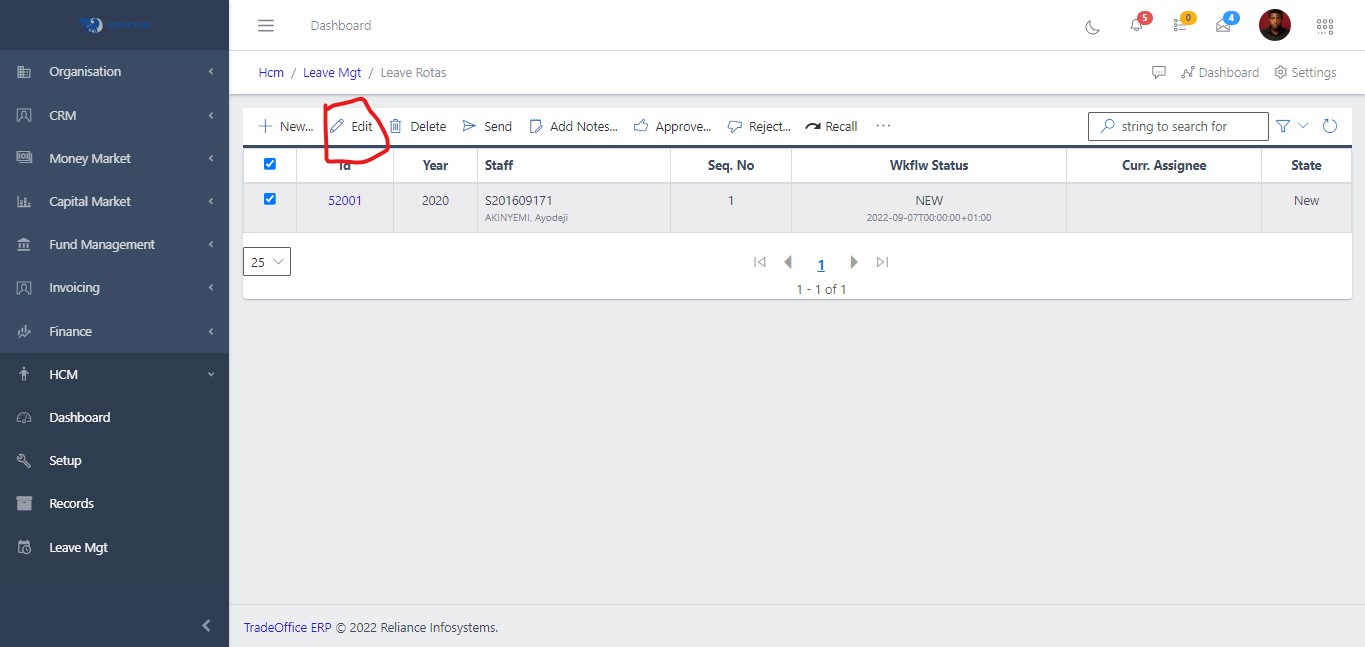
1.	Check the button beside the Id and click edit  button which will bring you to the screen below.

2.	Click on the id of the staff in question to view the staff as shown in FIGa below and click update button to take you to the edit screen as shown in the FIGb below.
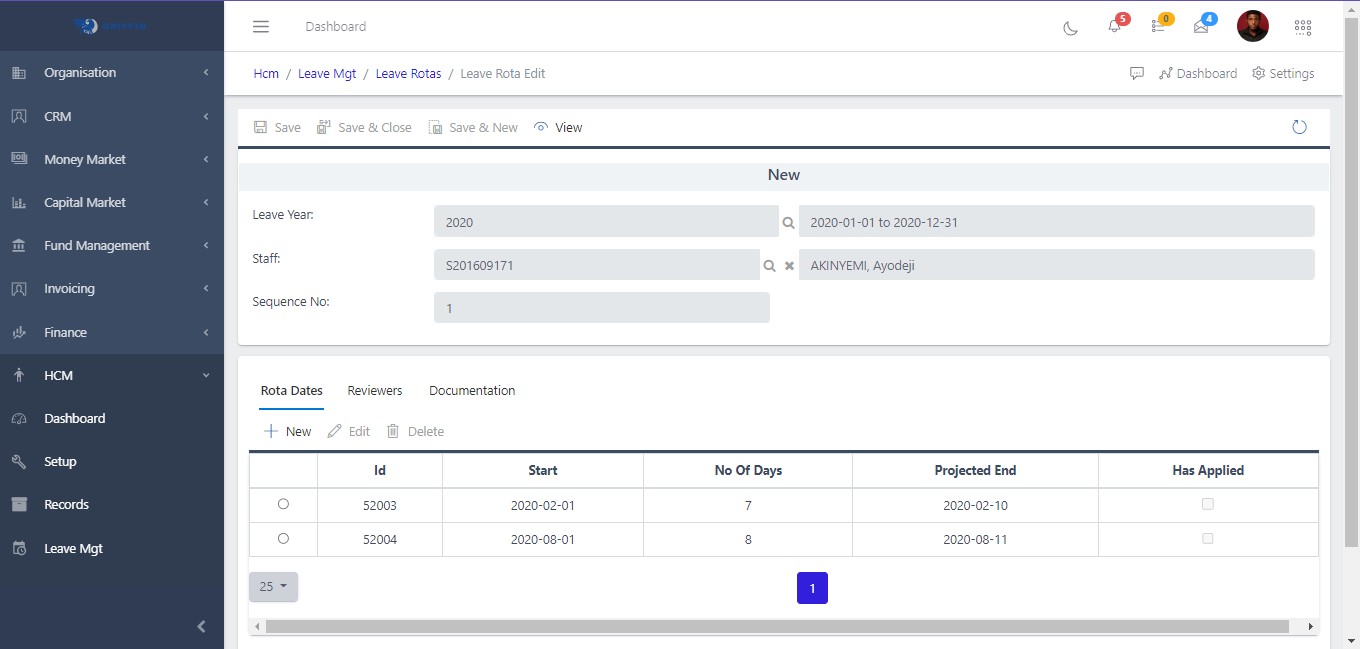
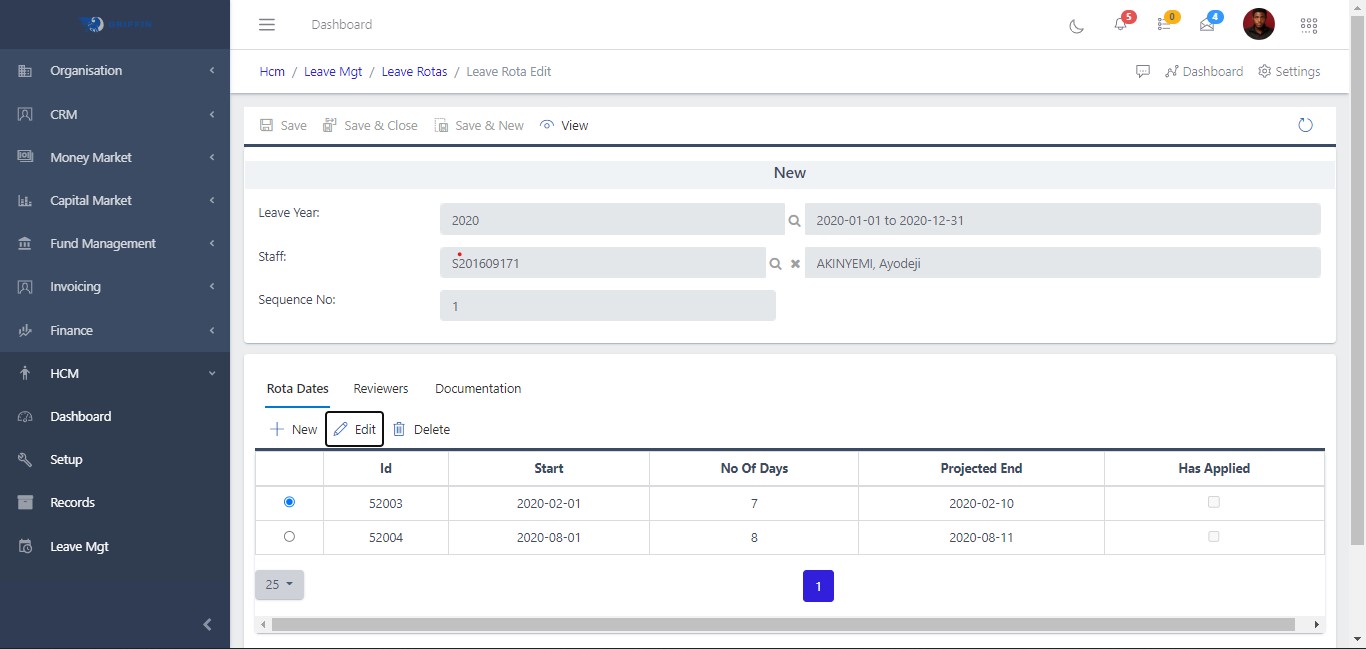
From the FIG b above, the staff in question has rotas for leave twice a year (each for 10 days). You can edit the staff rota dates to the date of choice of the staff. To do this you need to check the radio button beside the id and click the update button as shown in the FIG below.
FIG
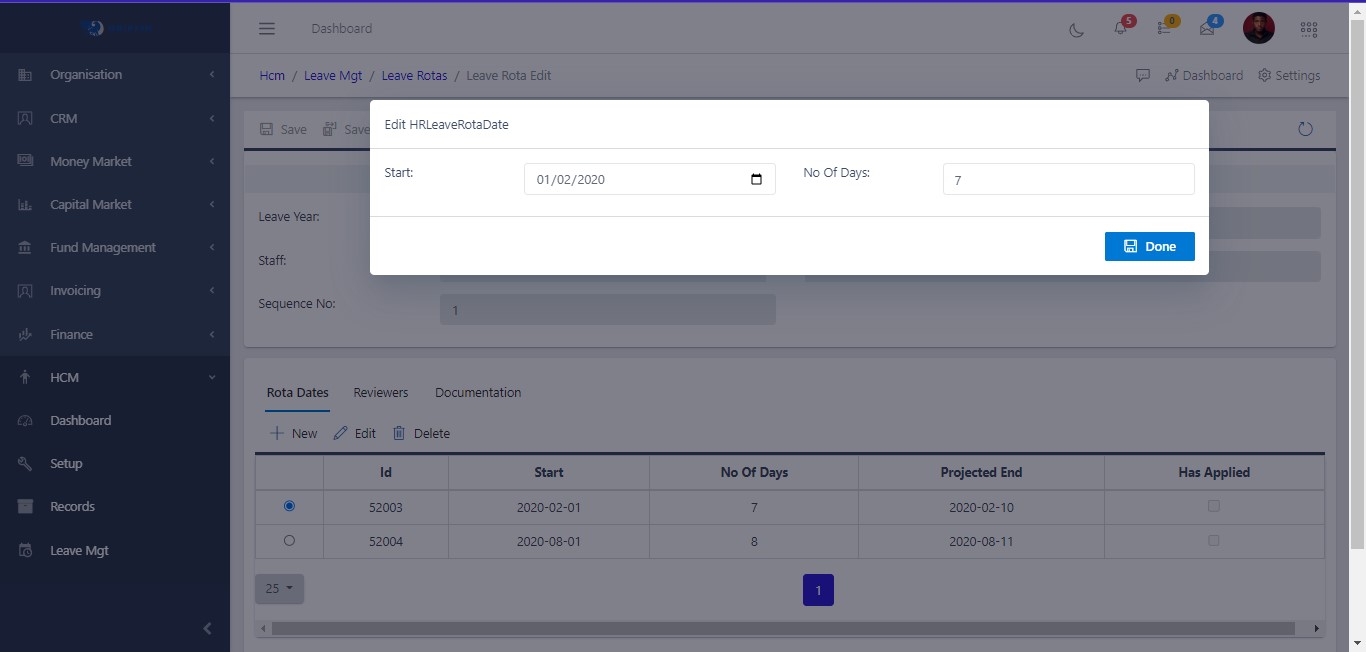
On clicking the update button, a new screen as shown in the FIG below is displayed where you can edit the dates. After adding the new date click done.
FIG
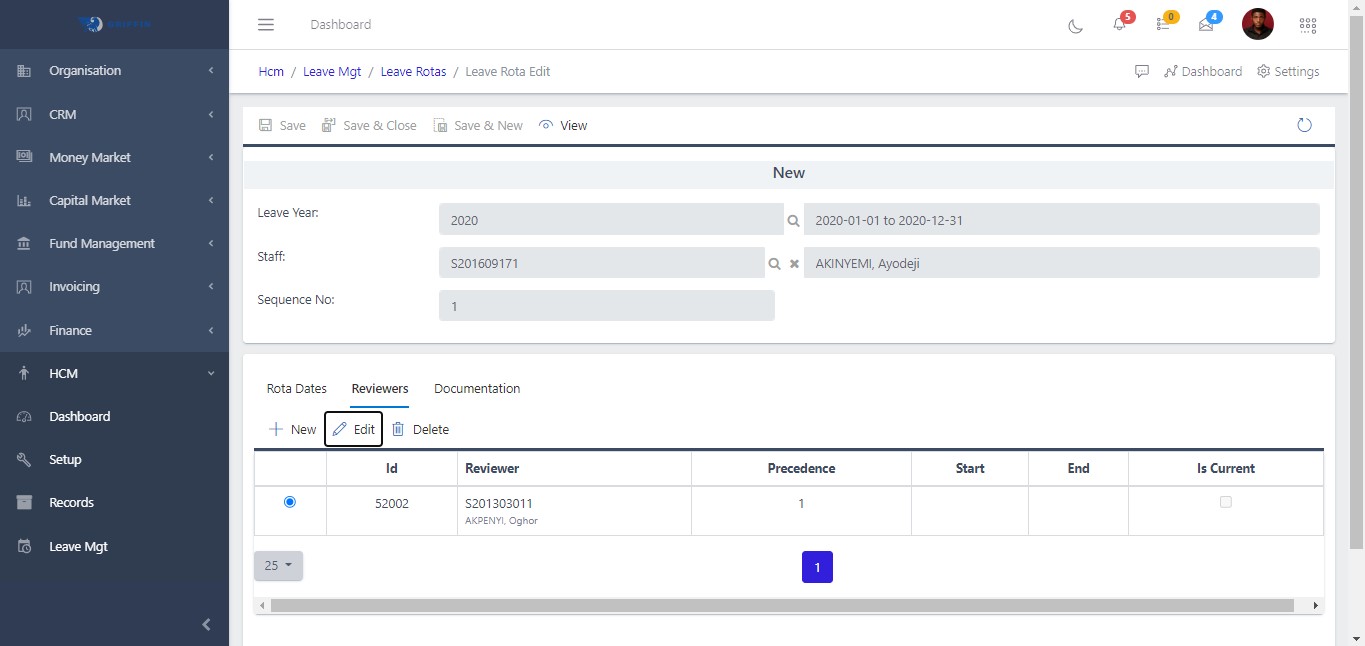
Also from the edit page, you can add and remove the staff reviewer. To do this, you need to click the reviewer pane (as shown in FIG below) then click on button.
FIG
On clicking the add button, a new screen will pop-out (as shown in the FIG below). You can search for the staff you want to make a reviewer then set the precedence level. The person with precedence level 1 is the major reviewer.
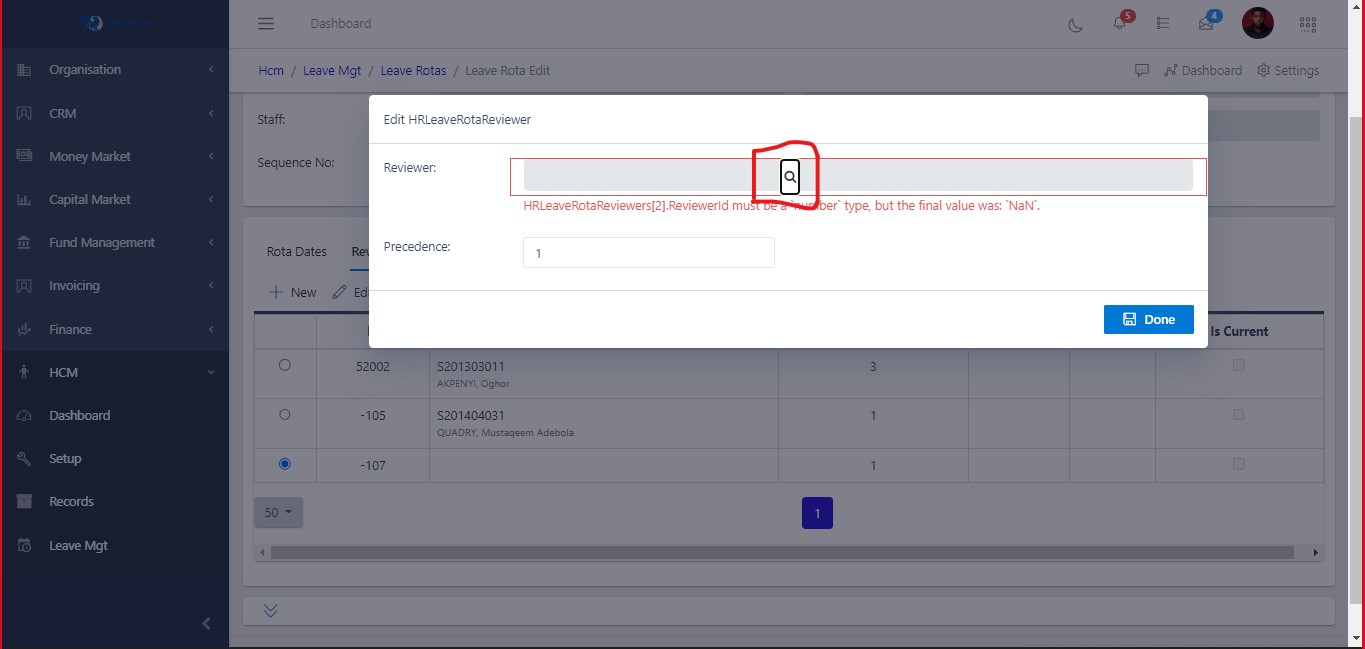
Note: A staff can have more than one reviewer.
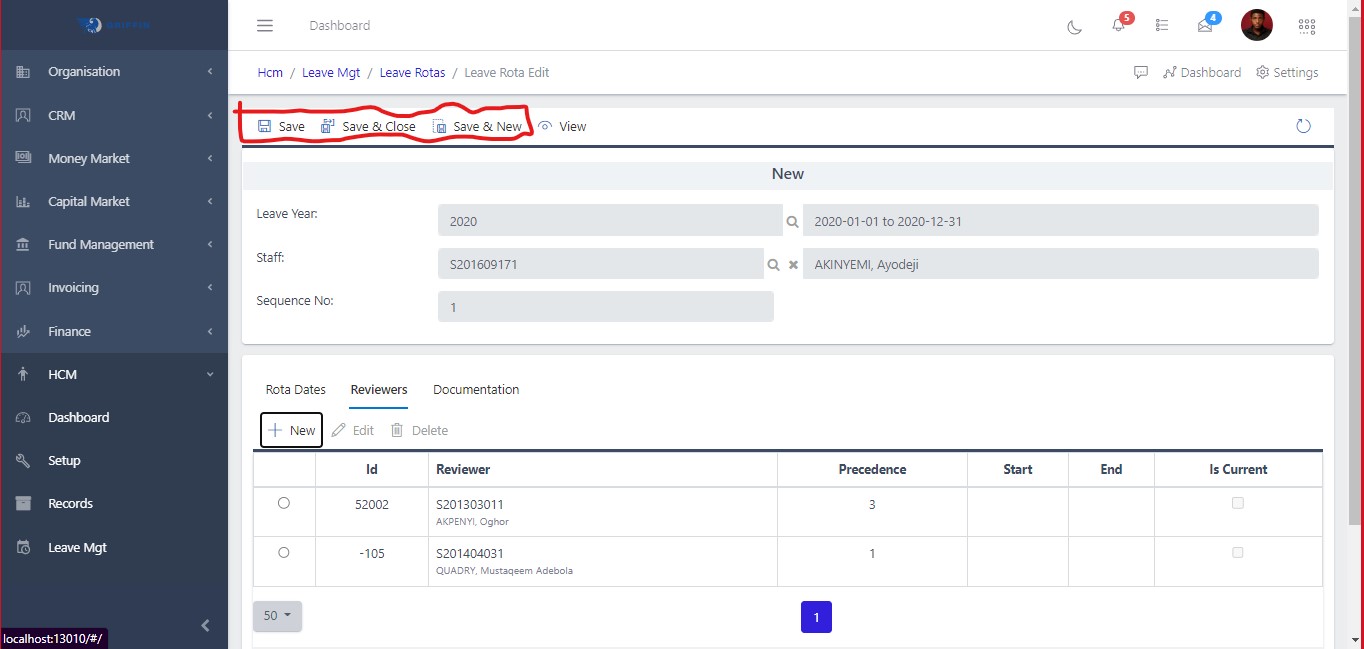
After all information needed has been passed, you can move to saving your changes by clicking the save button as shown in the FIG below. From the FIG below, you will notice there are three save options but you can choose any to save your changes.
After all the editing needed has been done, you need to send the rota submission for the staff supervisor to approve. To do this, you need to hit the send button, as shown in the FIG below, to send.
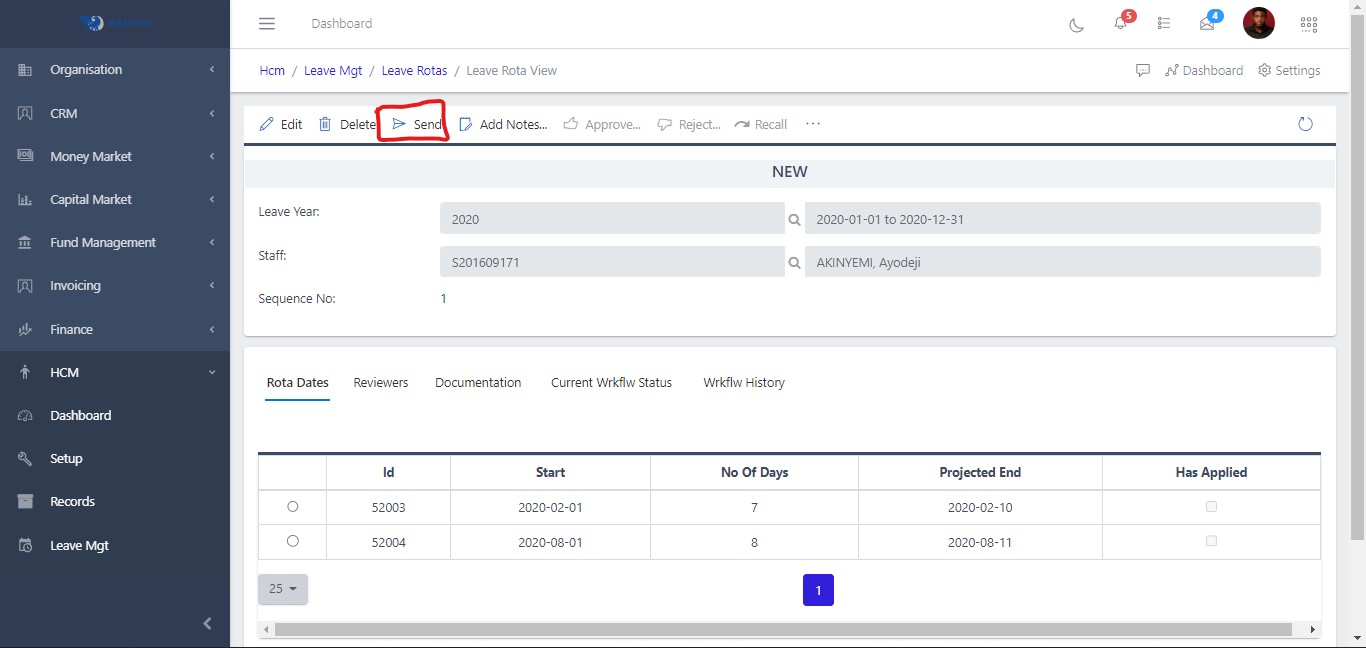
Note: On sending the rota submission, the “work-flow status” changes from “NEW” to “SUP_APPROVAL”. If the staff have more than one supervisor, then the status will change to “SUP1_APPROVAL”.
After a leave rota has been sent and there is a discovery of error on the part of the staff, the staff can move to recalling the leave rota by clicking the recall button as shown in the FIG below.
FIG
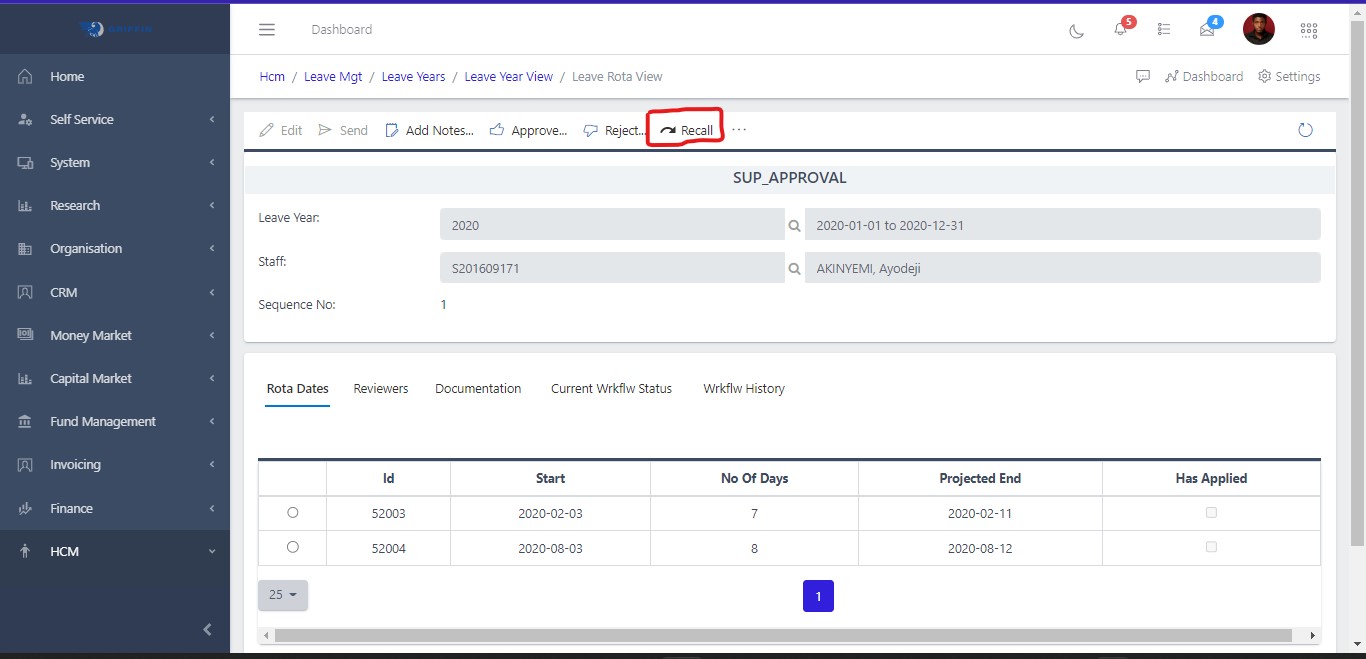
Note: after clicking the recall button, the “work-flow status” changes from “SUP_APPROVAL” to “NEW”.
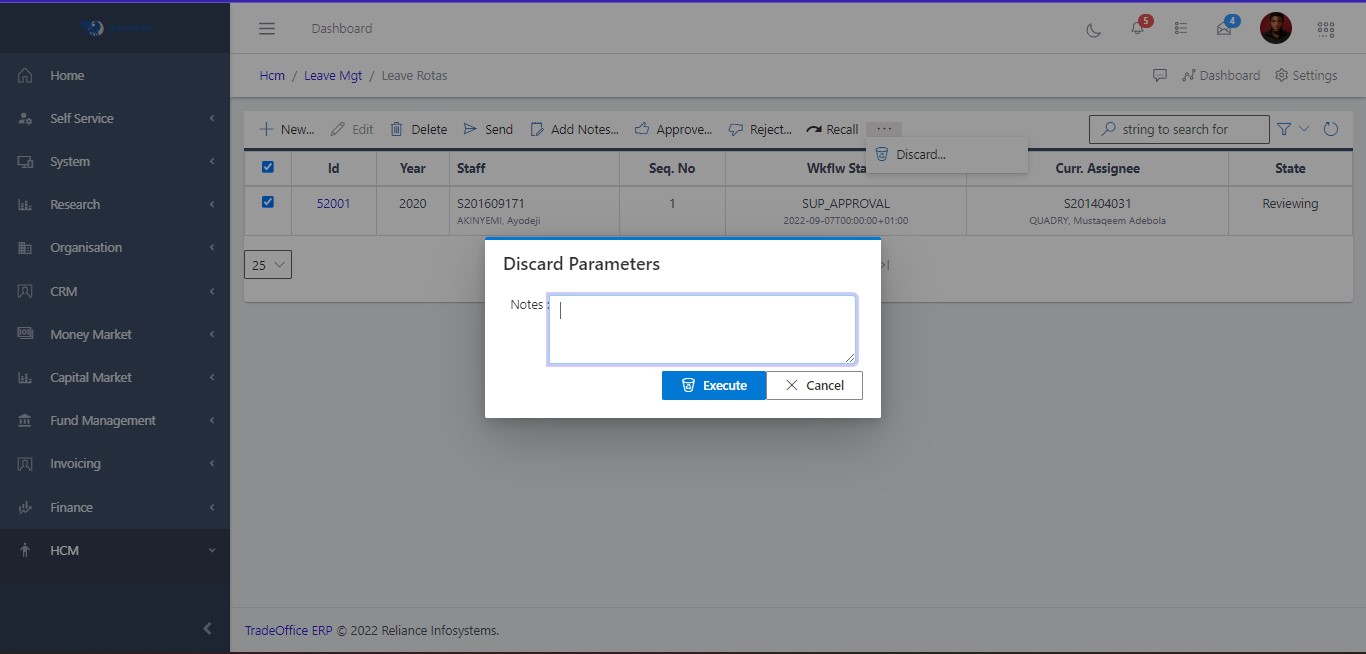
Rota submission discarding is also possible when the rota submission is viewed. Discarding a rota submission changes its “work-flow status” to “Discarded” and creates a new leave rota entry with the previous dates and splits. To discard, you need to click the discard button as shown in the FIG below.
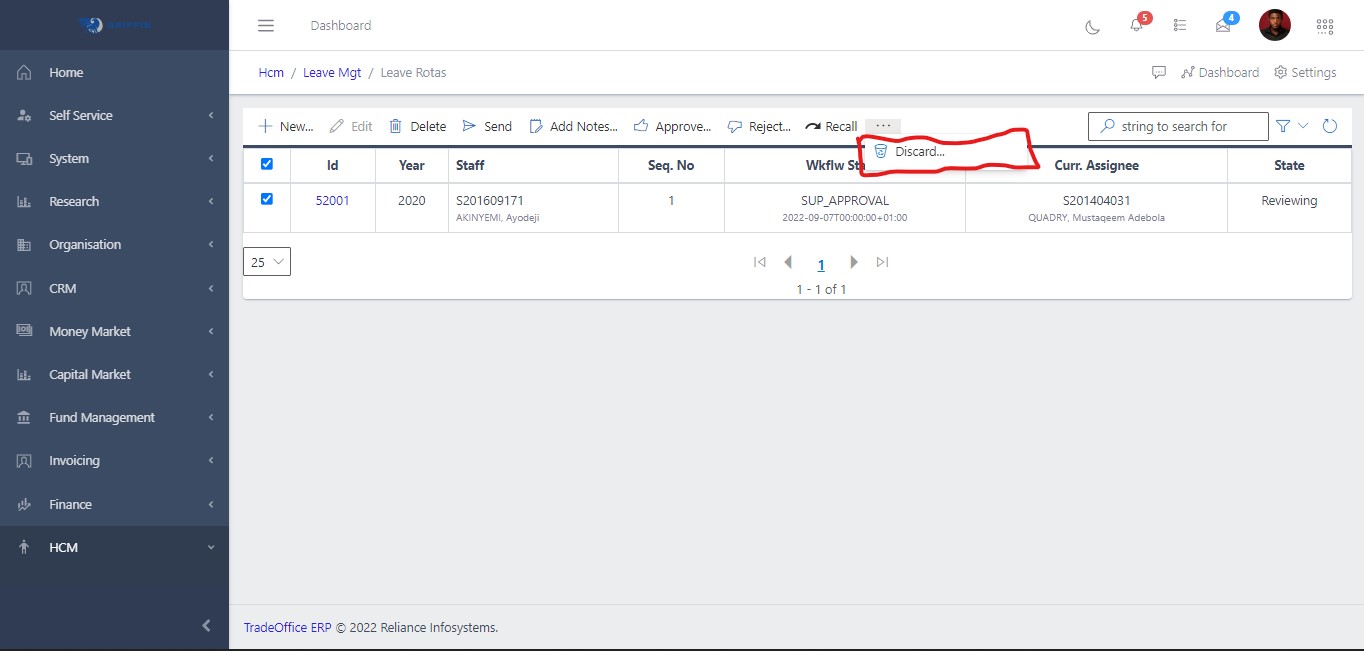
Clicking the DISCARD button pop-out a new screen to ass note on why you choose to discard as shown in the FIG below.
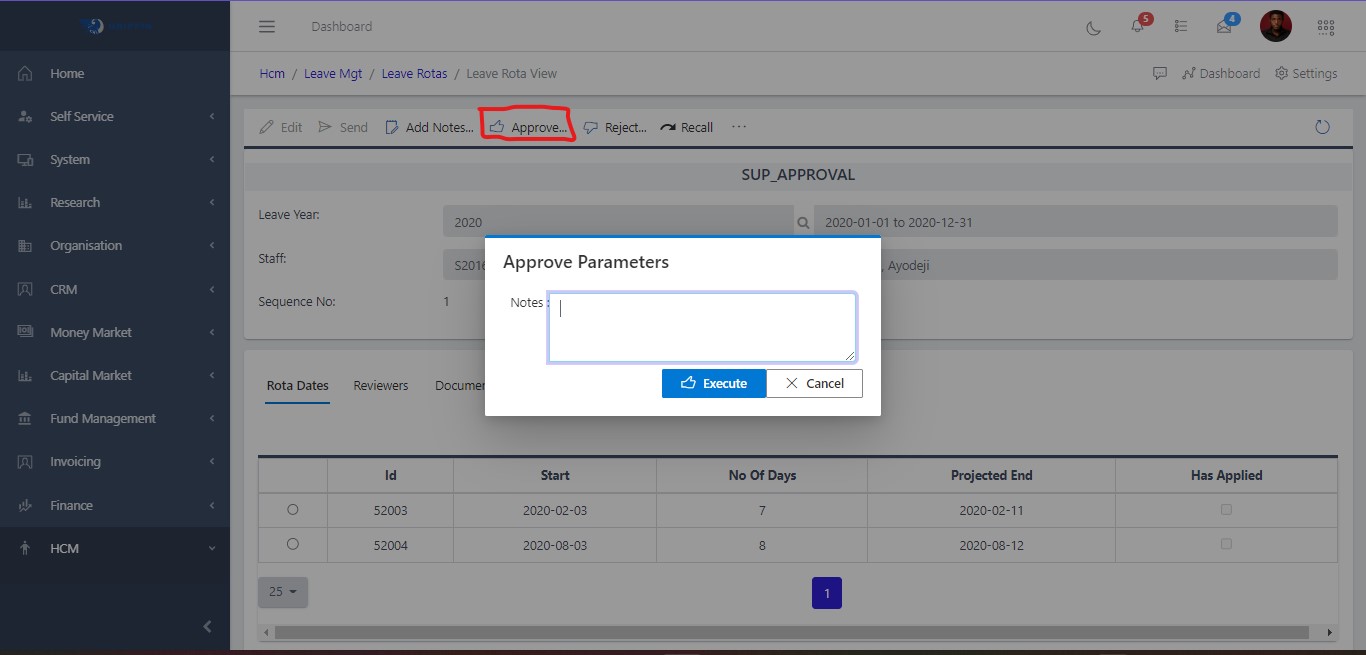
To approve a leave rota, you need to click the approve button. From the new screen that pop-out, add the comment and click execute as shown in the FIG below.
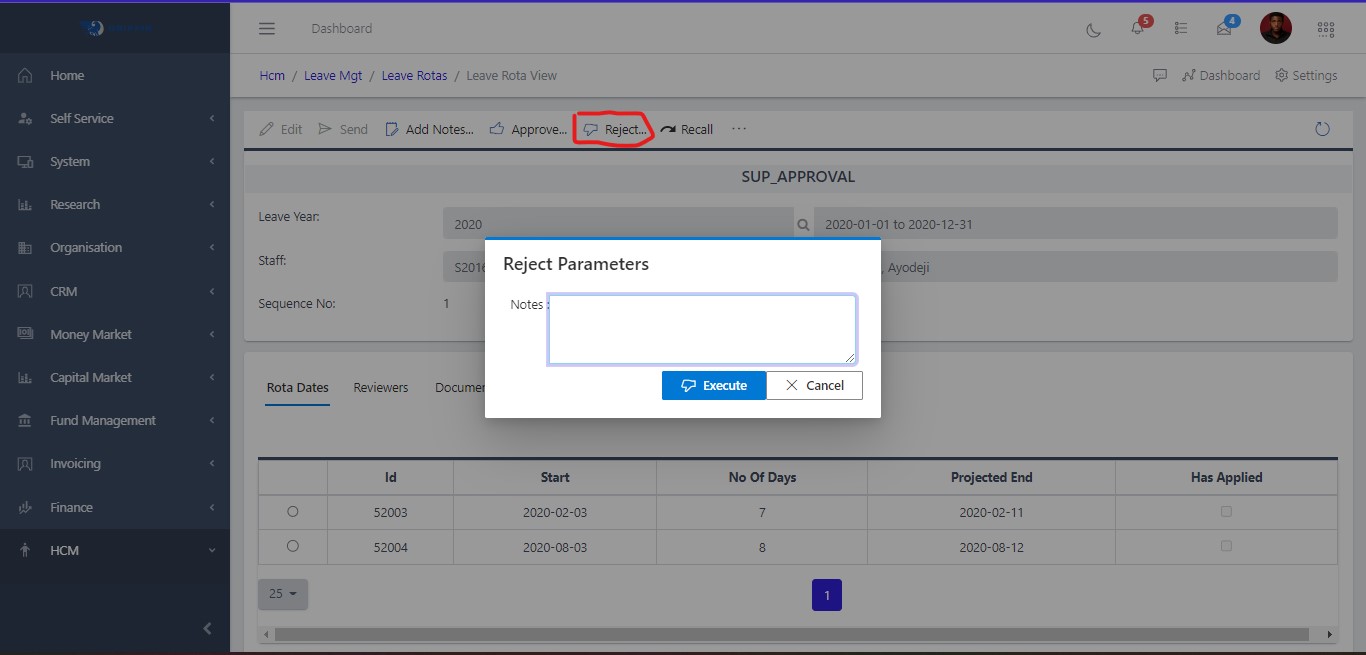
To reject a rota submission,
1.	Locate the specific submission on the rota submissions list and select it

2.	Click Reject.

3.	Input comments in the dialog box that appears and click execute.