Title here
Summary here
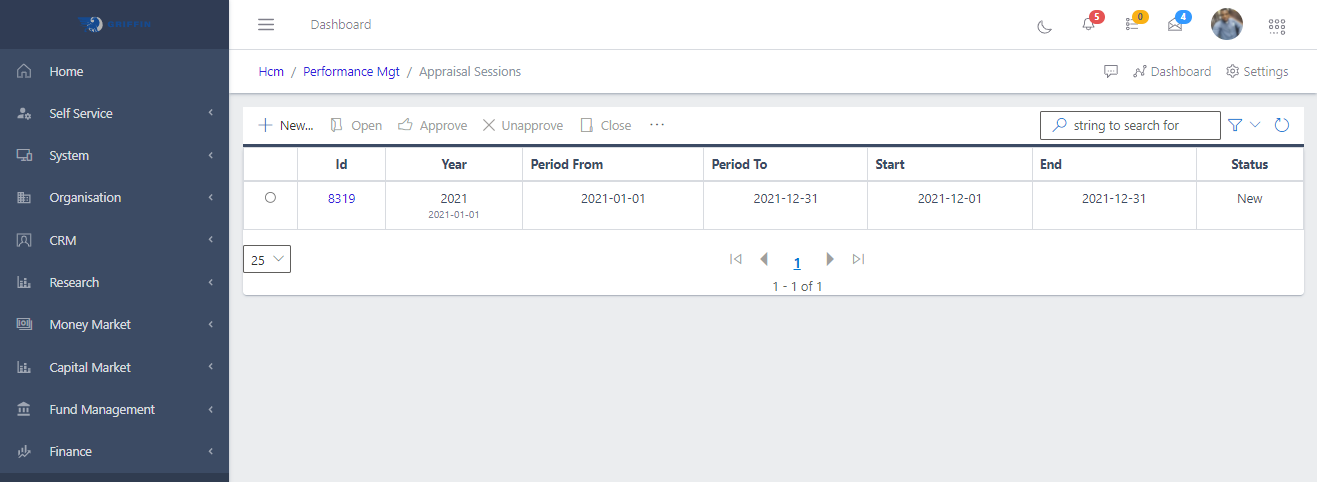
You can navigate to the appraisal session submodule from HCM/Performance Management/ Appraisal Session as shown in Fig 1 below. Note: All appraisals are displayed in descending order of period start from the most recent to the top.
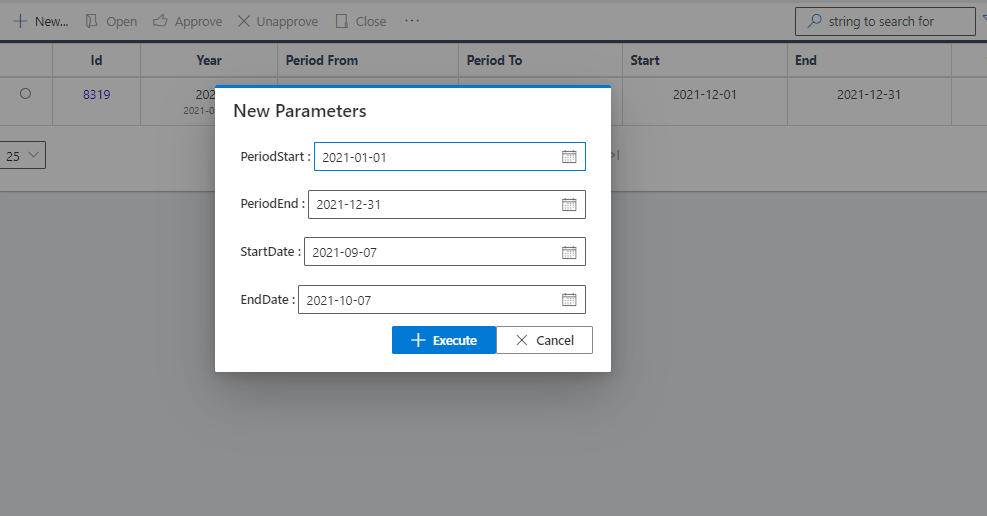
NEW/CREATE button helps create a new appraisal session. On clicking the button, a new dialog box is displayed as shown in Fig 2 below.
To view a new appraisal session, you have to click on the appraisal ID as shown in FIG8 above. A new screen will pop out as shown in Fig 3 below.
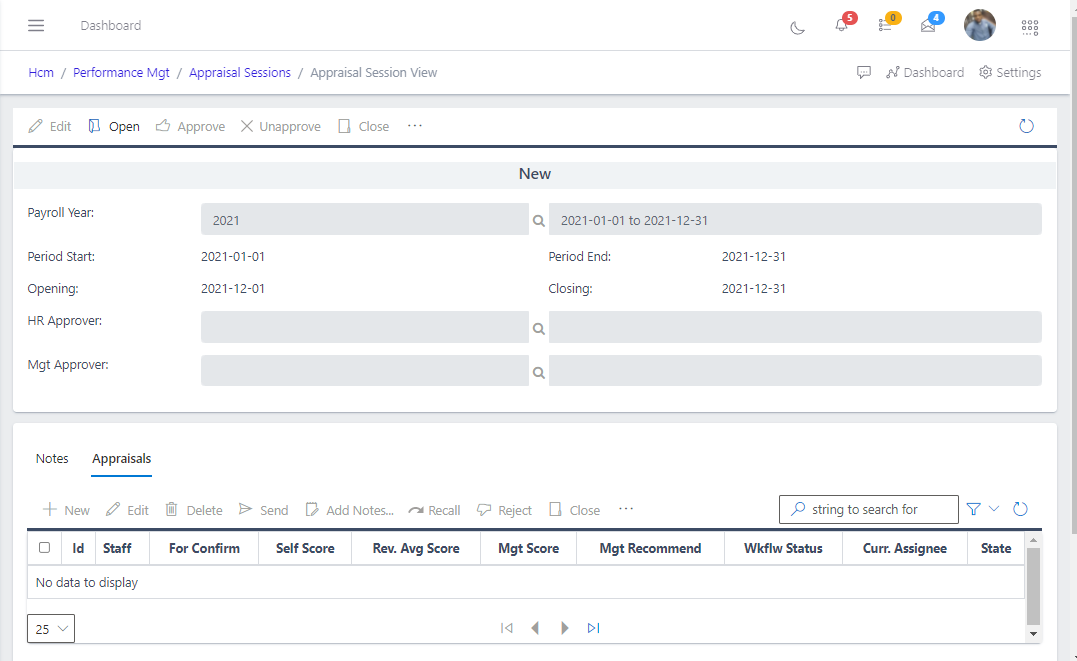
To open a session, all targets must be properly closed out (either approved or discarded completely before the session can open). Opening the session gives the screen in FIG10 below. Note: The view (as in Fig 4) is only available to HR, EM, and anyone with hr_RecordUser rights.
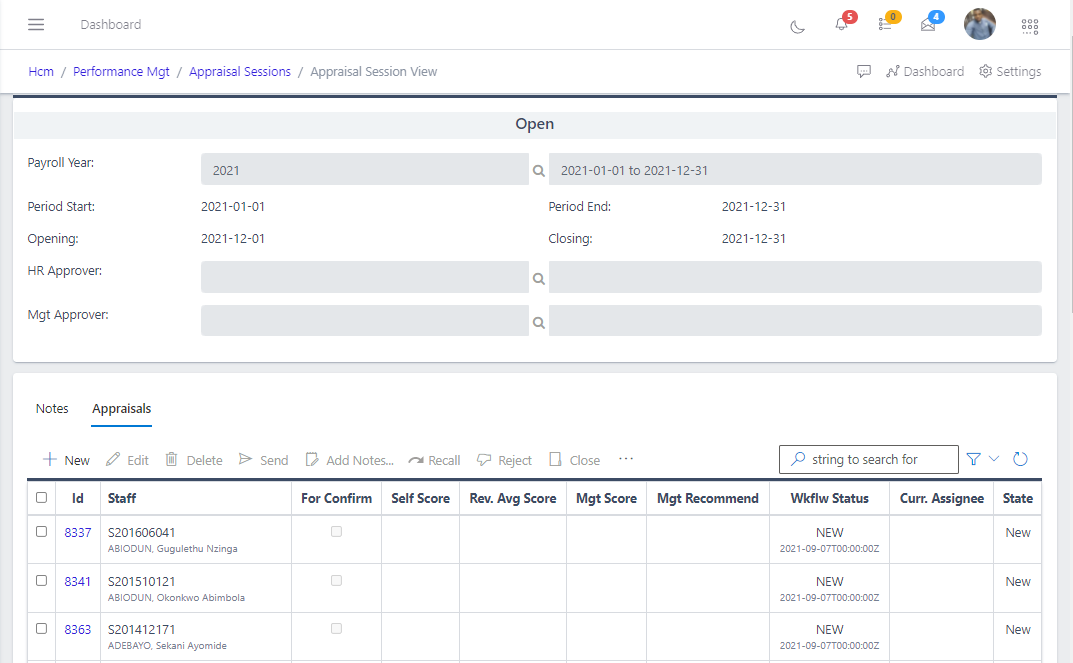
The details in Fig 4 above can be further queried by clicking the ID of the appraisal. Clicking the ID of the first appraisal pop out a new screen as shown in Fig 5 below.
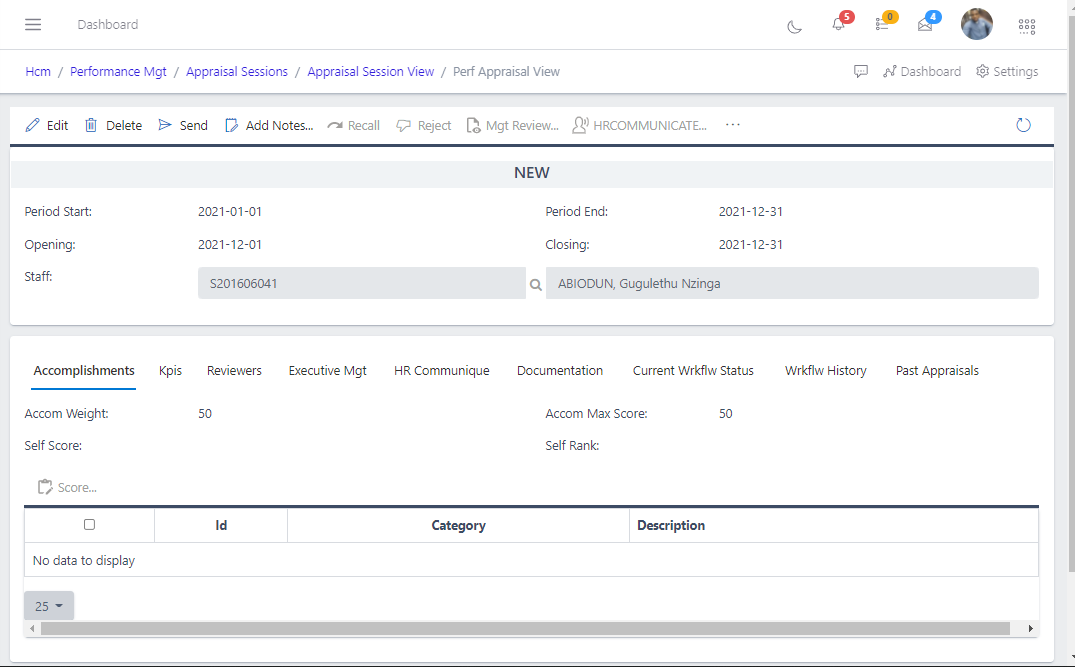
NOTE: There can be more than one reviewer for a particular target. Primary and secondary reviewer. The Primary reviewer is responsible for scoring all areas of performance. While the secondary reviewer oversees areas such as sales, development goals.
We can opt to edit an appraisal when the status is still NEW before sending. Clicking the edit button change the view to look like Fig 6 below.
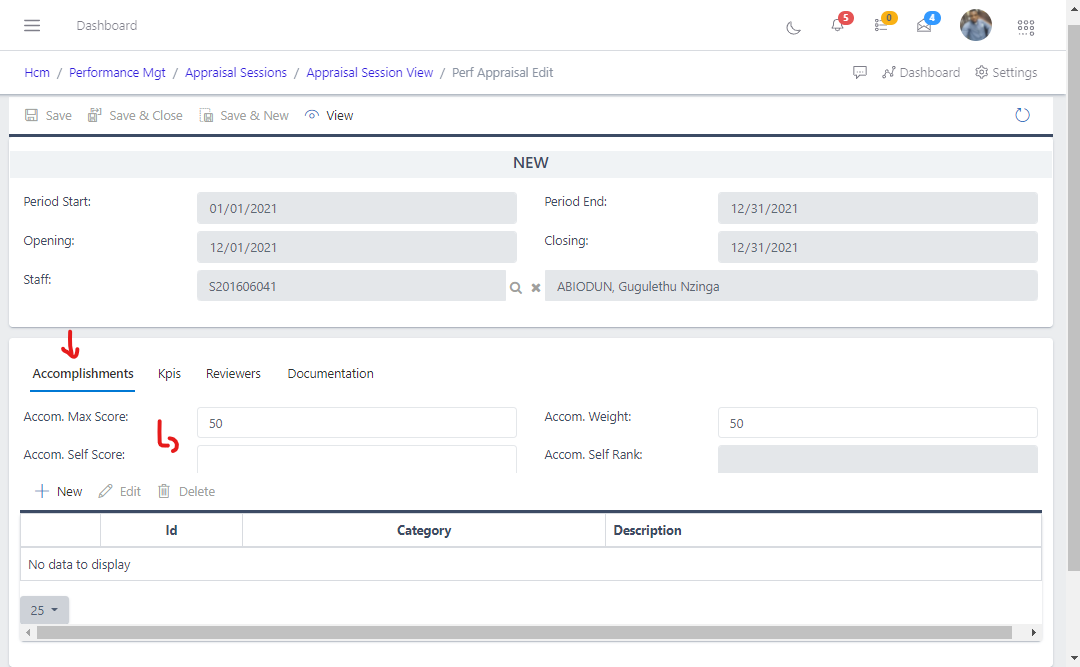
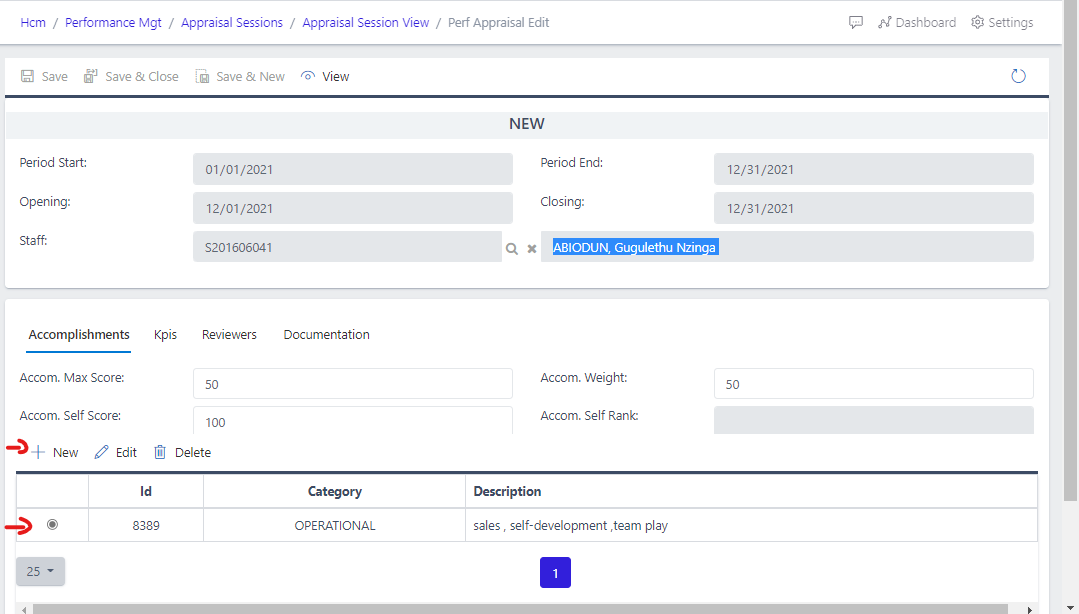
NOTE: On the edit page, as shown in the figure above, the user can put in his/her accomplishment and assign some score when applicable as shown in Fig 7 below.
NOTE: The max personal score in KPIs is 20
From the edit page, KPIs can be edited as well as Reviewers and documentation. But, if other entities (such as KPI, Reviewers, and documentation) are okay as originally entered by the targets, then no change is needed, the staff can focus on self-scoring or save if no change is needed. All KPIs must be self-scored before sending for approval. NOTE: because we are accessing from the HCM module, any member of the HR may be assisting a staff that is indisposed.
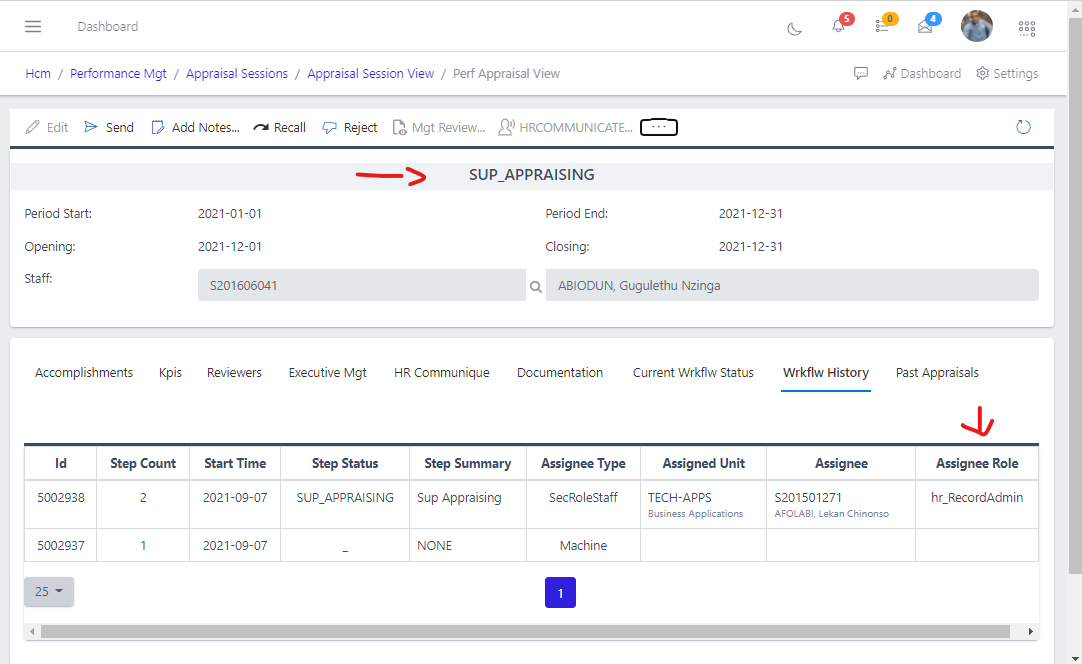
Once the appraisal is sent for approval after the staff is done self-scoring, the document moves to the desk of the supervisors which were specified as the appraisal reviewers. As seen in Fig 8 below, at this stage the document is in the SUP_APPRAISING status. The supervisor scores from both the KPIs tab and the Reviewers tab then hits the send button.
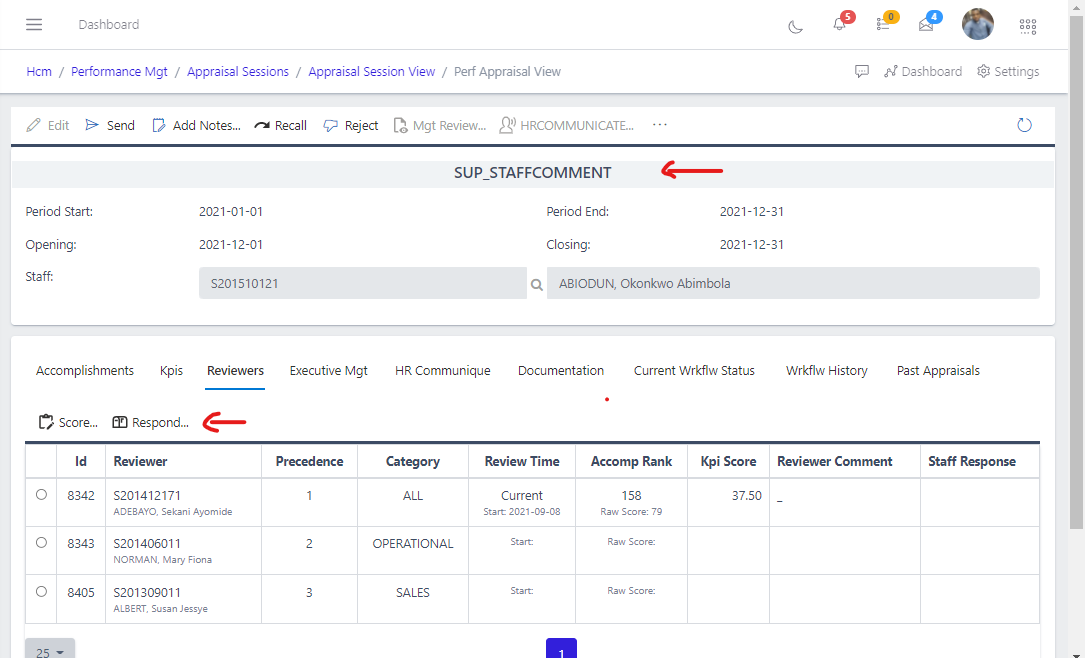
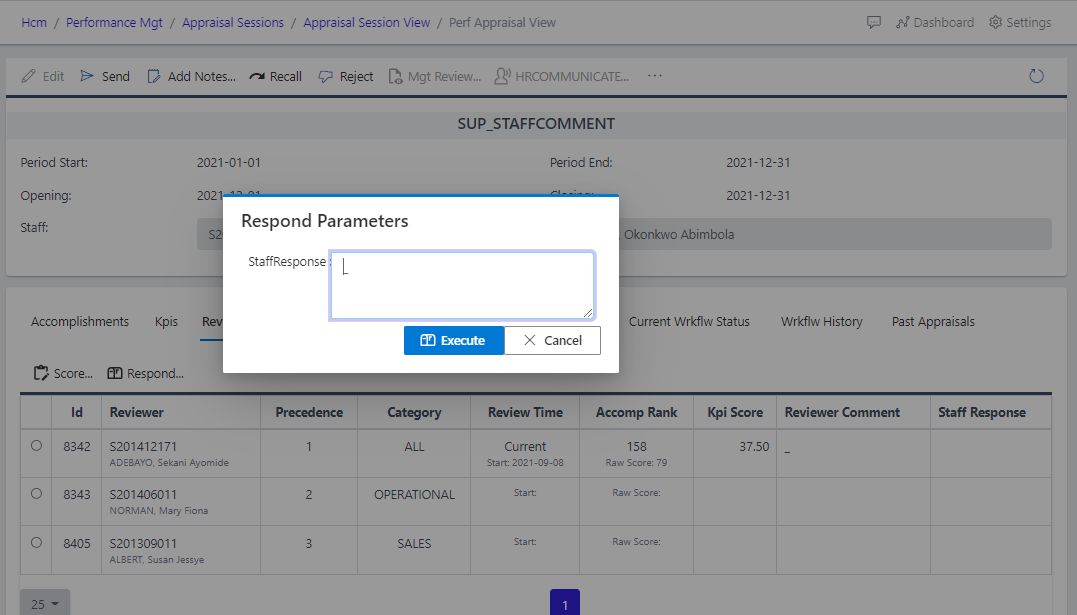
The documment then comes back to the staff’s desk. Here he/she has the oppurtunity of going through the score and comments made by the reviewer. If the scores are unsatisfactory, remarks/comments in the form of complaints can be made from the Reviewers tab. At this stage the document is in the SUP_STAFFCOMMENT status as seen in Fig 9 below. Fig 10 below shows the Staff comment modal box.
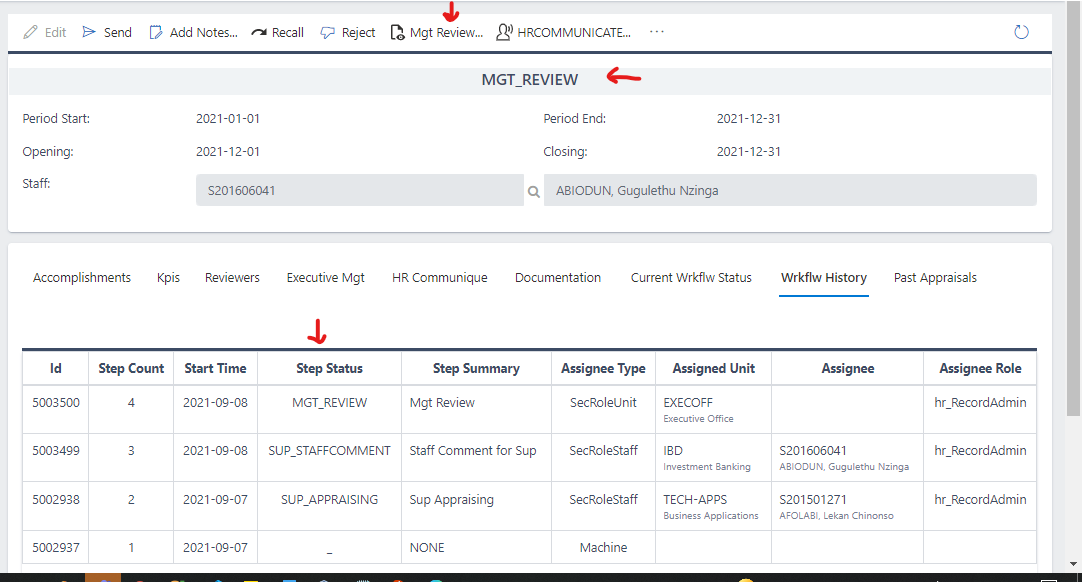
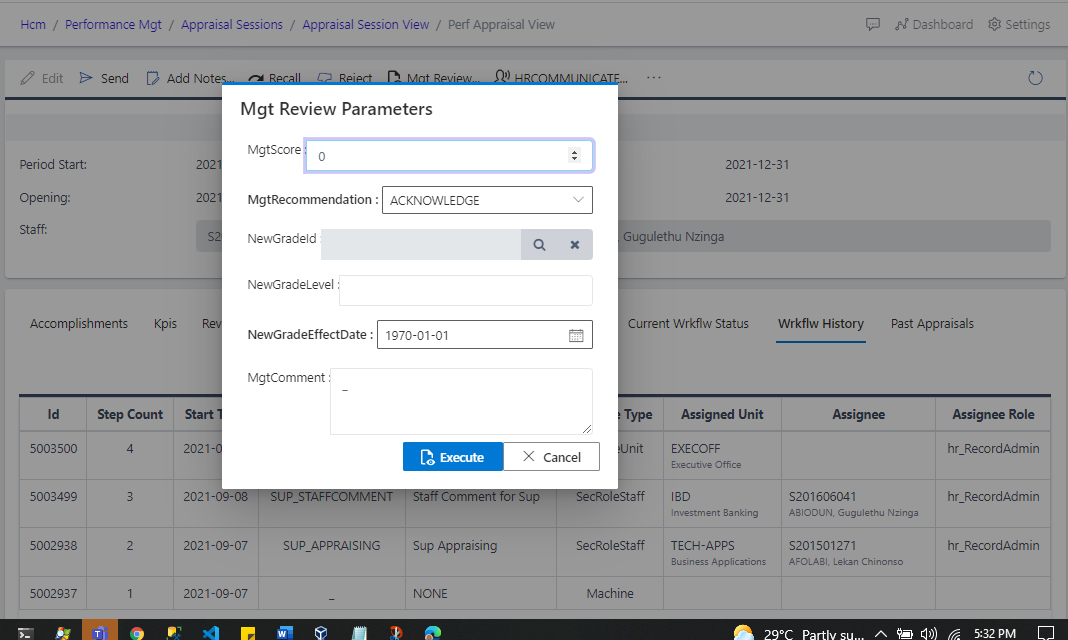
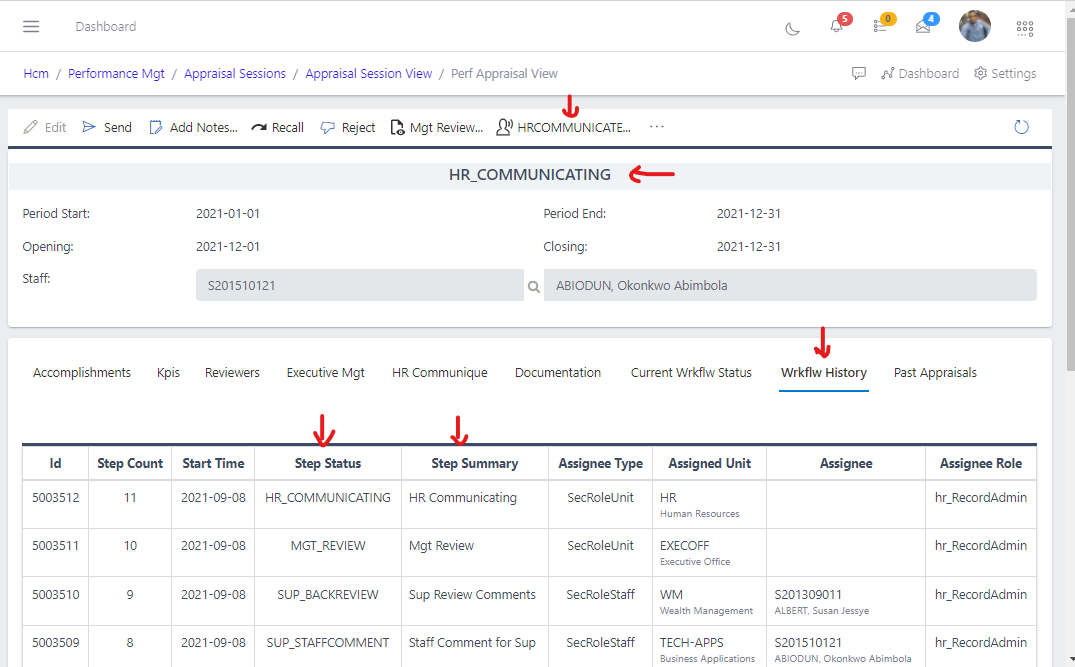
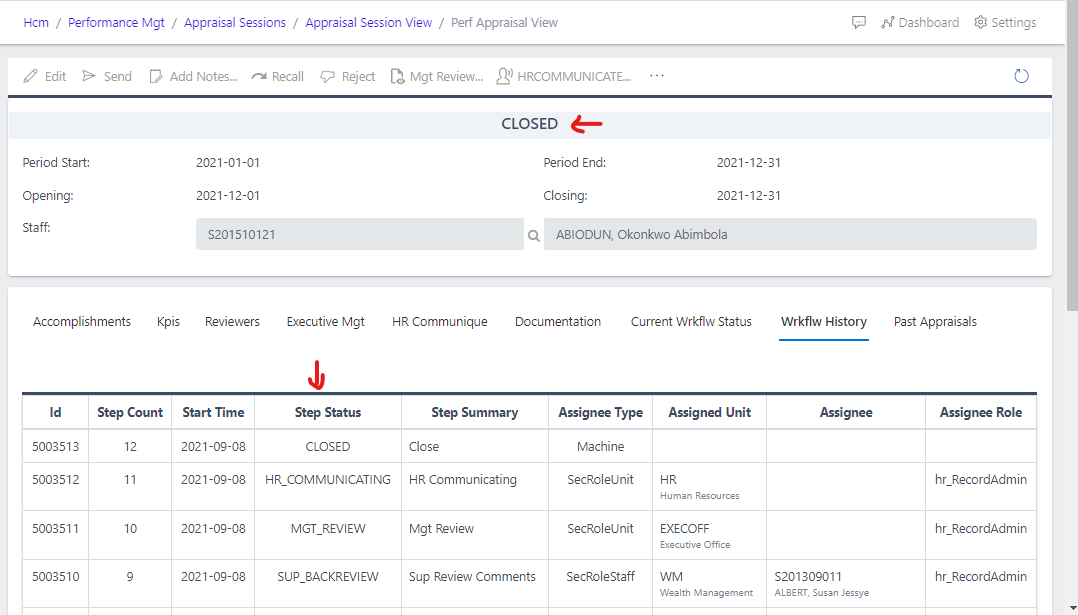
After Management reviews and sends, the appraisal moves to the status of HR_COMMUNICATING as seen in Fig 13 below. Here HR makes the final comment in response to the management review before the appraisal is finally closed out. They make this comment by hitting the “HRCOMMUNICATE” button as shown in Fig 13. Once the button in hit a modal box pops up containing a text field HR makes the intended comment. once HR sends the appraisal, it then enters the status of CLOSED as seen in Fig 14 below.