Title here
Summary here
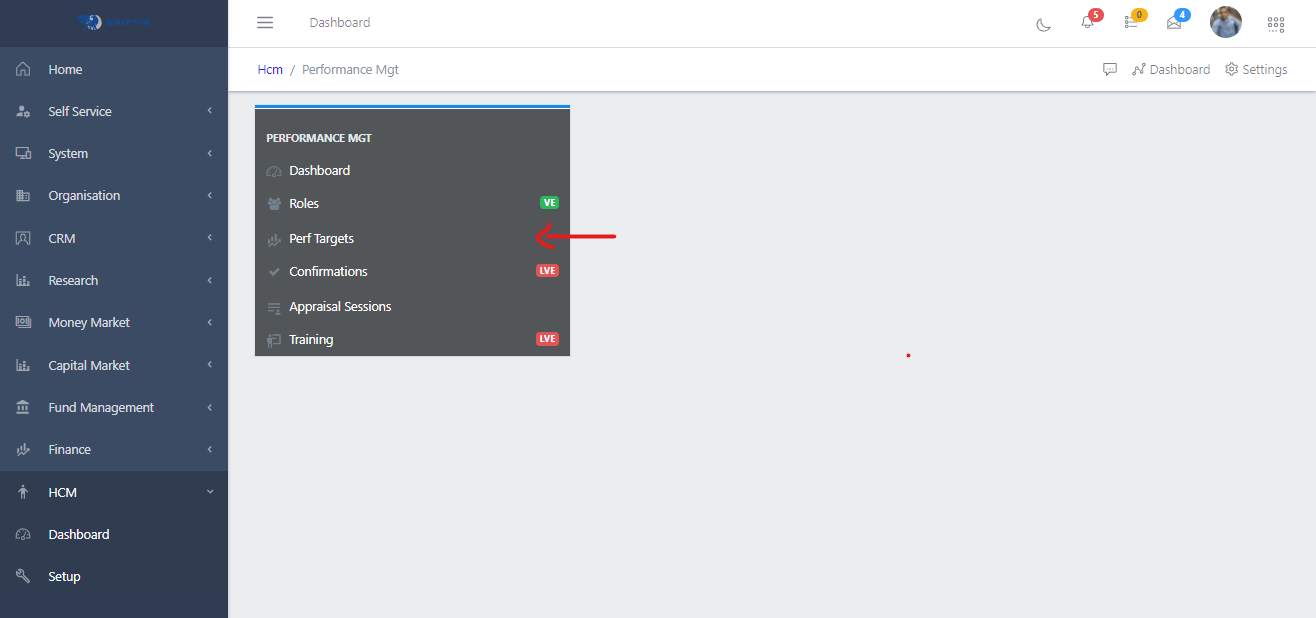
To get this section of the app, just click on the Perf Targets link under the PERFORMANCE MGT menu on the HCM Dashboard page as show in Fig 1.
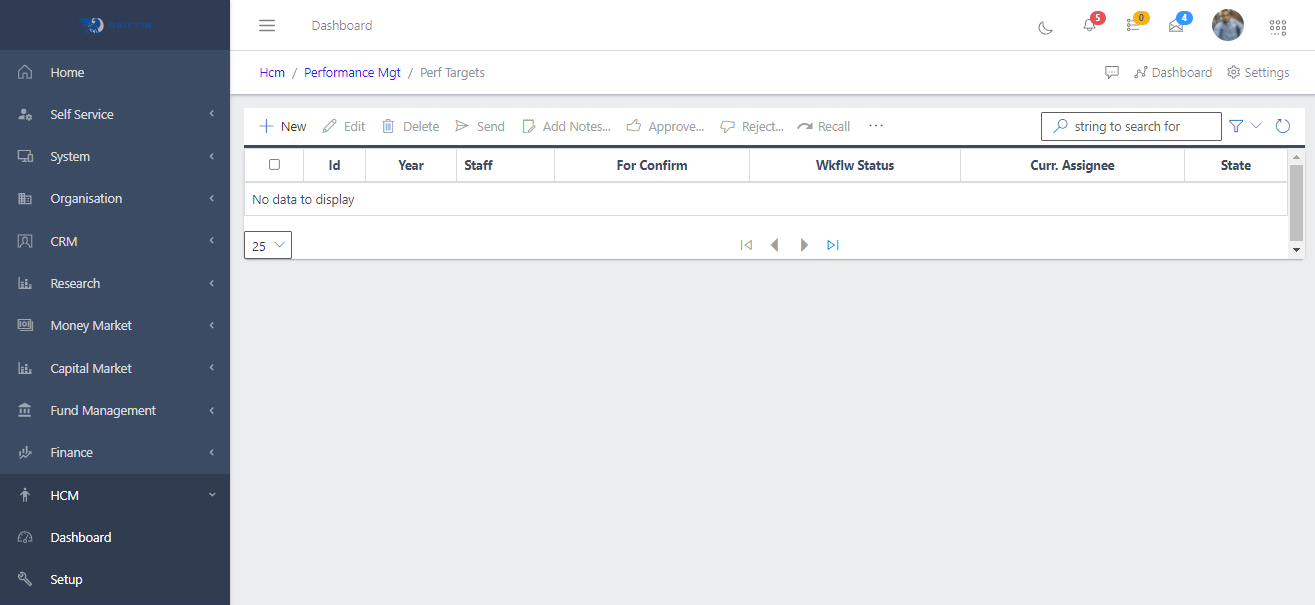
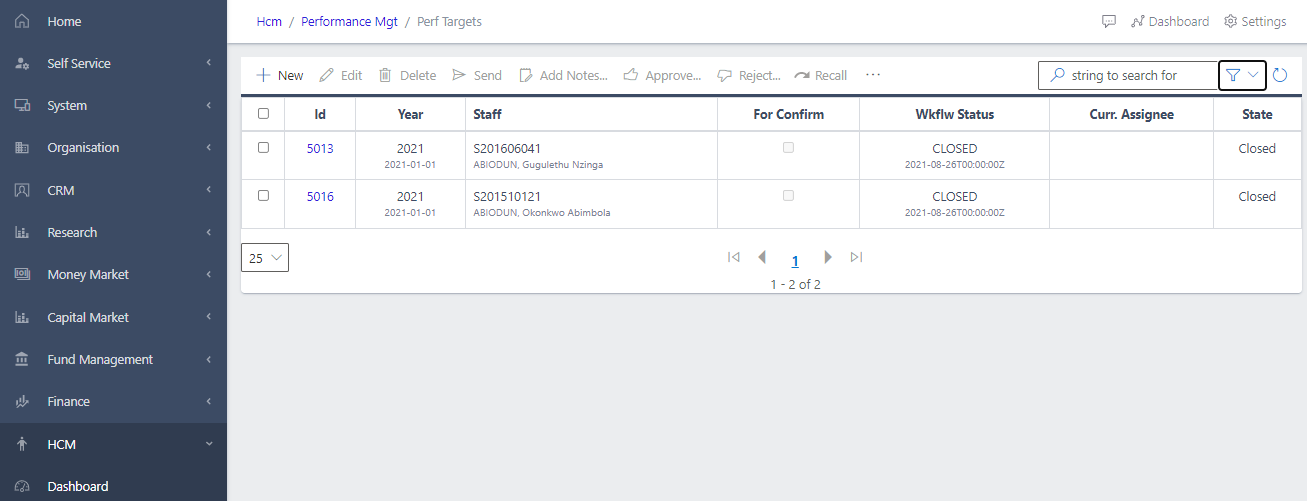
Navigate to HCM/Performance Mgt/Perf Targets as described above and shown in FIG3 below. The page is initially empty, one would have to filter to see already existing performance targets.
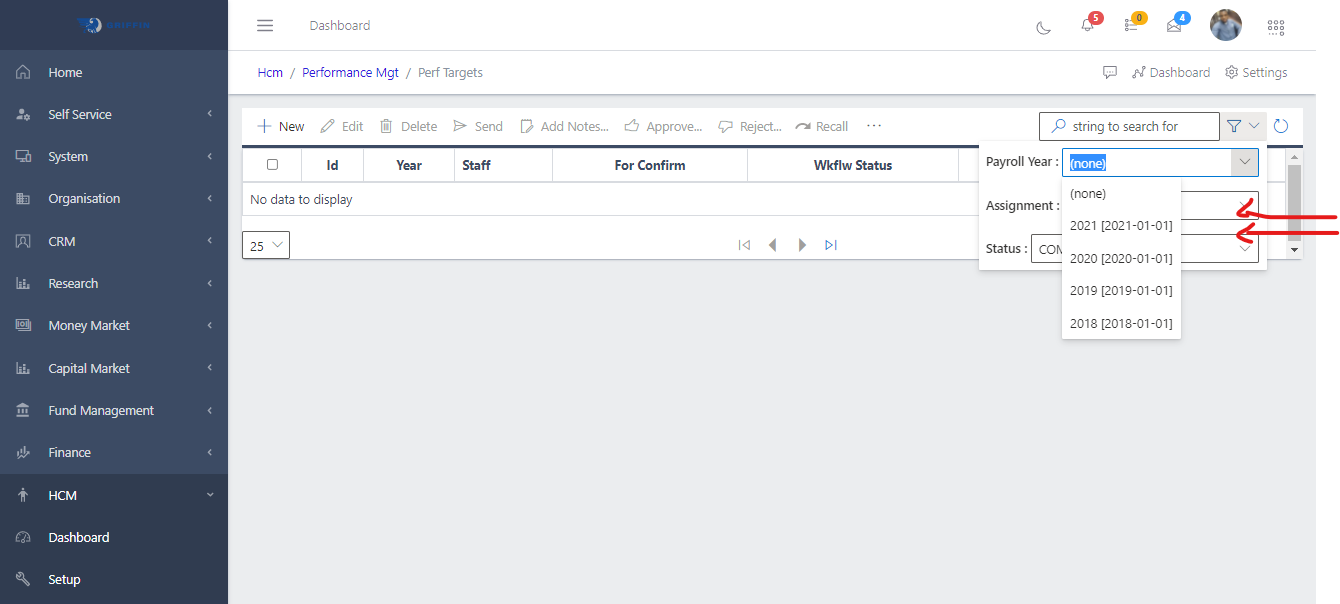
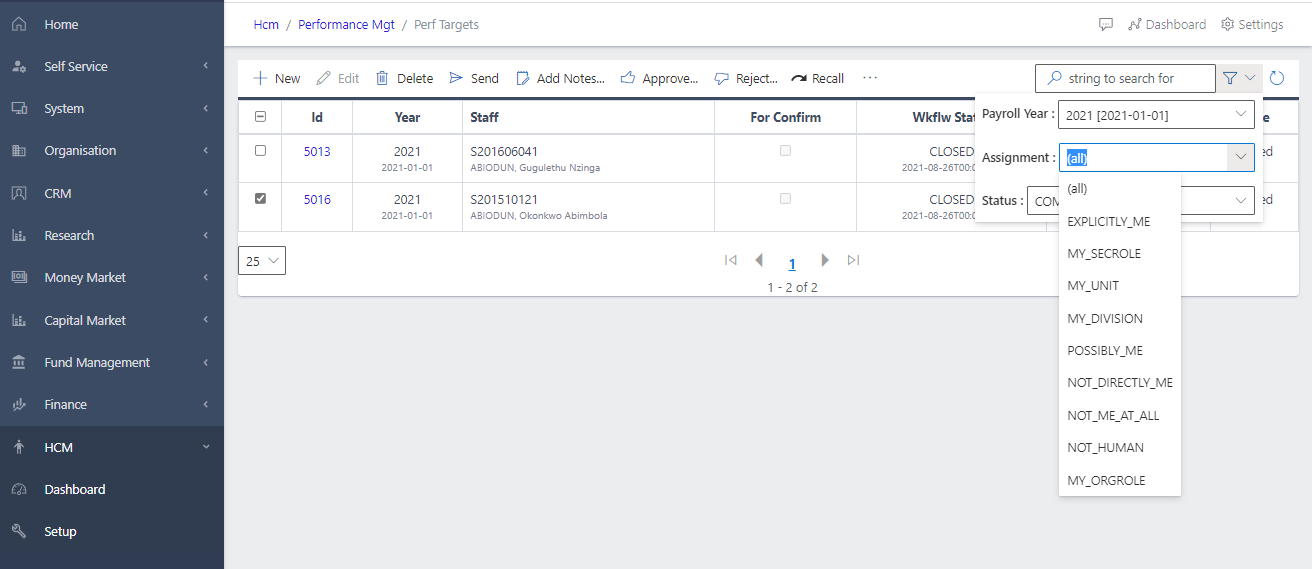
Clicking this button brings up a view (as in Fif 3a and Fig 3b below) that help you pass in filter values (used to filter through a list) to get to a particular or desired result. It is necessary to specify appropriate filters for what one is searching for. In this case we want to view targets for the year 2021. We are also interested in those that have been CLOSED. If the user wants to pay attention only to those awaiting his/her approval, that can also be specified.
To create a new performance target , you click on the NEW button which will take you to the create page as seen in Fig 5 below. ‘Payroll/Perf year’ and ‘Staff’ are required fields. NOTE: If the system is not up to date , you would be required to create Payroll/Perf year for the current year in which the performance target is to be done , under the Payroll sub-module.
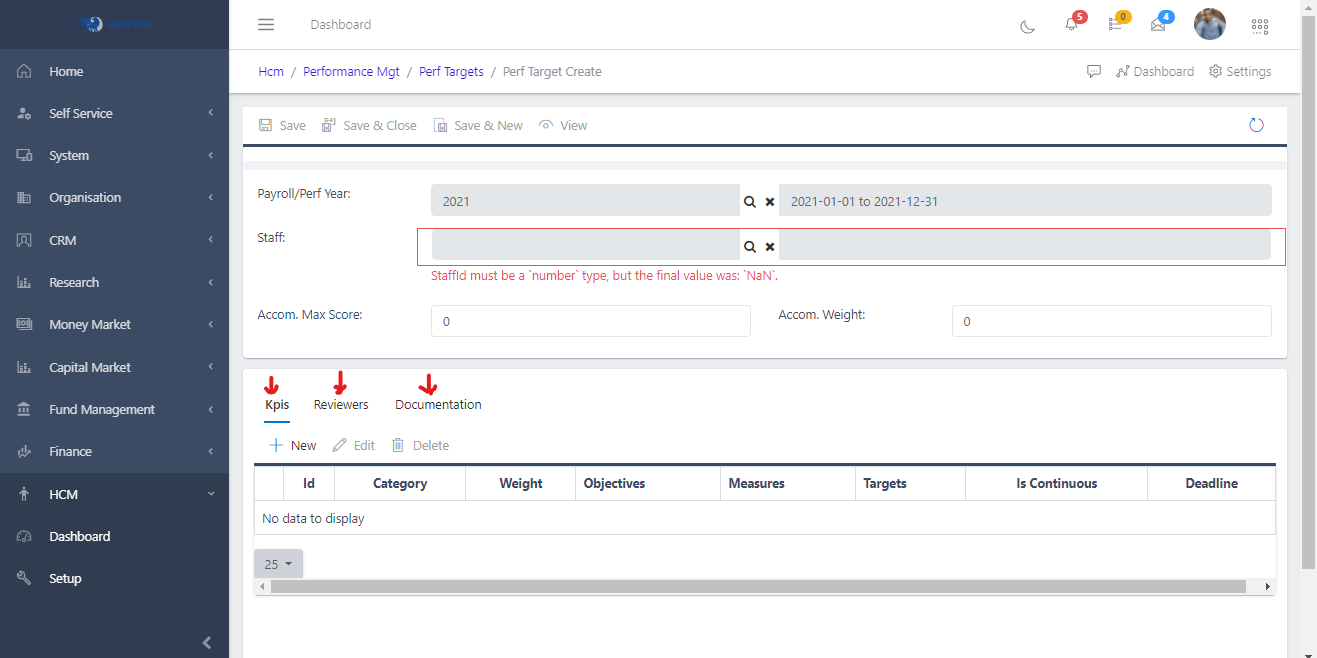
To successfully create a performance target , you would have to provide ‘Kpis’ and ‘Reviewers’ as shown in Fig 5 above.
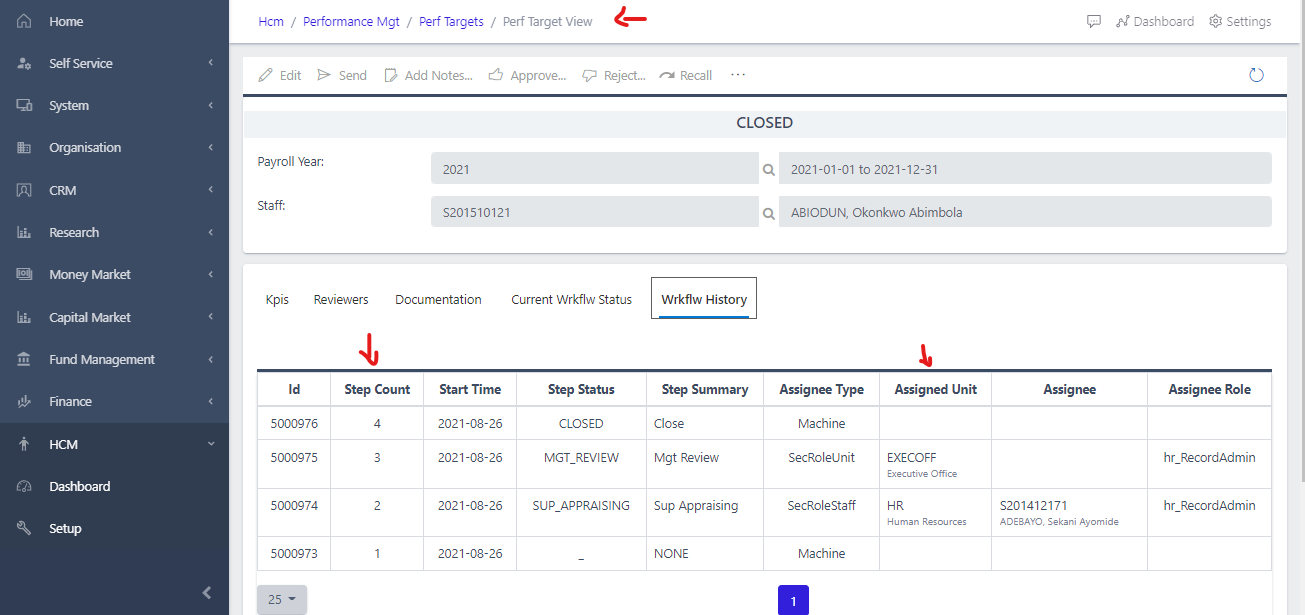
This help send the performance targets to the senior supervisor. To send a perf target, the target must be of status NEW so that it can be forwarded to the supervisor for approval. On a NEW target , hitting the send button takes the target to the ‘HR assigment unit’ as shown in the workflow tab in Fig 6 below.
If a mistake is made, the targets can be recalled using this button.
This button is used to approve targets that are due for approval. Clicking the approve button takes the target to the ‘EXECOFF assigment unit’ as shown in the workflow tab in Fig 6 below. Clicking the button a secont time then closes the performance target.
To view the details of any Target, click the Id link. This takes you to the screen shown in Fig 6 below. This also shows the workflow the performance target goes through to be closed which is in 4 step counts.
NOTE: When all Targets across all staff are closed, it becomes possible to open an Appraisal Session.