Title here
Summary here
This part of the sub-module help the HR create a new staff, update, view, and deactivate existing staff. The staff list shows a general view of all staffs within the organization.
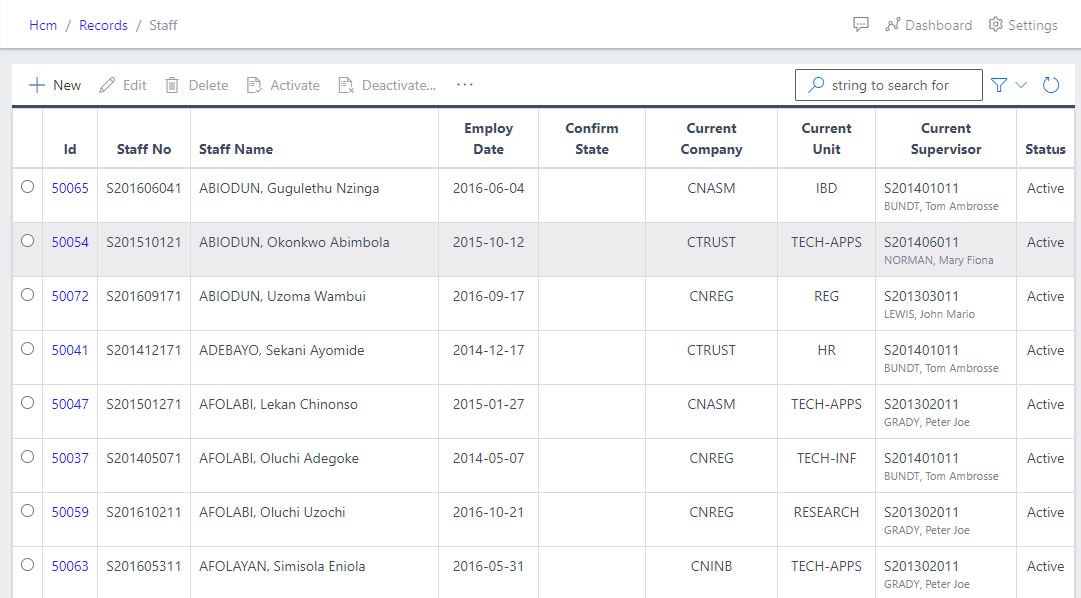
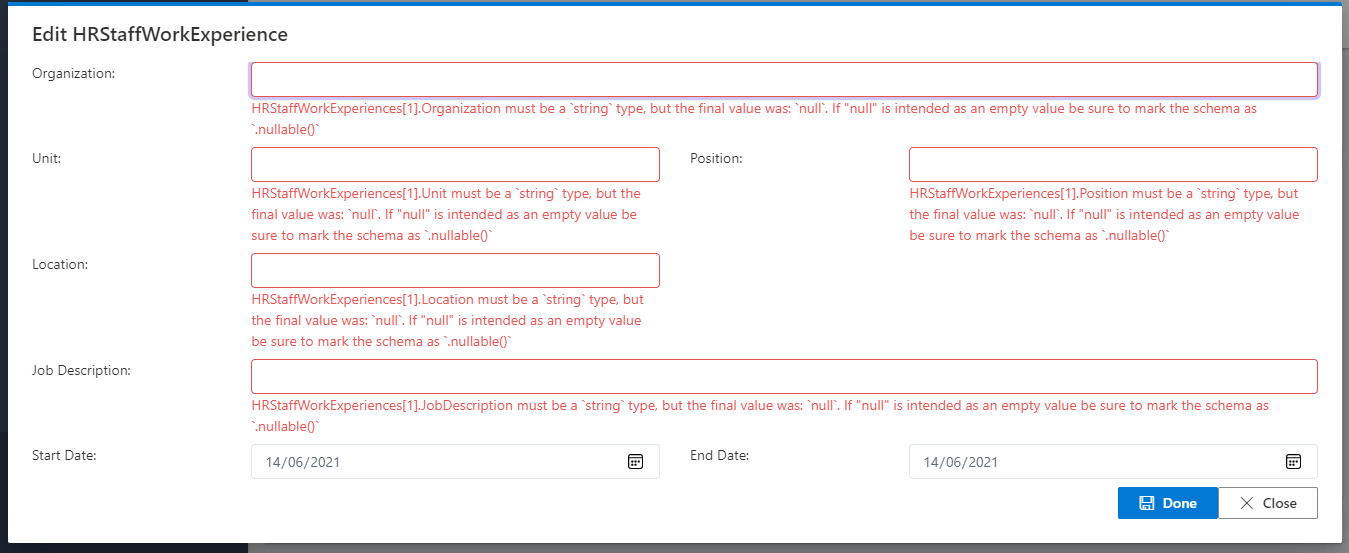
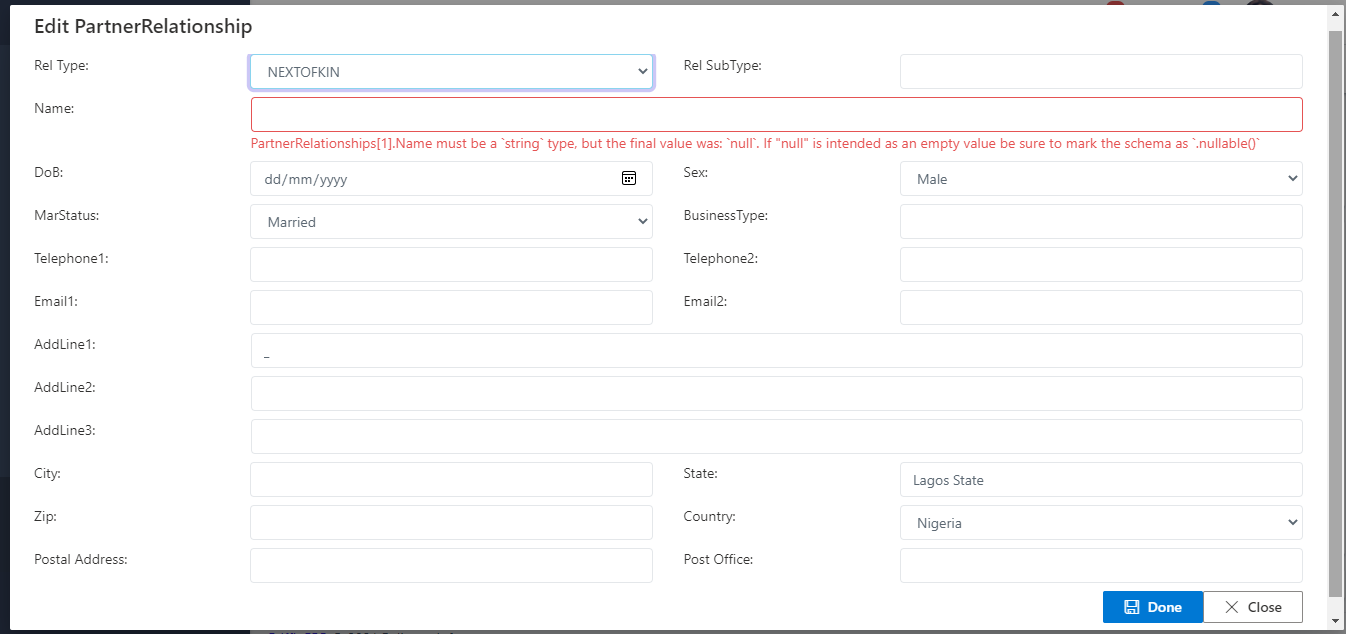
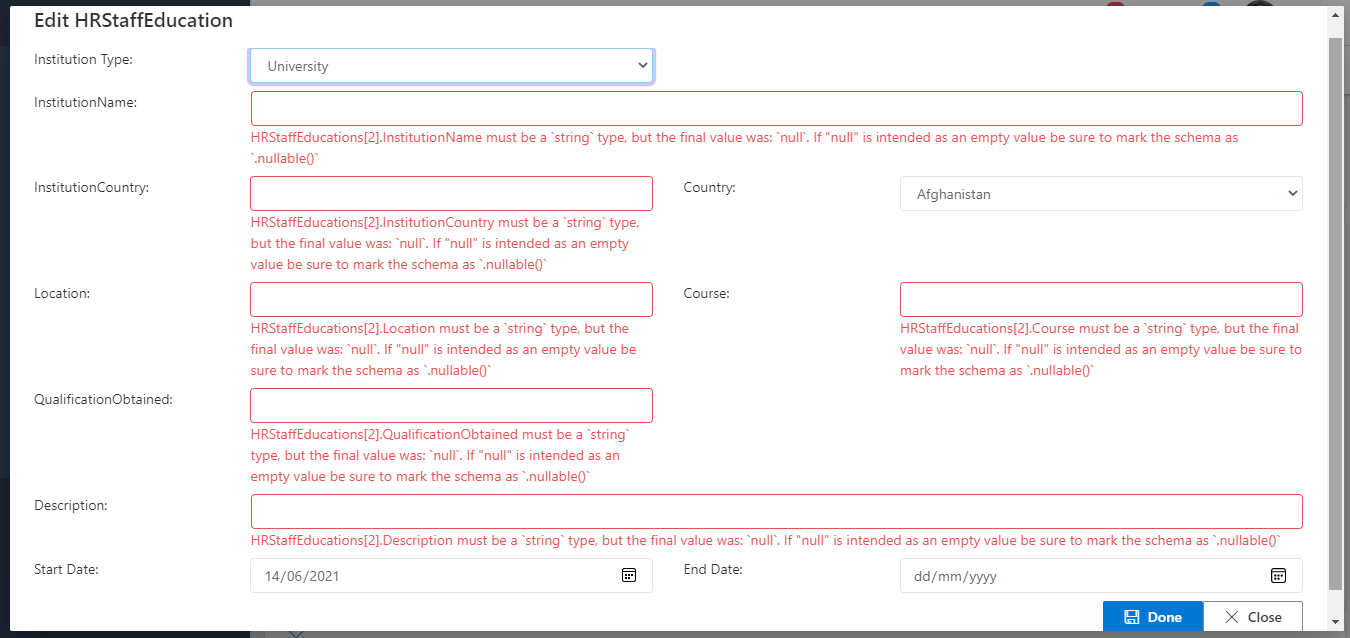
To create a new staff, the HR need to click the create button from fig 1 above. On clicking this button, a new screen pops up where all the necessary details relating to the new staff being created are entered. Fill out all the required fields and make sure the email address of the new user is an active email that is on the same Azure Tenant as shown in fig 1. Other sub-forms are required to be filled as well.
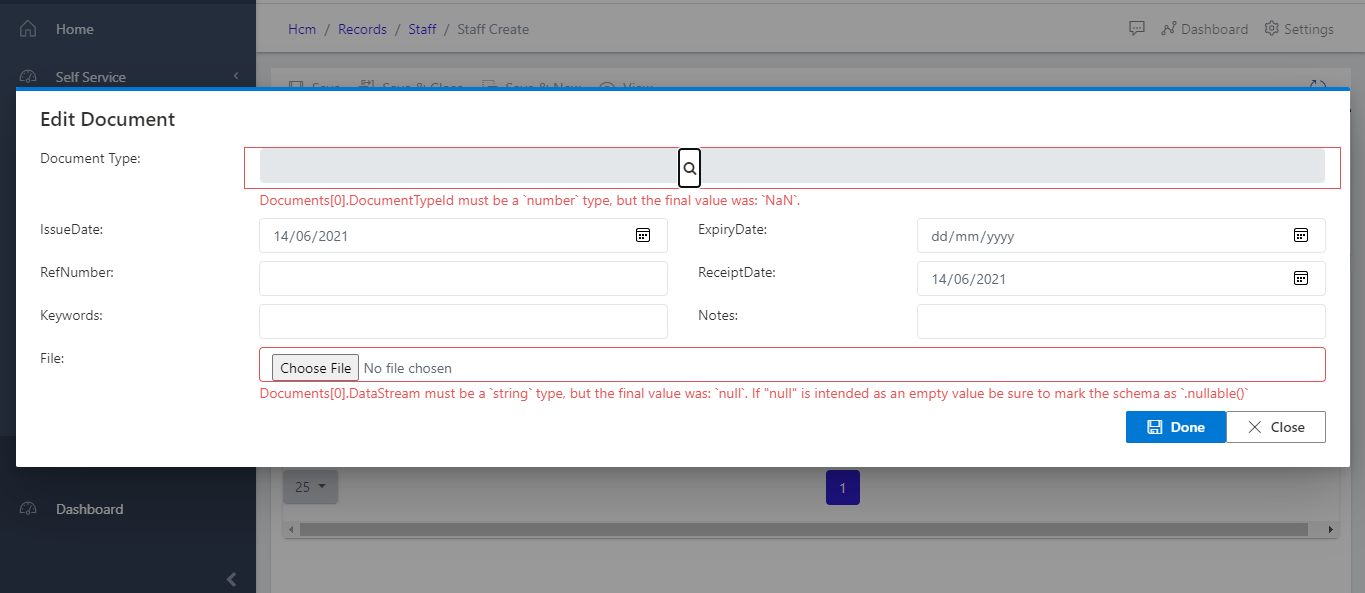
Take note of the unhighlighted “SAVE” buttons in fig 2. These buttons will turn highlighted the moment the required form fields are filled. fig 2.1, shows where to upload client kyc documents.
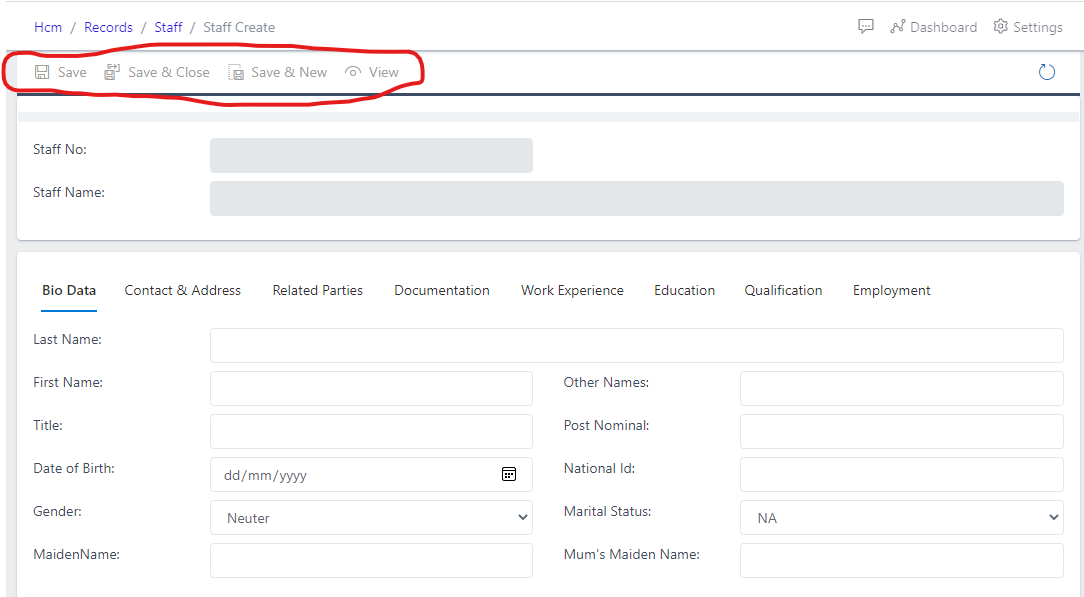
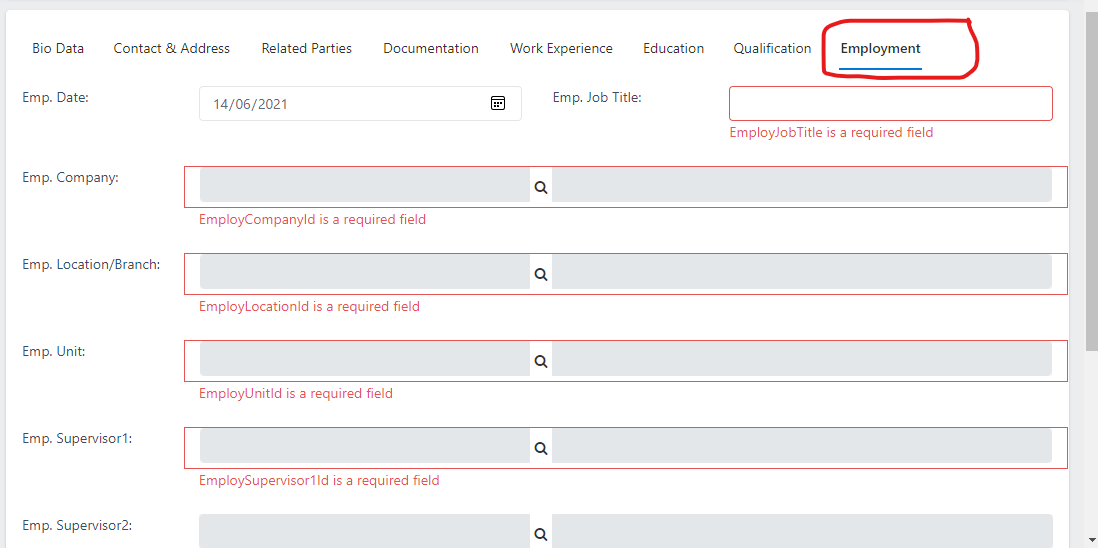
Note: On creating a new staff, the status of the staff will always be “REVIEWED” until the HR “ACTIVATE” the staff.
After creating a new staff, the staff state remains “Reviewed” until the HR activate the staff. By activating a staff, the HR is letting the system know the staff is now cleared to work and the relevant information relating the staff can be used.
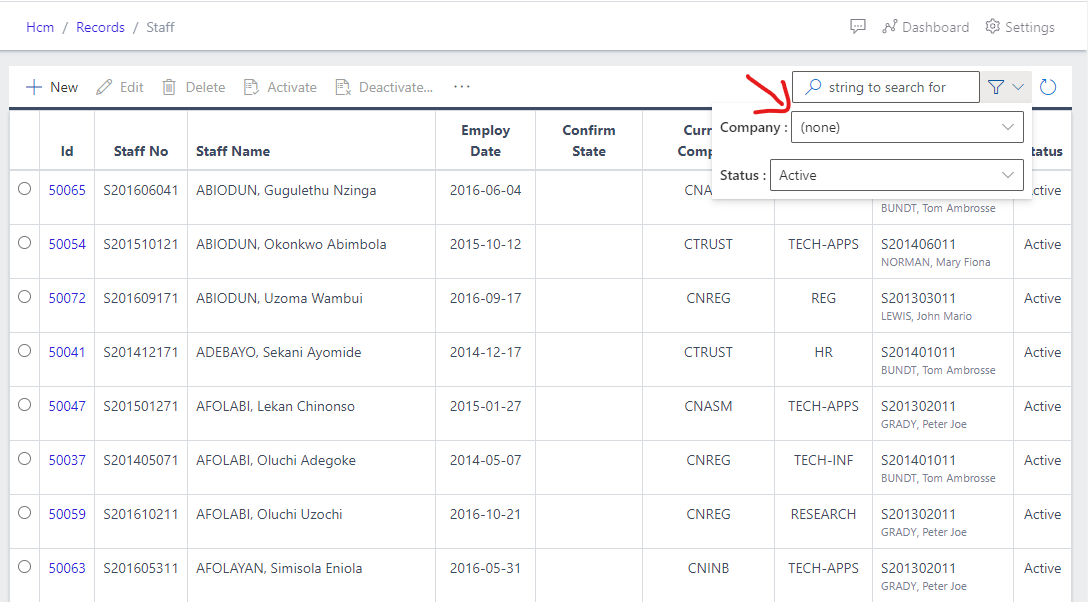
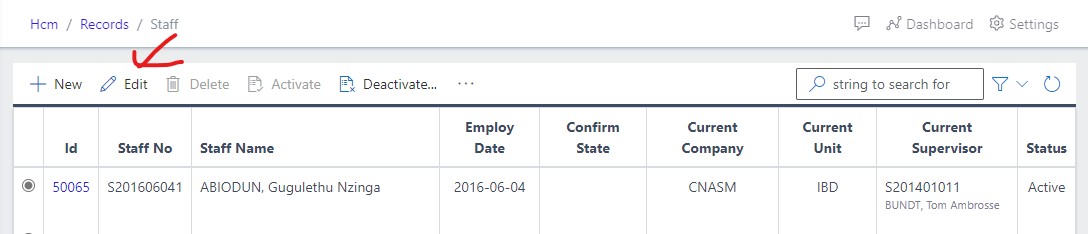
Staff records can be edited if there are pending adjustment that are needed to be made within the system.
Deactivating a staff record simply means that the staff record will no longer be usable by the system users by rendering the staff INACTIVE.
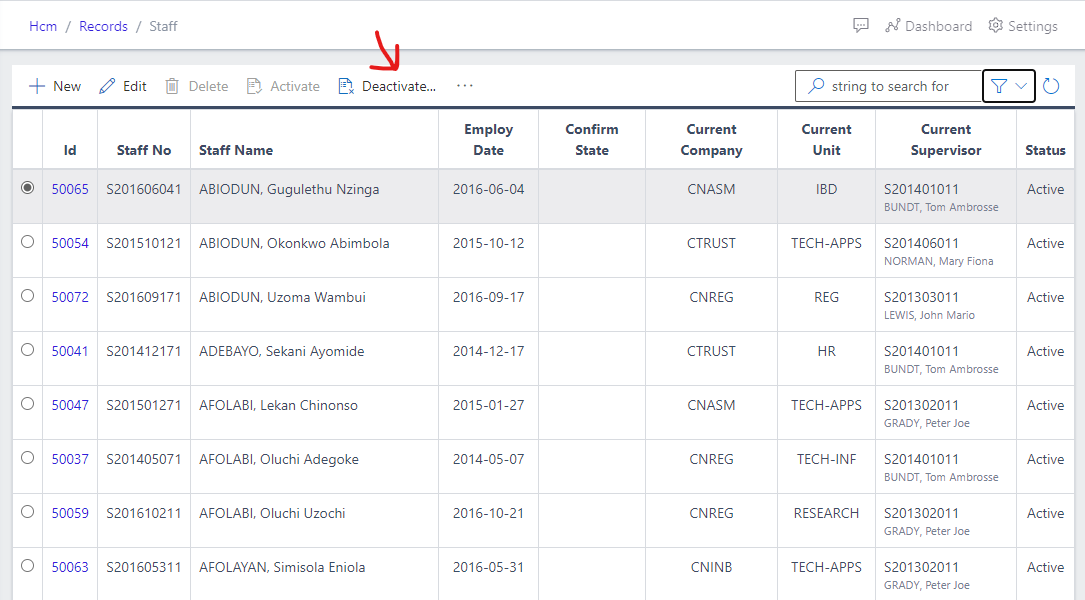

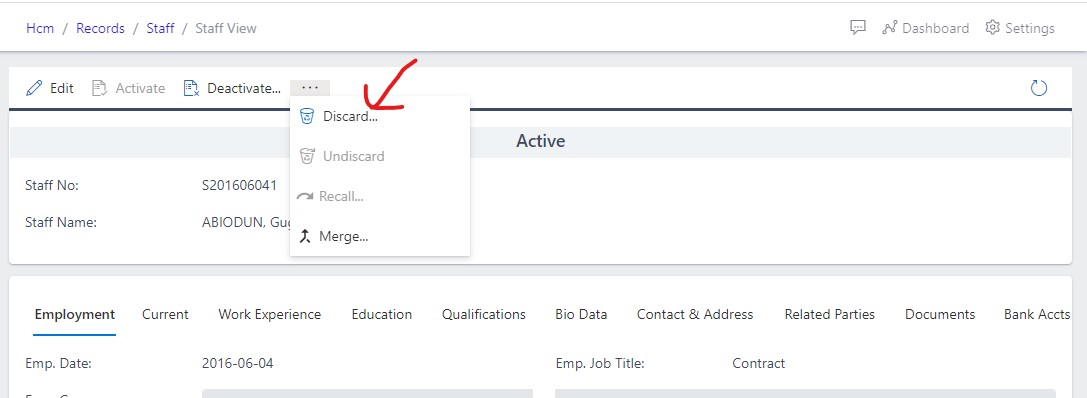
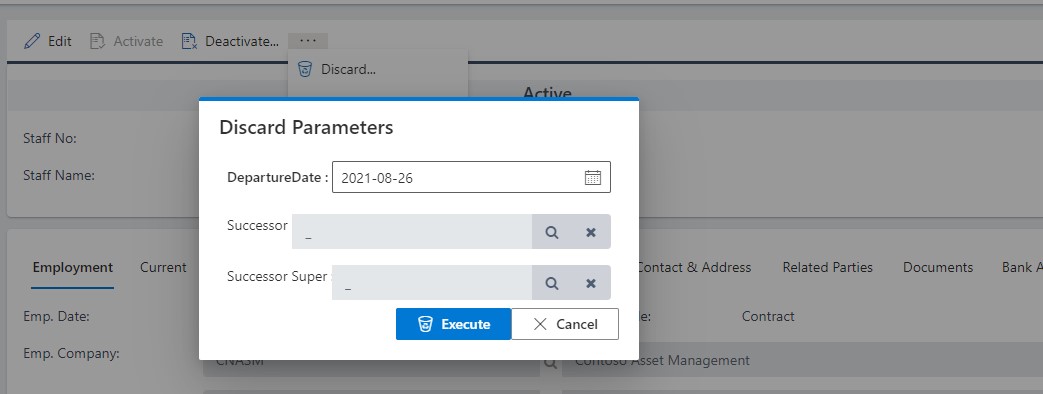
Discarding a staff simply means that the staff no longer work with the organization and HR must let that reflect from within the system. On clicking the discard button, you will be asked to fill in the staff replacement (successor) before you can discard the staff (as in fig 6.1 below).