Title here
Summary here
The users with the HR_RecordOfficer access right can view and edit a staff position with the HCM module by navigating to the Records submodule HCM -> RECORDS -> STAFF POSITION.
The actions that can be performed on staff position view include: Edit, Activate, and Deactivate.
Users with HR_RecordOfficer access right can edit staff positions. The fig below shows the edit view. After editing staff record and clicking the “Save”, “Save and Close”, or “Save and New” button, it is a requirement to go activate the user you edited.
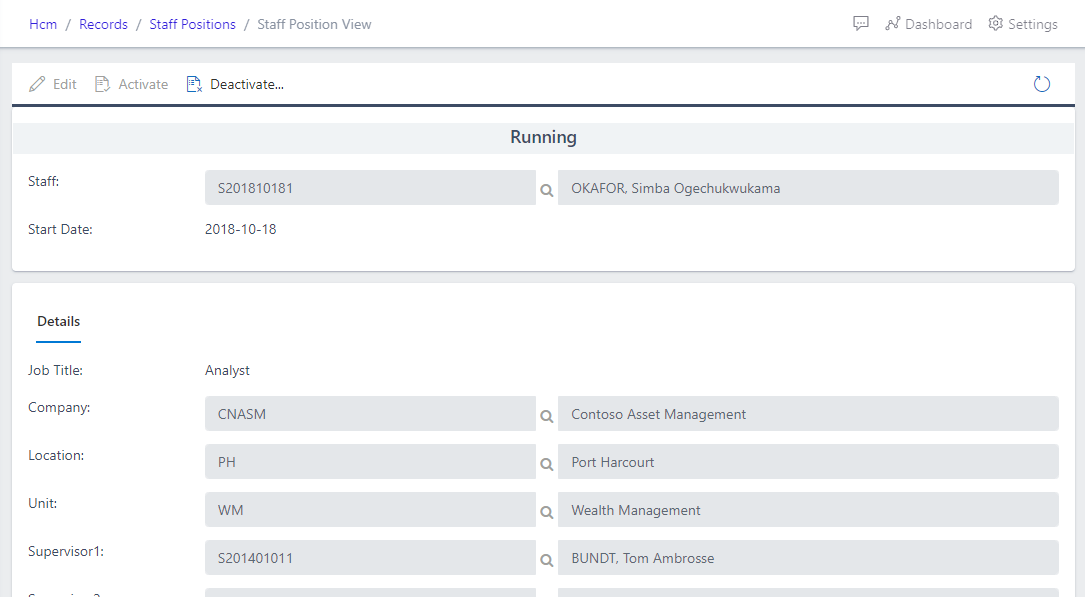
After editing a staff information, you are required to activate the staff. You can do that by navigating to the Staff Position view as shown in the image below.
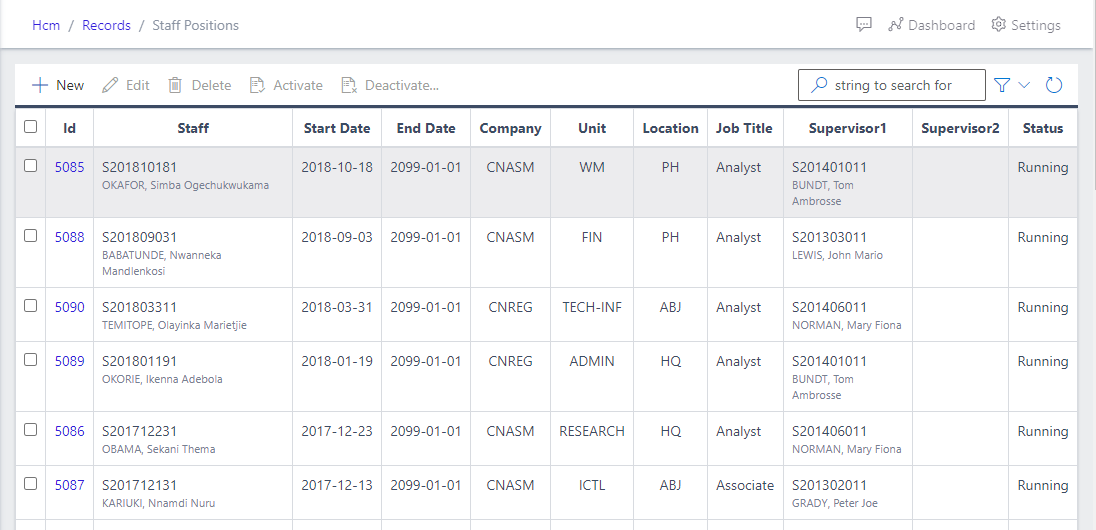
Staff position can be Deactivated when the staff is moving to a new position. To deactivate a staff position, you have to navigate to the staff position view as shown in the fig below.
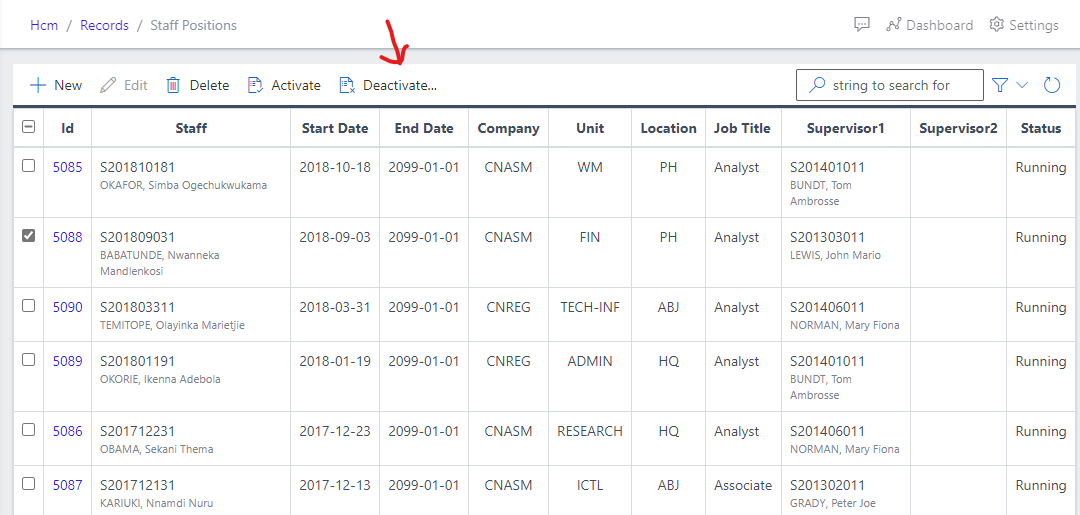
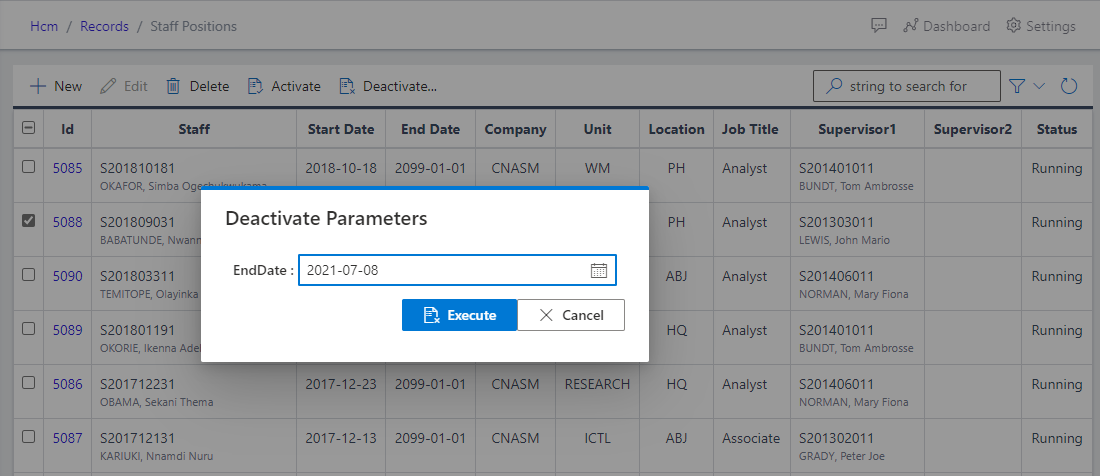
To deactivate, you will click on the Deactivate button as highlighted in the fig below.