Title here
Summary here
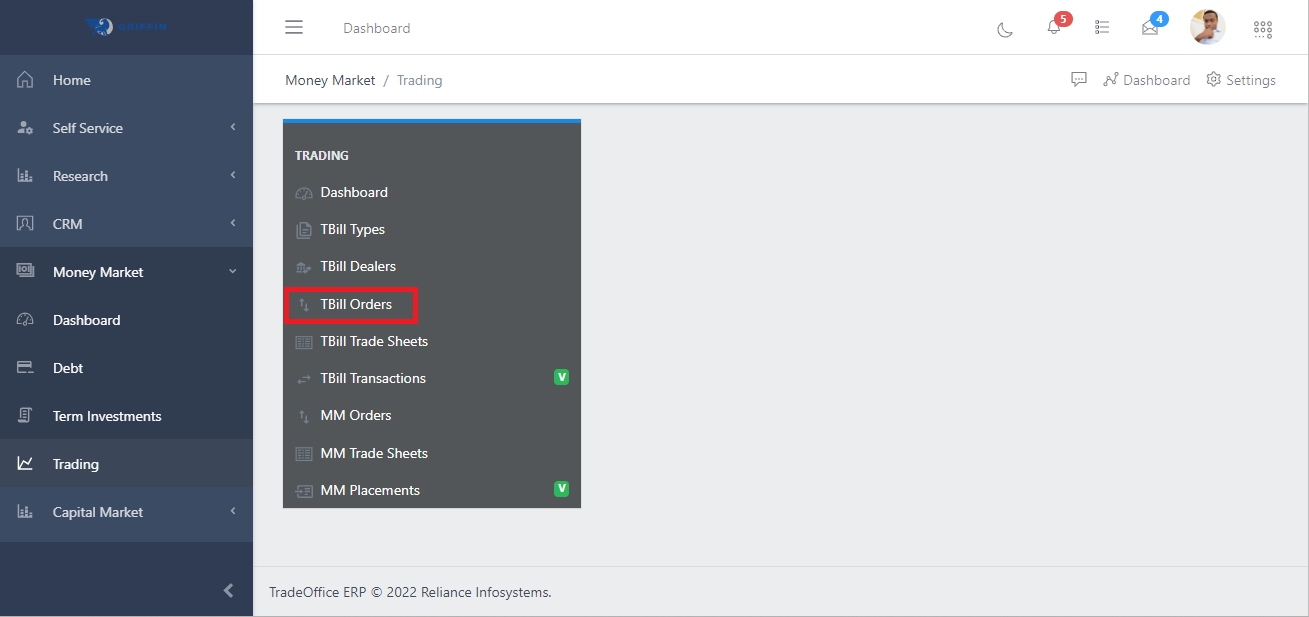
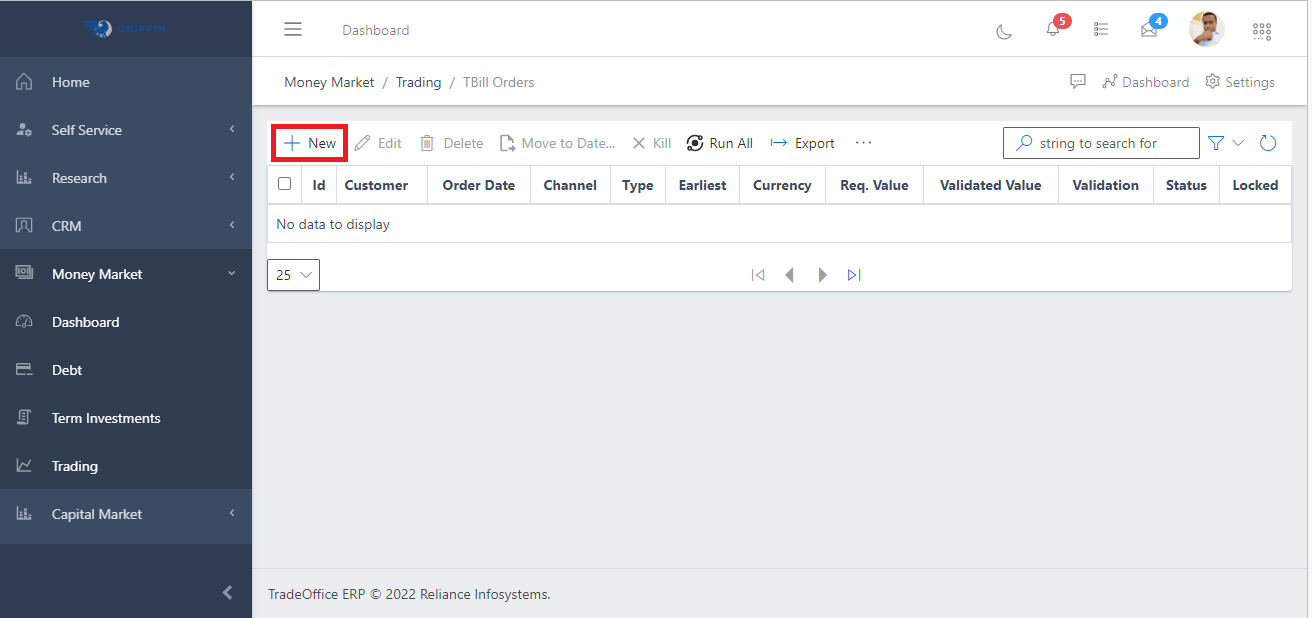
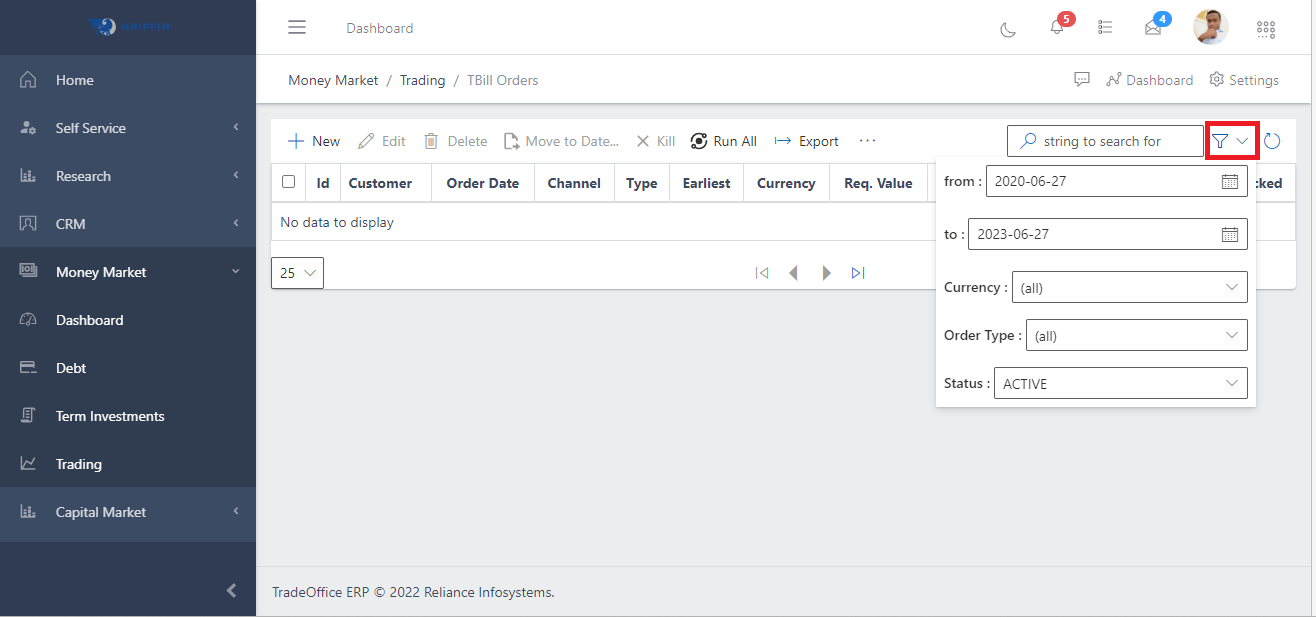
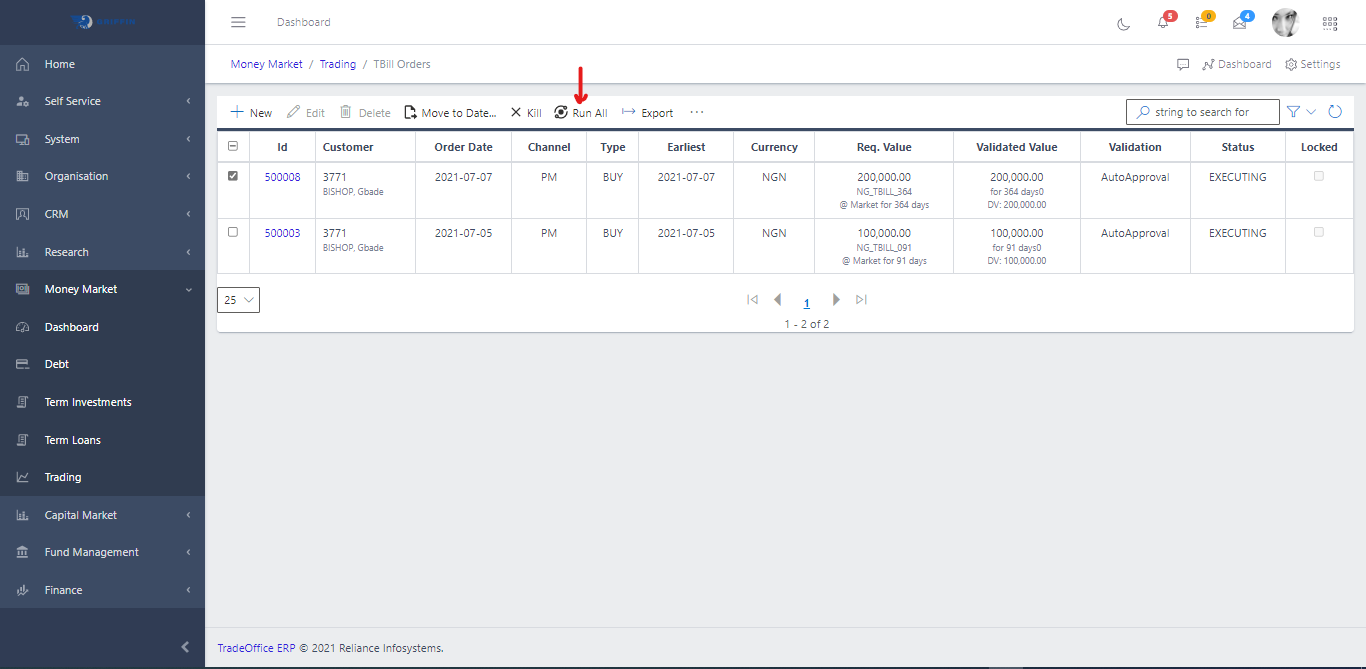
The “TBill Orders” jobbing screen is used for posting of customer’s order for TBills into the system. To navigate to this screen, you go to the Money Market module then click on TBill Orders Under the Trading submenu within the screen as shown in Fig 1.0. Fig 2.0 appears which displays a list of orders. This list can be filtered using the search button as shown Fig 2.1. The filtering can be done using
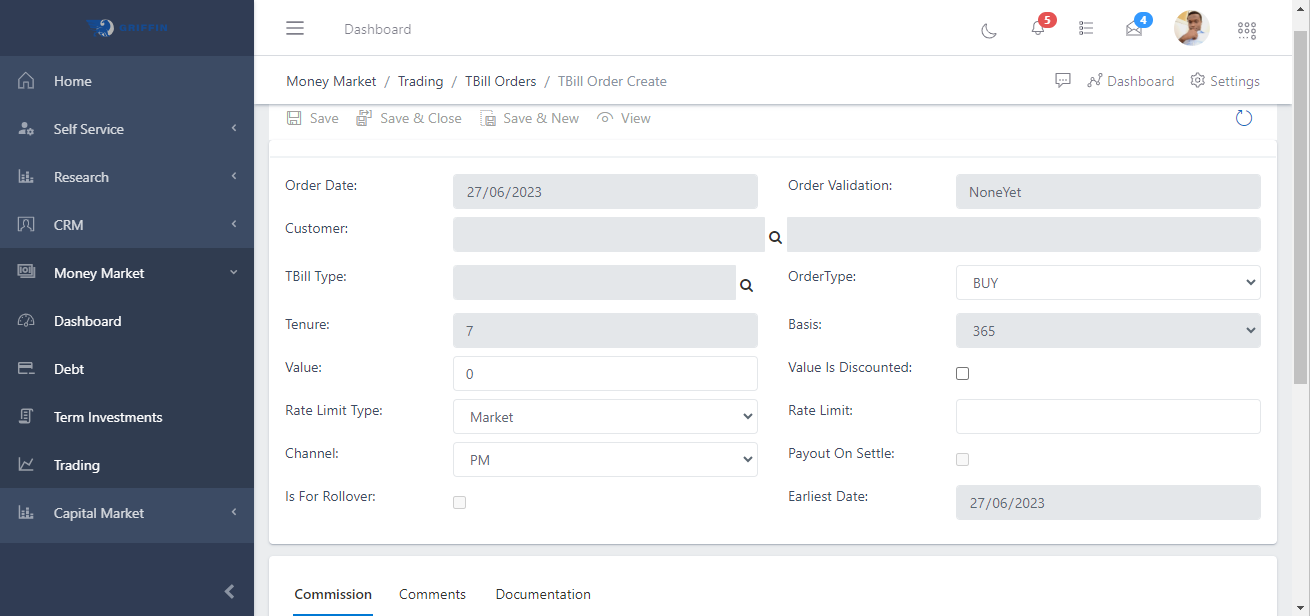
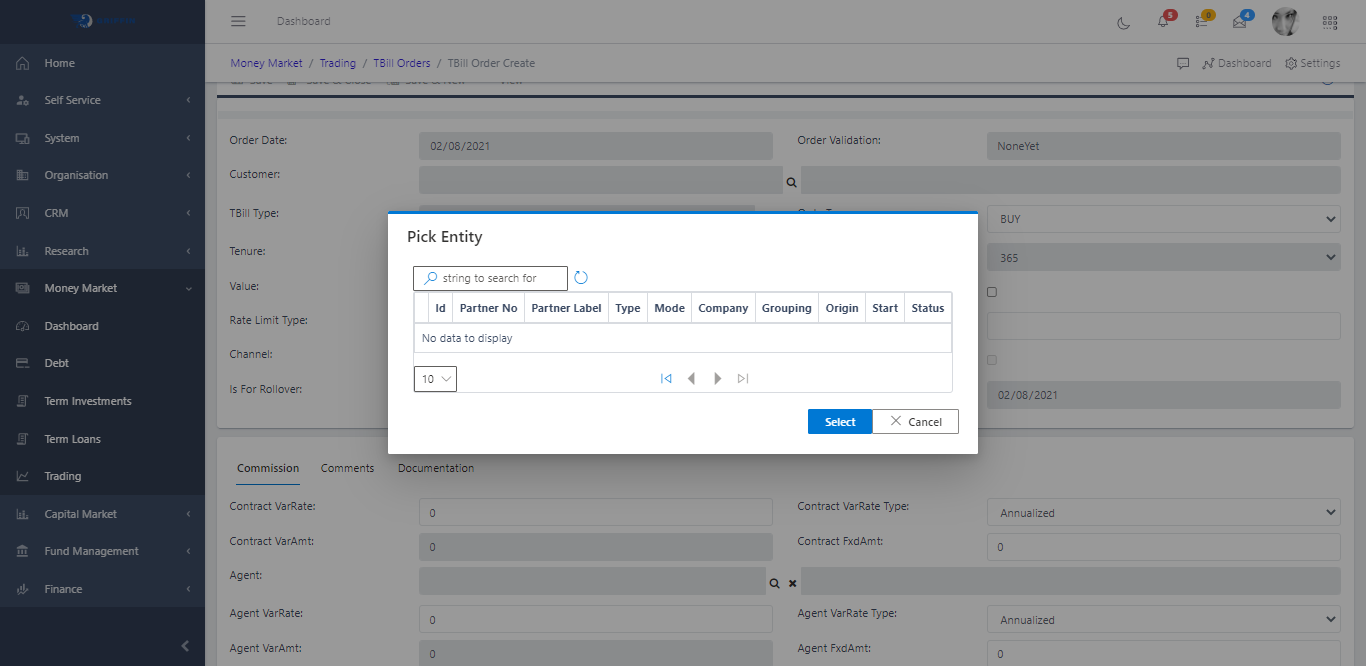
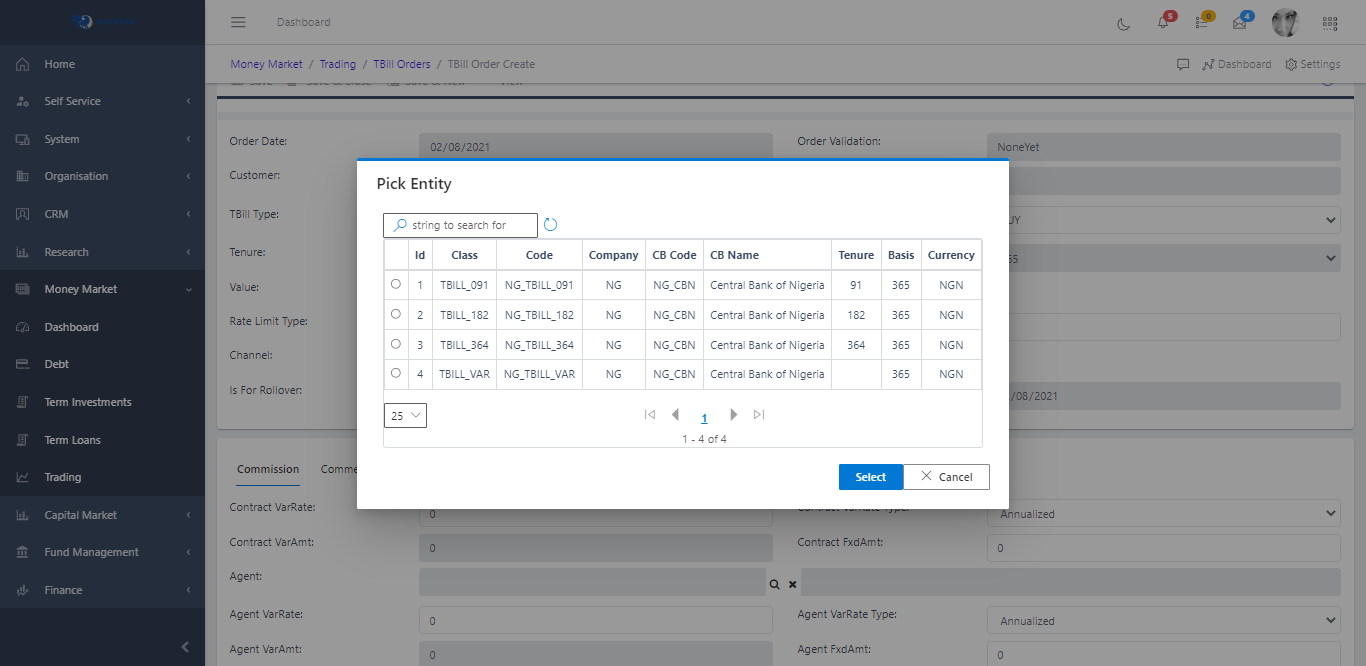
To post a new Order, click on the NEW or create button as shown in Fig 3.0 which will lead to the screen in Fig 3.1. Select the customer, the type of TBill. The NG_TBill_Var and US type serve for investments from undecided customers who want to observe the market a bit before investing. For discounted investments, check “Value is discounted”.
For clients that want to reinvest their funds and don’t have funds in their cash account, simply clicking on the “Is For Rollover” will reinvest the client’s existing funds.
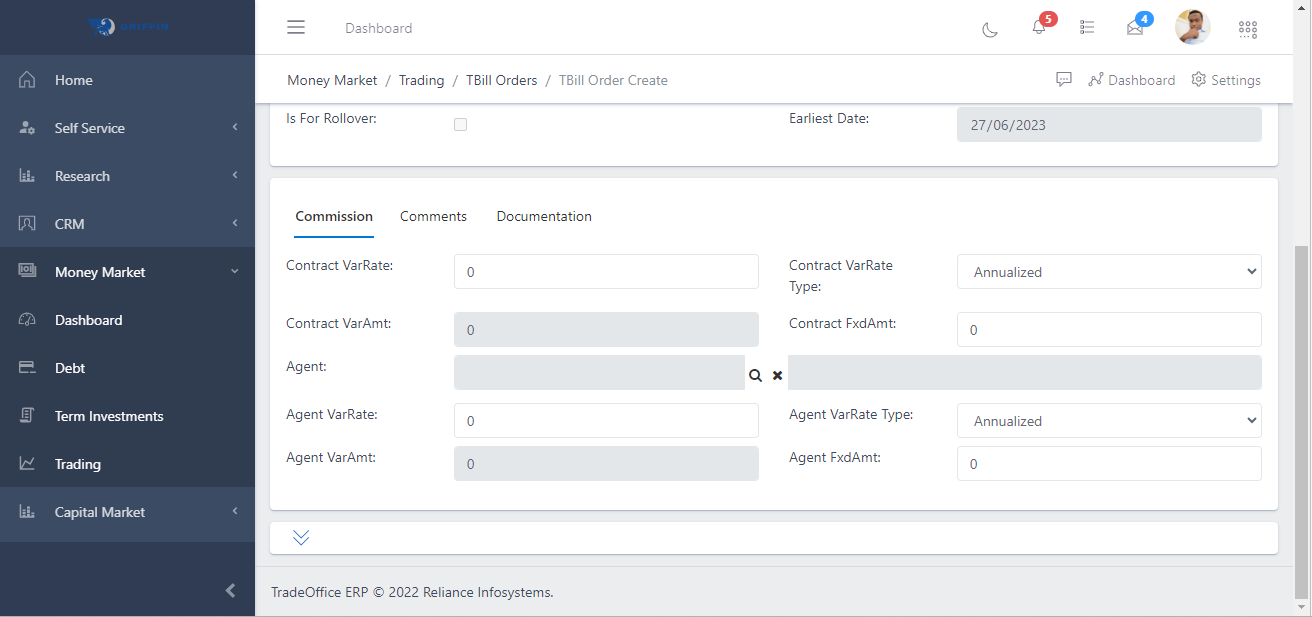
To apply commission to the order, go to the commission tab as shown in Fig 3.4, and enter the commission rate.
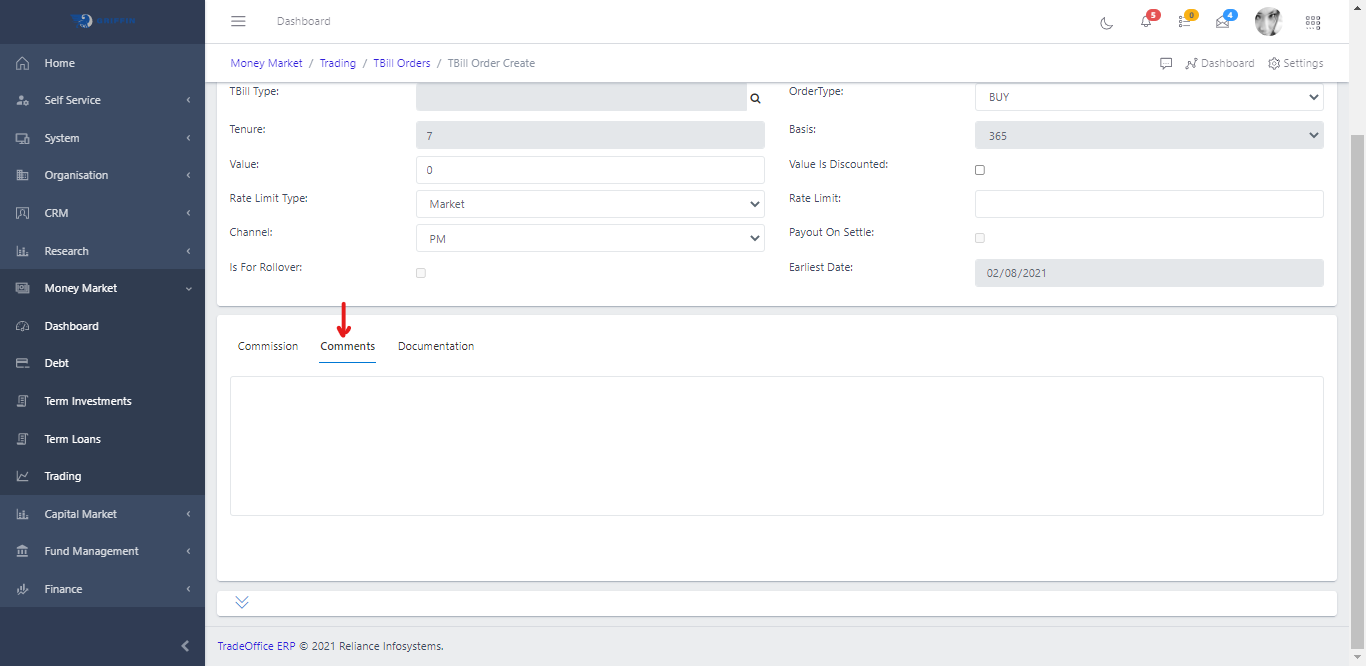
Go to the comment tab to include a comment about the transaction if any as shown in Fig 3.5.
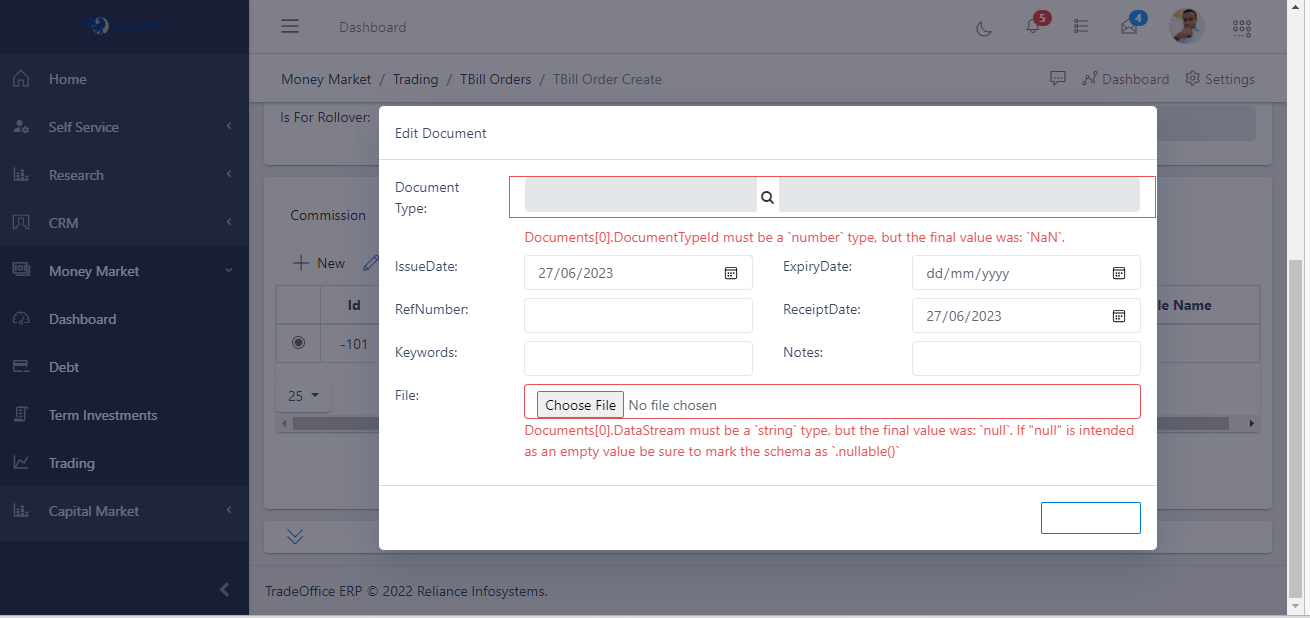
For orders where some certificates or documents are to be uploaded, use the Documents tab to upload the document by clicking on the “+” sign as shown in Fig 3.6.
Other activities that can be carried out from the order screen are:
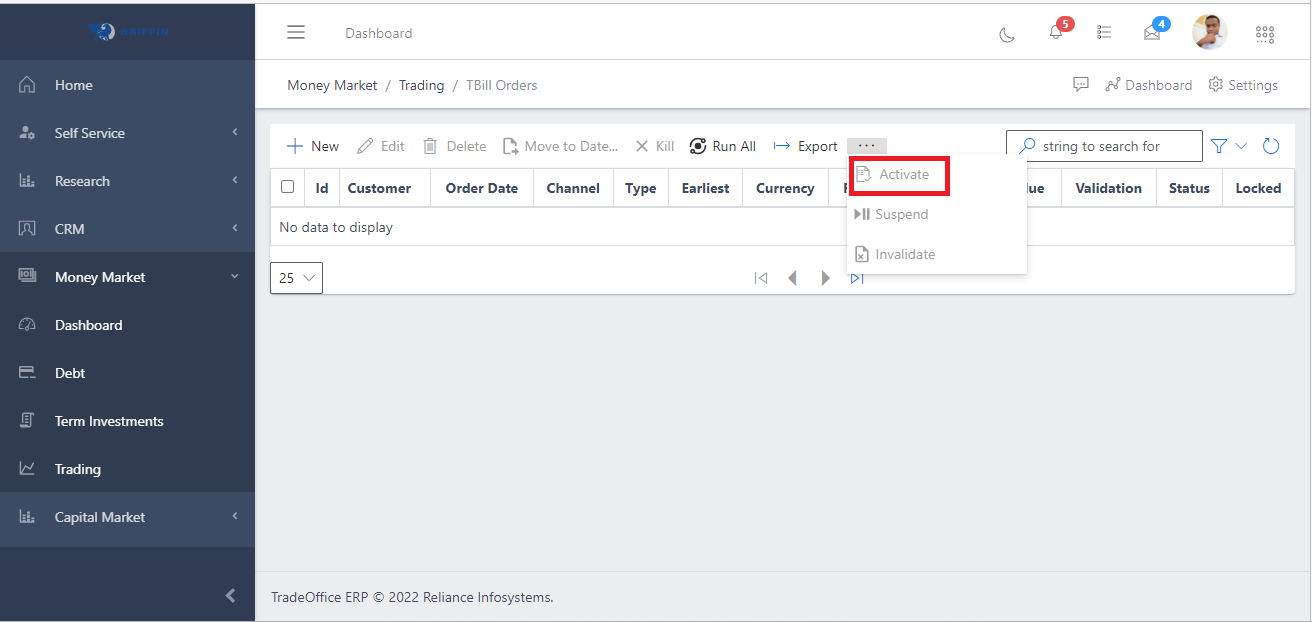
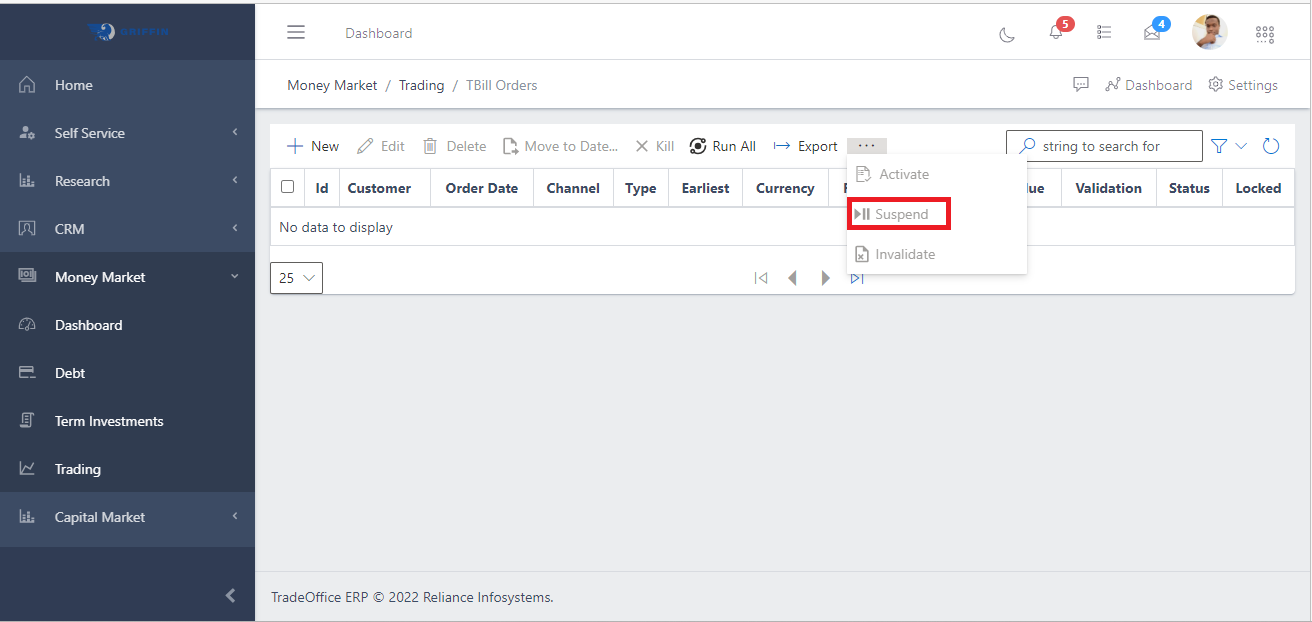
Activitate: To activate a newly created TBill Order as shown in Fig 4 Suspend: To suspend a newly created Tbill order, this might be due to error or client instruction as shown in Fig 5
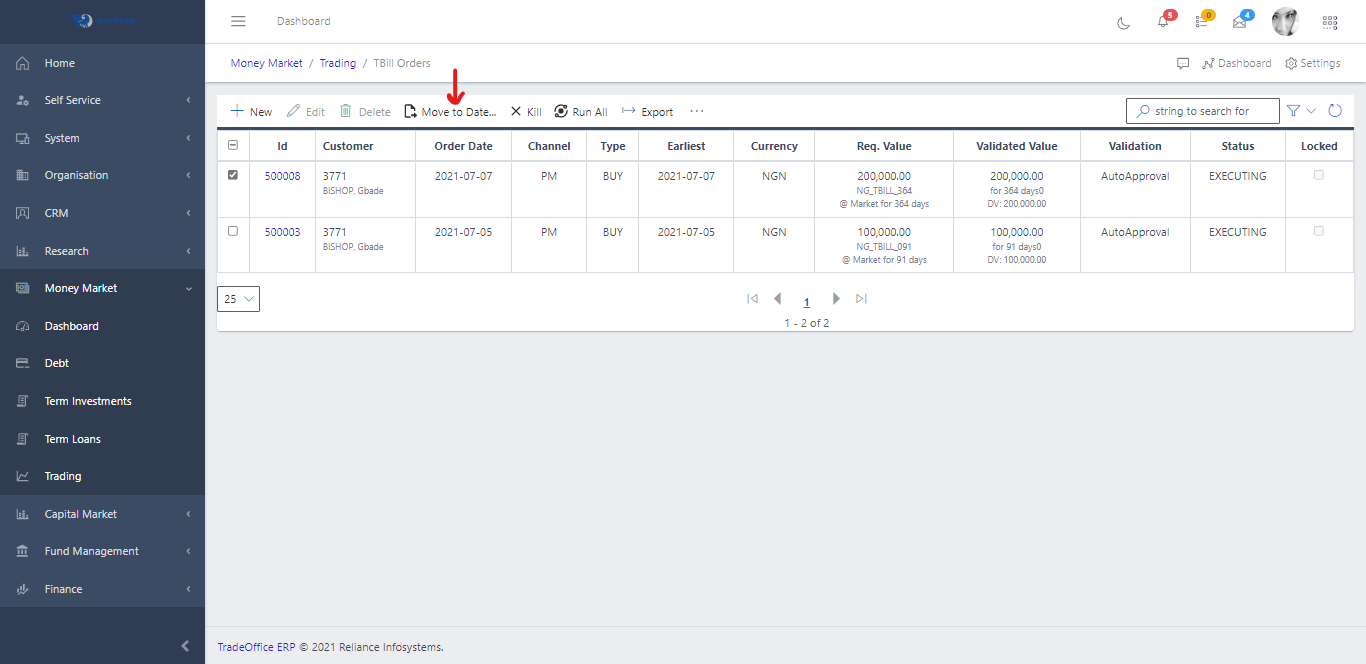
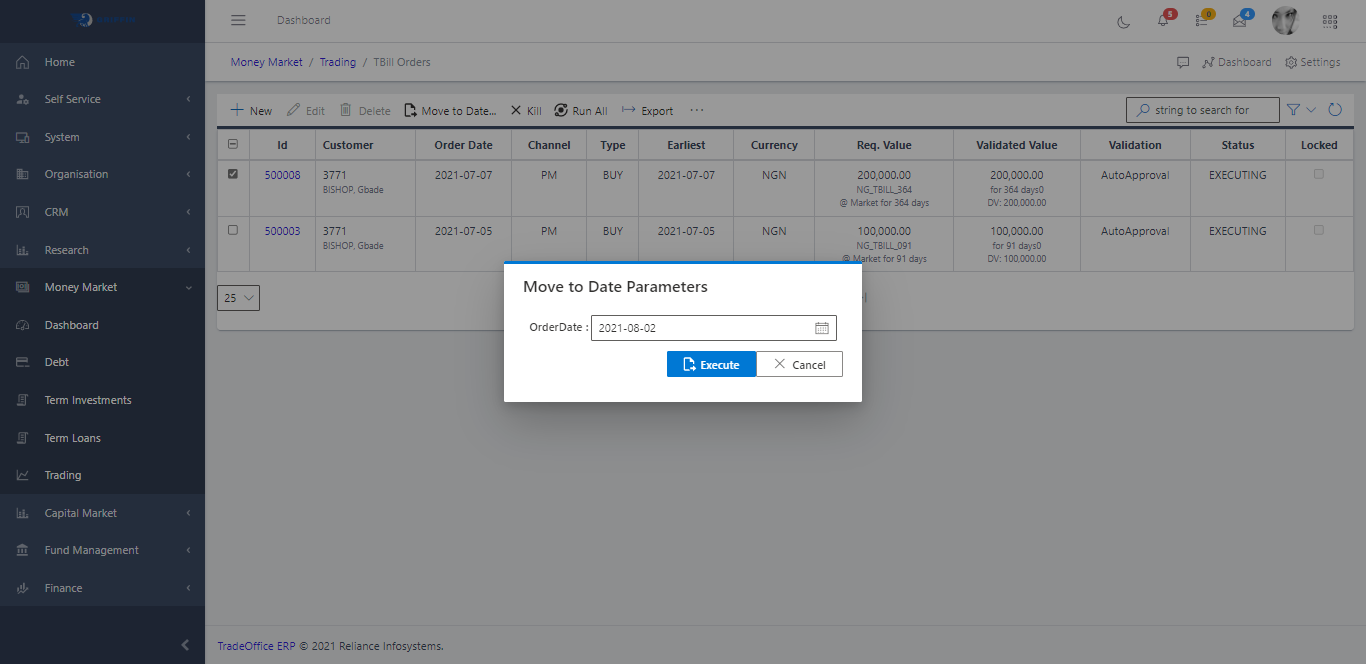
MoveDate: To move an order or list of orders to a deal sheet of another day, use the MOVEDATE button as shown in Fig 6 and 6.1
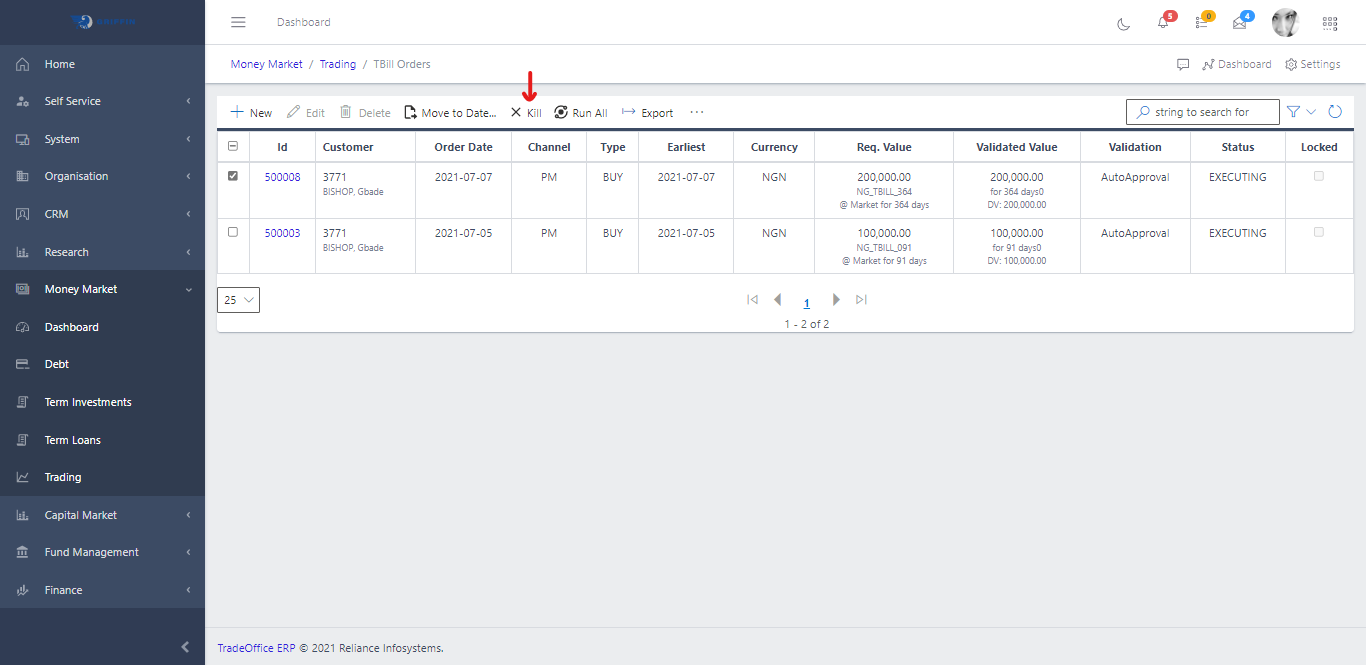
KILL: To cancel an Order due to errors of posting or other issues, use the KILL button to cancel an order.
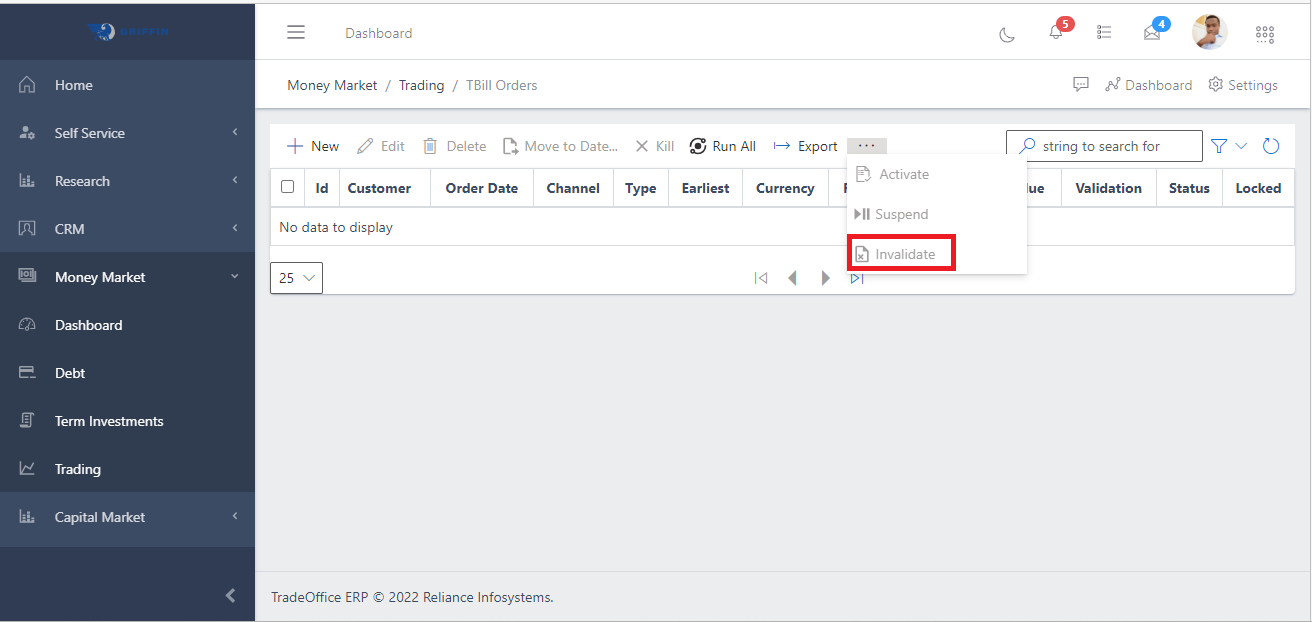
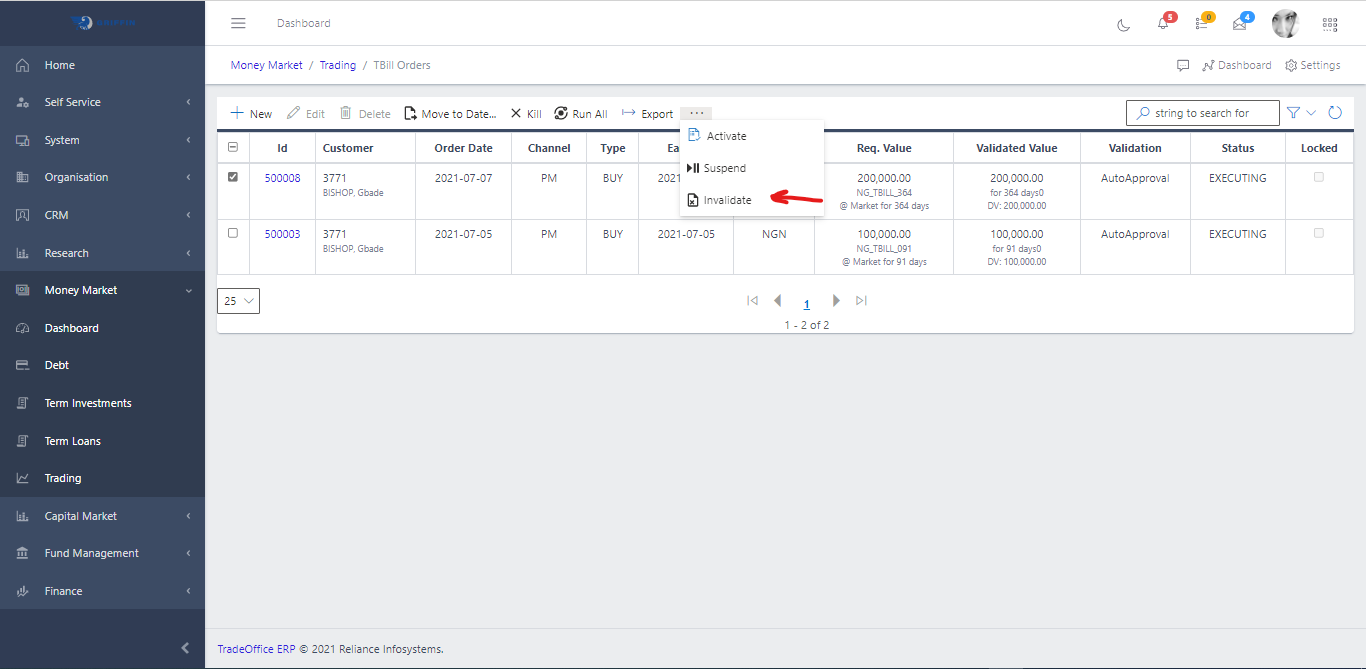
INVALIDATE: Confirm that an order can’t be approved, you can use the invalidate button in order not to approve the order.