Title here
Summary here
Daily Trade trade sheets can be viewed from Money Market>Trading>TBill Trade Sheets as shown in Fig 1.0.
Note: A new sheet is opened automatically every day to prepare for the new trading day. By default, the sheet will have a STATUS of new as shown in Fig 1.0
To open a new sheet, Click on OPEN as shown in Fig 2.0.
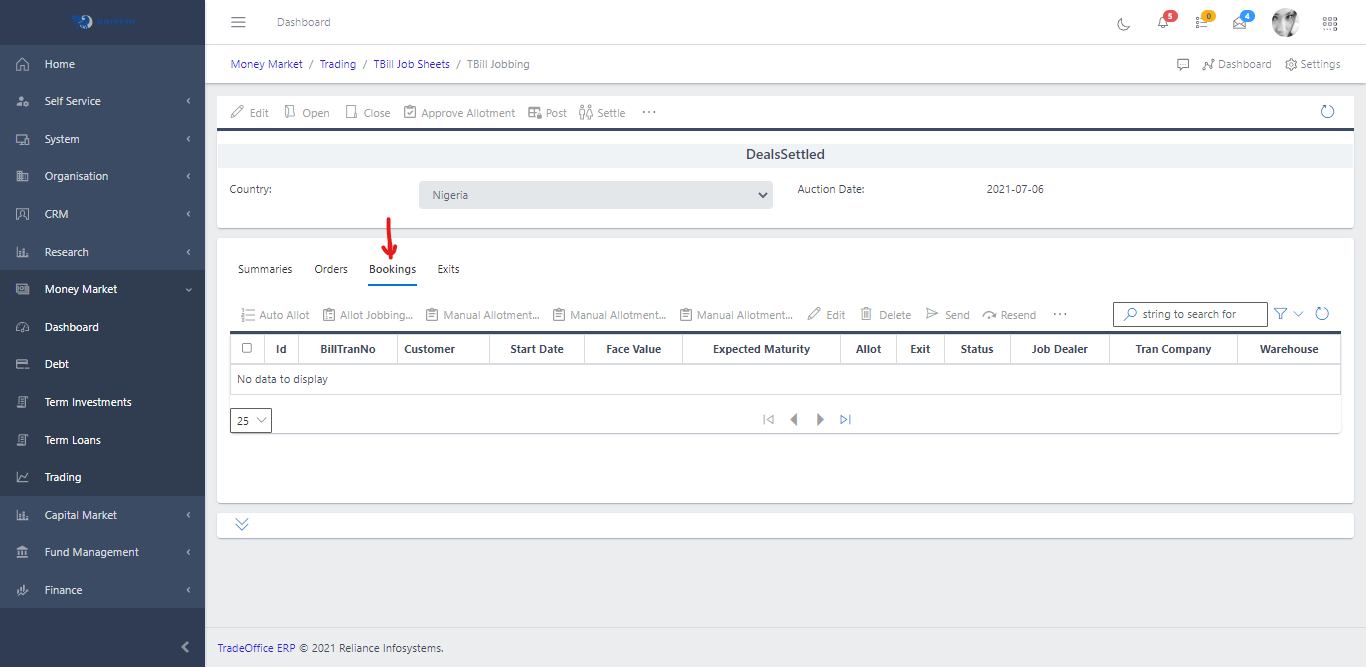
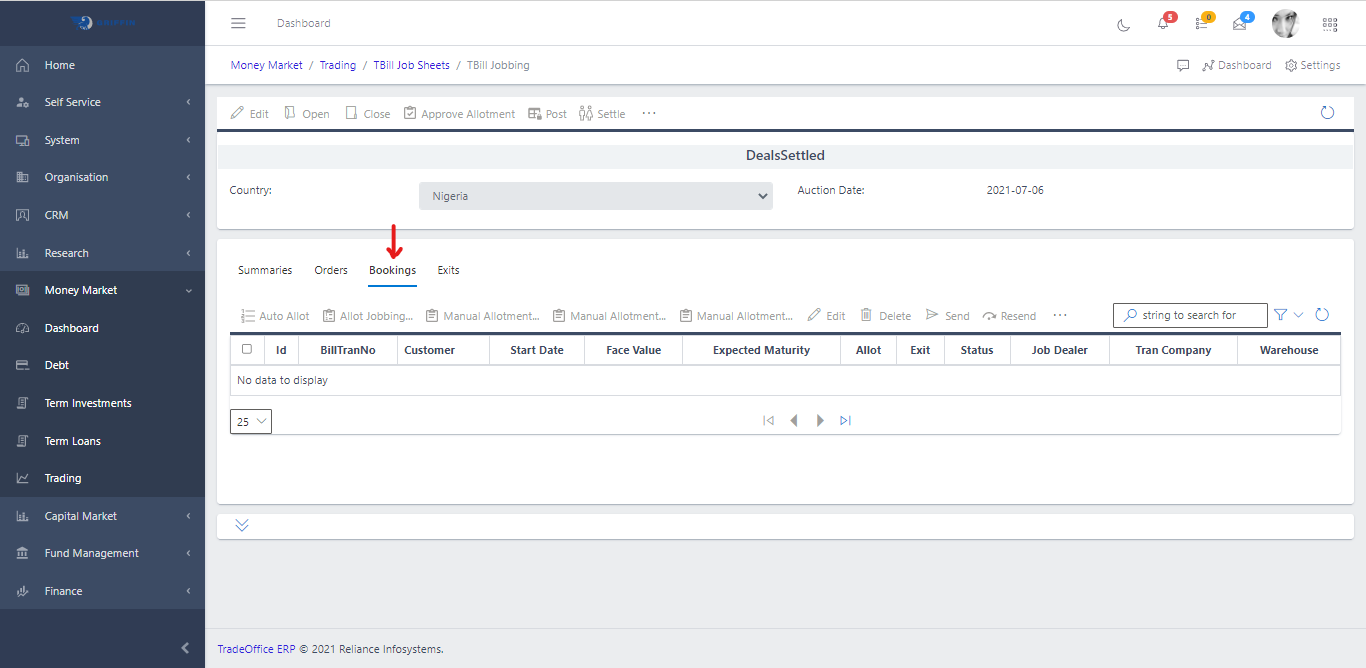
After opening the sheet, go to the Order tab as shown in Fig 3.0. Then click on Change Owner, as shown in Fig 3.1 and Fig 3.2, and click on Execute Exchange. The Job Dealer column will be updated with the dealer we selected. Then click on Book as shown in Fig 3.3.
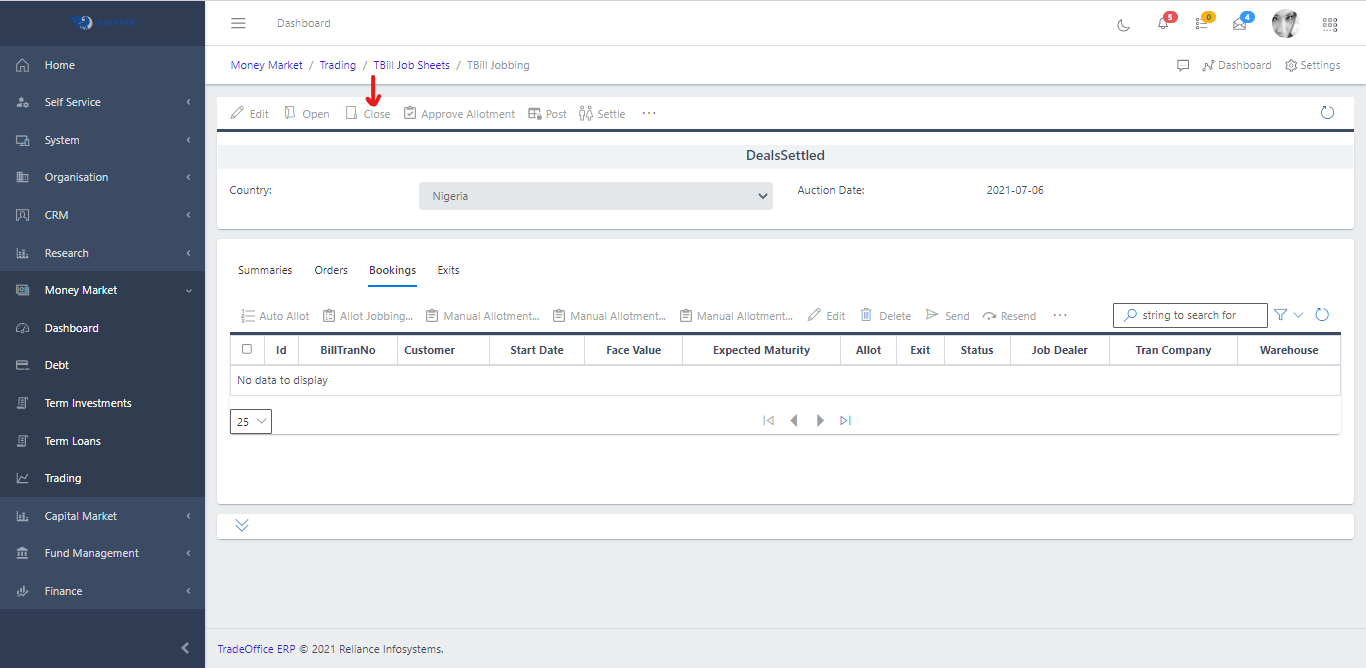
Click on the “Close” icon as shown in Fig 3.4. This will close the deal sheet from the further posting of trades and also permits other activities to be carried out on the trade sheet such as approval and posting.
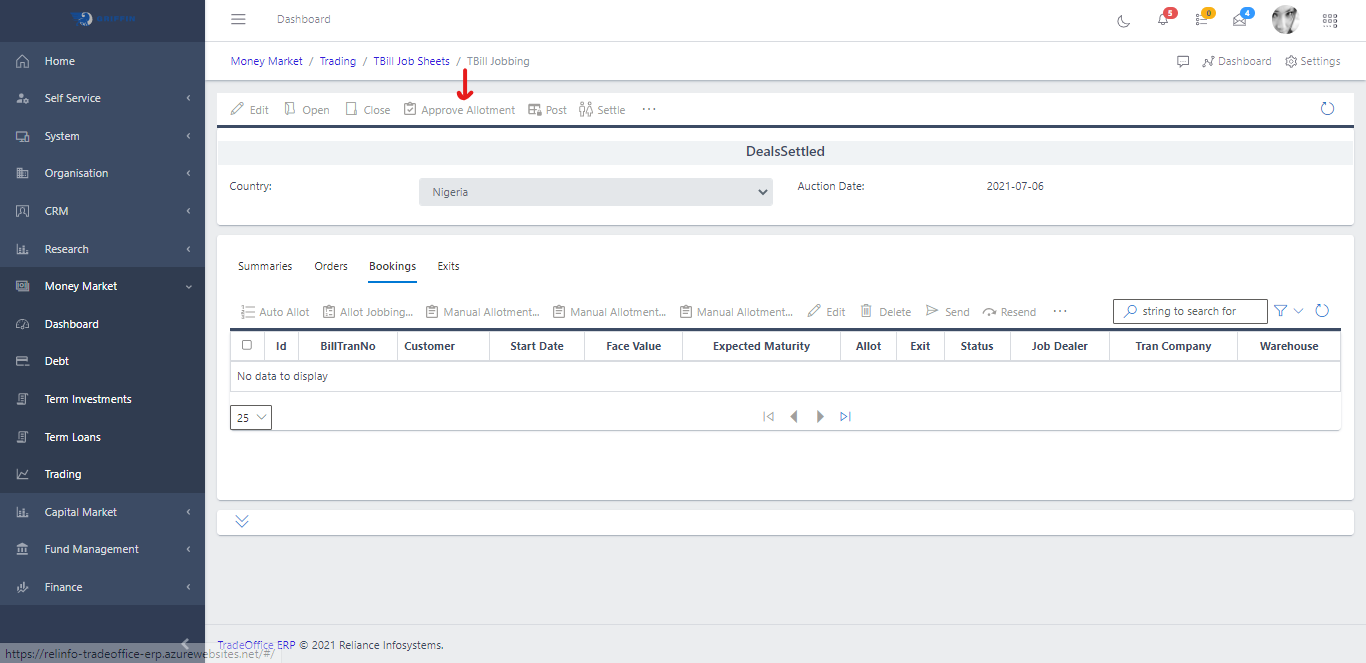
After closing a Trade Sheet, click on the “Approve” icon as shown in Fig 3.5.
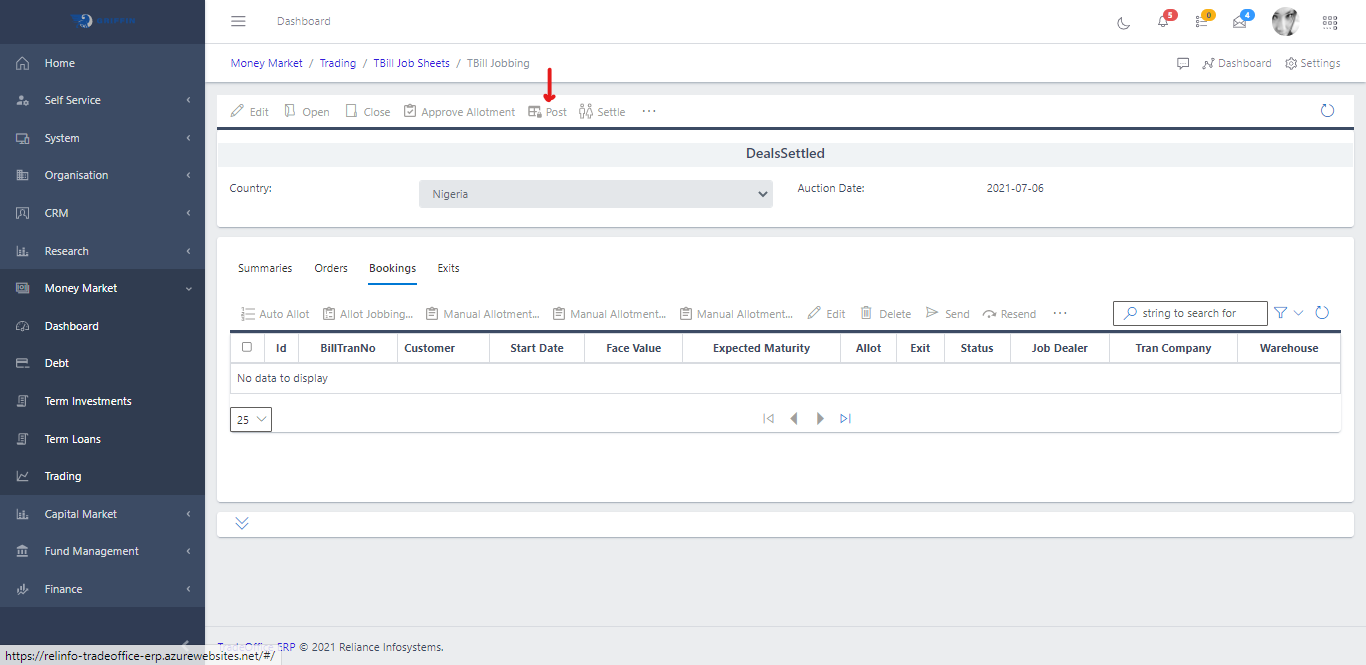
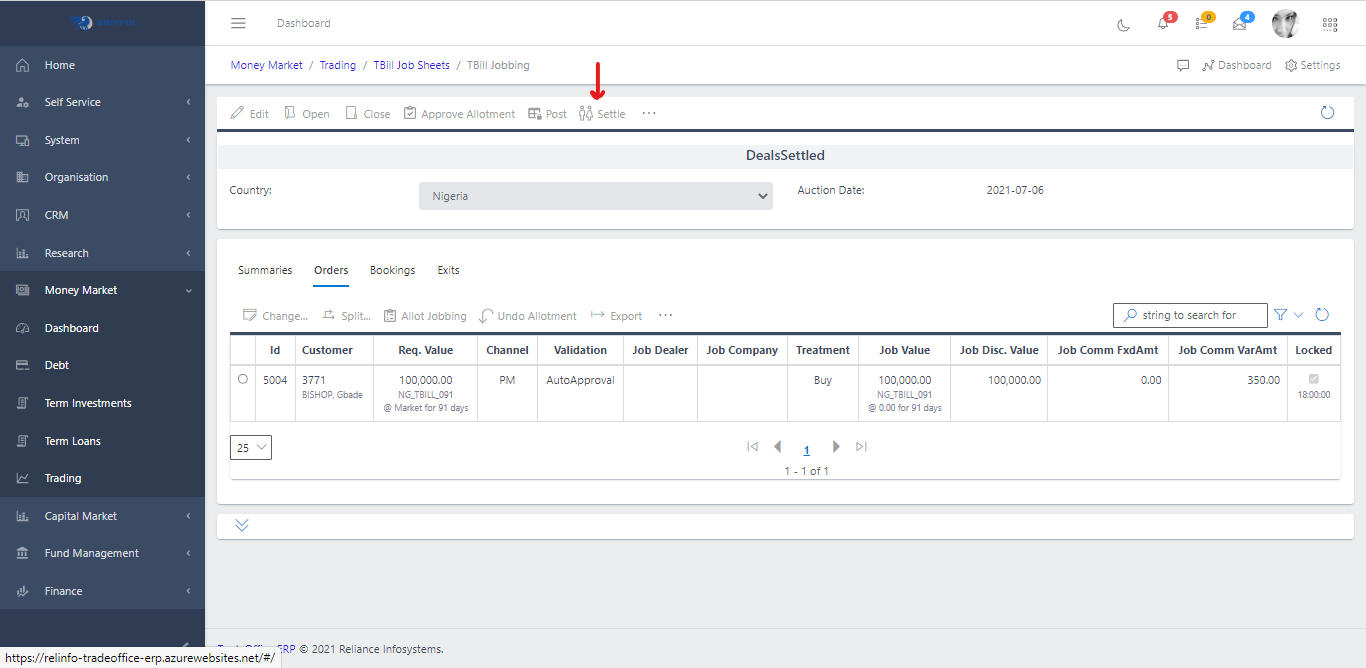
When the approval process is successful, click on the “POST” icon as shown in Fig 3.6 to post the trade for the day. This will automatically prepare a new sheet for the next day.
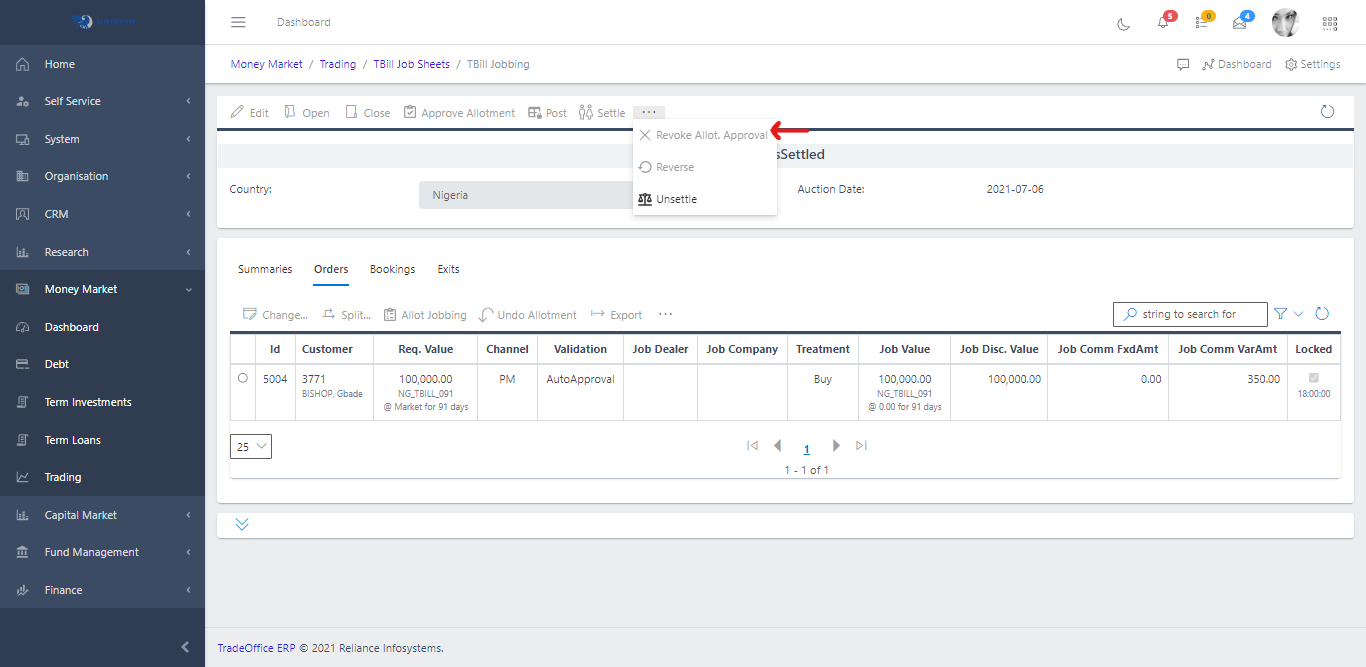
In situations where errors are observed at the approval level, then clicking on the “UNAPPROVE” button terminates the sheet from further processing.
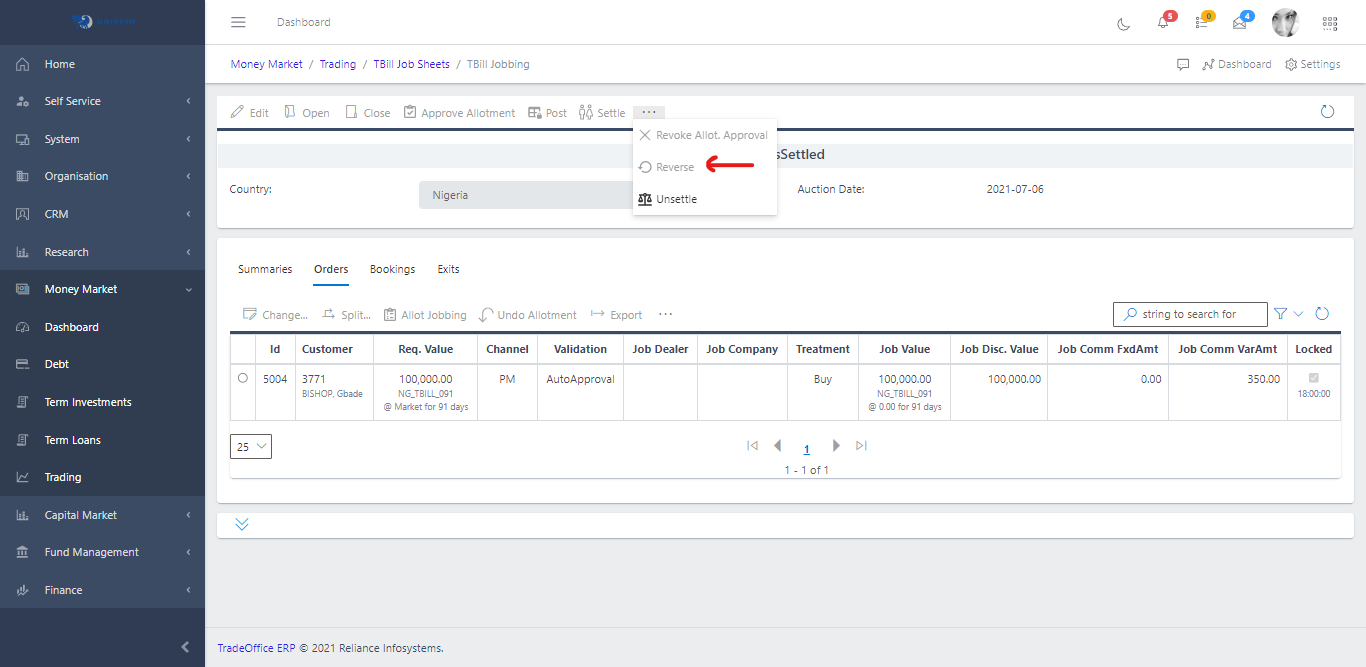
Other activities that can be carried out can be
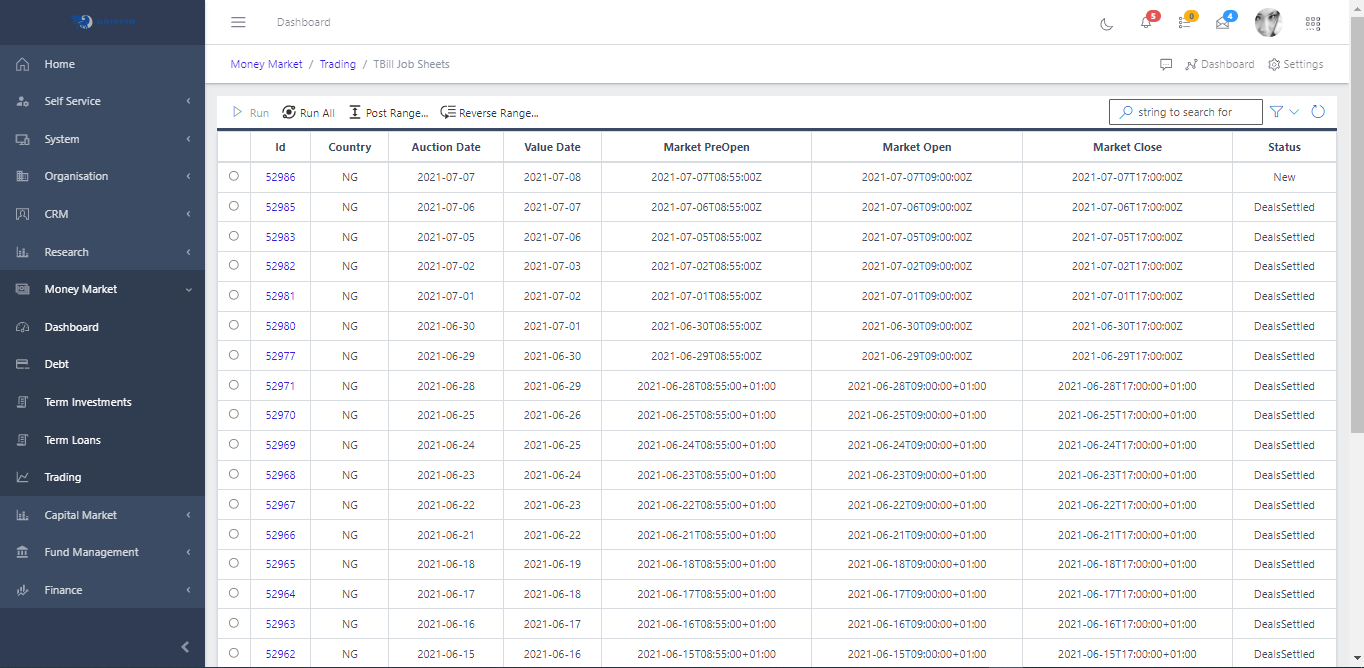
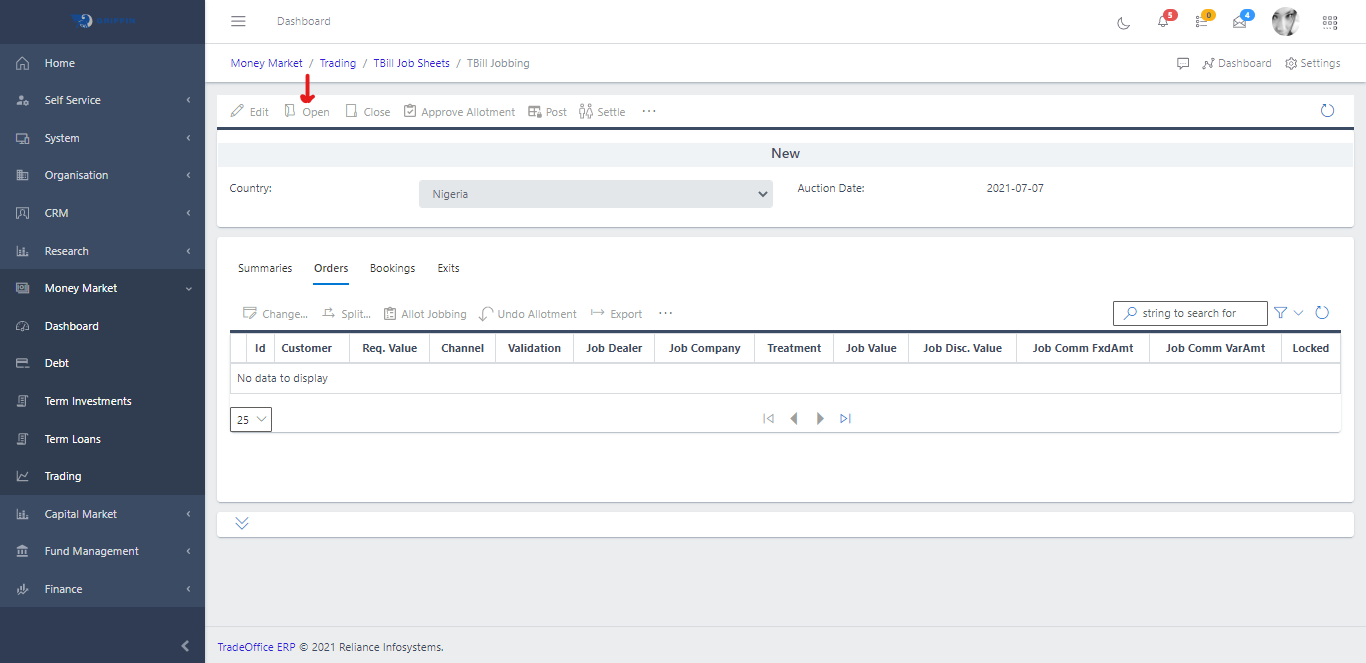
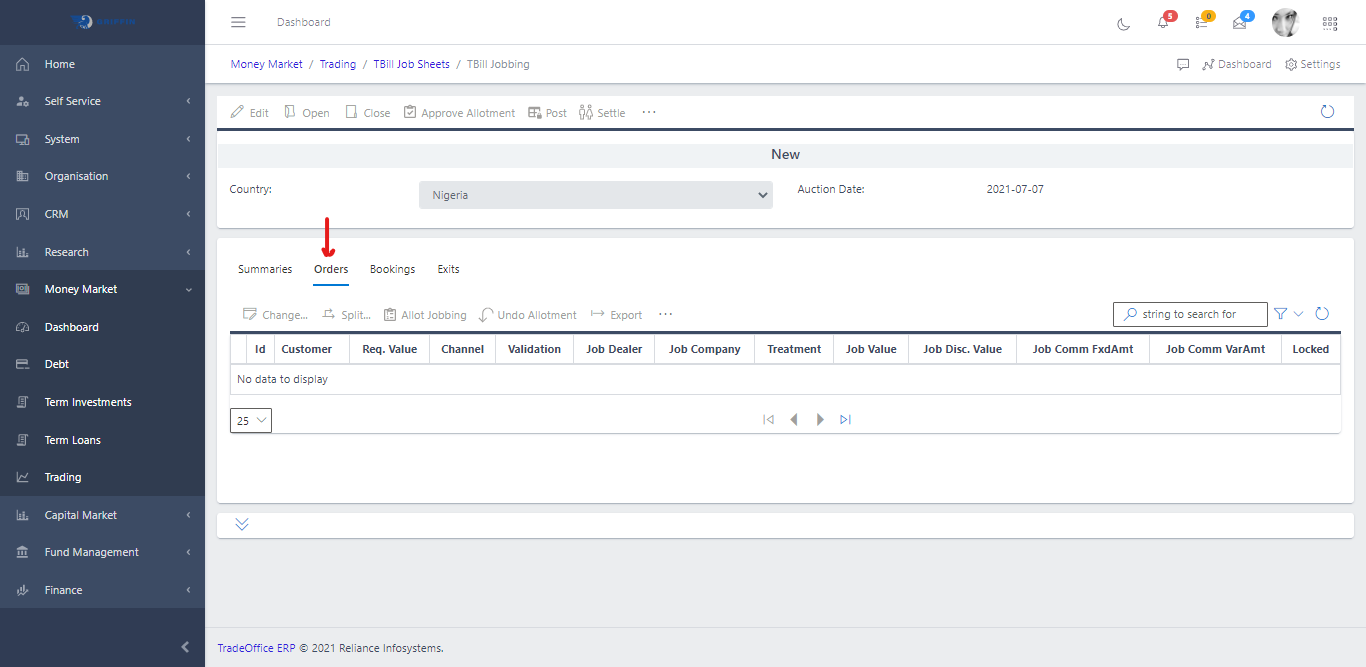
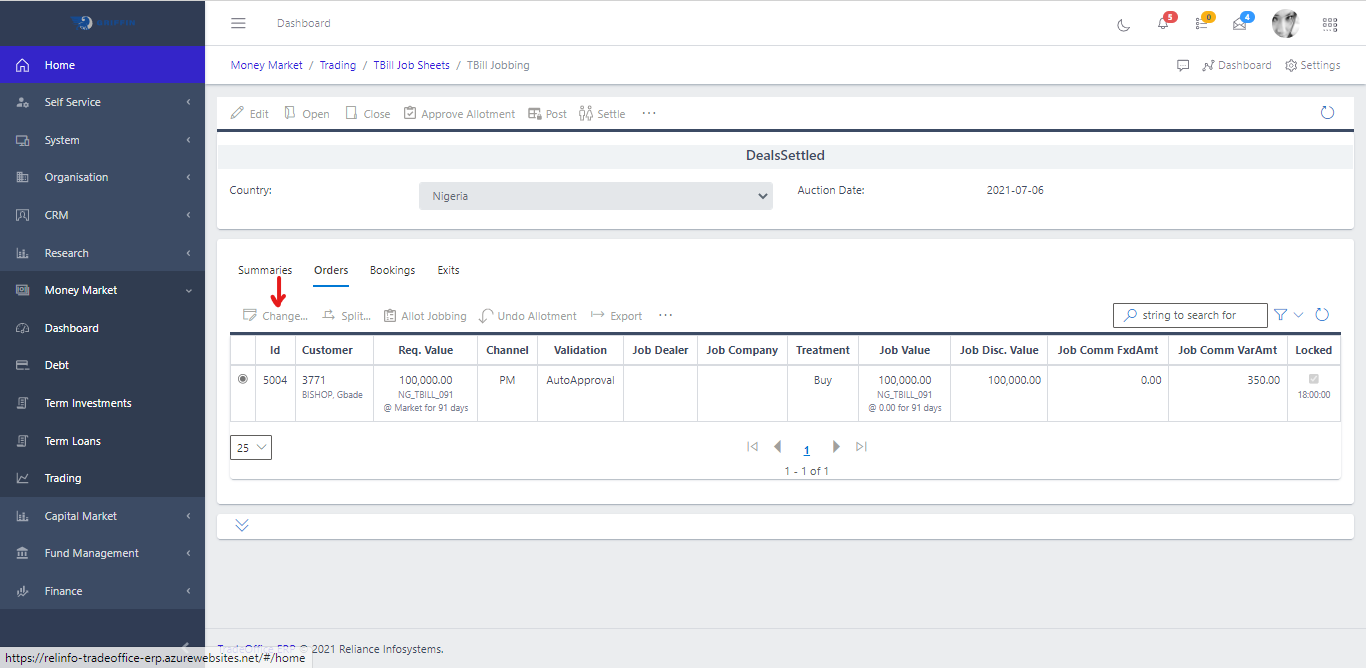
Fig 3.2: Change Owner