Staff Groups

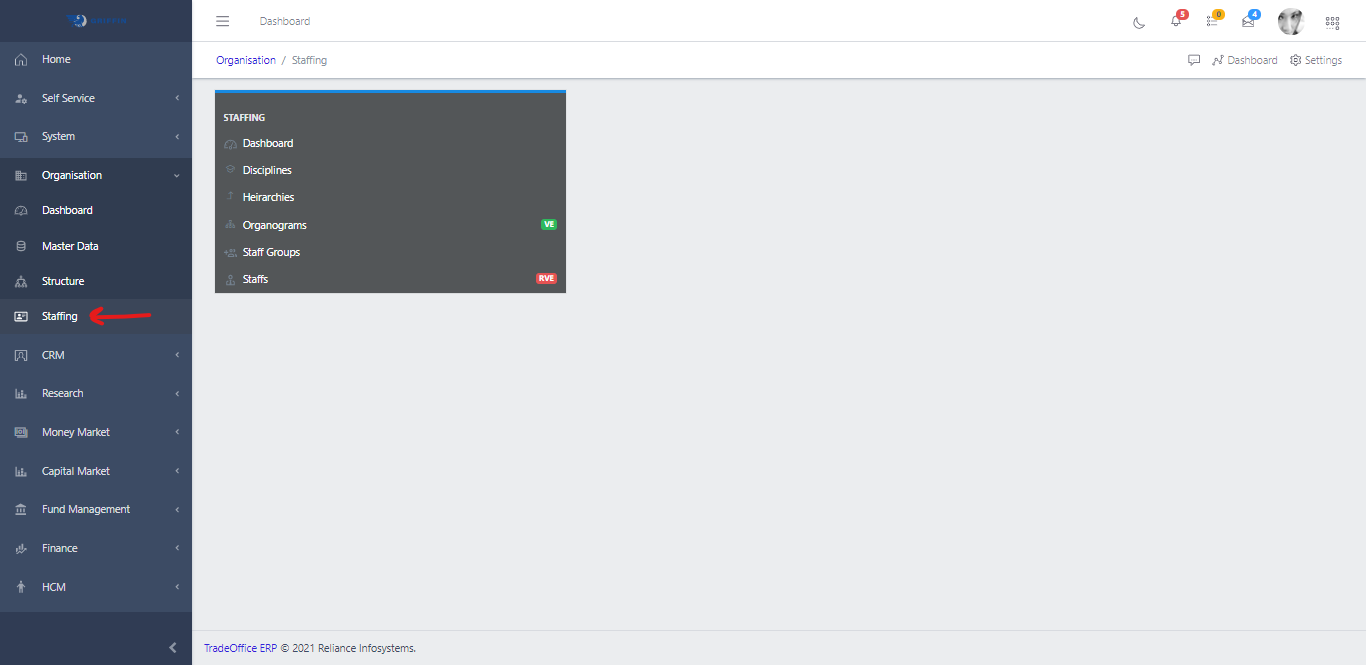
  • Access the Staffing sub-module of the Hierarchies module
Hierarchies
Fig 1.0

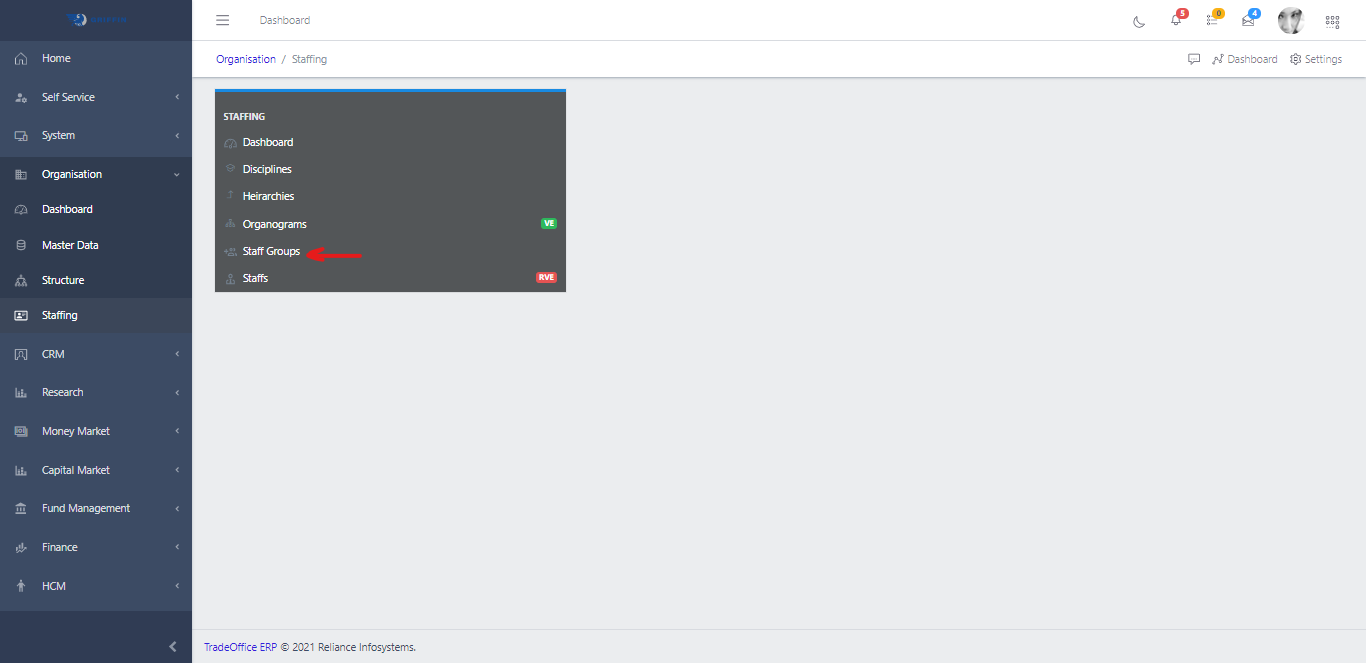
  • Click on Staff Groups
Staff Group
Fig 1.1

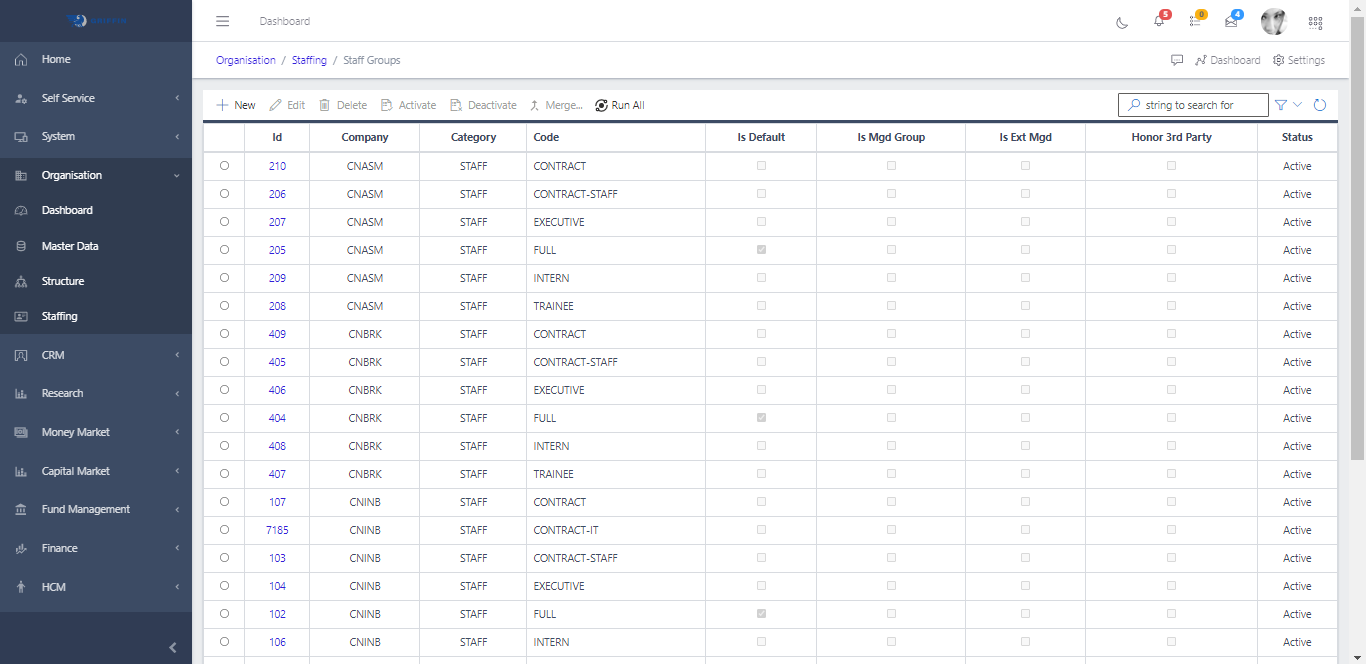
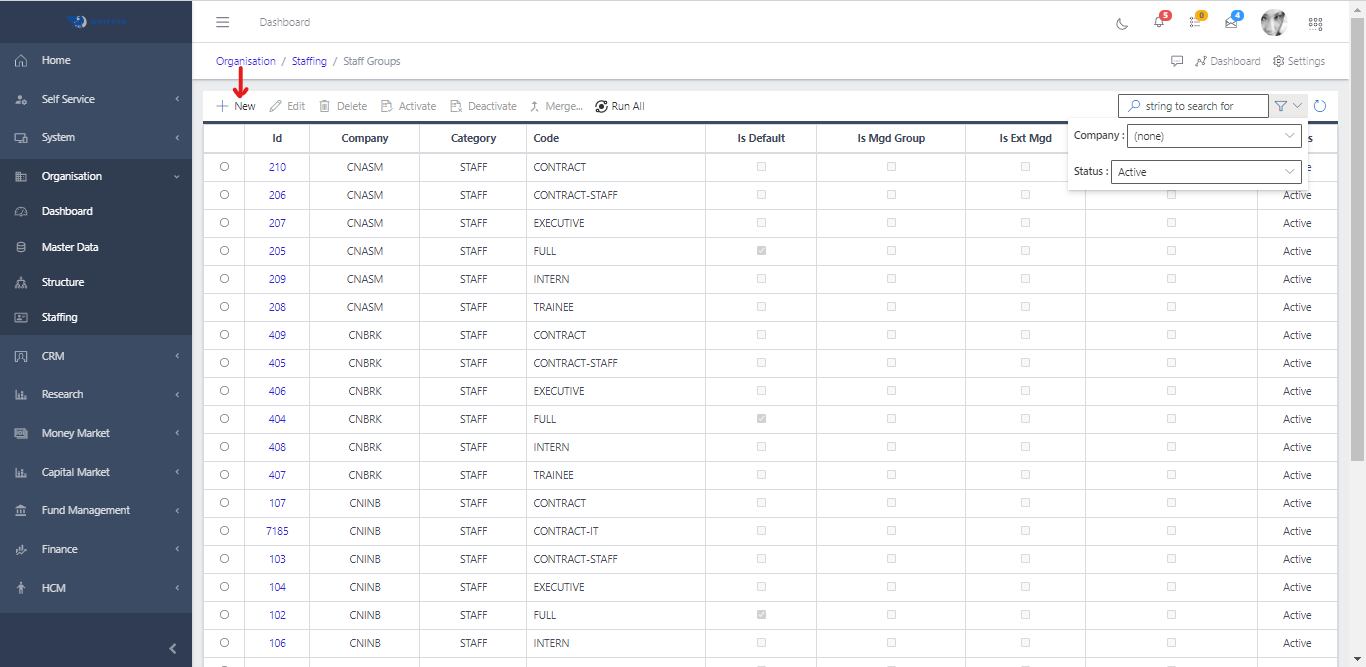
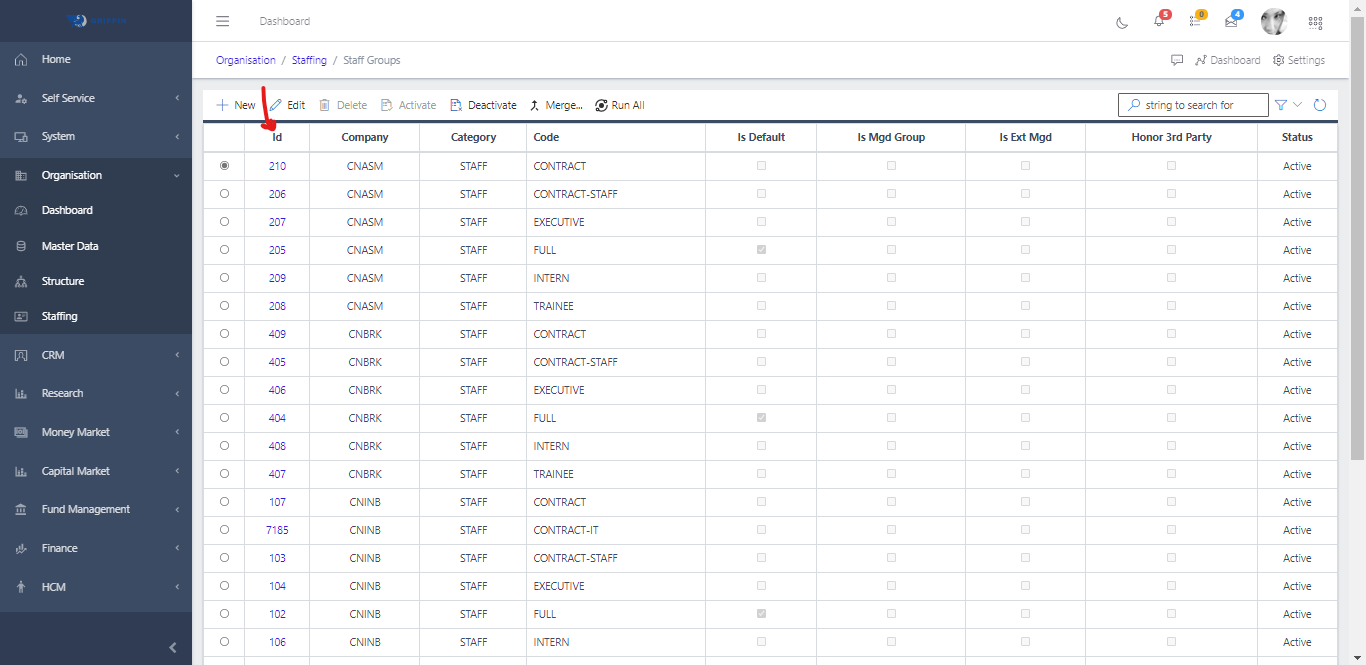
  • This displays a list view of Staff Groups.
Staff Group
Fig 1.2

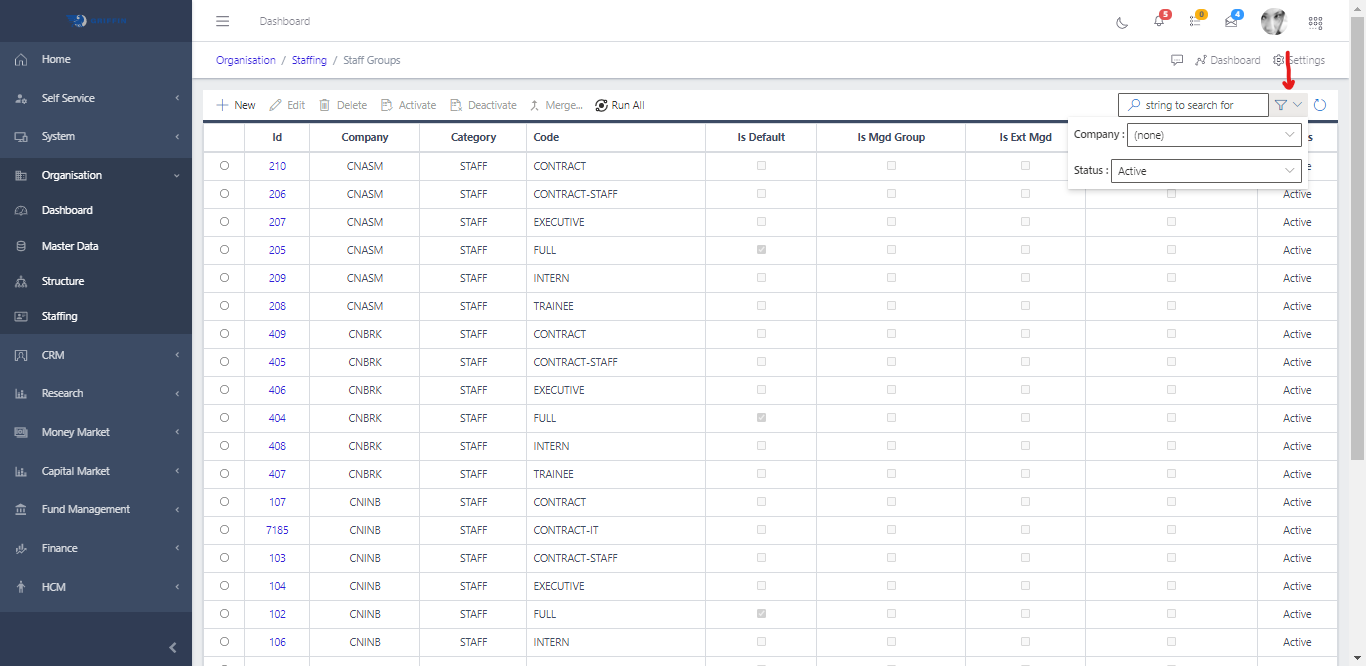
  • Use the Filter button, when clicked, gives parameters for filtering the records:
    • Search string: for filtering records
    • Company: A list view of companies
    • Status: A dropdown of status
Staff Group
Fig 1.3

Create a new Staff Group

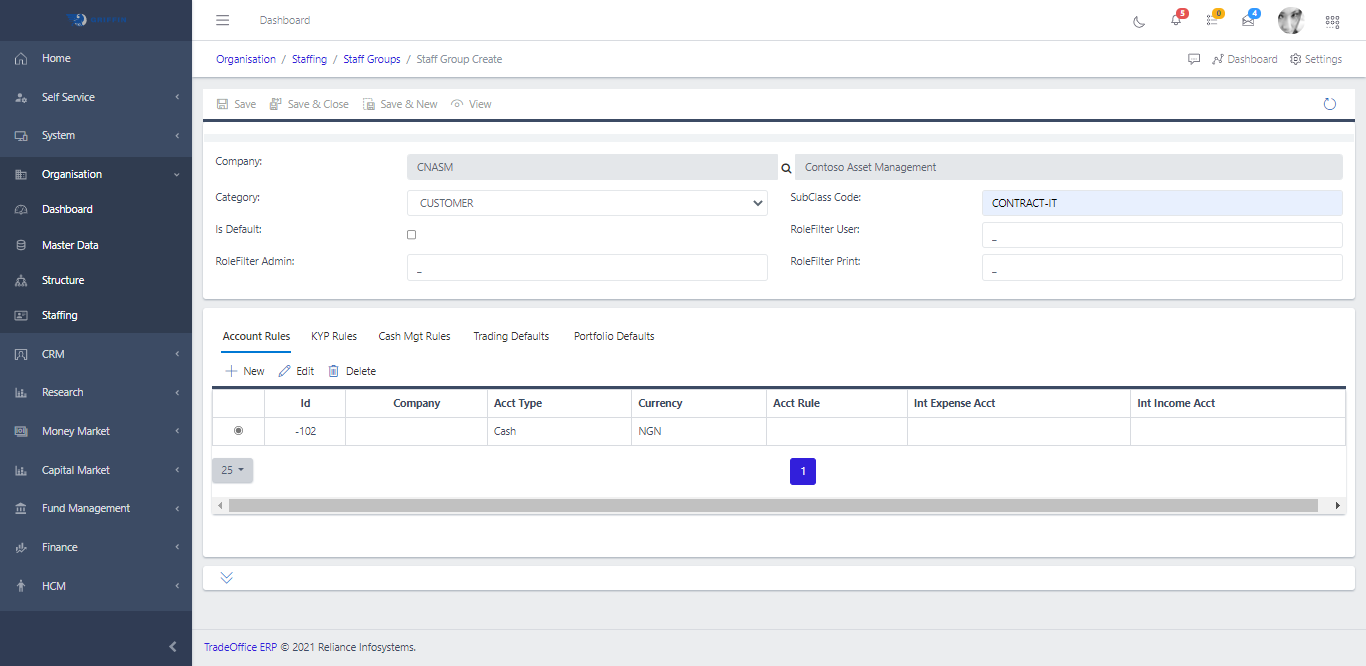
  • To create a Staff Group, hit the New button in the toolbar area and populate the form fields.
Staff Group
Fig 2

  • The following are some of the fields that needs to be populated:

    • Company
    • Category
    • is Default
  • If you’re creating a group for staffs, make sure in the category input field, you select STAFF in the drop-down

  • You also need to populate the fields in the following tabs:

    • Accounts Rules
    • KYP Rules
    • Cash Management Rules
    • Trading Defaults
    • Portfolio Defaults
  • After filling out the form, click the Save and Close button to save changes
Staff Group
Fig 2.1

View a Staff Group

  • To view a Staff Group, click the ID of the Styaff Group
Staff Group
Fig 3

Edit a Staff Group

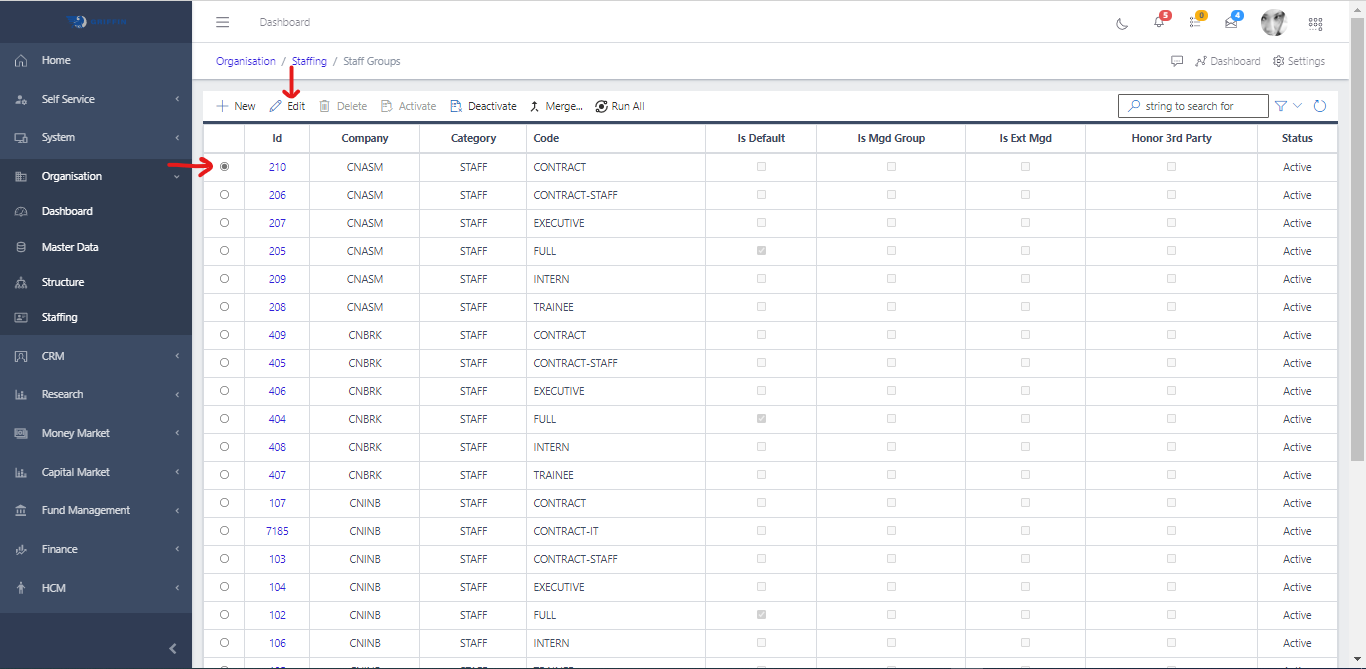
  • To edit a Staff Group, select the particular record you want to edit by clicking the radio button
  • Click the Edit button in the toolbar area
Staff Group
Fig 3.1

Merge Two Staff Groups

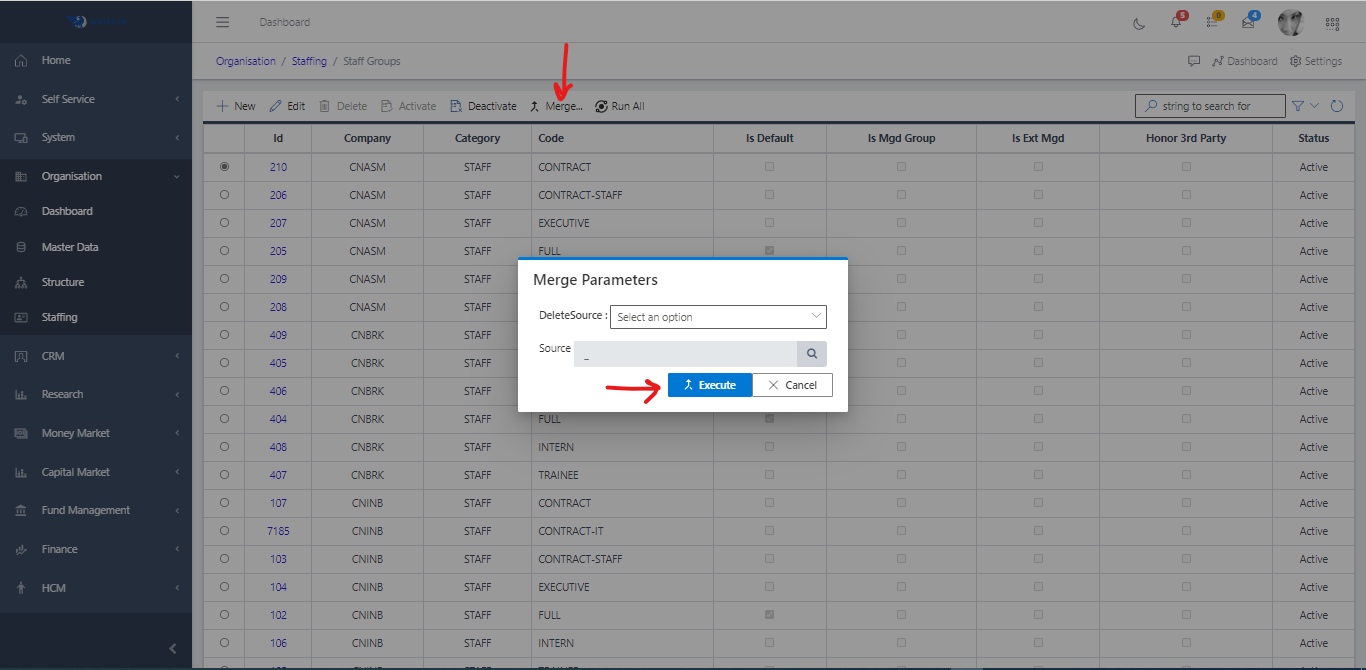
  • To merge two Staff Groups, select the particular record you want to merge by clicking the radio button
  • Click the Merge button in the toolbar area
  • Specify the following parameters:
    • DeleteSource: True or False
    • Source: The Staff Group you want to merge into
Staff Group
Fig 3.2

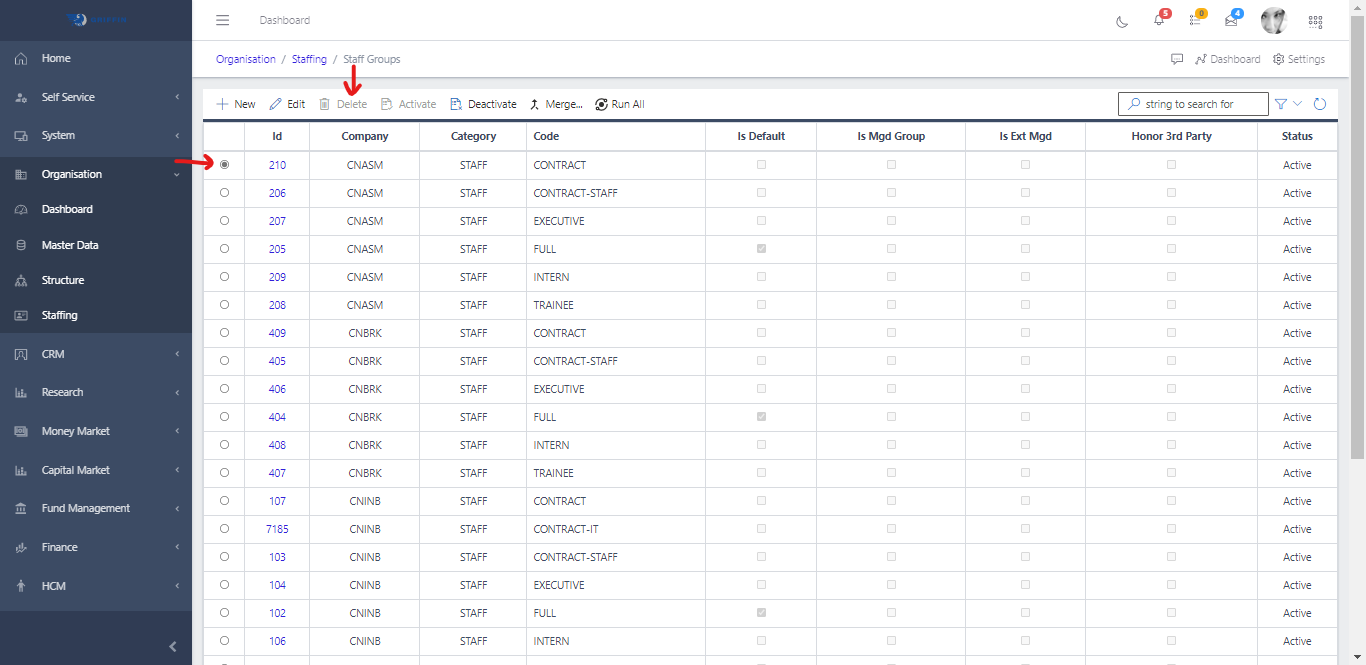
Delete Staff Group

  • You can only delete a Staff Group that is deactivated, You can’t delete an active Staff Group
  • To delete a Staff Group, select the particular record you want to delete by clicking the radio button
  • Click on Deactivate, then the Delete button in the toolbar area
Staff Group
Fig 3.3

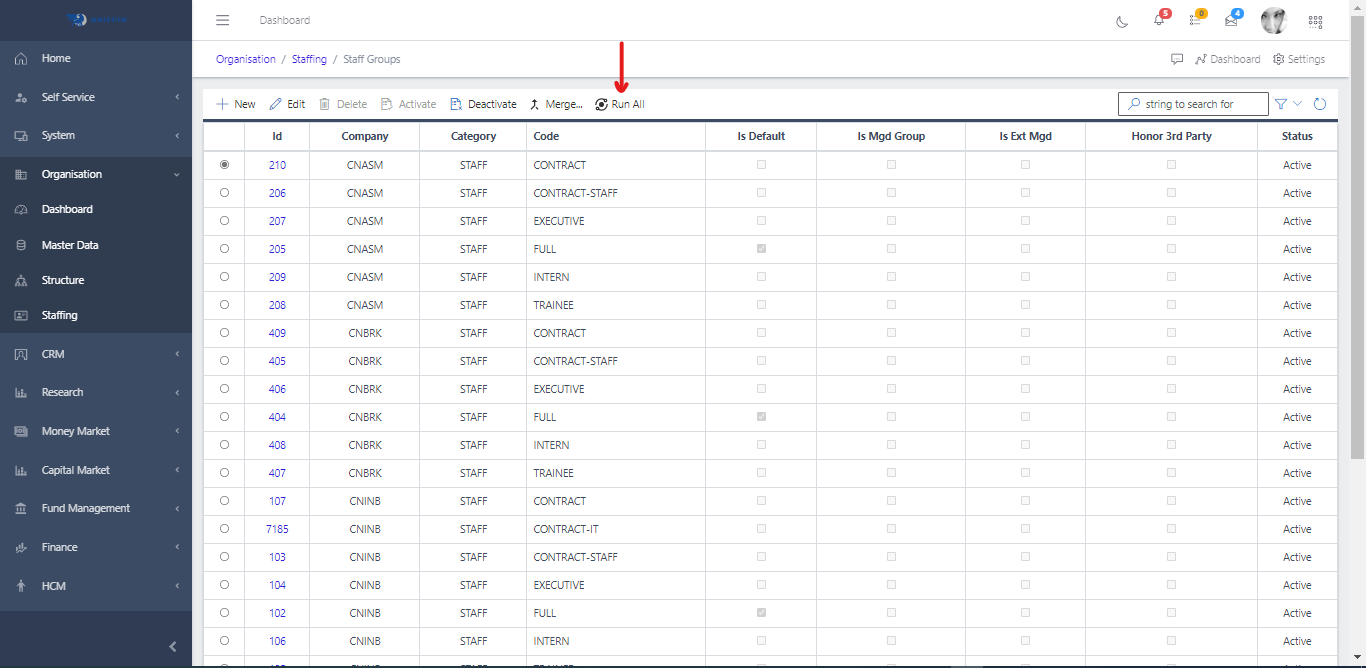
Run All Staff Group

  • This will run the Staff Group scheduler
Staff Group
Fig 3.4

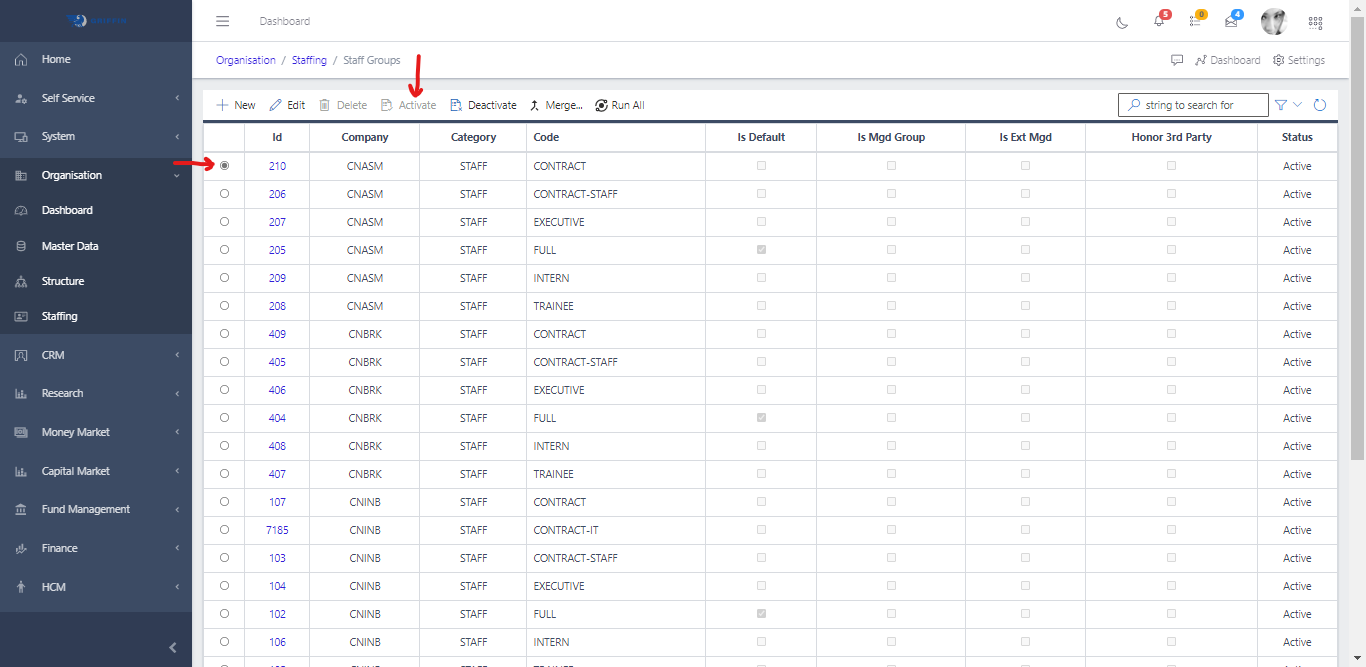
Activate a Staff Group

  • To activate a Staff Group, select the particular record you want to activate by clicking the radio button
  • Click the Activate button in the toolbar area
Staff Group
Fig 3.5

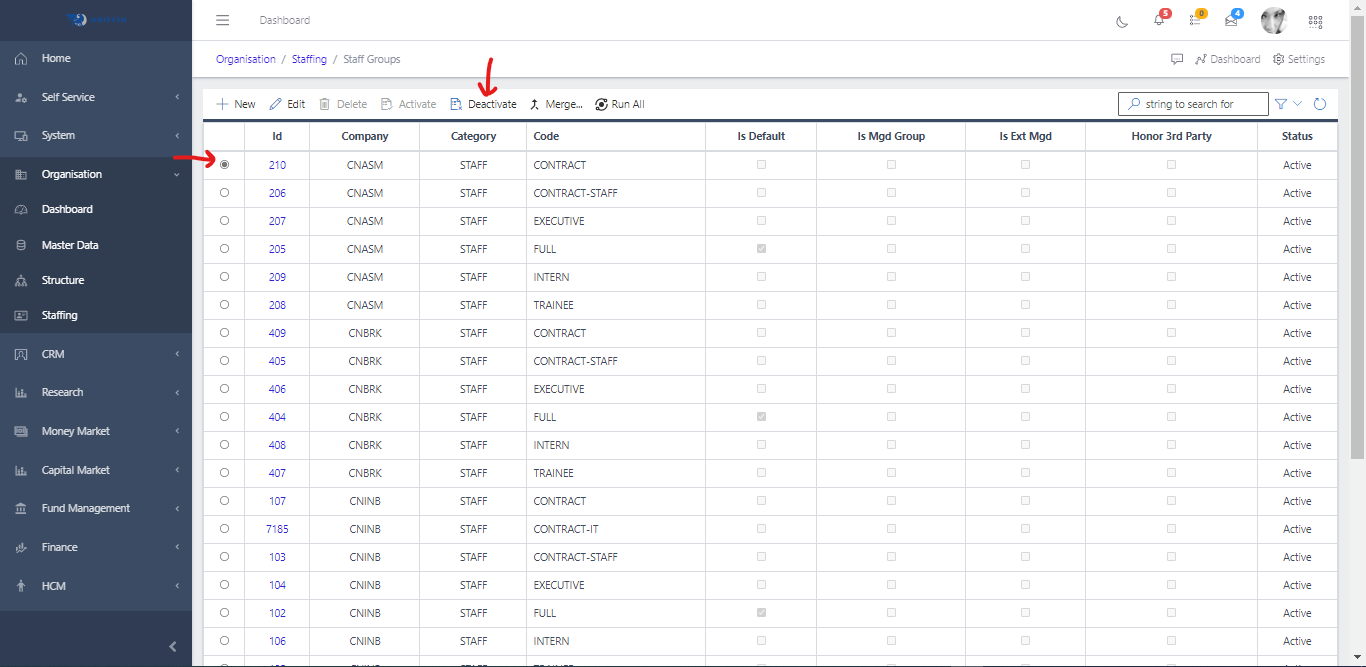
Deactivate a Staff Group

  • To deactivate a Staff Group, select the particular record you want to deactivate by clicking the radio button
  • Click the Deactivate button in the toolbar area
Staff Group
Fig 3.6