Units

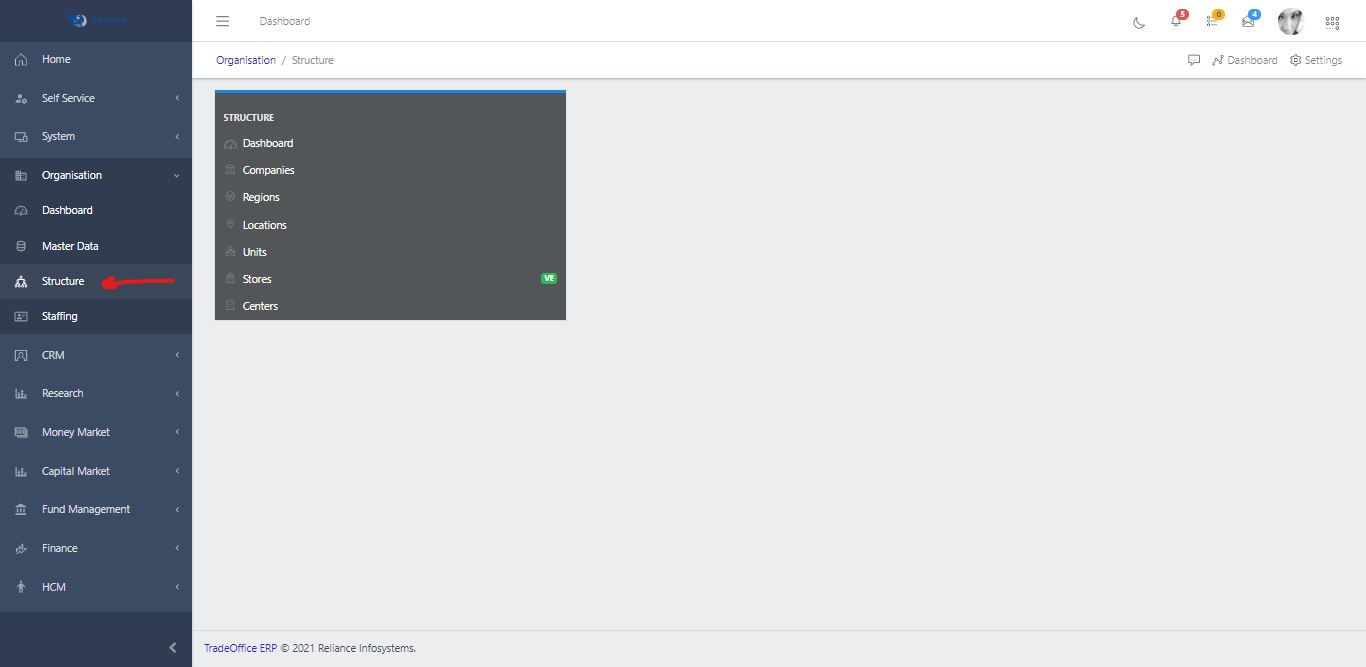
  • Access the Structure sub-module of the Organisation module
Structure
Fig 1.0

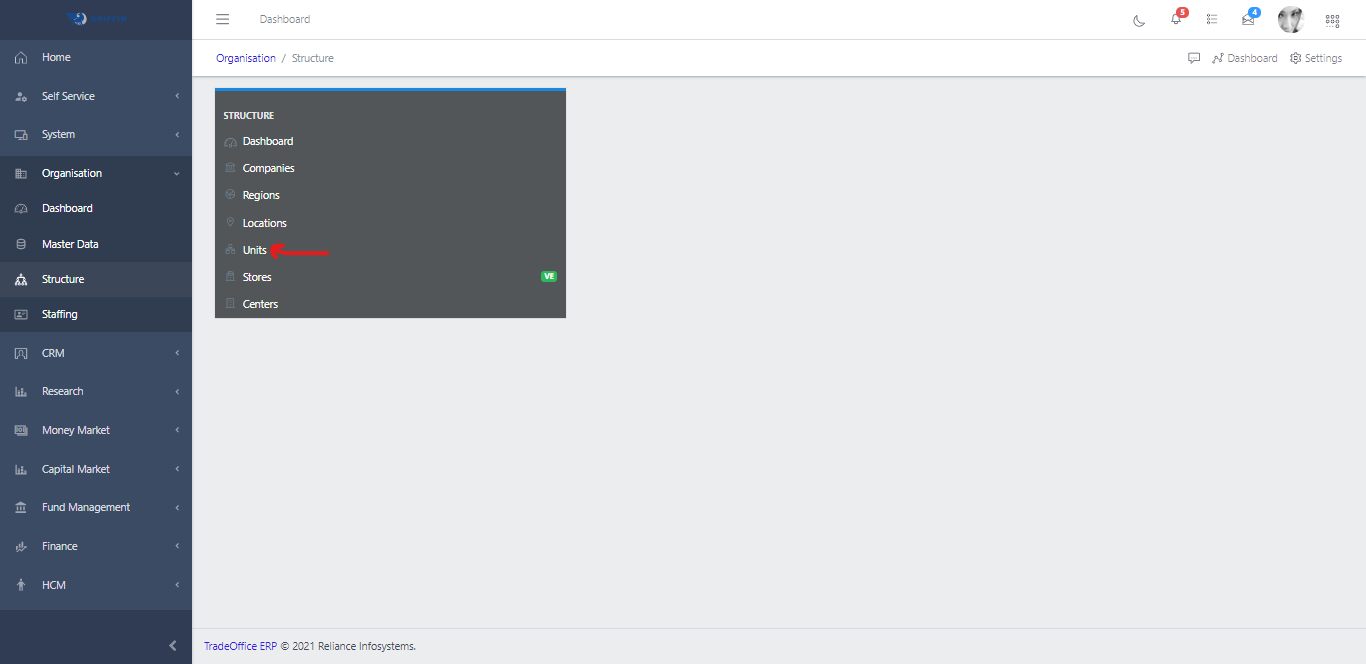
  • Click on Units
Unit
Fig 1.1

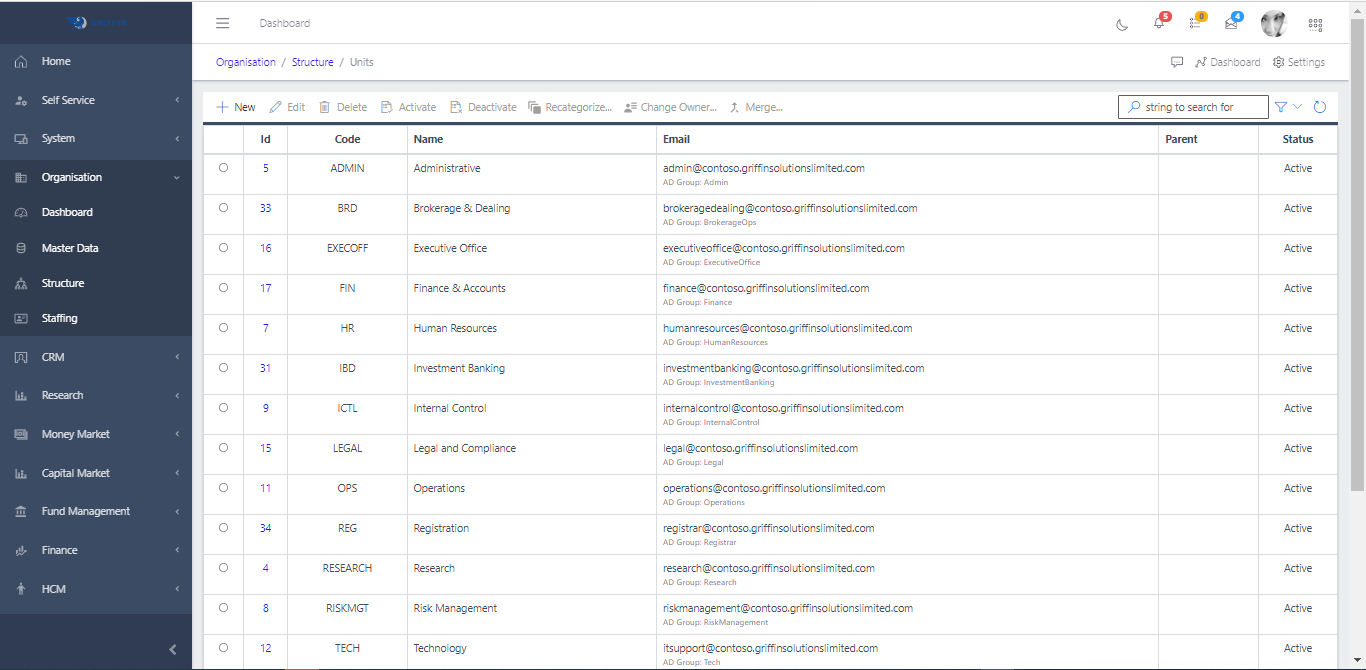
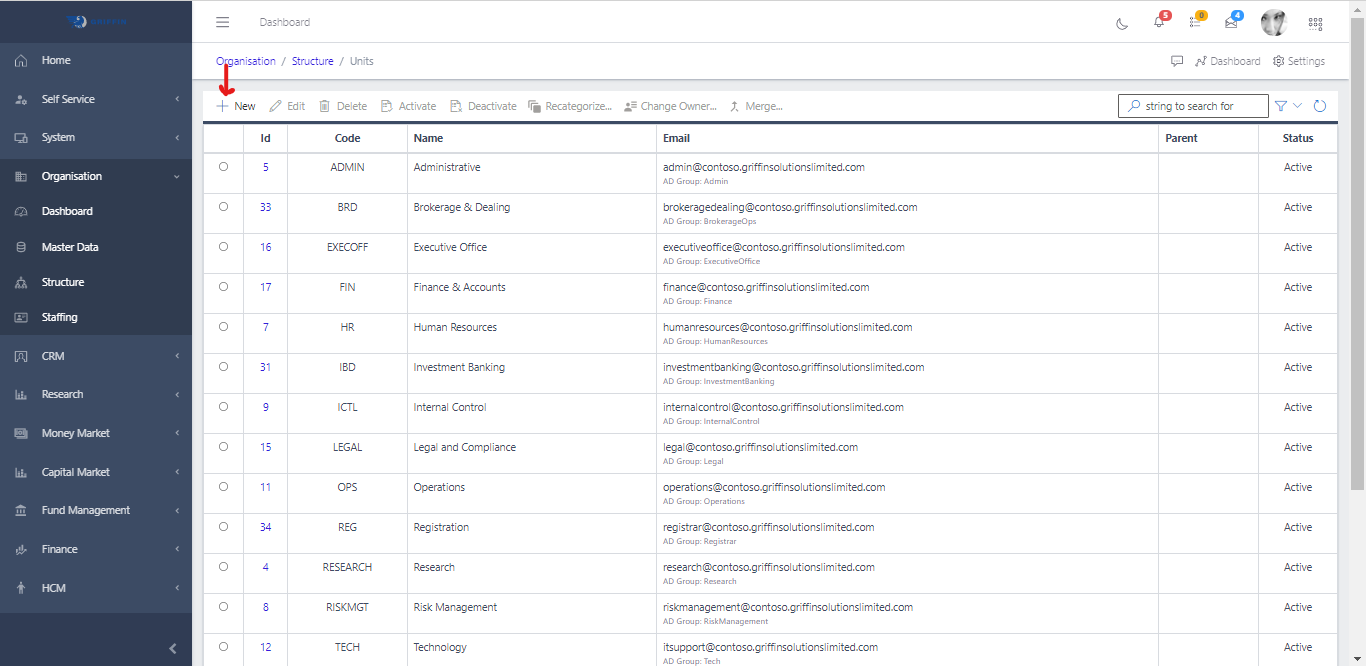
  • This displays a list view of Units.
Unit
Fig 1.2

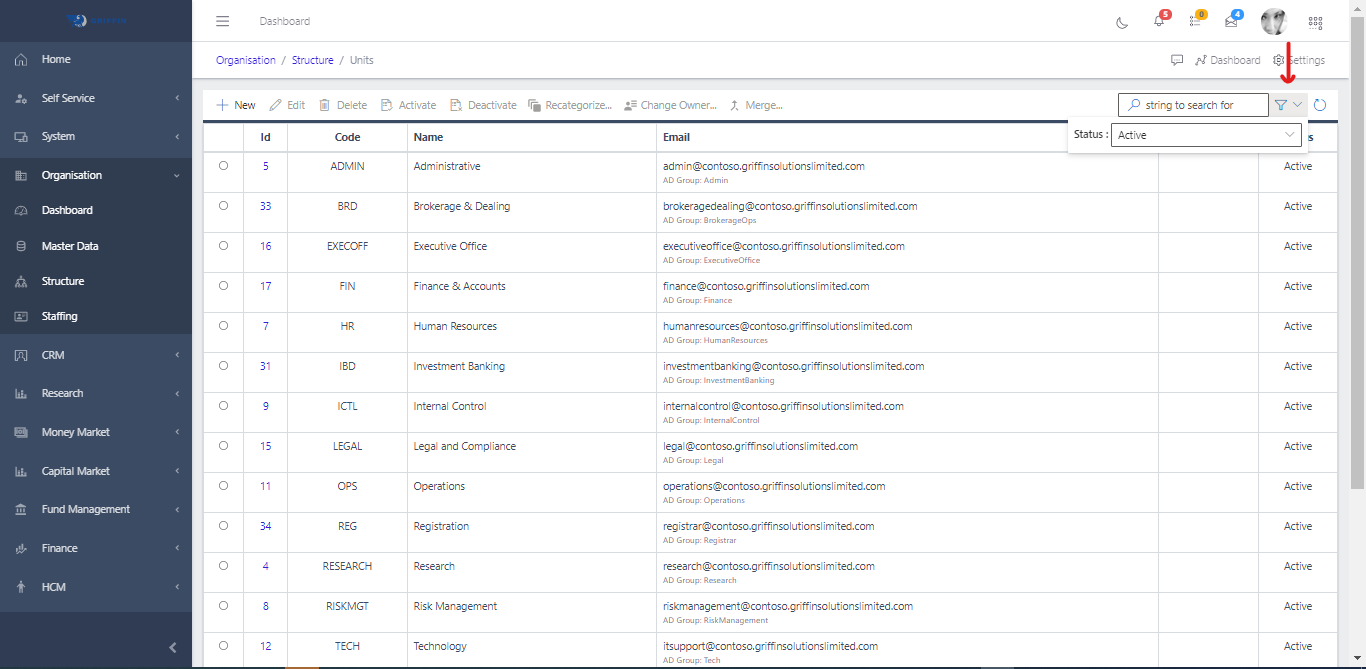
  • Use the Filter button, when clicked, gives you a dropdown where you can specify various parameters for filtering the records:
    • A search string that can represent the Unit name
    • Status to show the status of the Unit
Unit
Fig 1.3

Create a new Unit

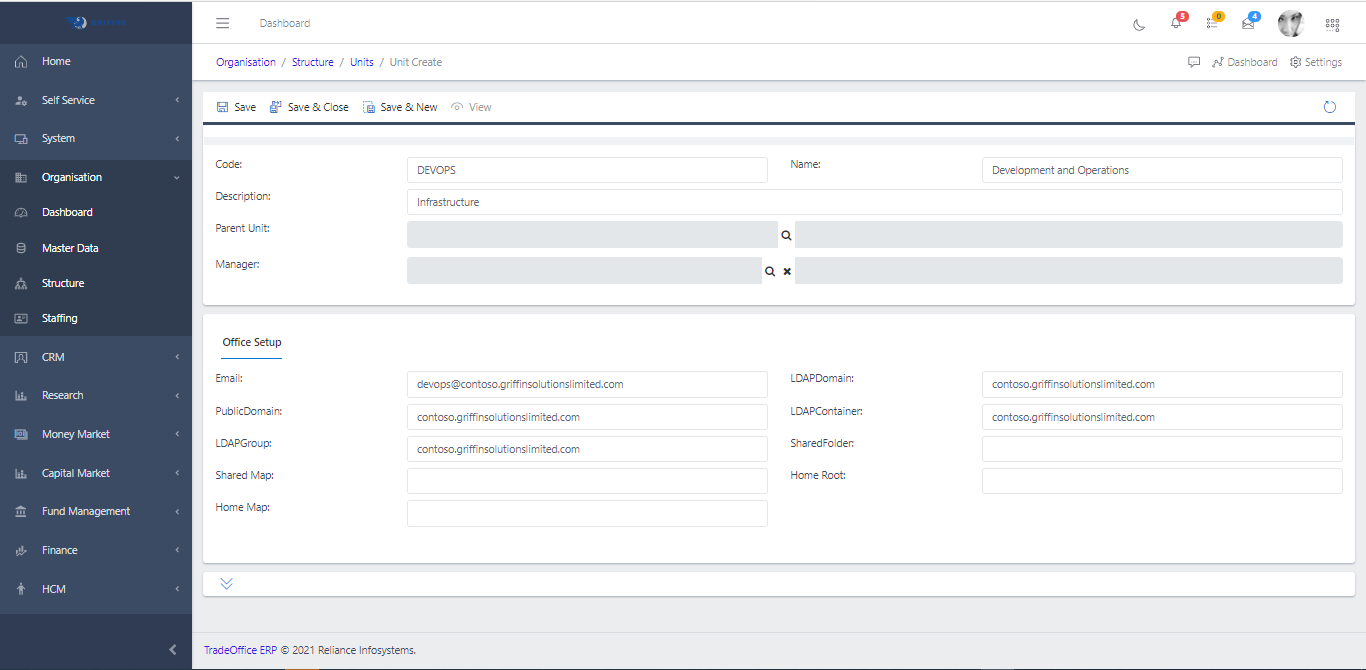
  • To create a Unit, hit the New button in the toolbar area and populate the form fields.
Unit
Fig 2

  • The following are some of the fields that needs to be populated:

    • Code
    • Description
    • Name
    • Parent Unit
    • Manager
  • You also need to populate the fields in the following tabs:

    • Office setup: unit email, shared folder etc.
  • Hit the Save and close button
Unit
Fig 2.1

View a Unit

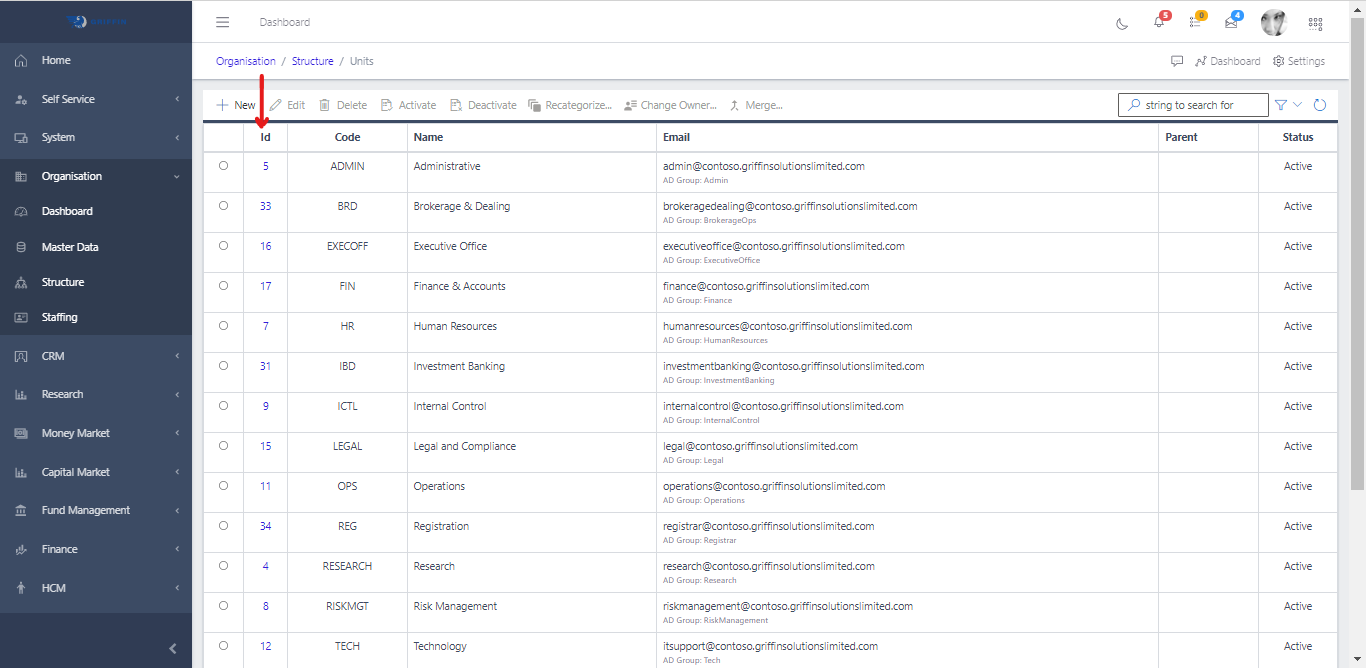
  • To view a Unit, click the ID of the unit
Unit
Fig 2.2

Edit a Unit

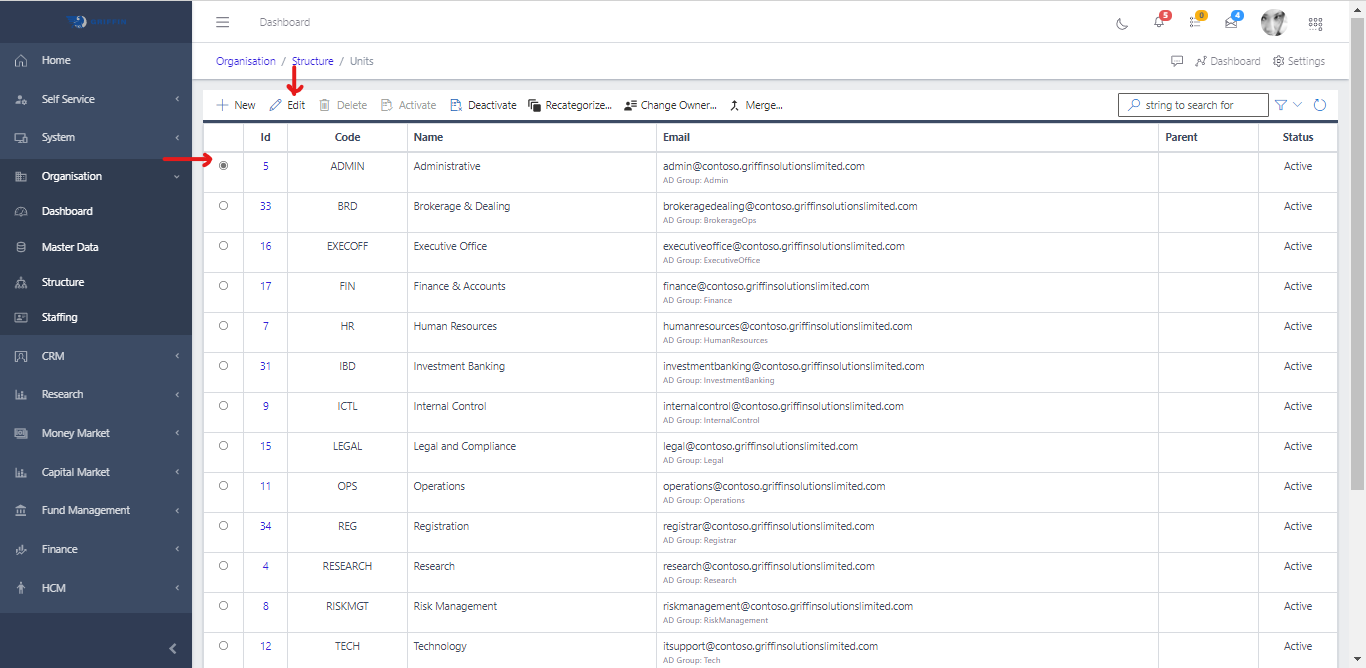
  • To edit a Unit, select the particular record you want to edit by clicking the radio button
  • Click the Edit button
Unit
Fig 2.3

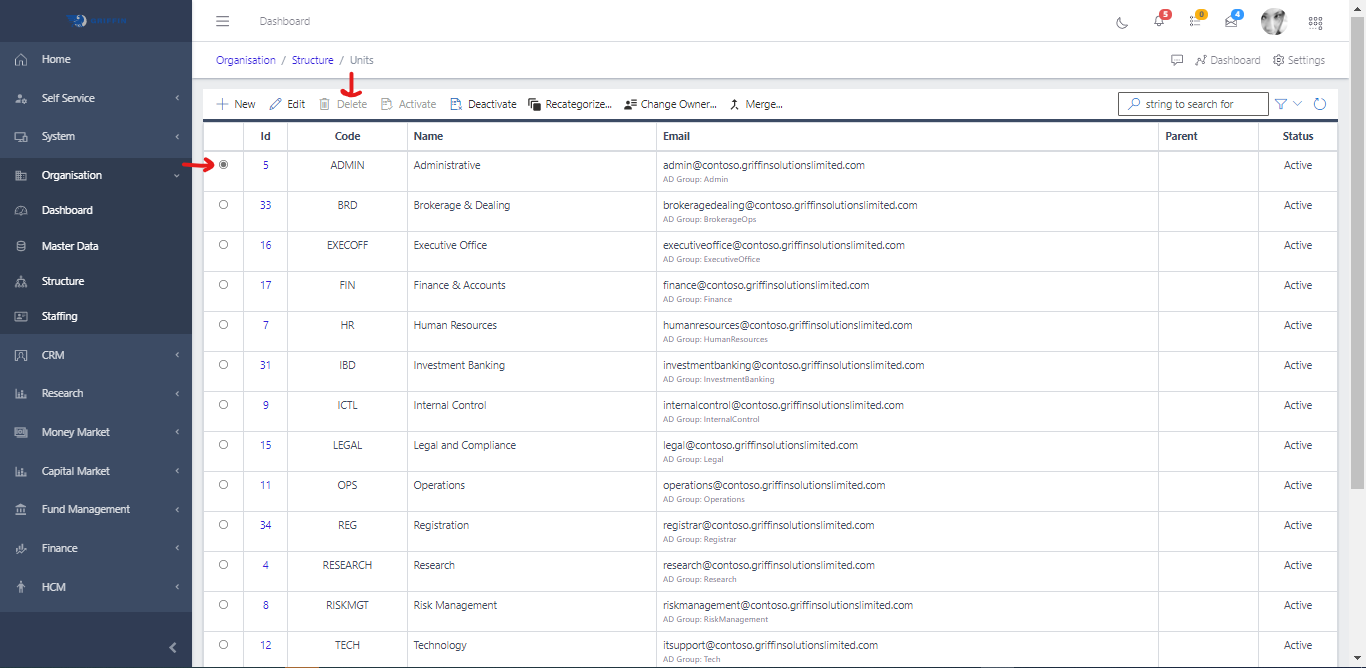
Delete a Unit

  • To delete a Unit, select the particular record you want to delete by clicking the radio button
  • Click the Delete button
Unit
Fig 2.4

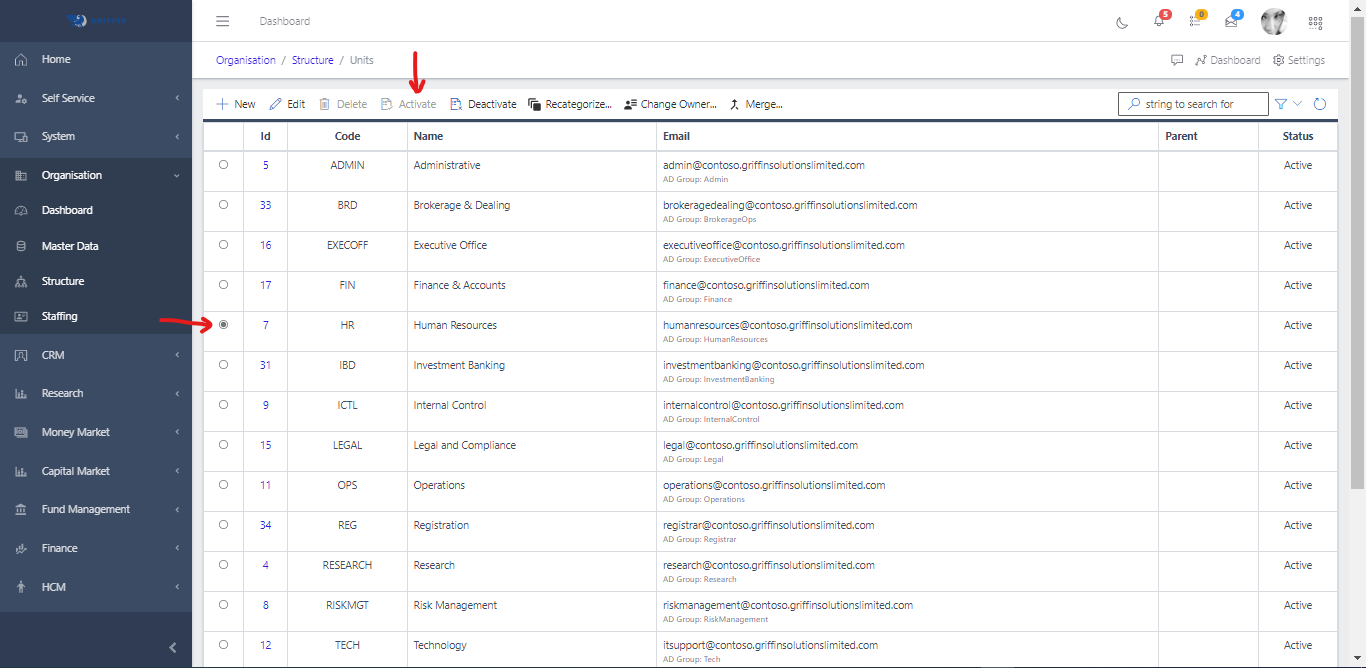
Activate a Unit

  • On save, the newly created Unit status will be Unapproved. Use the search filter to search for Unit with a Status of Unapproved.
  • Click the Activate button to activate the unit and change its status from unapprove to active
Unit
Fig 2.5

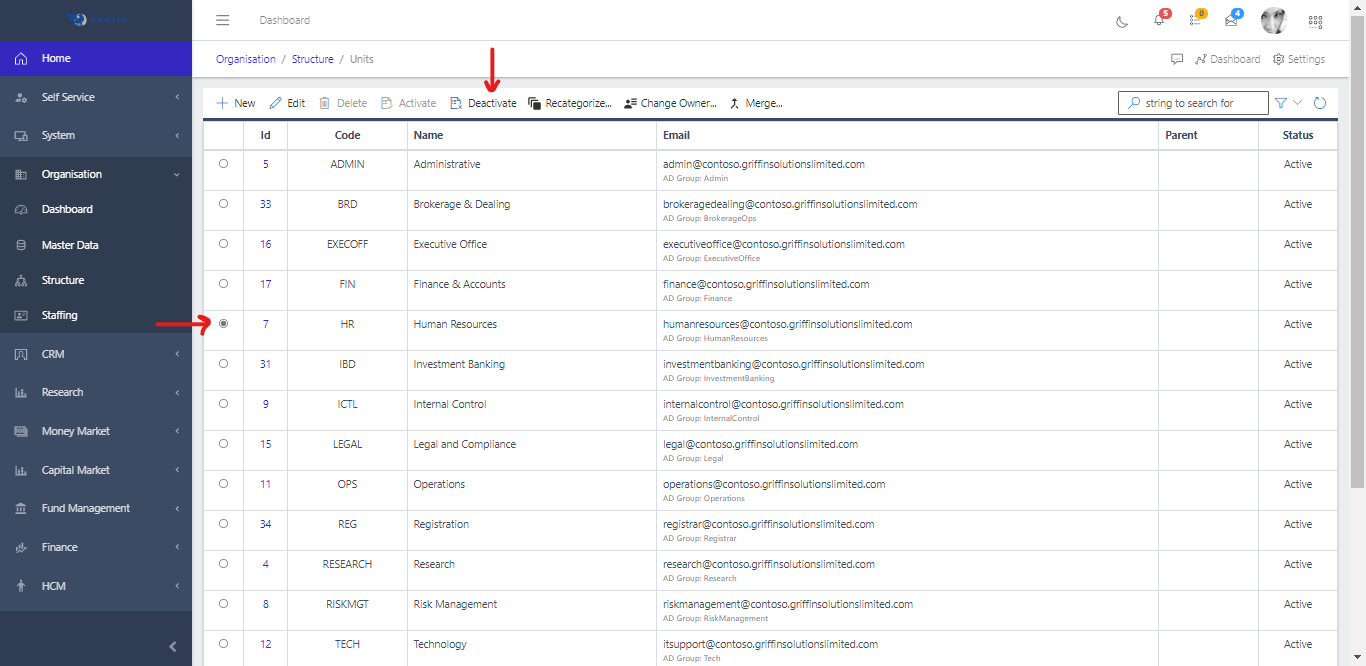
Deactivate a Unit

  • To deactivate an approved Unit, search and select the active region you want to deactivate and click the Deactivate button
  • This works only if the item is Active
Unit
Fig 2.6

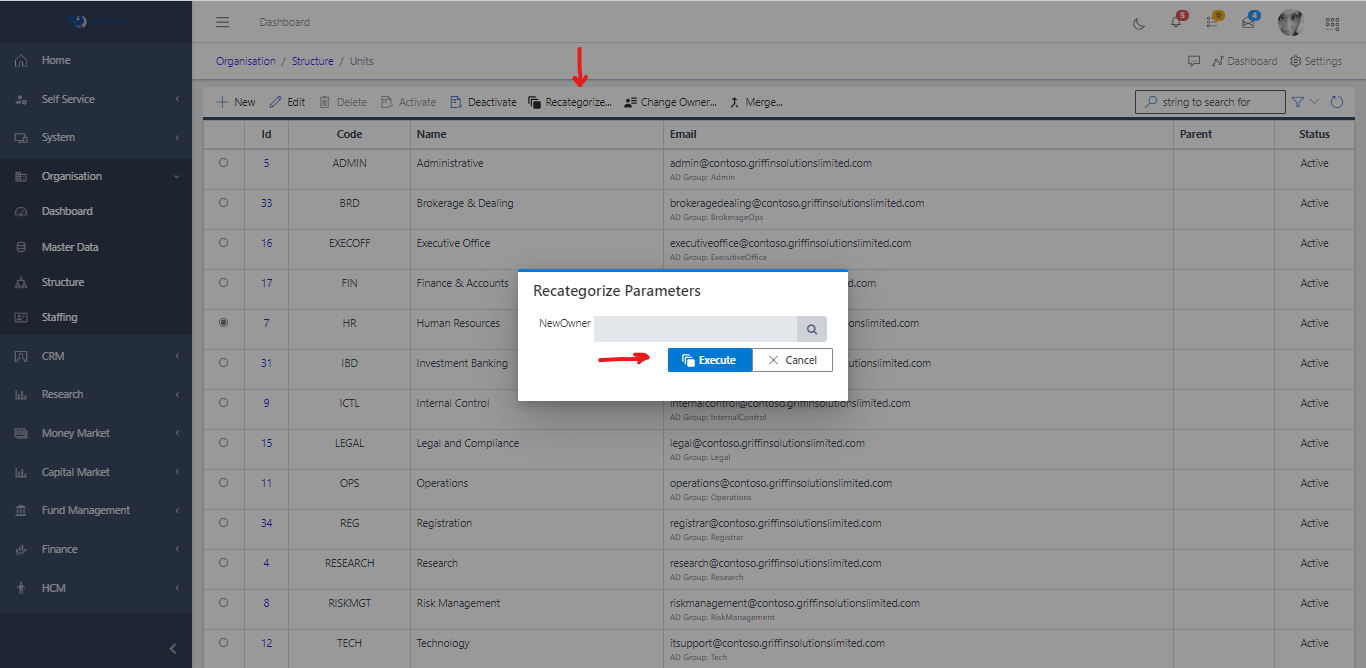
Recategorize Unit

  • To recategorize a unit, select the particular record you want to recategorize by clicking the radio button
  • Click the Recategorize button
Unit
Fig 3

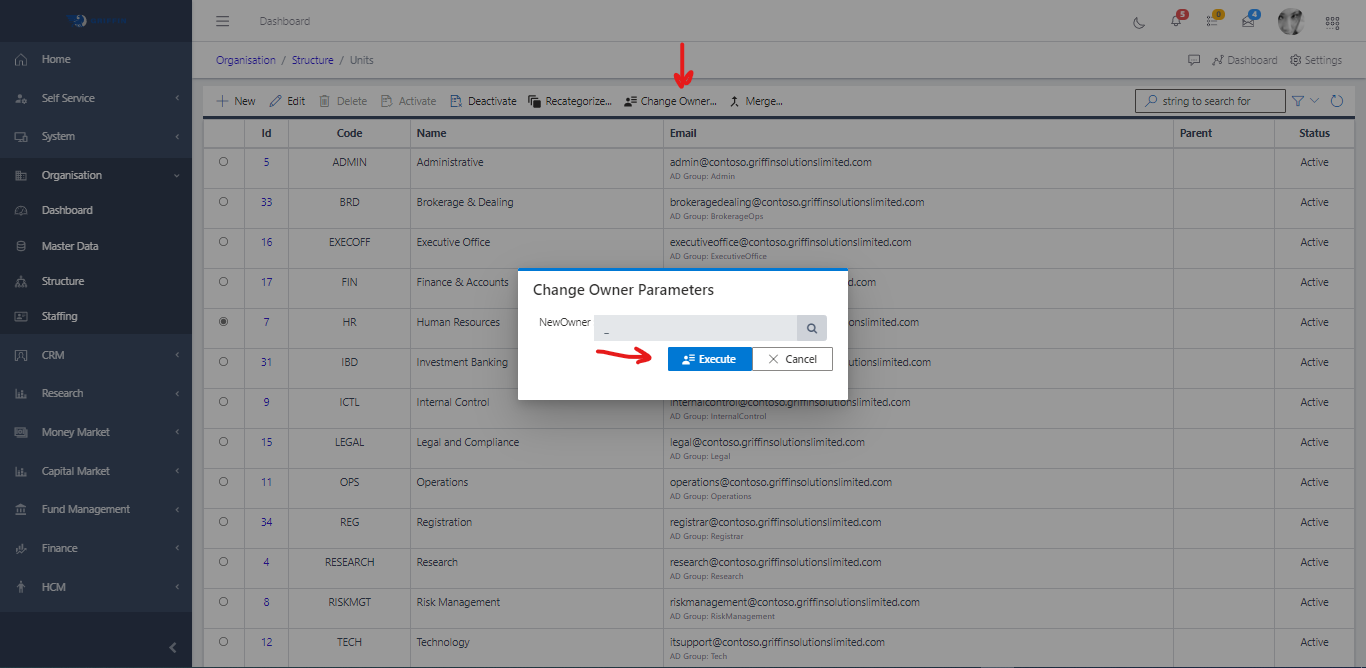
Change Ownership of a Unit

  • To change ownership of a unit, select the particular record you want to change by clicking the radio button
  • Click the change button, input the new owner and click execute
Unit
Fig 3.1

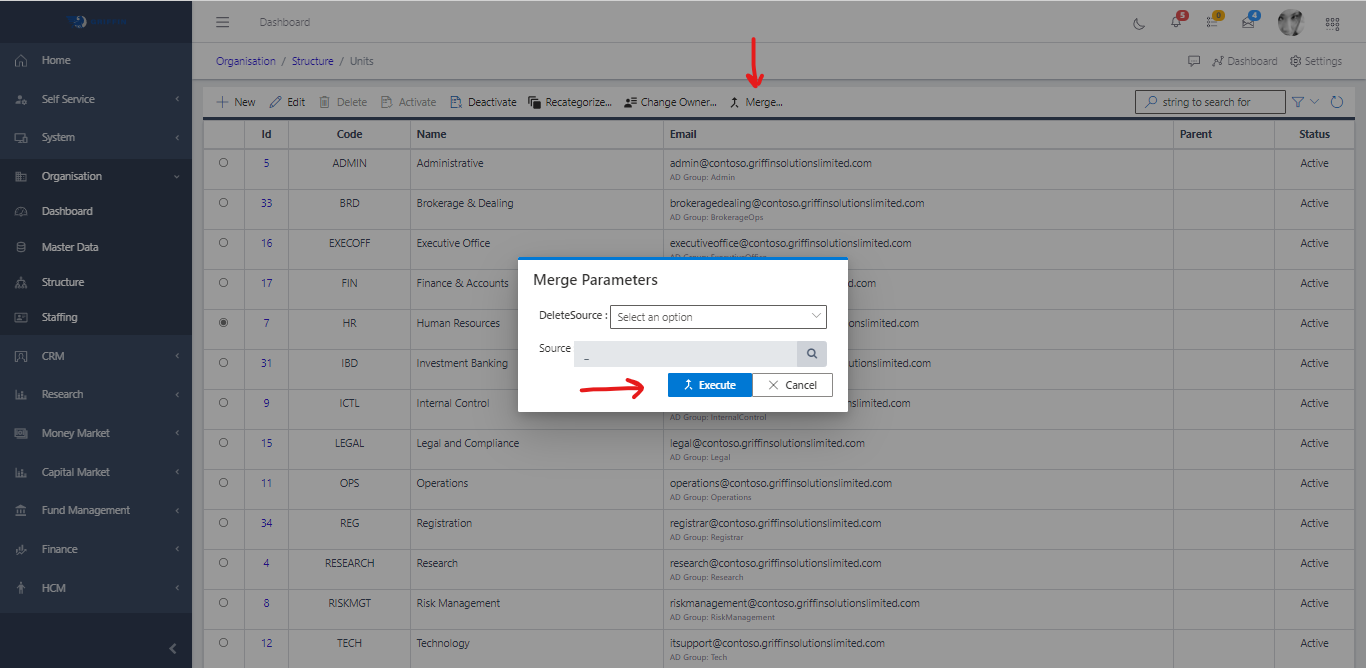
Merge two Units

  • Merge two units, by selecting a region and hitting the Merge button to select the other region to be merged with
  • Click the merge button, input the new owner and execute
    • Delete Source: True or False
    • Source: search for the company
Unit
Fig 3.2