Title here
Summary here
The perf appraisal under performance management is where appraisals can be carried out from within the app for individual staff.
Appraisals are done at set intervals and modelled as appraisal session. Appraisals are created as copies of targets (which are created from the beginning of the year and closed before appraisals can start).
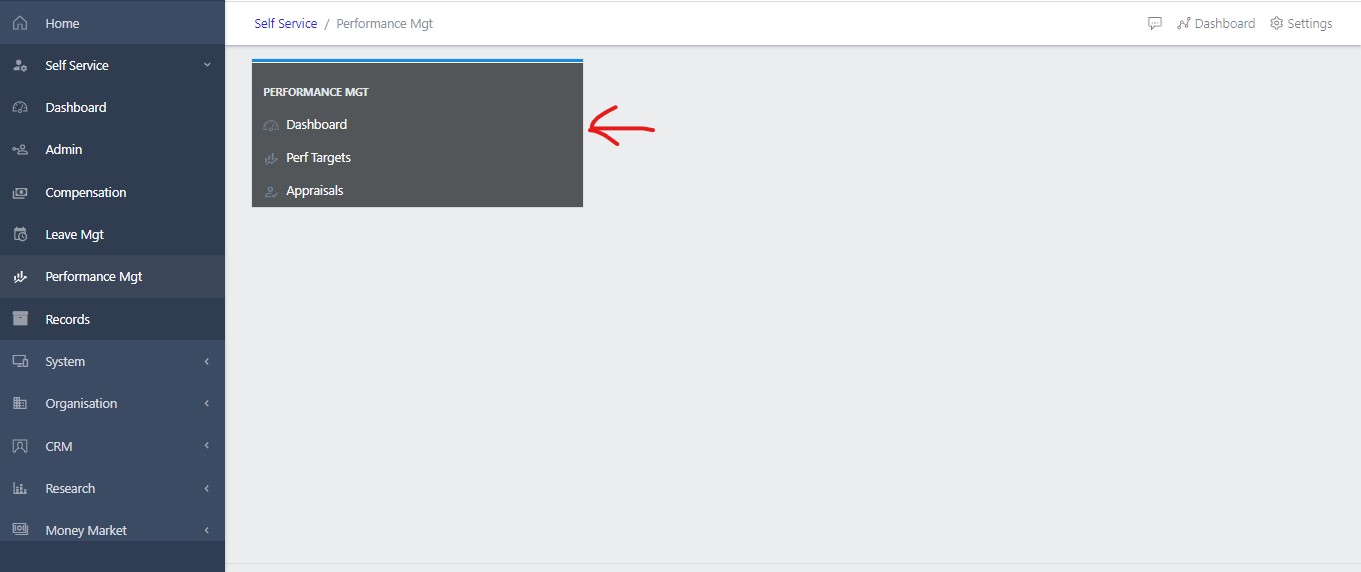
Fig1.1 below shows the perf appraisal submodule. On getting to the module, the view is always blank. You are required to use the “Search” button in green at the top right corner as in fig1.1. Input the session year to display data pertaining to your appraisals.
As for a supervisor, on selecting the payroll year, he/she can view the appraisals of four other staff that are under his supervision as in fig1.2 below.
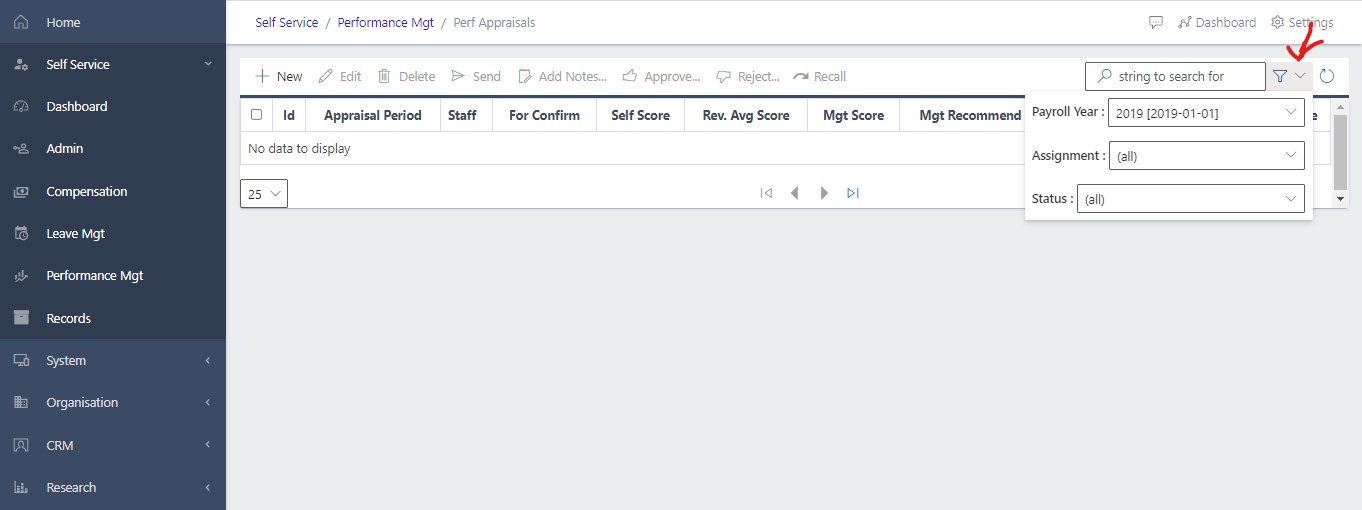
Note: This person(supervisor) can normally see 5 appraisals - his own and four subordinates:
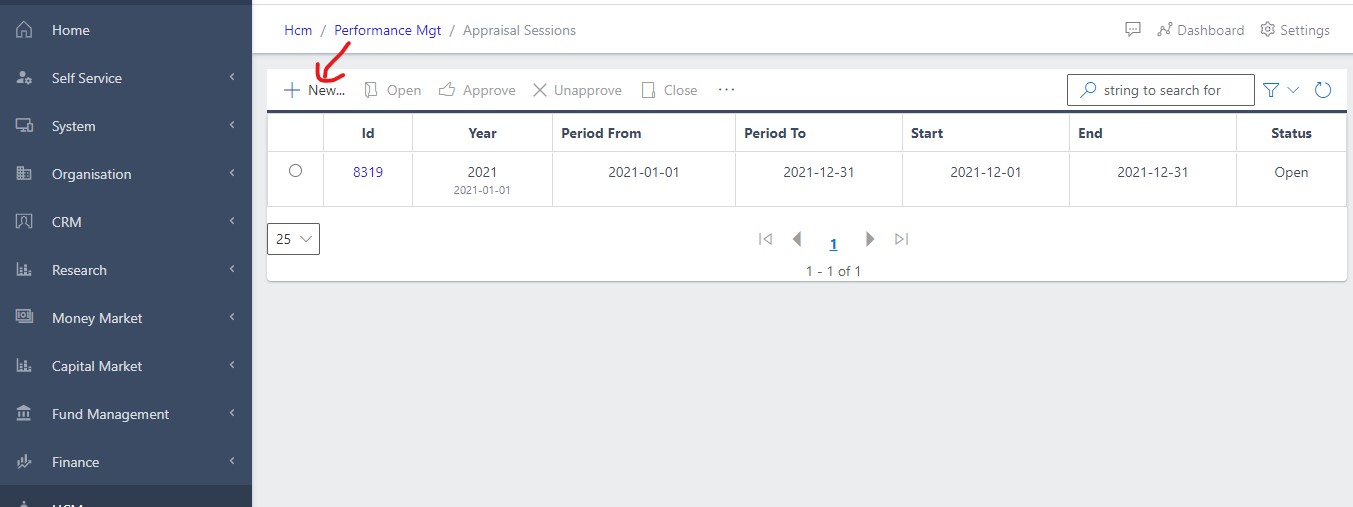
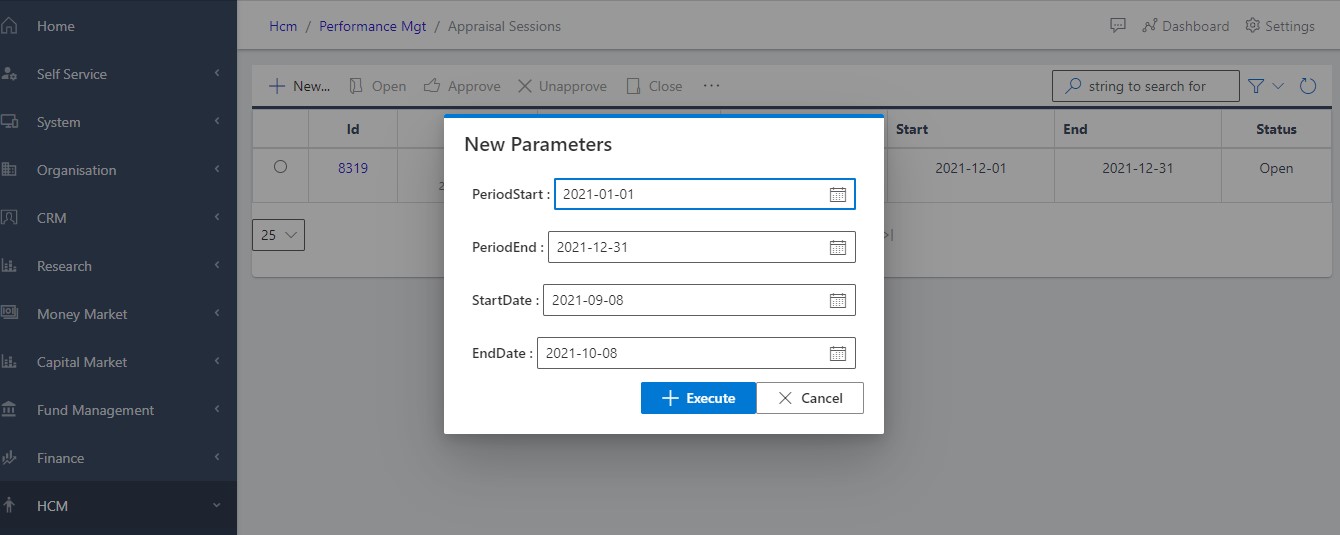
Note: by default, the system assumes an appraisal period of one month using the current date as the StartDate. Session can be declared open by the HR. Only the HR can start an appraisal session.
Whenever a supervisor login to the app and view the self-service module, he/she can view his appraisal and four other people that he is to review. The fig 3 below shows the view from the supervisor’s perspective.
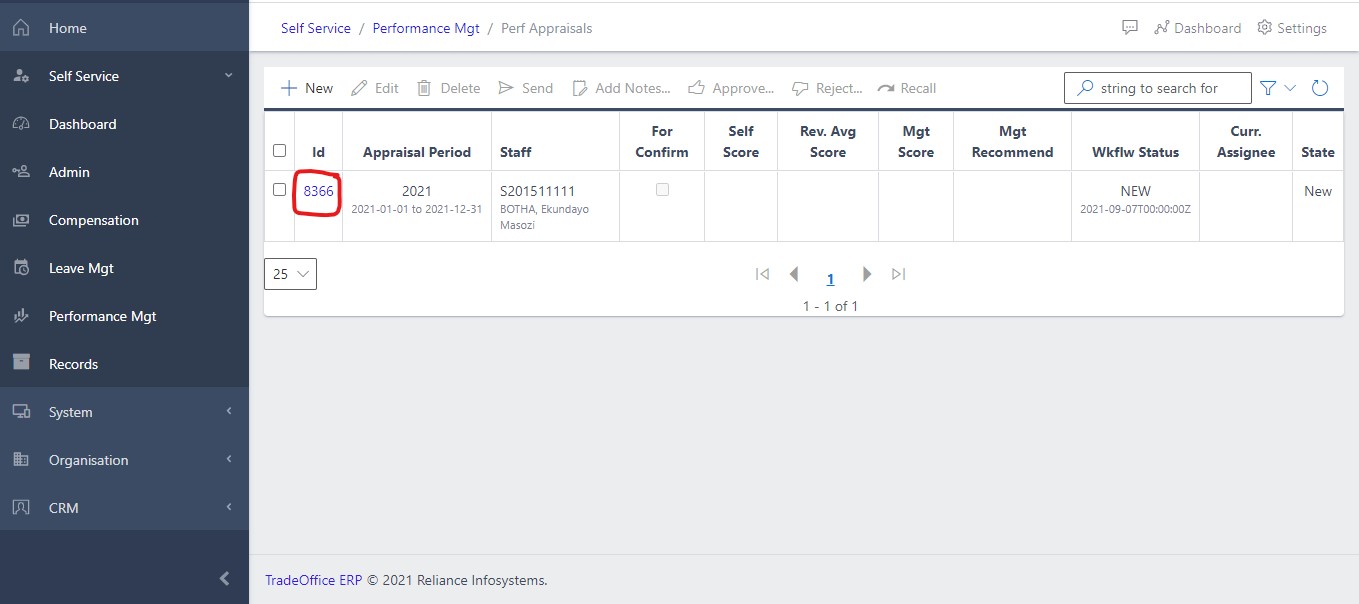
The Supervisor can click the ID of the staff he/she needs to review or score from the perf appraisal submodule (as it appears in the fig 3 above). Upon clicking the staff to score, the supervisor is taken to the view in fig 3.1 below.
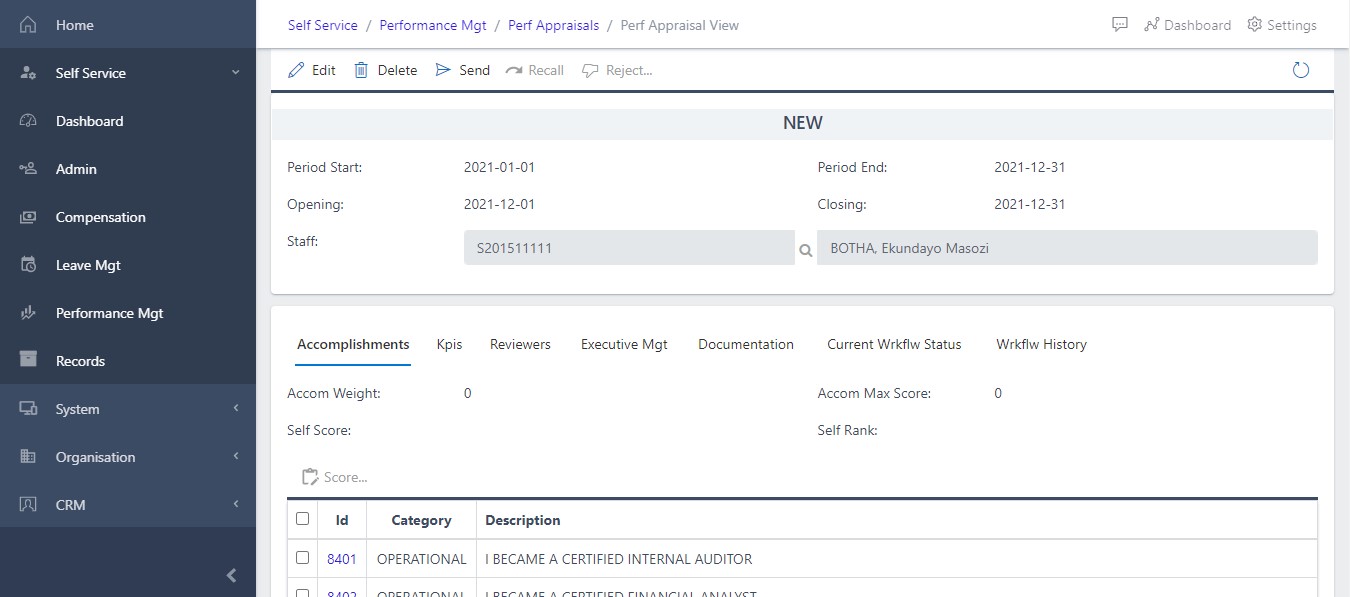
From the view above, the supervisor can glance through the following while performing his/her actions:
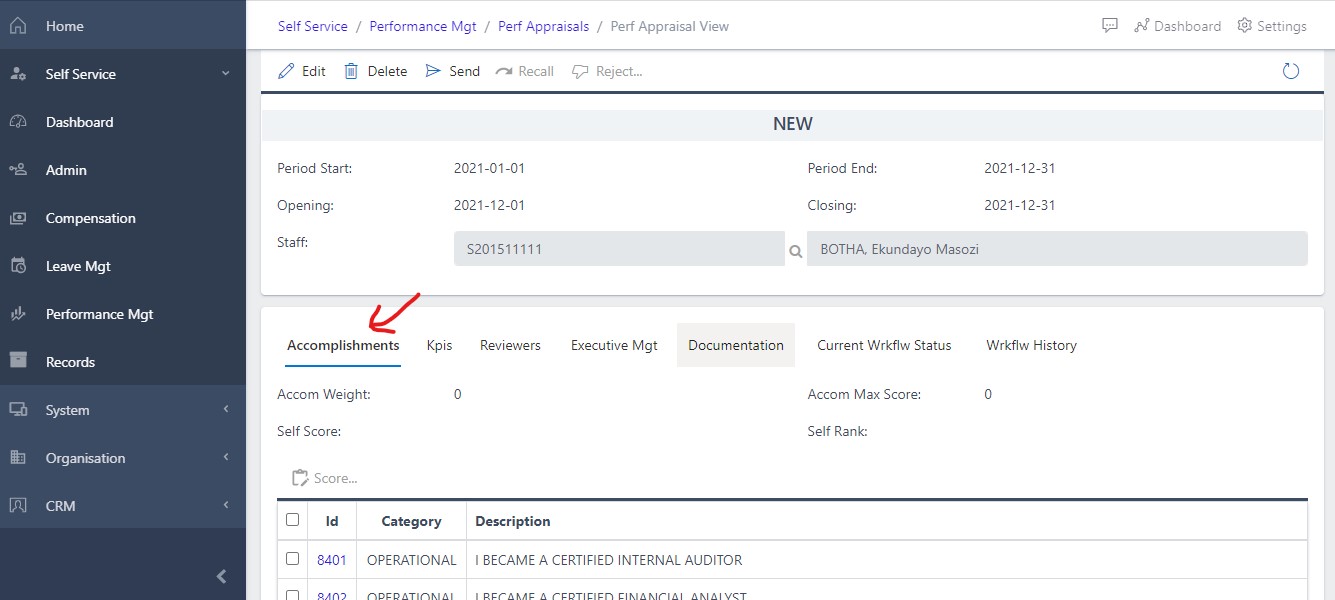
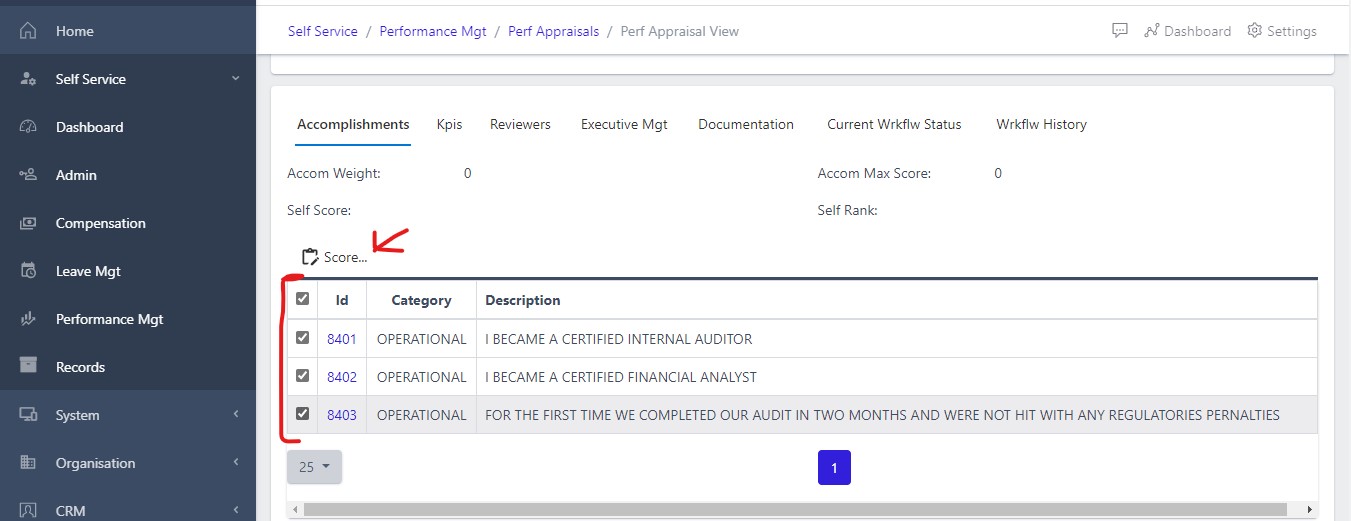
Accomplishments are other feet an individual employee achieves that is different from their KPIs but contribute to the overall success of the organization. The accomplishment carries a score that contribute to a percentage of the overall review score. Supervisors can pass comment to accomplishment and score accomplishment as we will see later in the documentation. NOTE: Accomplishment are not scored individually. On clicking the Accomplishments pane from fig 3 above, the supervisor is taken to the view below in fig 4
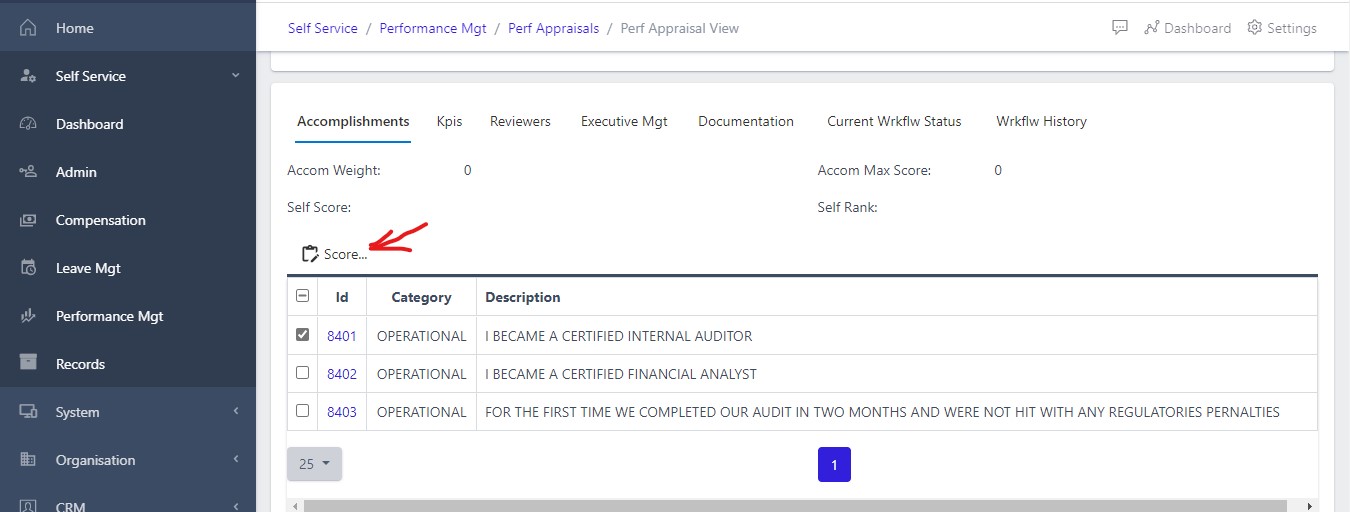
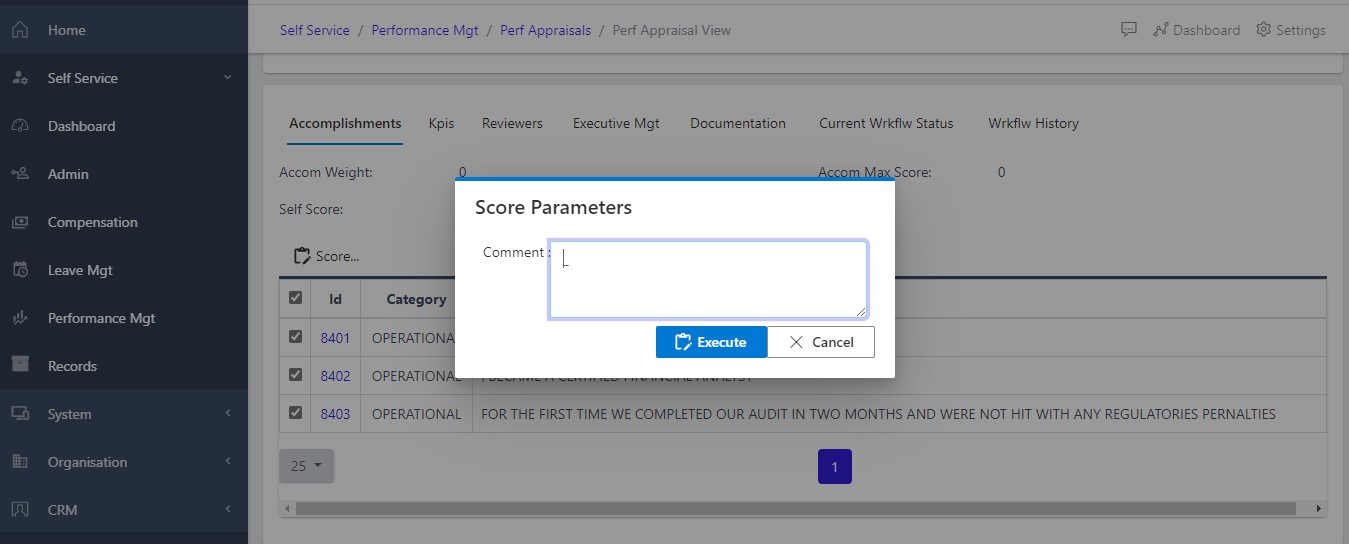
Supervisor can pass comment on each individual accomplishment by clicking the checkbox button beside the accomplishment ID and clicking the “SCORE” button right on top of the ID to display a screen as in fig 4.1 below where comment can be passed. Also, if the supervisor wishes to pass the same comment across all accomplishments, he/she can do that by checking the box beside each accomplishment all at once and click the add comment which will bring up a screen as shown in fig 4.3 below.
As mentioned earlier, accomplishments are not scored individually but are investigated and scored as a whole. Supervisors can further drill down by review the accomplishment by clicking on the accomplishment ID which brings up the screen below in fig 4.2.
KPIs are piece of achievable chunks that are used to evaluate the overall achievement of an employee or staff. KPIs are also referred to as targets and are set at the beginning of the year. KPIs are either continuous (happens yearly) or are set with specific period within which it can be achieved. On clicking the KPI pane the supervisor is taken to a view as in the fig 5 below. Unlike accomplishments, Supervisors can score individual KPI and pass comment on them.
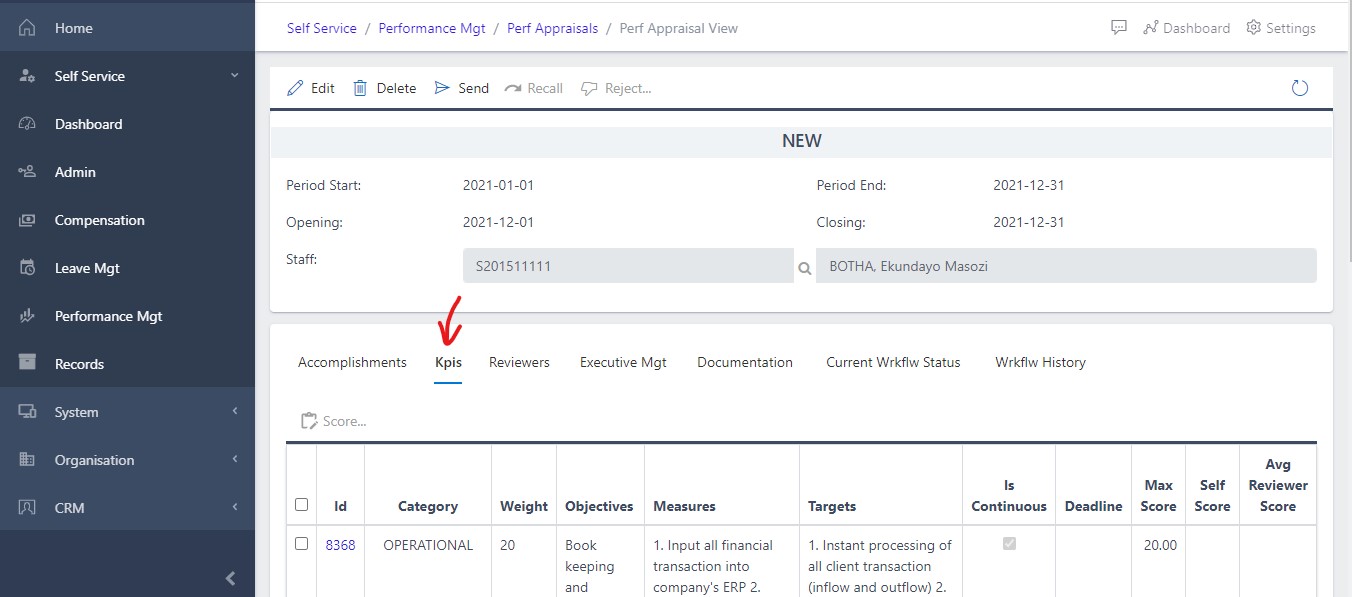
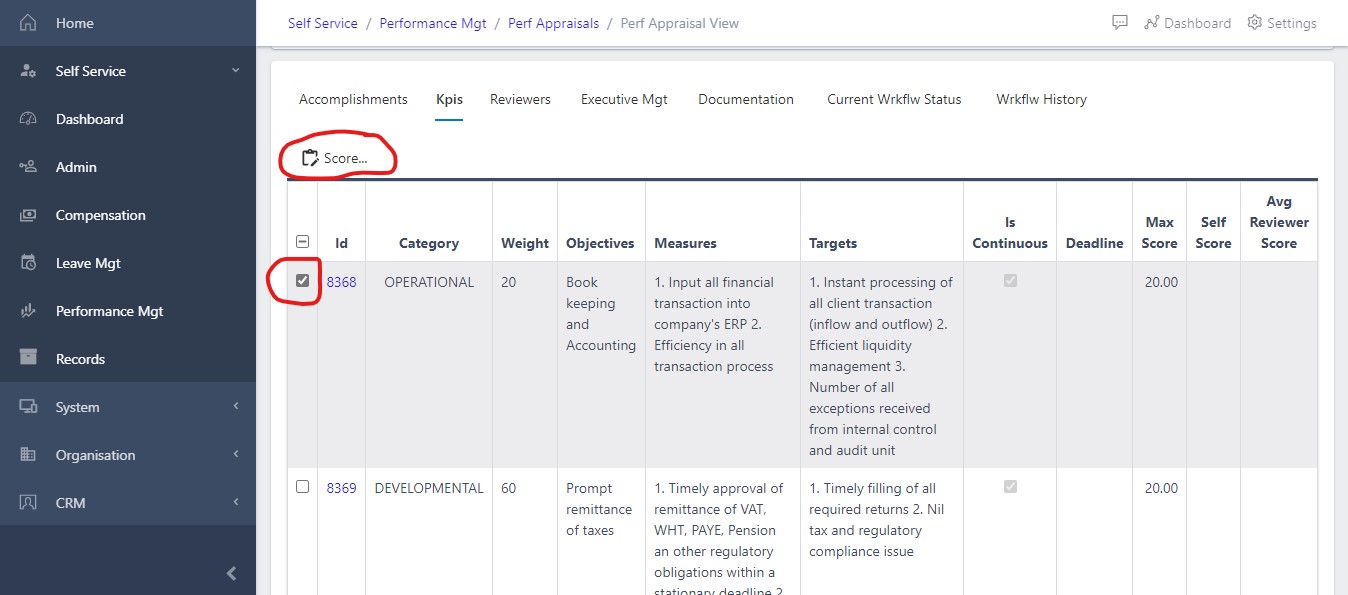
Supervisors can score KPI in two ways
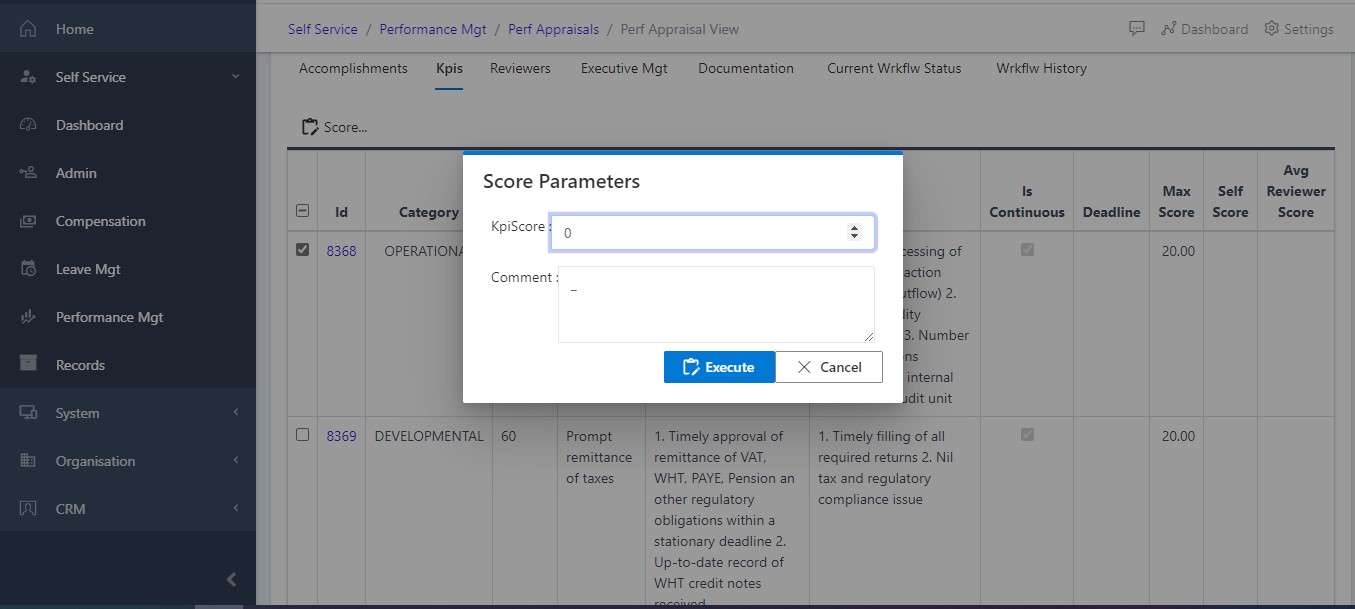
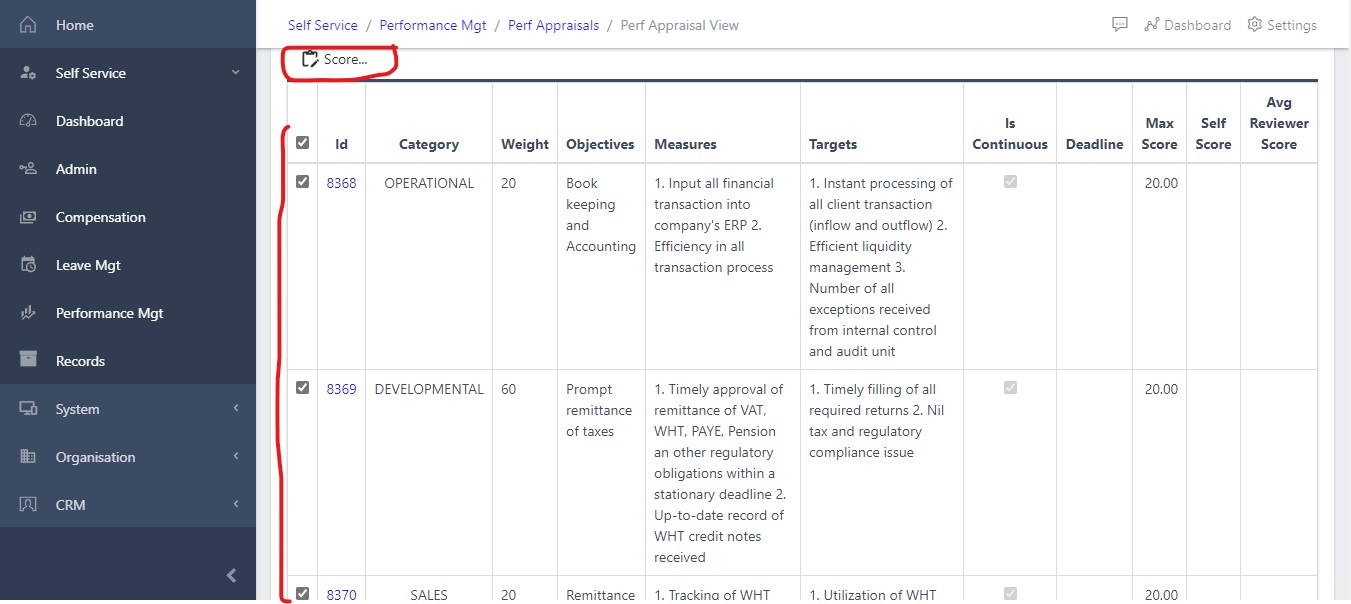
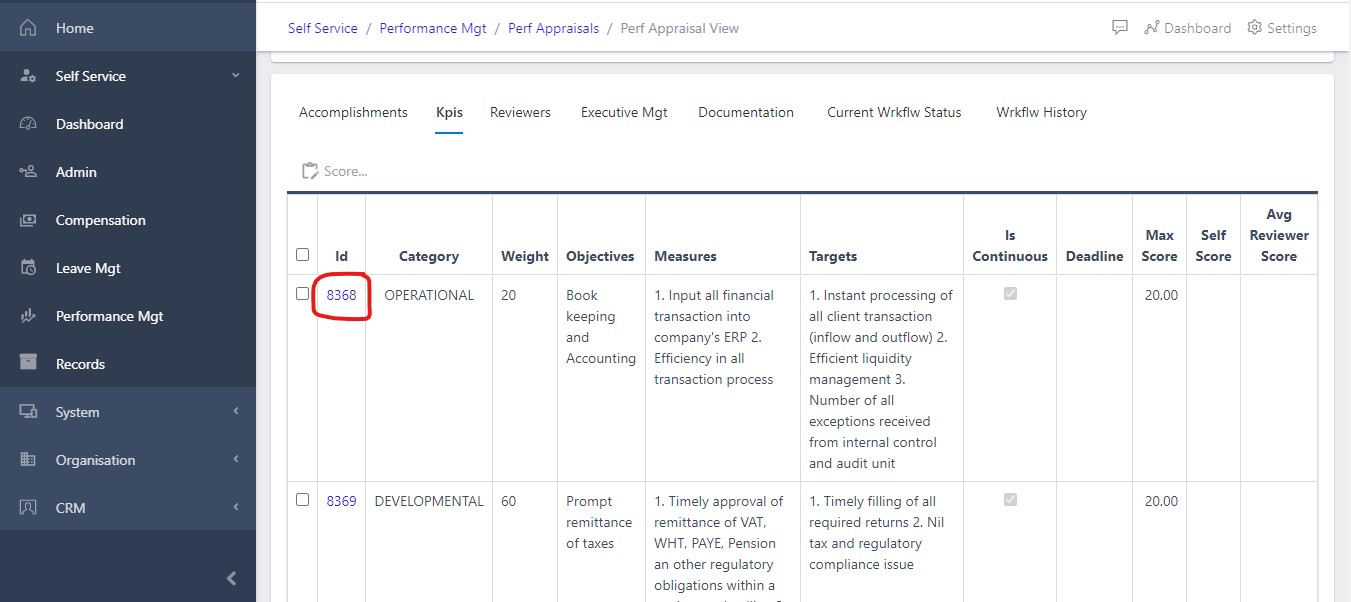
Supervisors can decide to further drill down on each individual KPI by clicking the KPI ID, A new screen as shown in figs 5.4 and 5.5 below will be displayed.
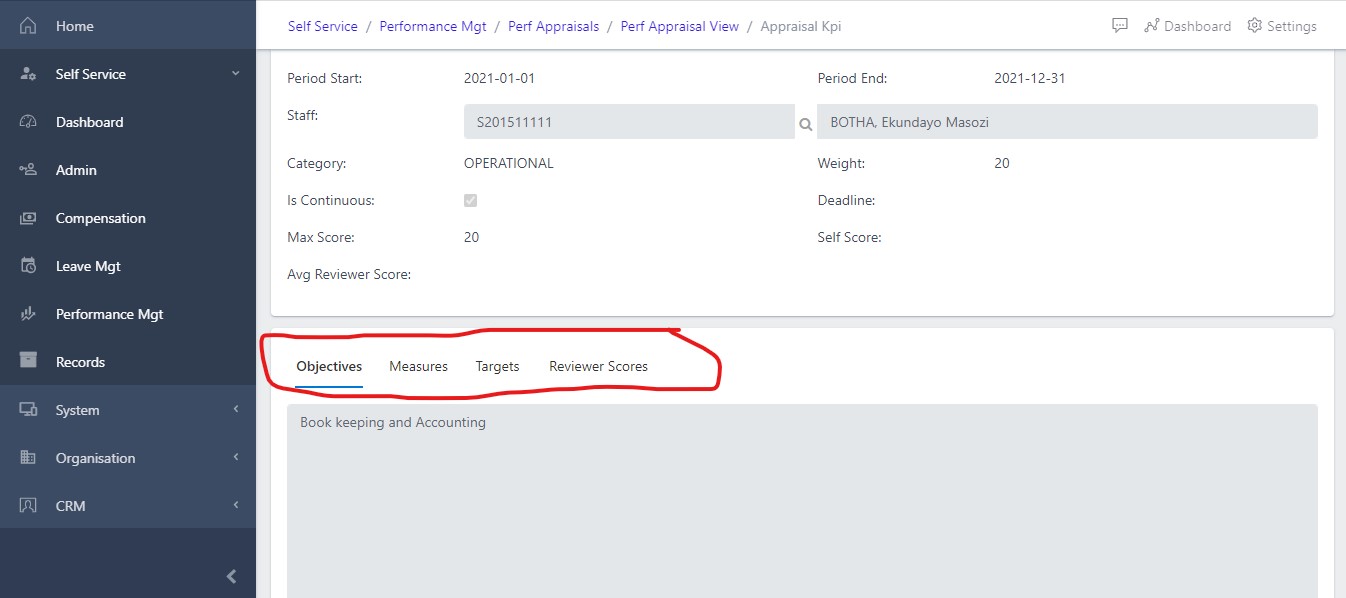
NOTE: Indication is given for who is currently reviewing and who is next to review. Do note the precedence.
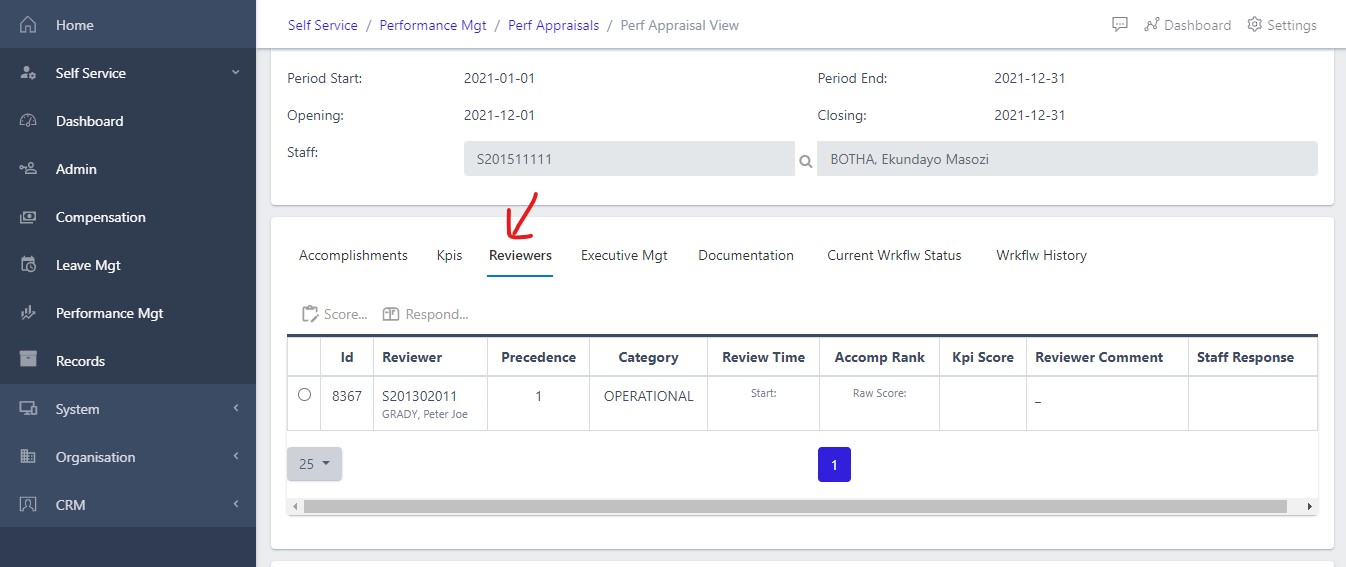
Reviewers are those that inspect the various target set by an individual or staff. A supervisor is also a reviewer and there can be more than on reviewer/supervisor for an individual staff.
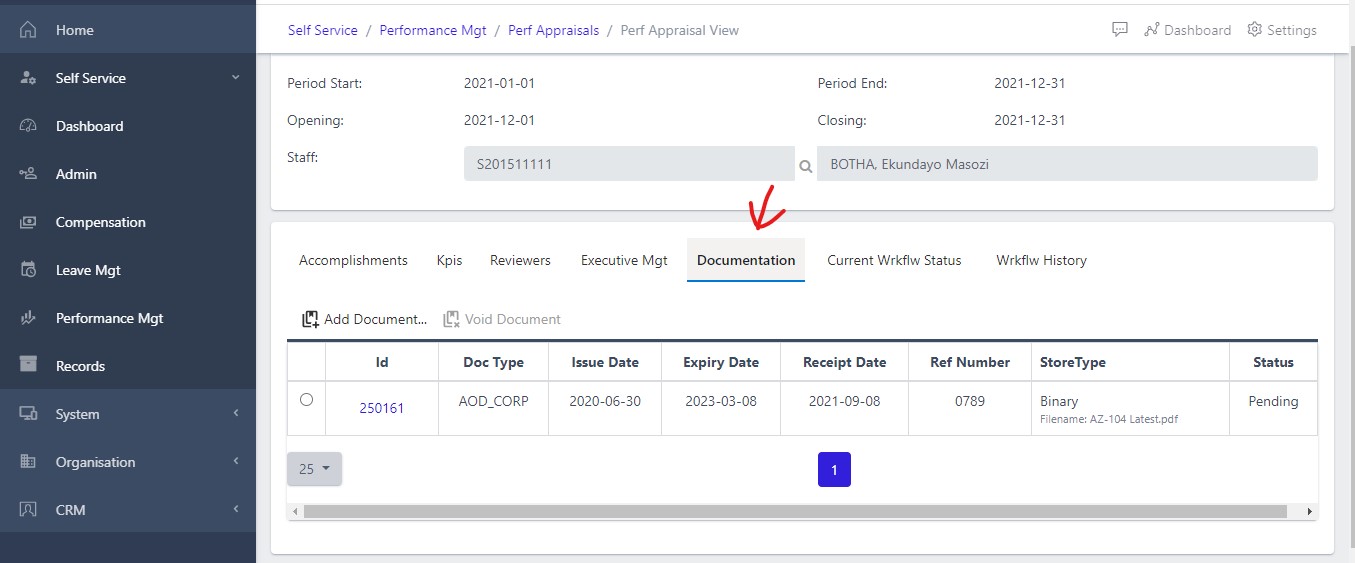
Supervisor can also review the documentations attached to the targets being reviewed.
Workflows are the stages the staff target passes through throughout the lifetime of the target. Supervisor can view the workflow and see who is next in appraising an individual staff he/she is supervising.
The Supervisor can view the workflow history to know who and who has passed reviews to a particular staff.