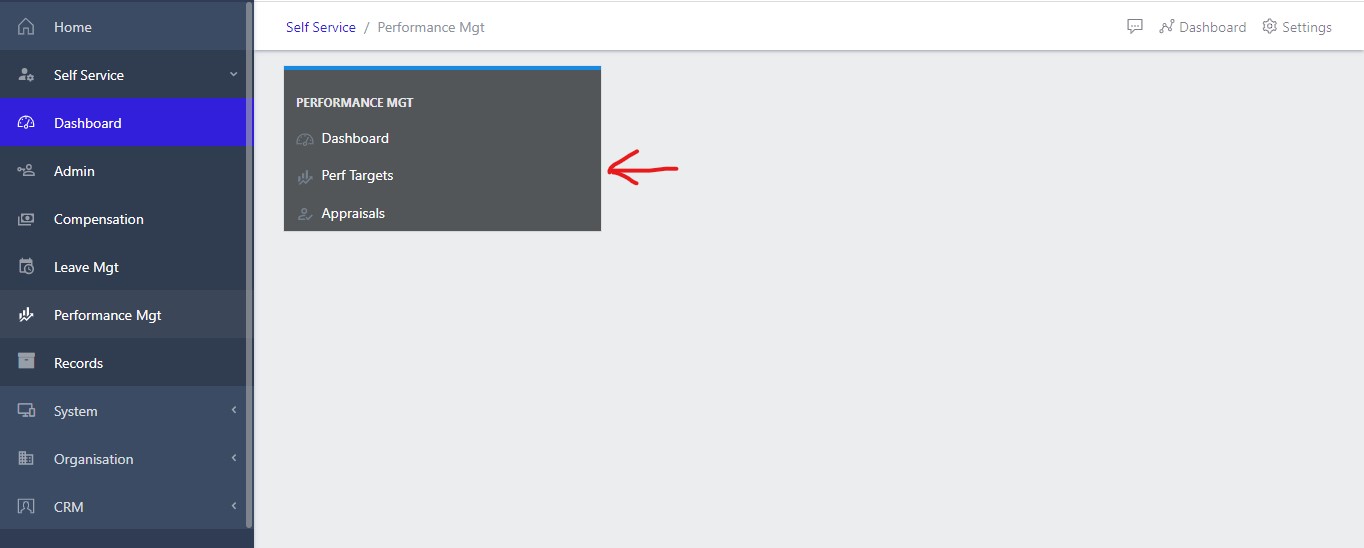
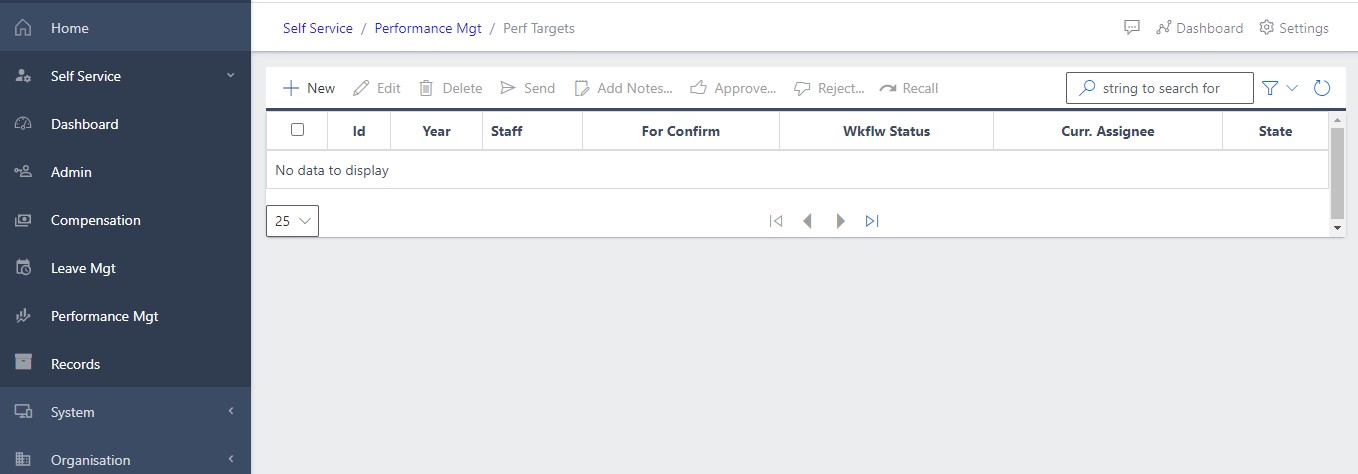
This section of the app shows all targets for a given staff and those he/she has a part in reviewing.
So, to get this section of the app, just lick on the Perf Targets link under the Performance management menu on the Self-Service Dashboard page as show in fig 1.
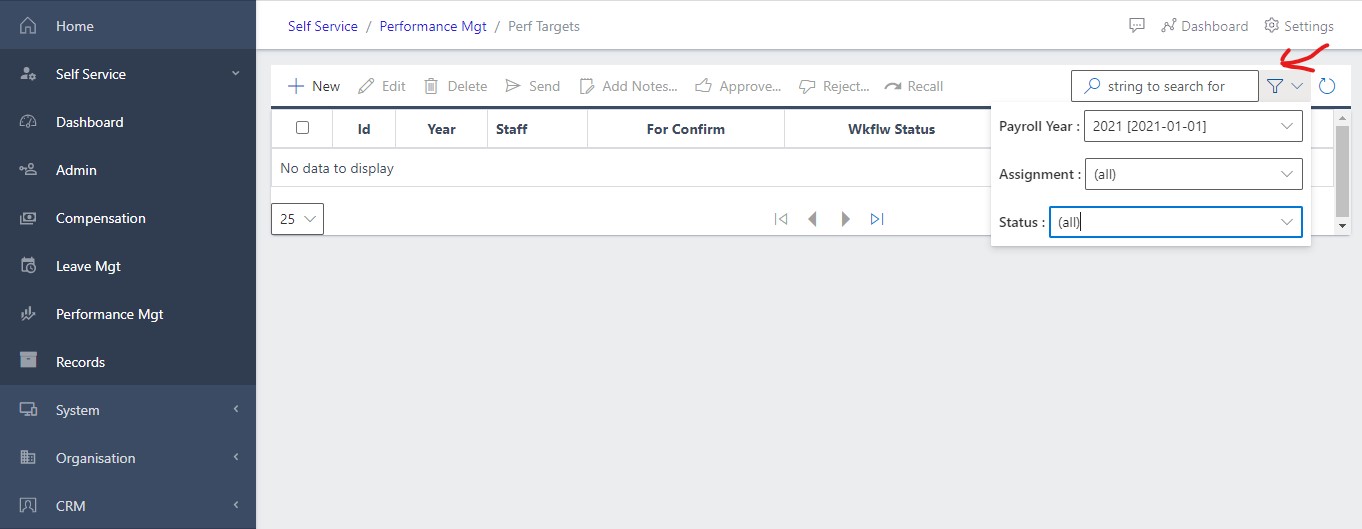
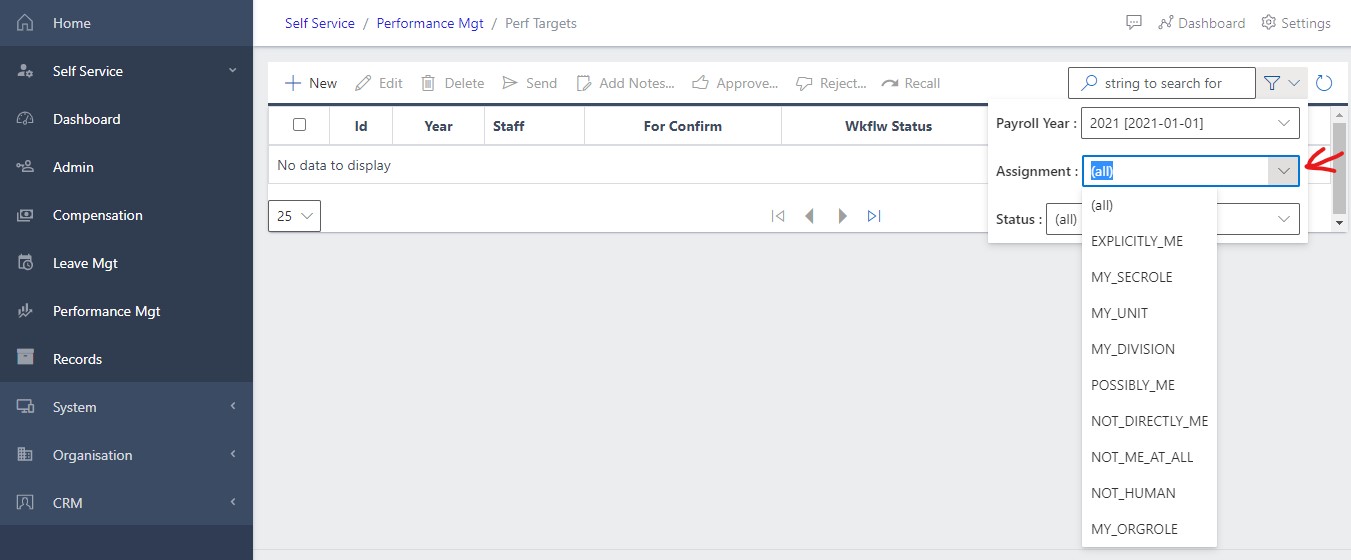
Search - Clicking this button brings up a view (as in FIG5a and FIG5b below) that help you pass in filter values (used to filter through a list) to get to a particular or desired result. It is necessary to specify appropriate filters for what one is searching for.
In this case we want to view targets for the year 2020. We are also interested in those that are still active and have not been CLOSED. If the user wants to pay attention only to those awaiting his/her approval, that can also be specified.
Fig 3 Filter selection showing the Payroll Year and Status of the Target
Fig 4 Filtering for only those items awaiting the user’s approval
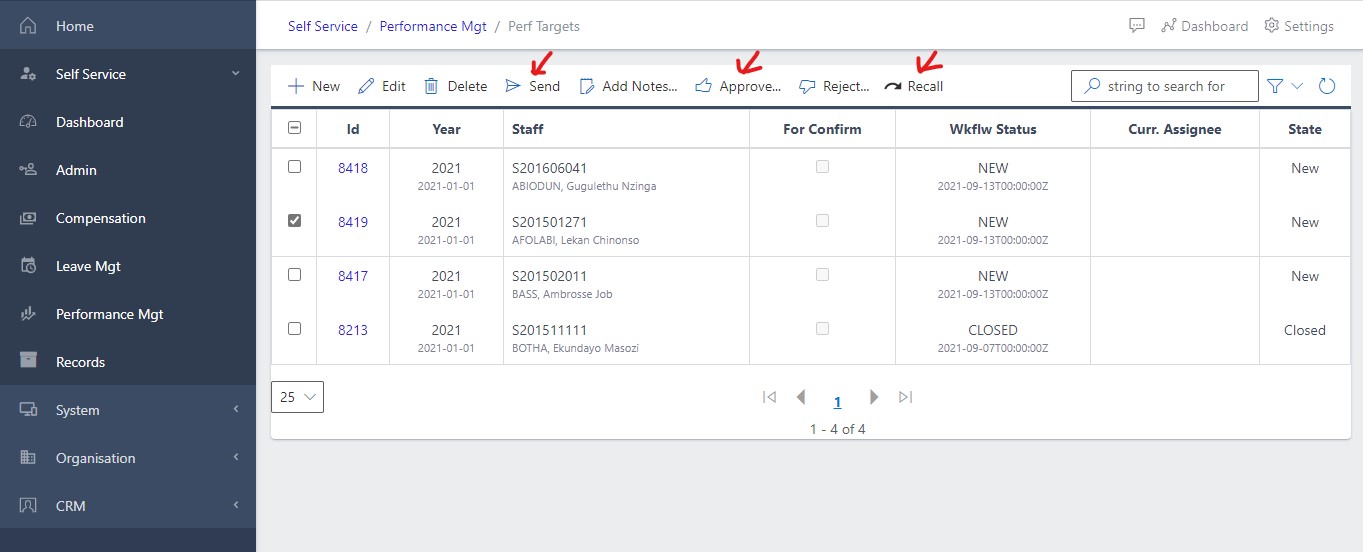
SEND - This help send the performance targets to the senior supervisor. To send a performance target, the target must be of status NEW so that it can be forwarded to the supervisor for approval.
Recall - If a mistake is made, the targets can be recalled using this button.
Approve - This button is used to approve targets that are due for approval.
Fig 5 Showing all target associated to a particular user
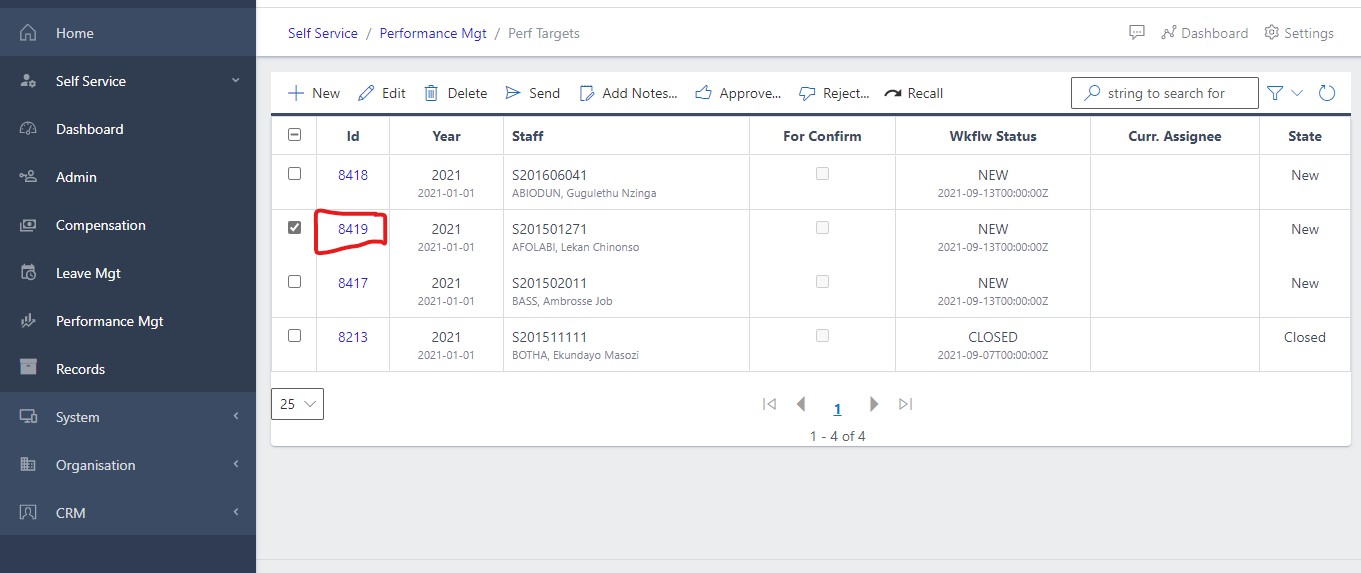
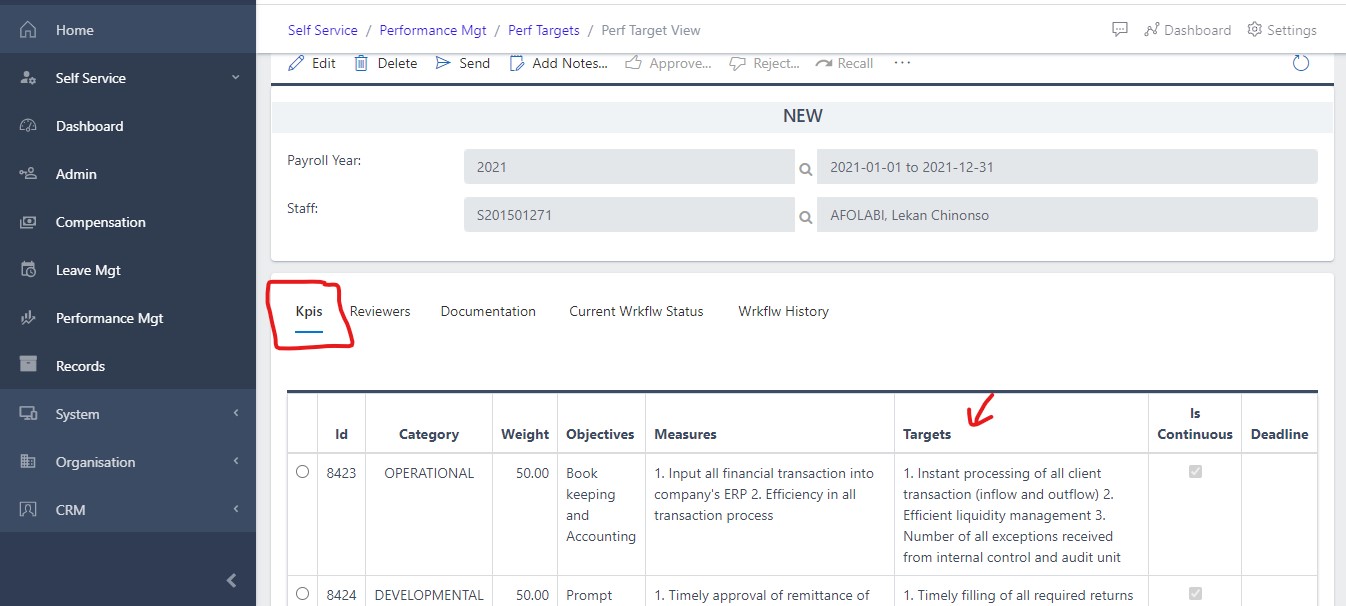
To view the details of any Target, click the Id link (fig 6 below). This takes you to the screen shown in fig 7 below.