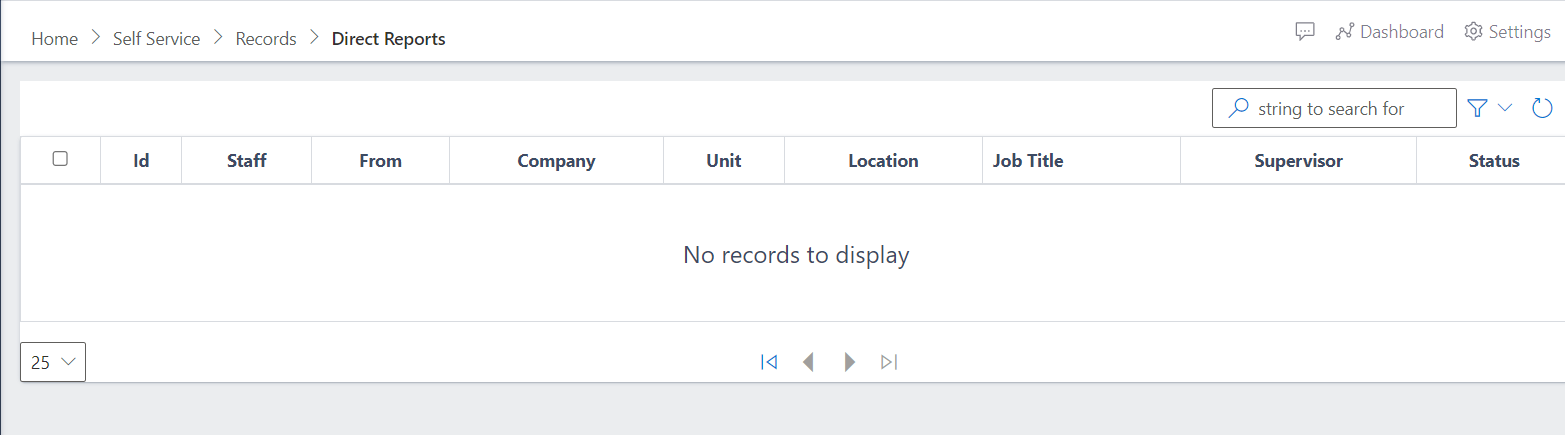
The Direct Reports section displays a list of employees who report directly to the user, typically a manager or supervisor. This helps managers have quick access to their team members’ profiles and information.
Managers can use direct reports to view essential details about each team member, such as current roles, contact information, and possibly their performance metrics.
In the Direct Reports section of the Tradeoffice ERP app’s Records module, each field provides information that helps managers understand and oversee their team members’ positions and details. Here’s a breakdown of each term and its relevance:
ID
Purpose: A unique identifier assigned to each direct report entry.
Relevance: Helps HR and managers easily track and reference specific employees within the system, especially in larger organizations with multiple team members.
Staff
Purpose: Displays the name or identification details of the employee who directly reports to the user.
Relevance: Identifies the team members under a manager’s supervision, facilitating quick access to individual records and employee information.
From
Purpose: Indicates the start date when the employee began reporting to the manager.
Relevance: Provides context on the length of the reporting relationship, which can be relevant for performance evaluations and tracking employee development over time.
Company
Purpose: Specifies the company or entity within a larger organization where the direct report is employed.
Relevance: Useful for managers overseeing employees across different subsidiaries or branches within a larger corporation, allowing insight into organizational structure.
Unit
Purpose: Refers to the specific business unit, division, or department to which the direct report belongs.
Relevance: Helps managers understand the functional roles of each direct report, supporting clearer organizational alignment and team management.
Location
Purpose: Identifies the geographic location where the direct report is based.
Relevance: Important for coordinating tasks, especially in remote or multinational teams, and for understanding any logistical or regional considerations impacting team management.
Job Title
Purpose: Lists the official job title or designation of the direct report.
Relevance: Provides clarity on the roles and responsibilities of each direct report, helping the manager align tasks, expectations, and performance standards accordingly.
Supervisor
Purpose: Shows the current supervisor or manager responsible for the direct report.
Relevance: Confirms the reporting structure and hierarchy, especially useful in cases of dual reporting or temporary changes in supervision.
Status
Purpose: Indicates the current employment status of the direct report, with options such as “Active,” “On Leave,” or “Terminated.”
Relevance: Helps managers keep track of the availability and status of team members, which is essential for workforce planning, scheduling, and task allocation.
Together, these fields provide a structured overview of each direct report’s role, organizational context, and status, allowing managers to better understand and manage their teams in alignment with company goals and needs.
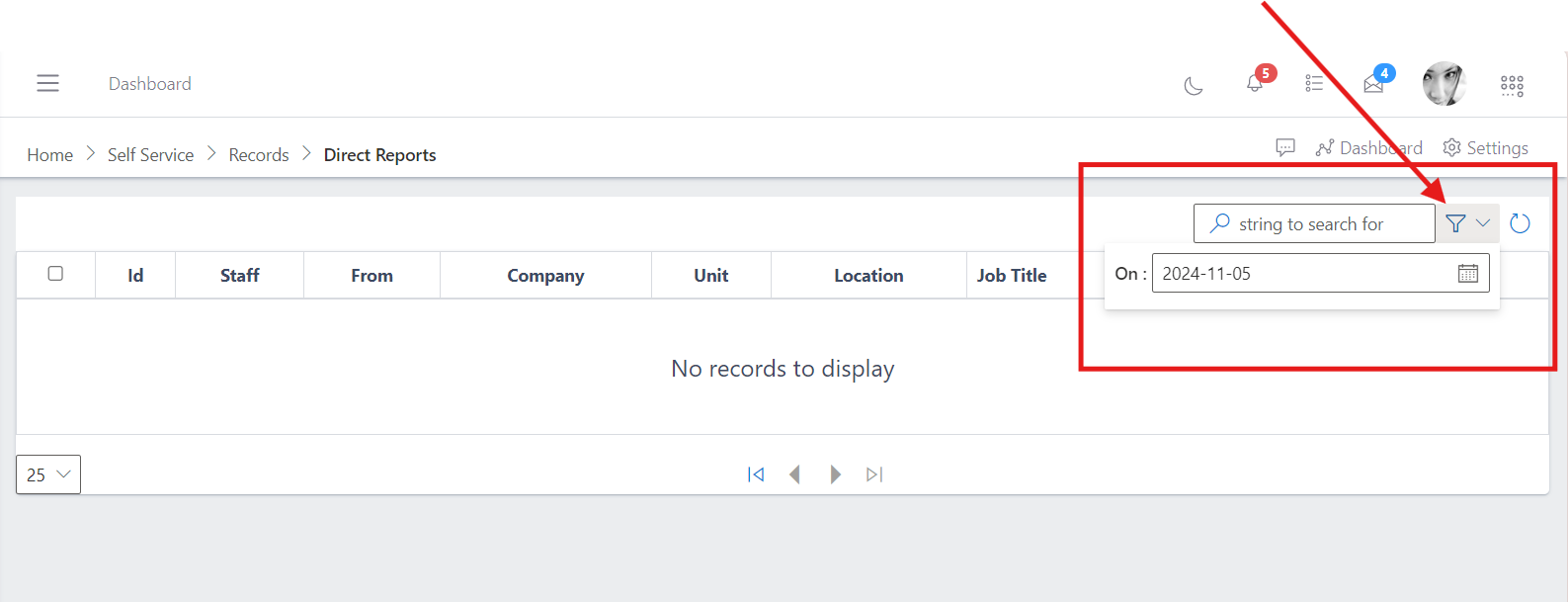
In order to search in Direct Reports, you click on the box that has the search icon, where you will be able to enter the string which can be the name of the employee you want to look up or anything pertaining to past positions. The dropdown will show the dates to select from to specify the timefrane in which you want to search.