Document Requirement Groups

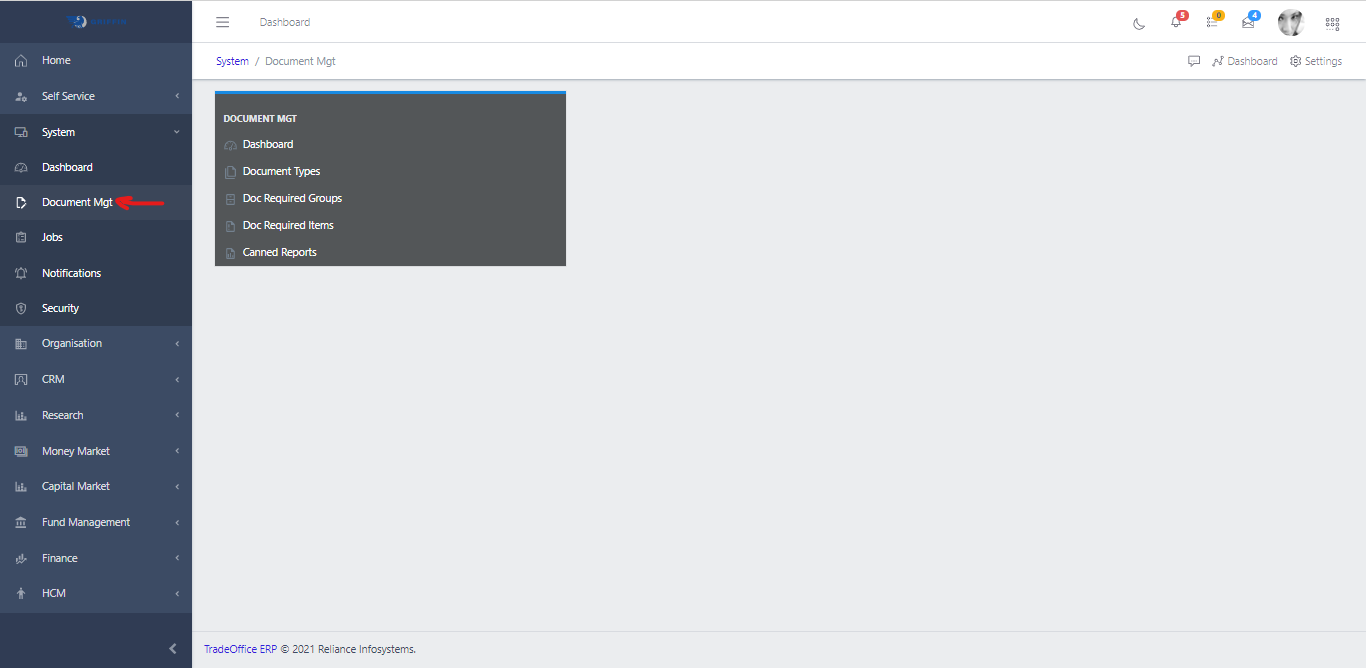
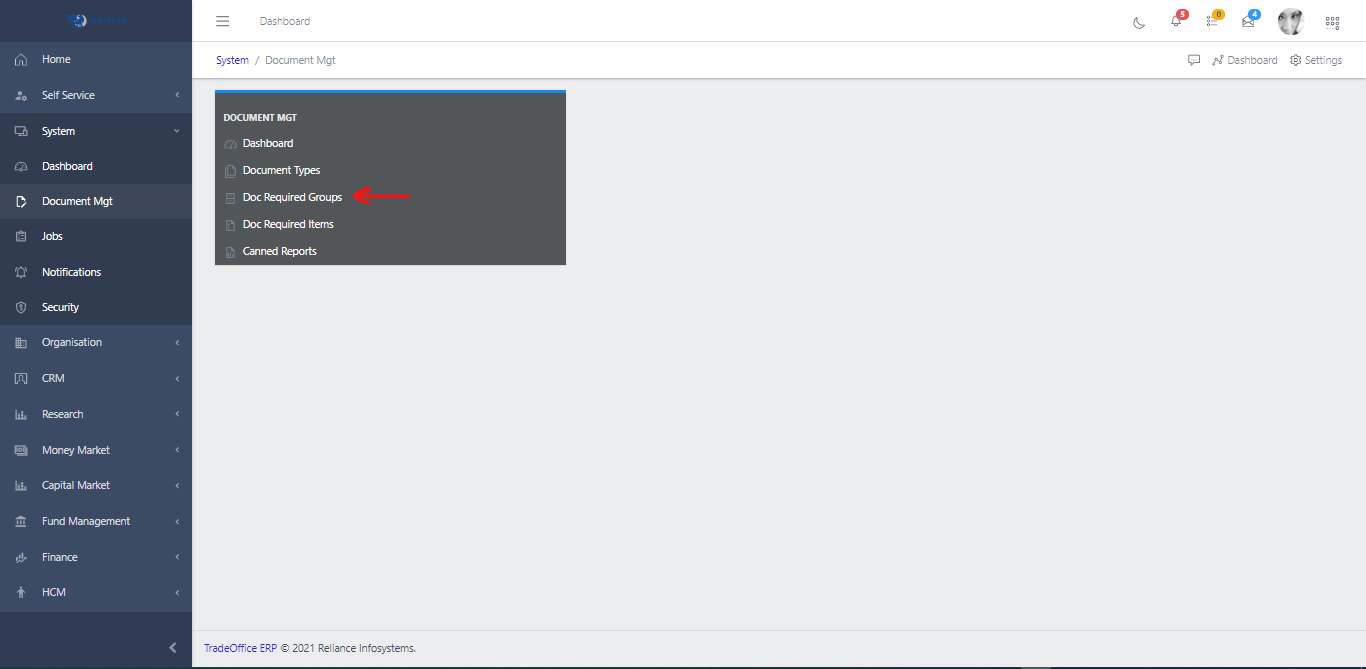
  • Access the Document Management sub-module of the System module.
Document Management
Fig 1.0

  • Click on Document Requirement Groups
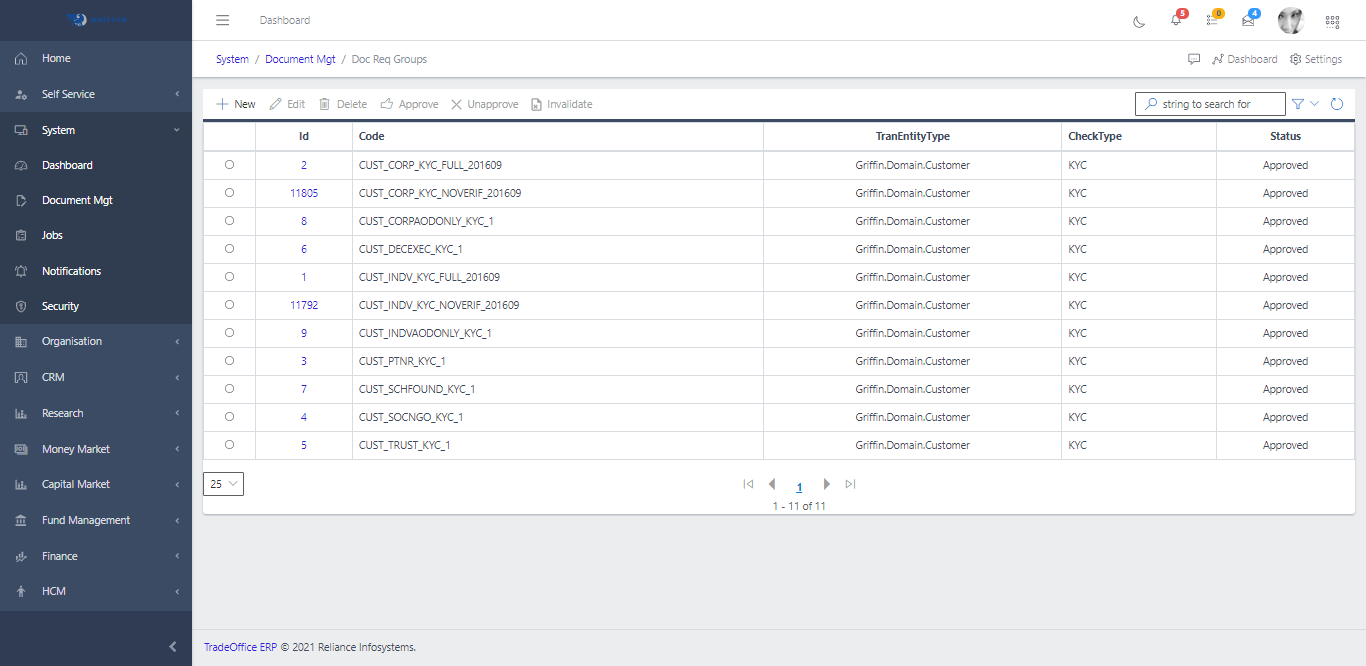
Document Requirement Groups
Fig 1.1

  • This displays a list view of Document Requirement Groups
Document Requirement Groups List
Fig 1.2

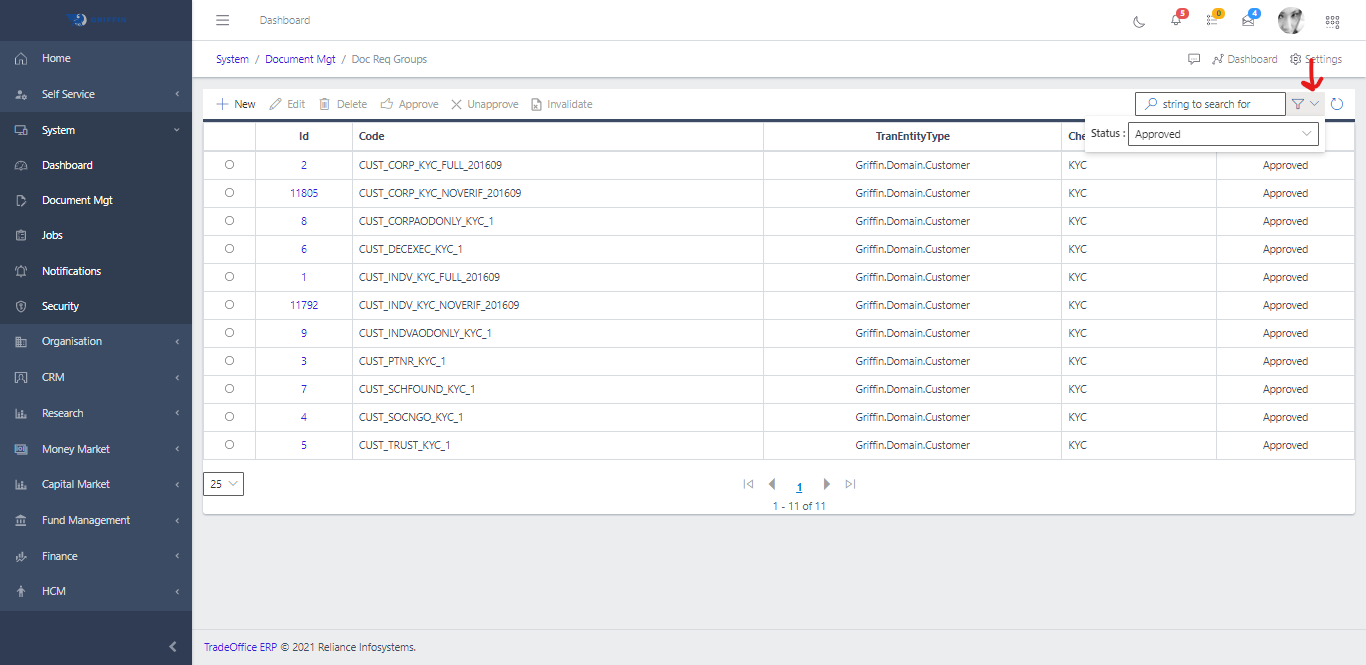
  • Use the Filter button, when clicked, gives you a dropdown where you can specify various parameters for filtering the records:
    • Search string: for filtering records
    • Status: A drop down list of all statuses of documents
Document Requirement Groups Search
Fig 1.3

Create a Document Requirement Group

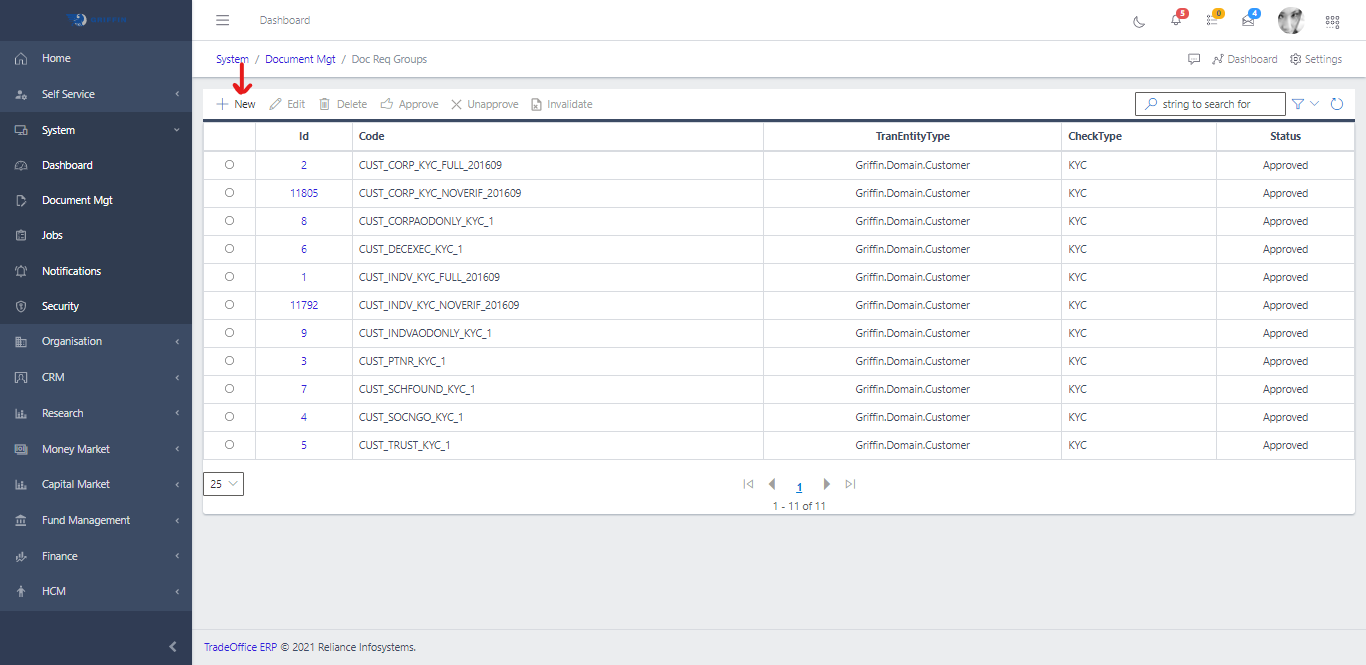
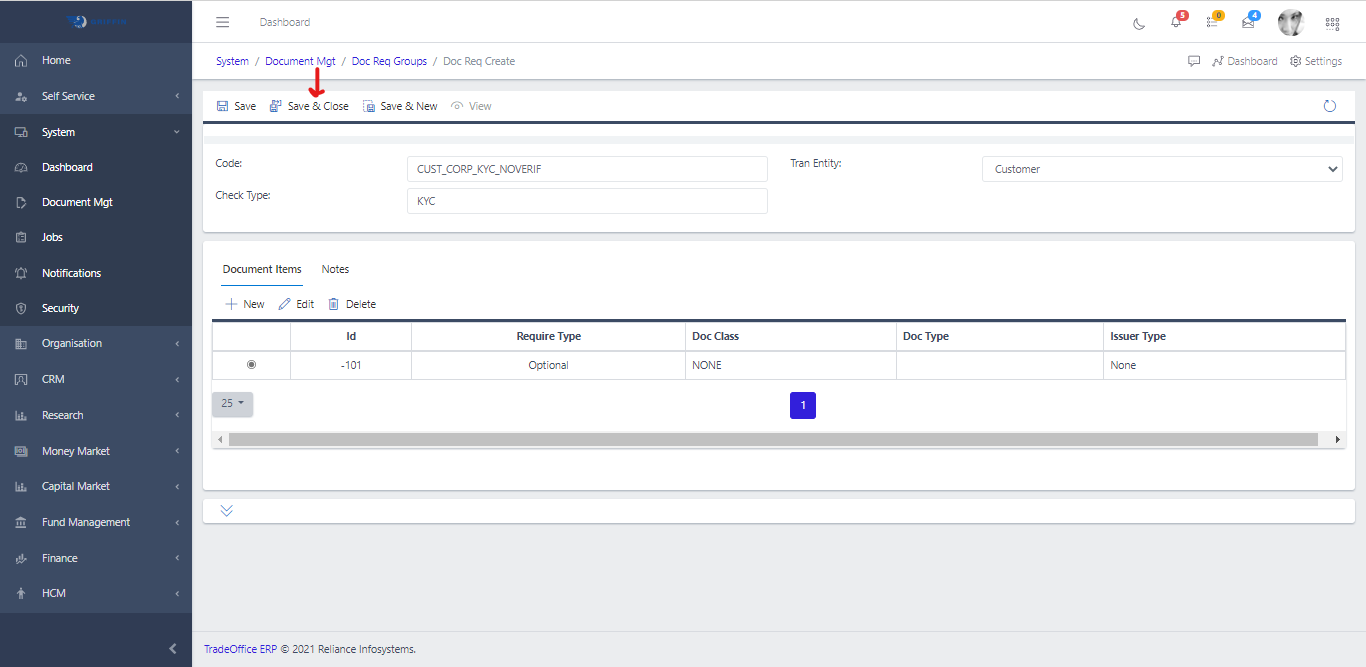
  • To create a document group, hit the New button in the toolbar area and populate the form fields.
Document Requirement Groups New
Fig 2

  • The following are some of the fields that needs to be populated:

    • Code
    • Trans Entity
    • Check Type
  • You also need to populate the fields in the following tabs:

    • Document items
    • Notes
  • Hit the Save and Close button to save
Document Requirement Groups Save
Fig 2.1

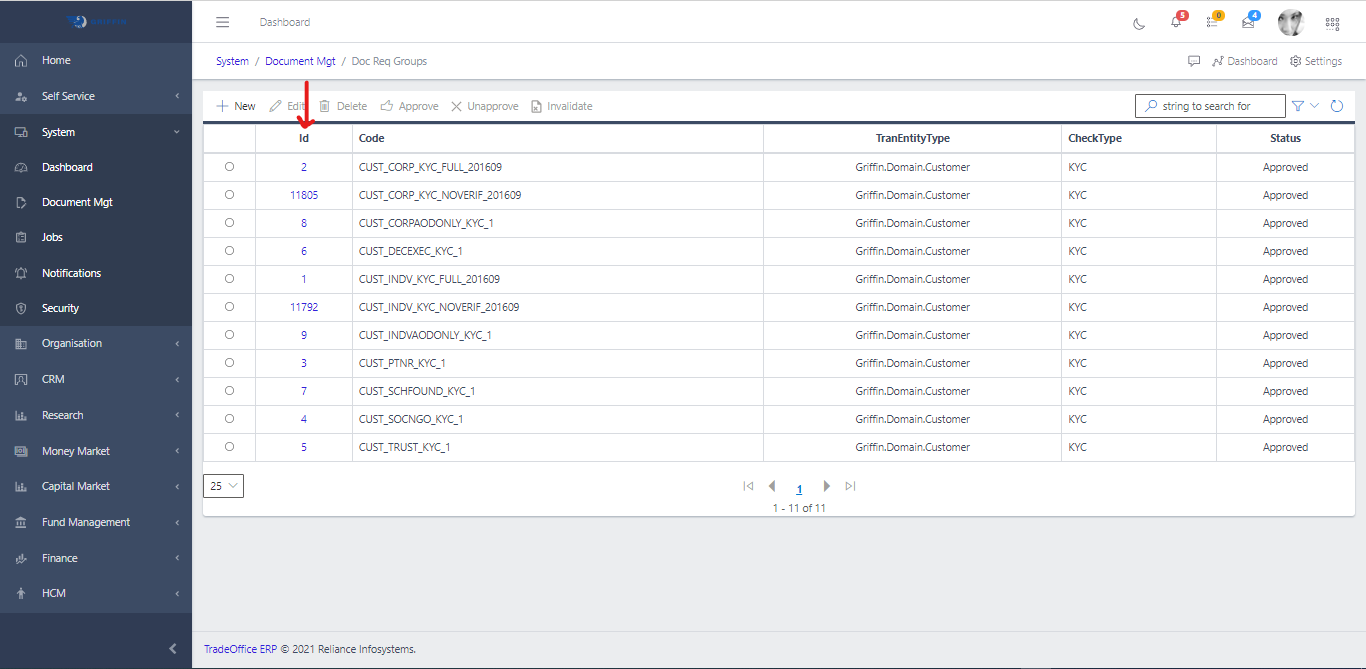
View a Document Group

  • To view a document group, click on the document group ID
Document Requirement Groups View
Fig 2.2

Edit an Document Group

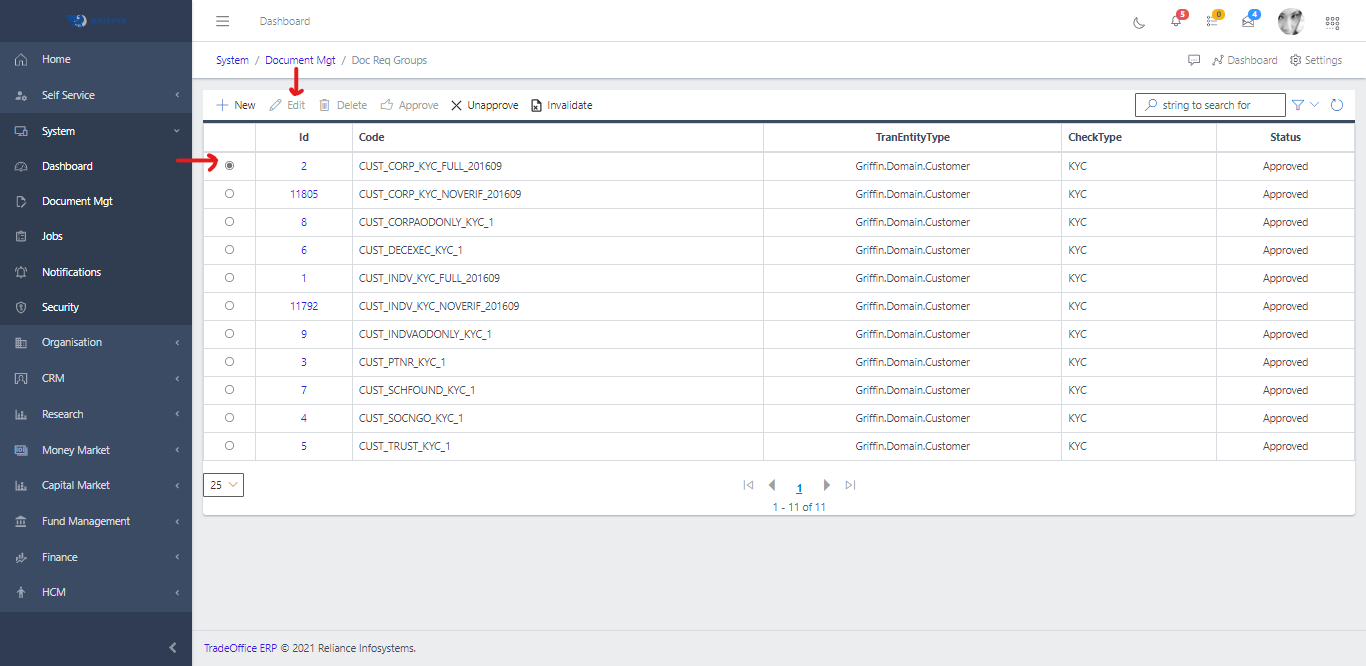
  • To edit the data in a document group, take the following steps:
    • From the list view, select the document group you want to edit and click the Edit button
    • This brings you to an edit view of the item where updates can be made
Document Requirement Groups Edit
Fig 2.3

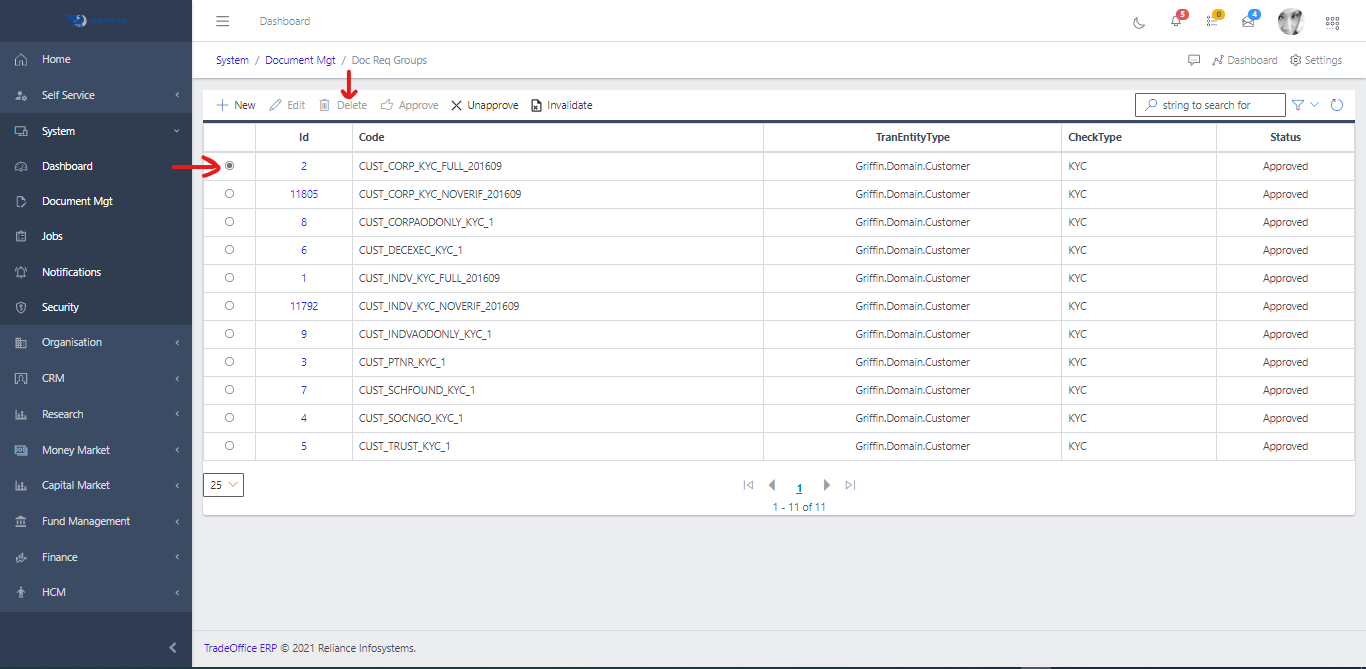
Delete a Document Group

  • Select the document group you want to delete, click the Delete button
Document Requirement Groups Delete
Fig 2.4

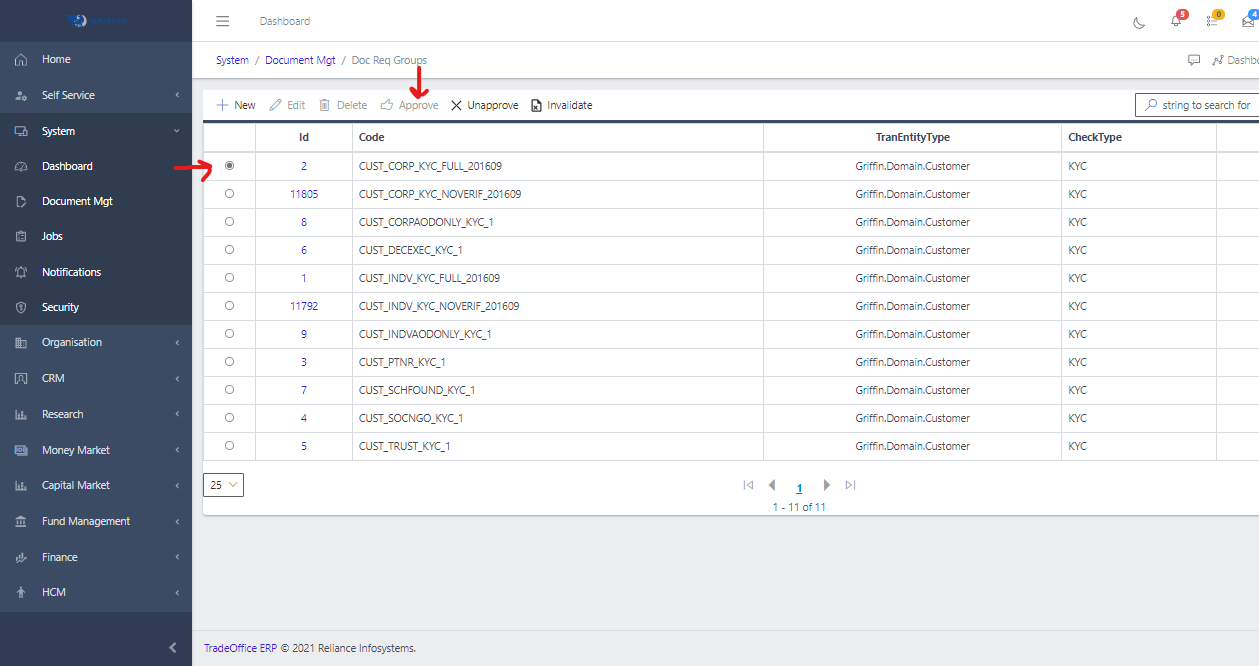
Approve a Document Group

  • Only pending document group can be approve.
    • Use the Filter to search for the document group with a status of pending and hit the Activate button
Document Requirement Groups Approve
Fig 3

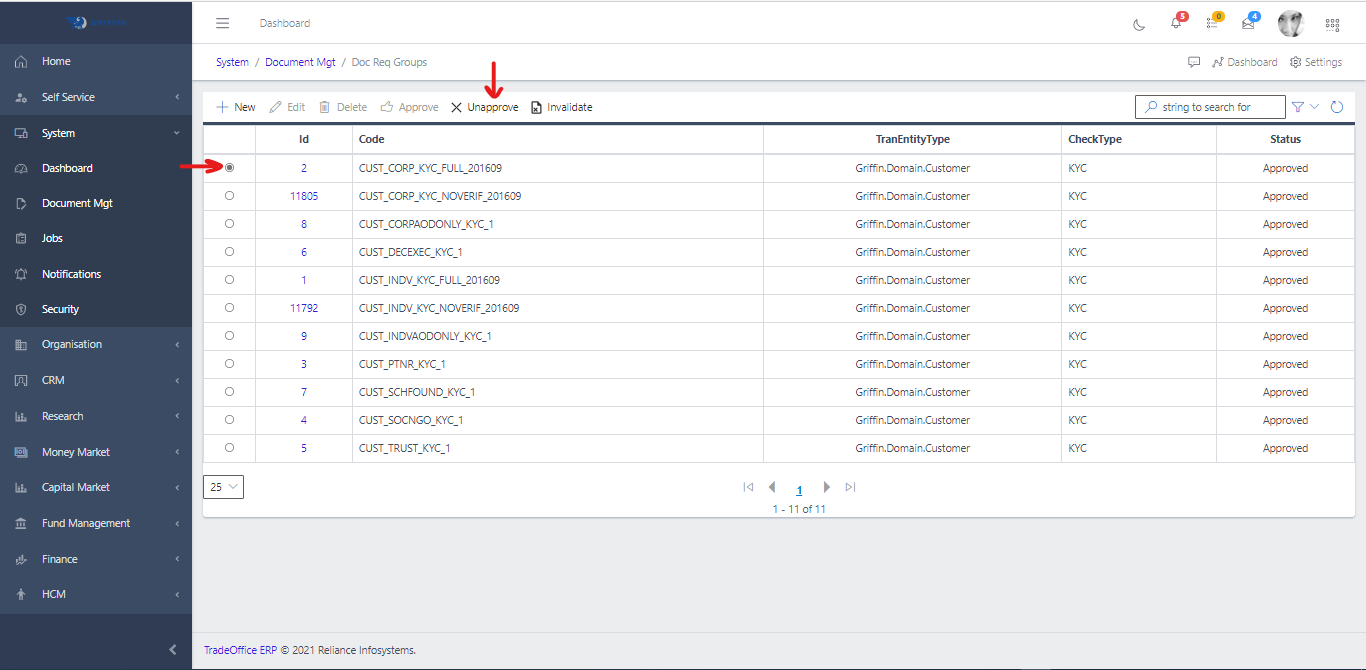
Unapprove a Document Group

  • Only active document group can be unapproved
    • Select the document group you want to unapprove
    • Click the Unapprove button
Document Requirement Groups Unapprove
Fig 3.1

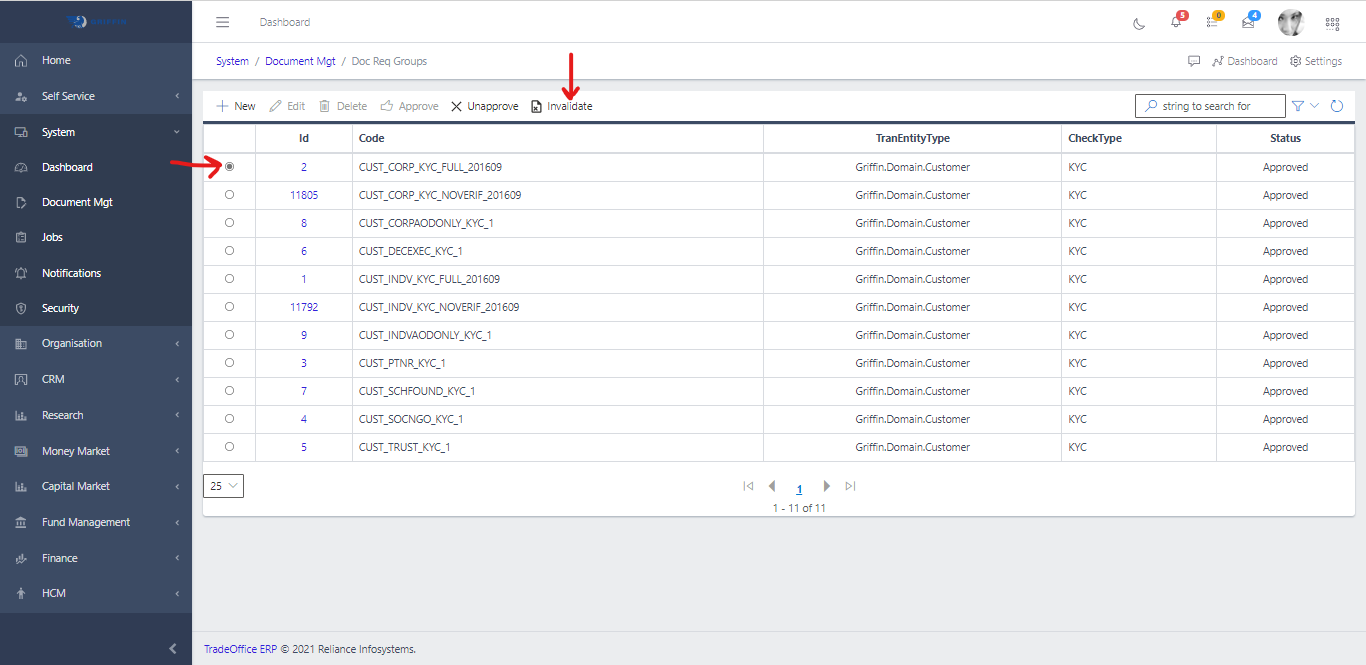
Invalid a Document Group

  • Select the document group you want to invalid, click the Invalid button
Document Requirement Groups Invalid
Fig 3.2