Notification Templates

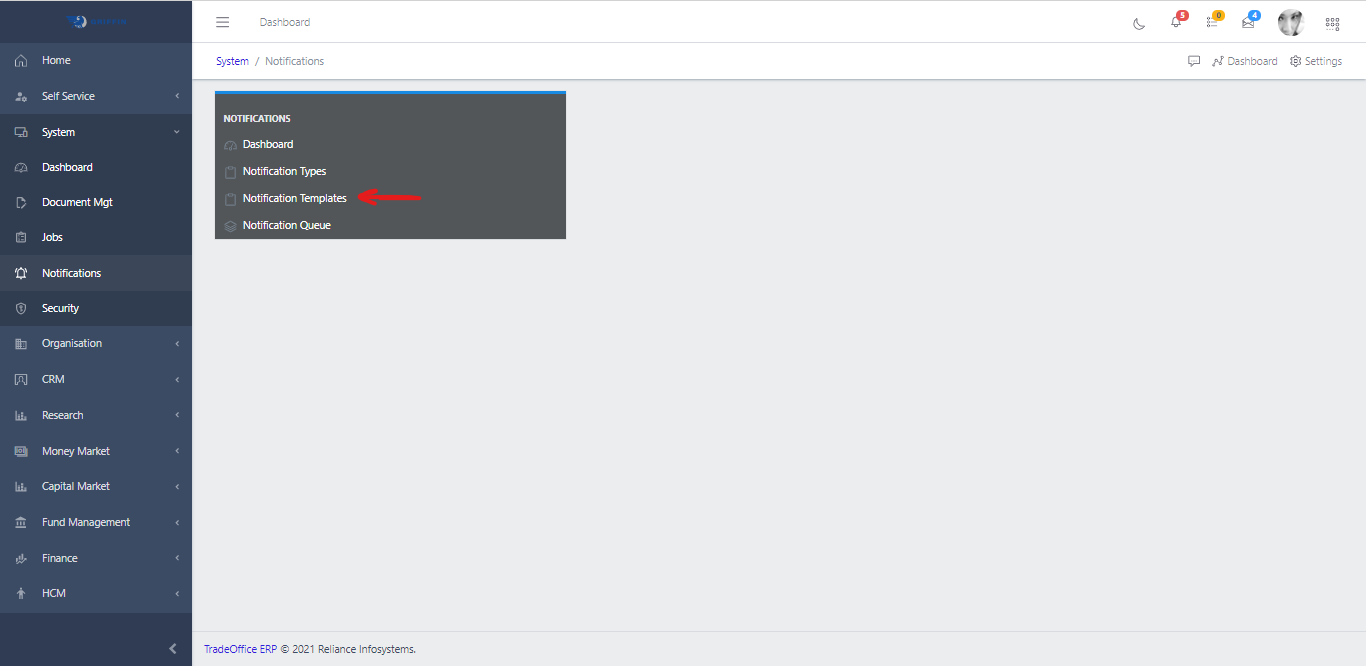
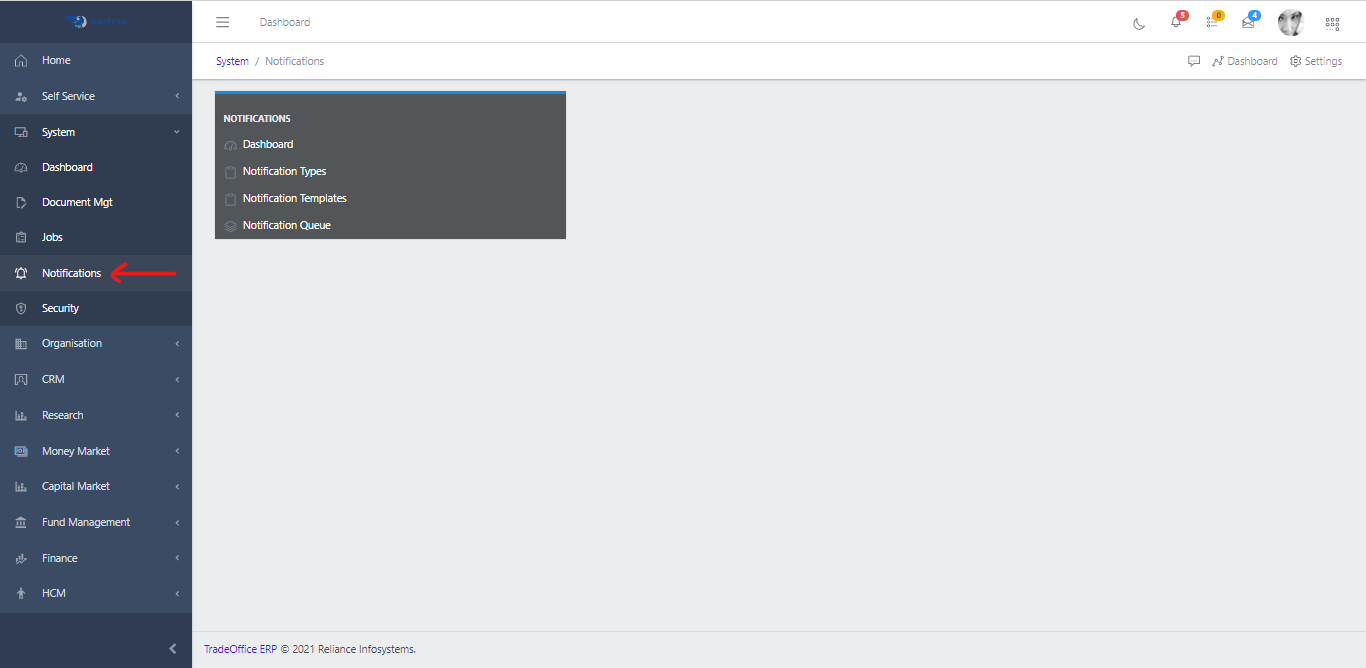
  • Access the Notification sub-module of the System module
Notification Queue
Fig 1.0

  • Click on Notification Templates
Notification Template
Fig 1.1

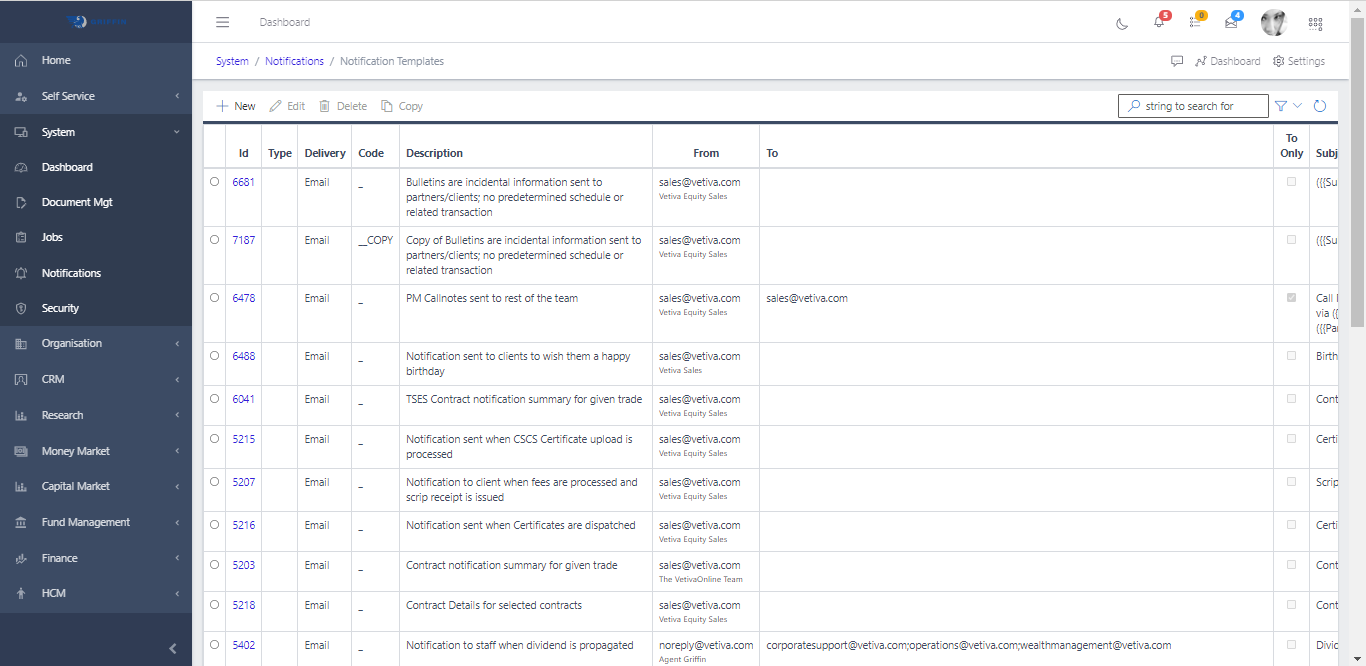
  • This displays a list view of Notification Templates.
Notification Template List
Fig 1.2

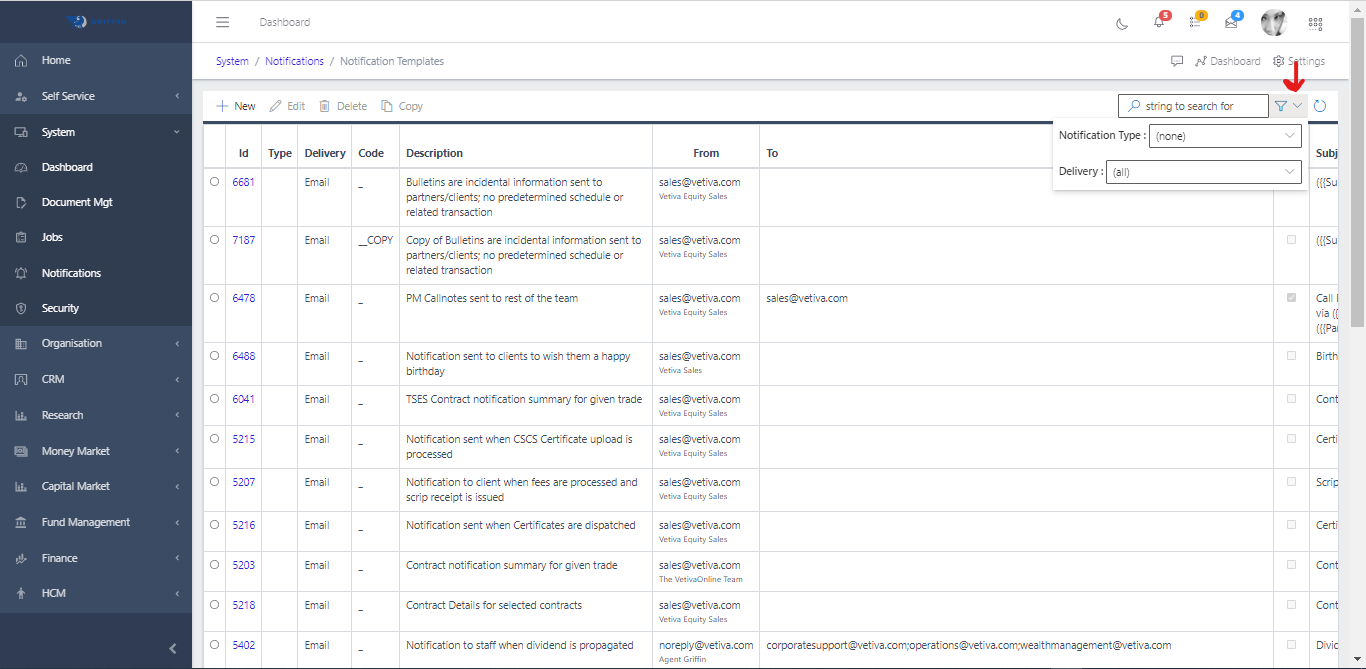
  • Use the Filter button, when clicked, gives parameters for filtering the records:
    • Search string: for filtering records
    • Notification Type: A list of different notification types
    • Delievery: A drop down list of delivery methods
Notification Template Search
Fig 1.2

Create a new Notification Template

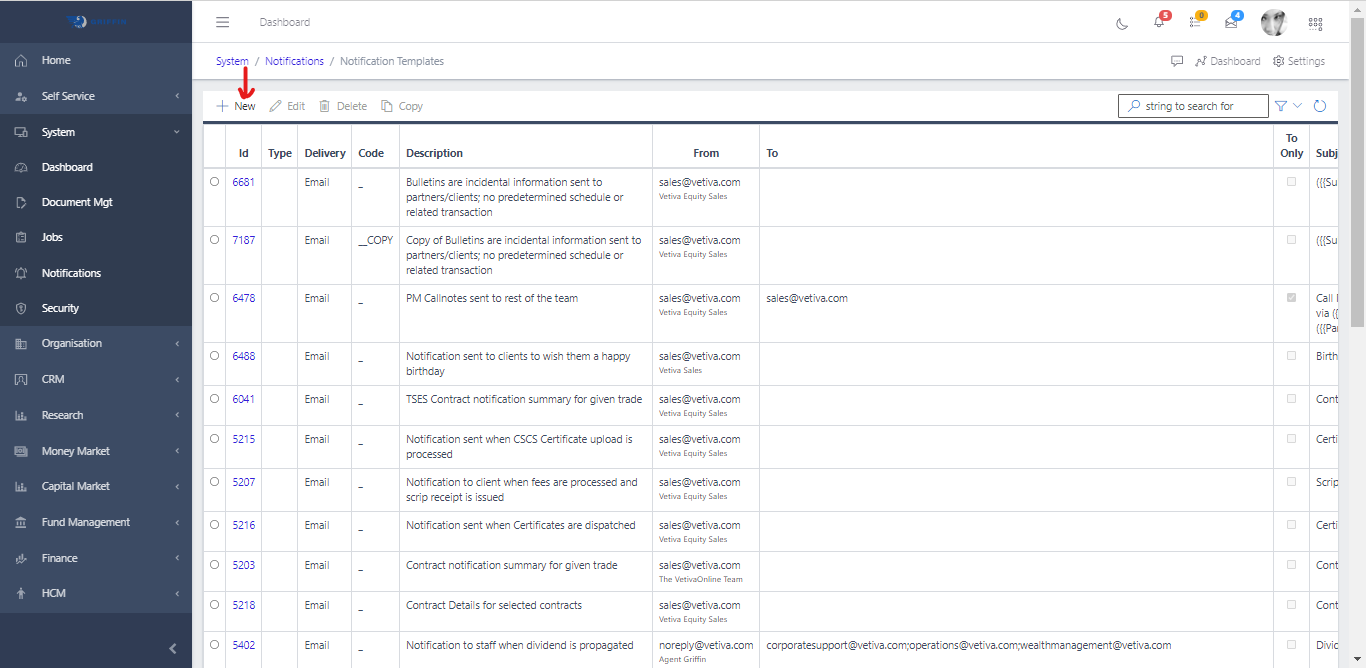
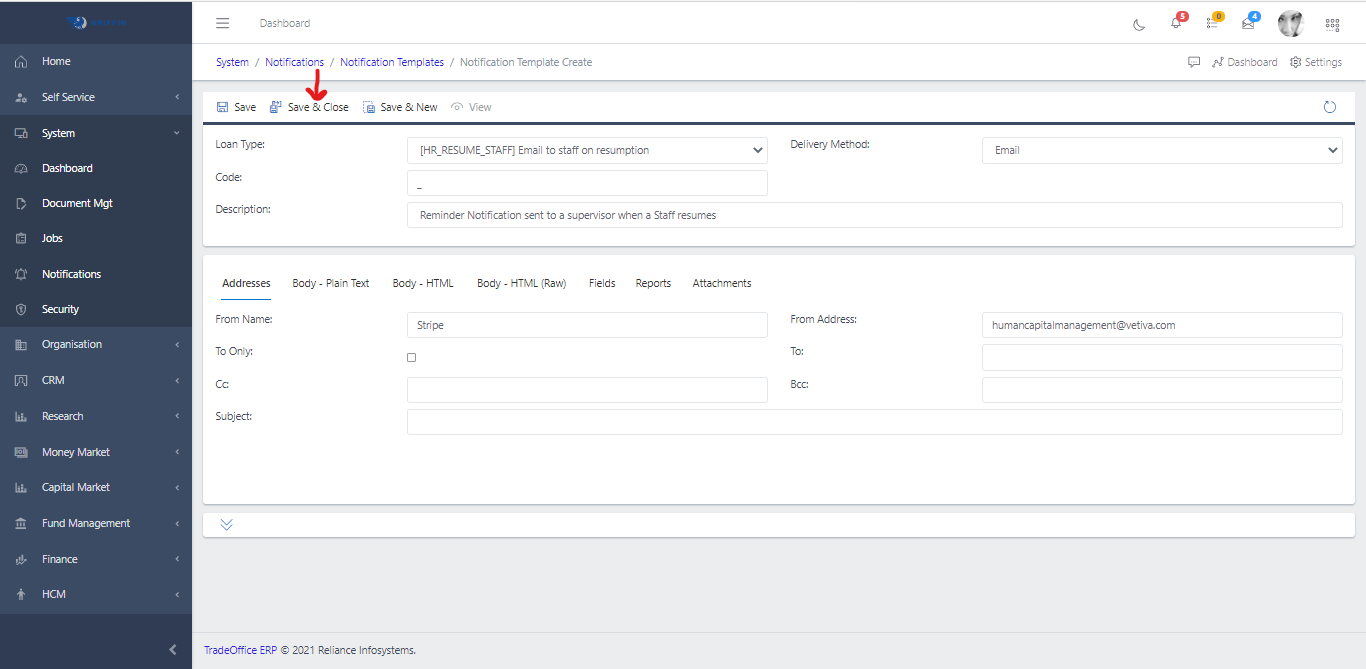
  • To create a notification template, hit the New button in the toolbar area and populate the form fields.
Notification Template Create
Fig 2

  • The following are some of the fields that needs to be populated:
    • Leave Levels
    • Description
    • Grades Section: create a grade by hitting the create button and populating the fields.
  • After filling the form, hit the Save and close button to create the new template
Notification Template Create
Fig 2.1

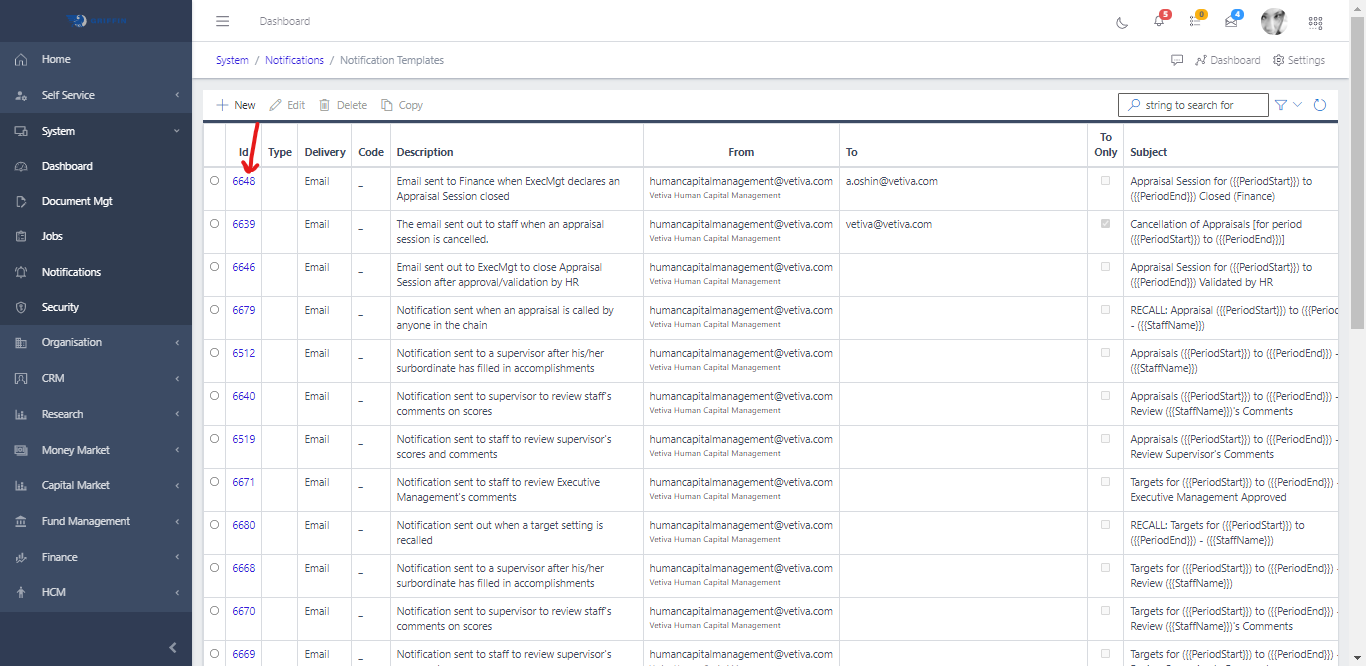
View a Notification Template

  • To view a particular notification template, click on the template ID
Notification Template View
Fig 2.2

Edit Notification Template

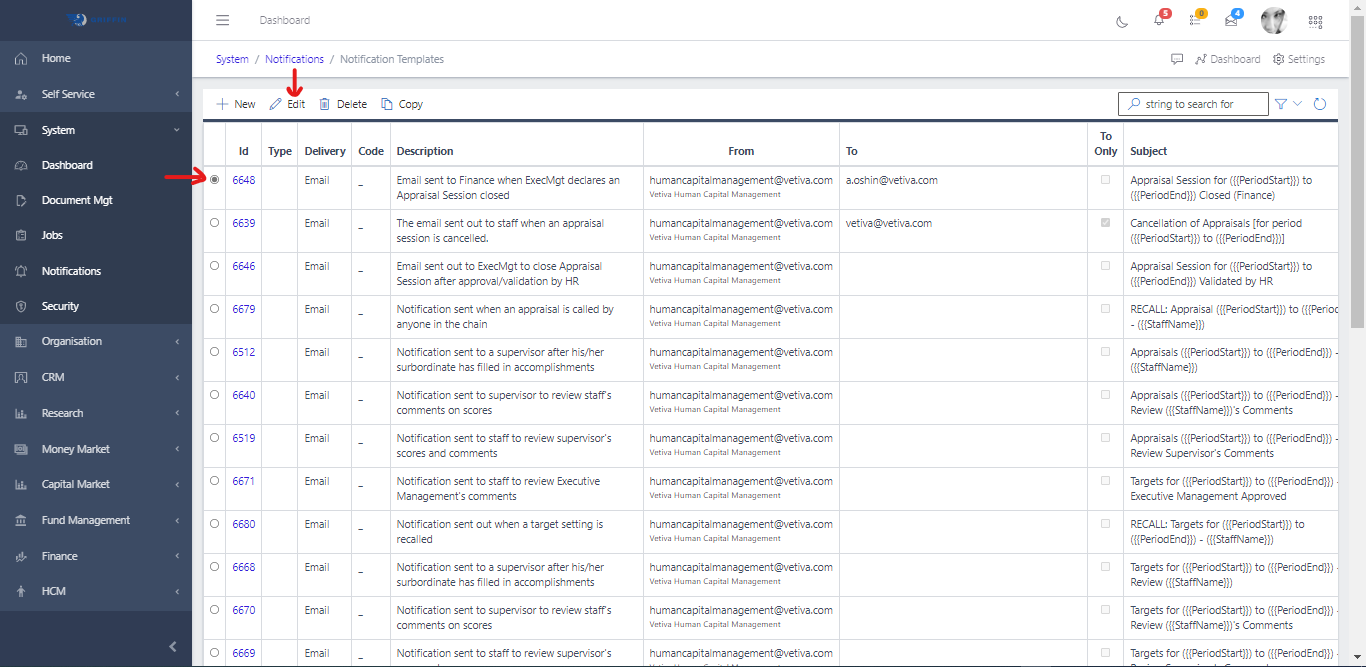
  • To edit a notification template, select the template you want to edit by clicking the radio button
  • Click the Edit button in the toolbar area
Notification Template Edit
Fig 3

Delete Notification Template

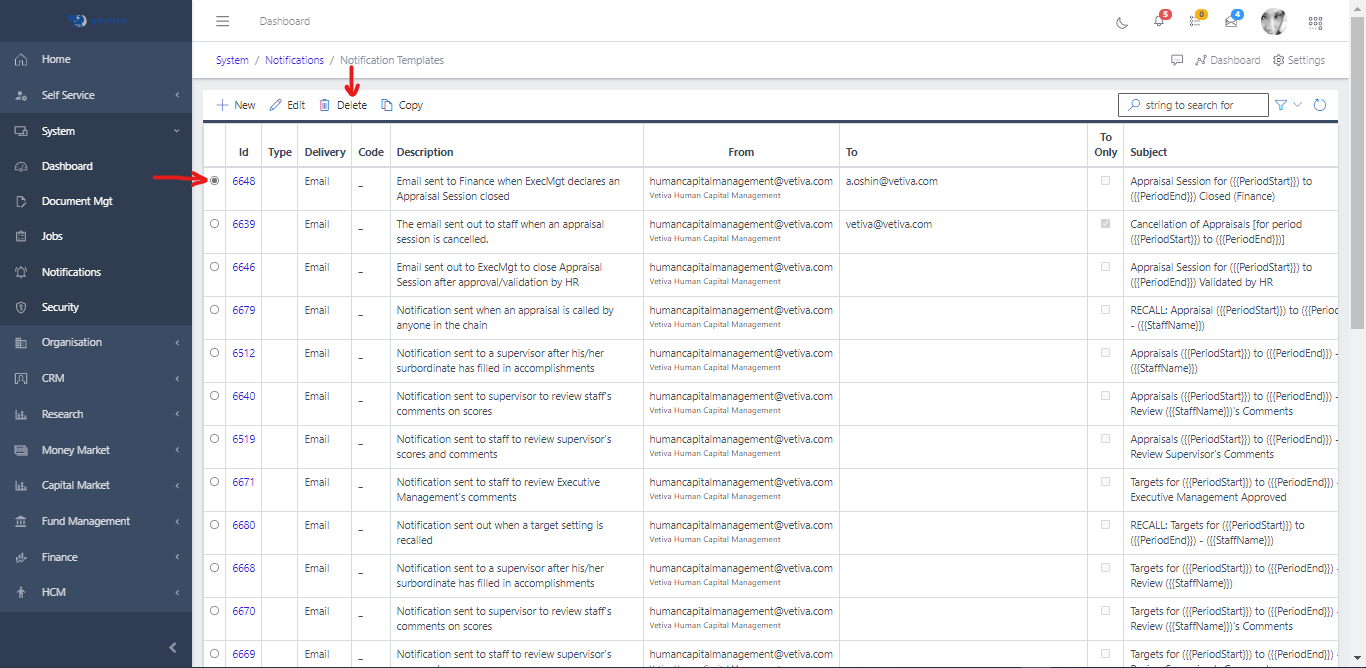
  • To delete an notification template, select the template you want to delete by clicking the radio button
  • Click the Delete button in the toolbar area
Notification Template Delete
Fig 3.1

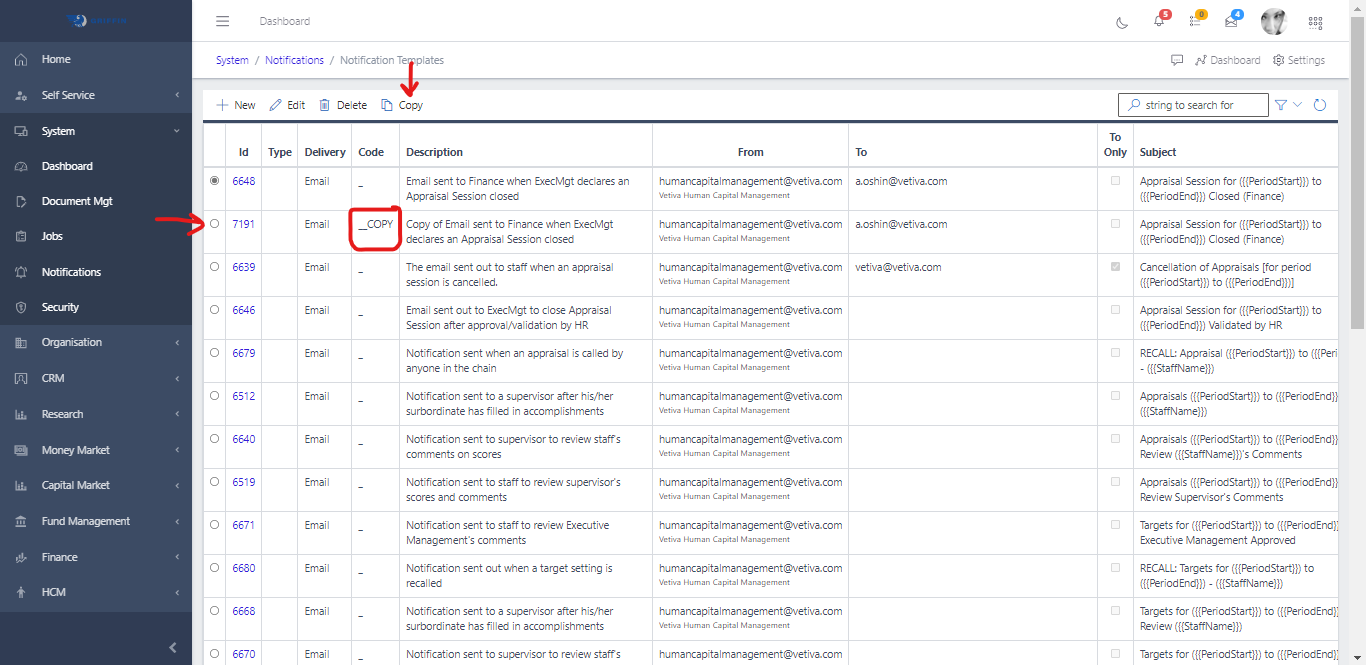
Copy Notification Template

Copying an notification template help duplicate the template. You can create the exact value of the template you created early by clicking the copy button and everything get duplicated

  • Select the template using the radio button, click on the Copy button in the tool bar area
  • This will make a copy of the selected template
Notification Template Copy
Fig 3.2