Vendor Groups

The vendor group serves as utility that helps to logically group or categorize vendors within a particular organization. These vendors may be grouped or categorized based on the kind of services they are subscribed to in an organization. An organization can have as many vendor groups as they want.

To navigate to the vendor groups submodule, from the homepage of the ERP, on the side bar navigation locate the “vrm” module and click on it, you will see a list of drop down menus, select the “records” sub menu in the dropdowm menus, you will have the records dashoard displayed with different sub modules, now select the “vendor groups” menu. see image below
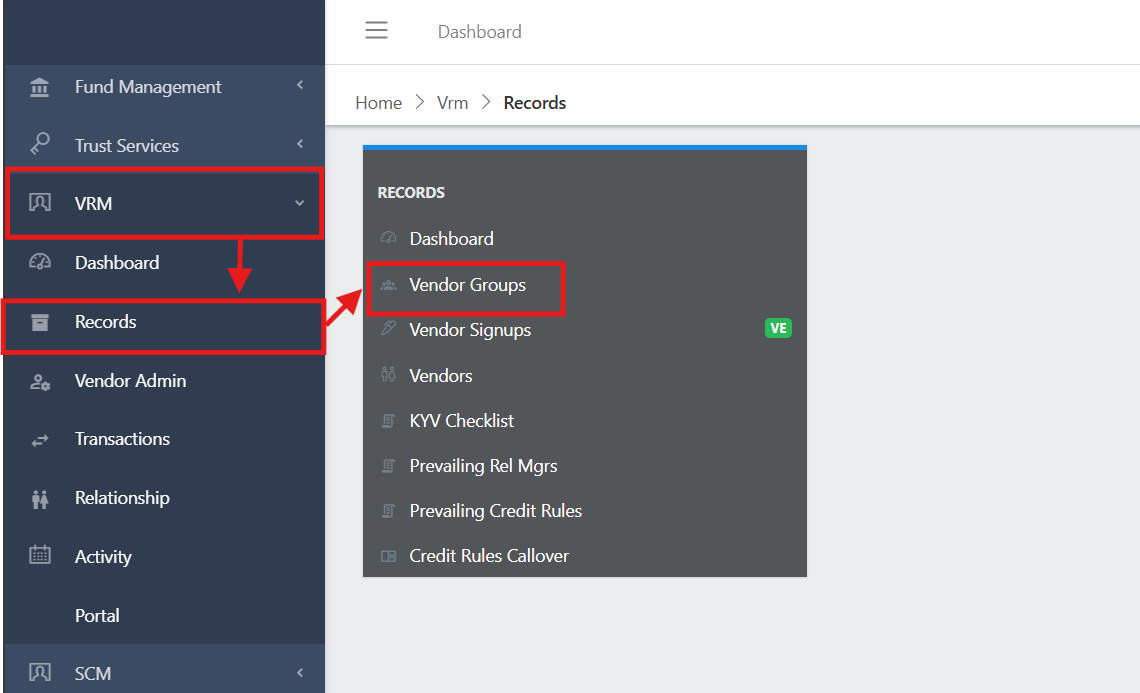
Vendor Group Navigation
Fig 1.0 Vendor Group Navigation

Vendor Groups View

In the image below you have a centralized list of all vendor groups and properties for each. You also have a list of commands (highlighted in the image below) above the vendor group list that you can use to perform various actions on a particular vendor group by selecting the radio button on the left hand side of the vendor group name.
Also in the image below you will notice the headers on the table, the code tab shows the name of the vendor group.
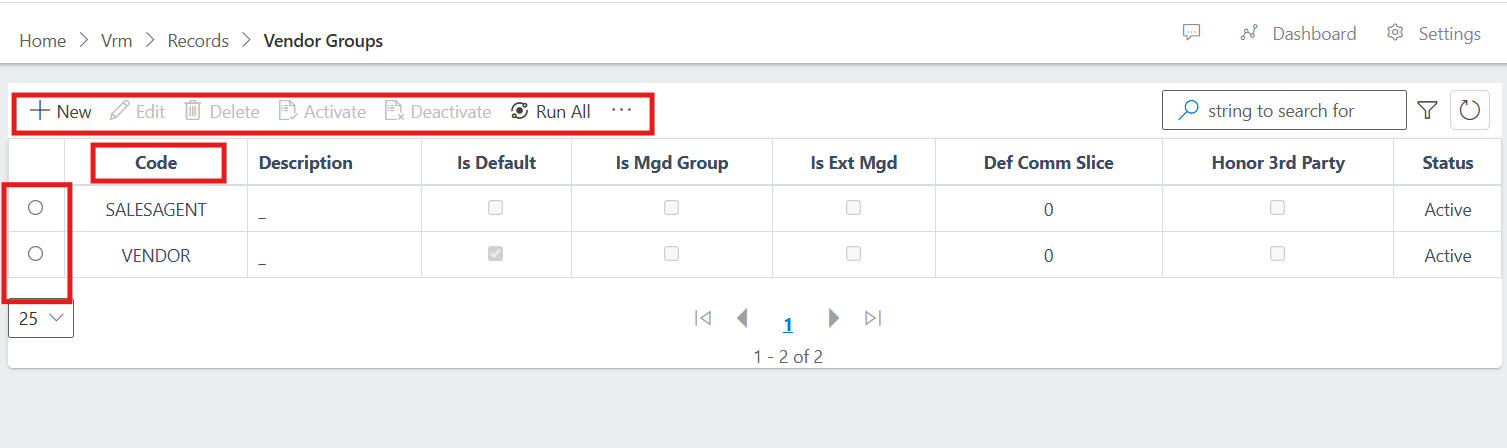
vendor group view
Fig 1.1 Vendor Group View

You can filter the vendor groups using the filter button (funnel icon) on the right side of the search bar. You can search for a vendor group using the code, you can filter your search by the vendor status as shown in the image below.
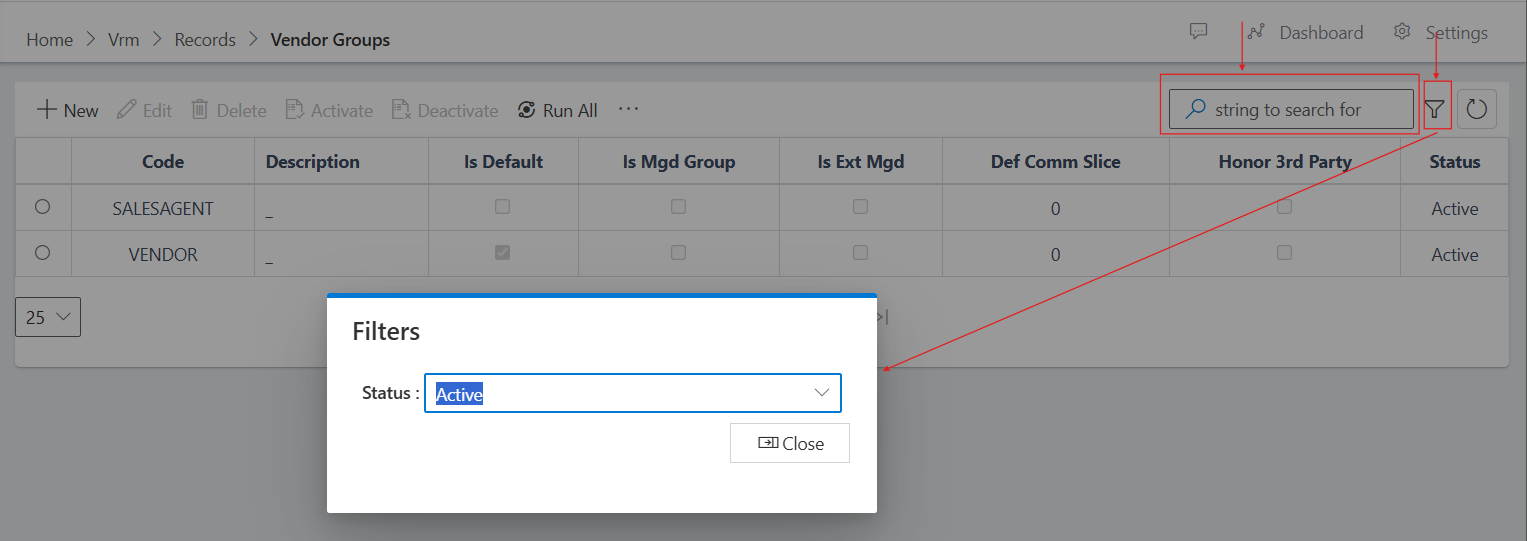
Search and filter menu
Fig 1.1.1 Search and filter menu

Finally to execute your search, press the enter key or the refresh icon on the right side of the filter button. see image above (Fig 1.1.1).

View vendor group Information

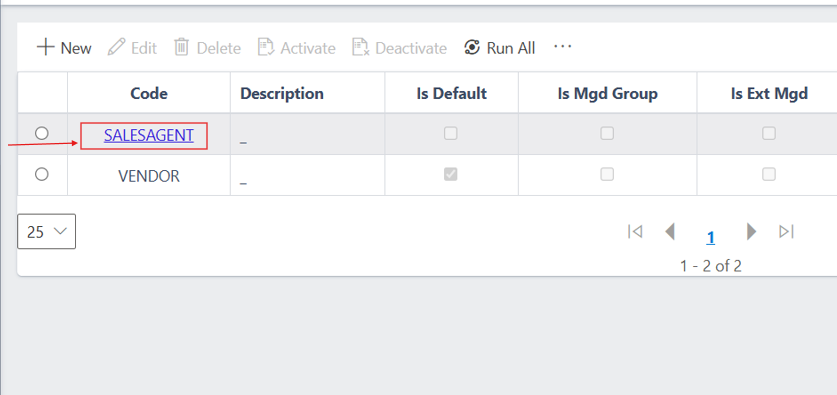
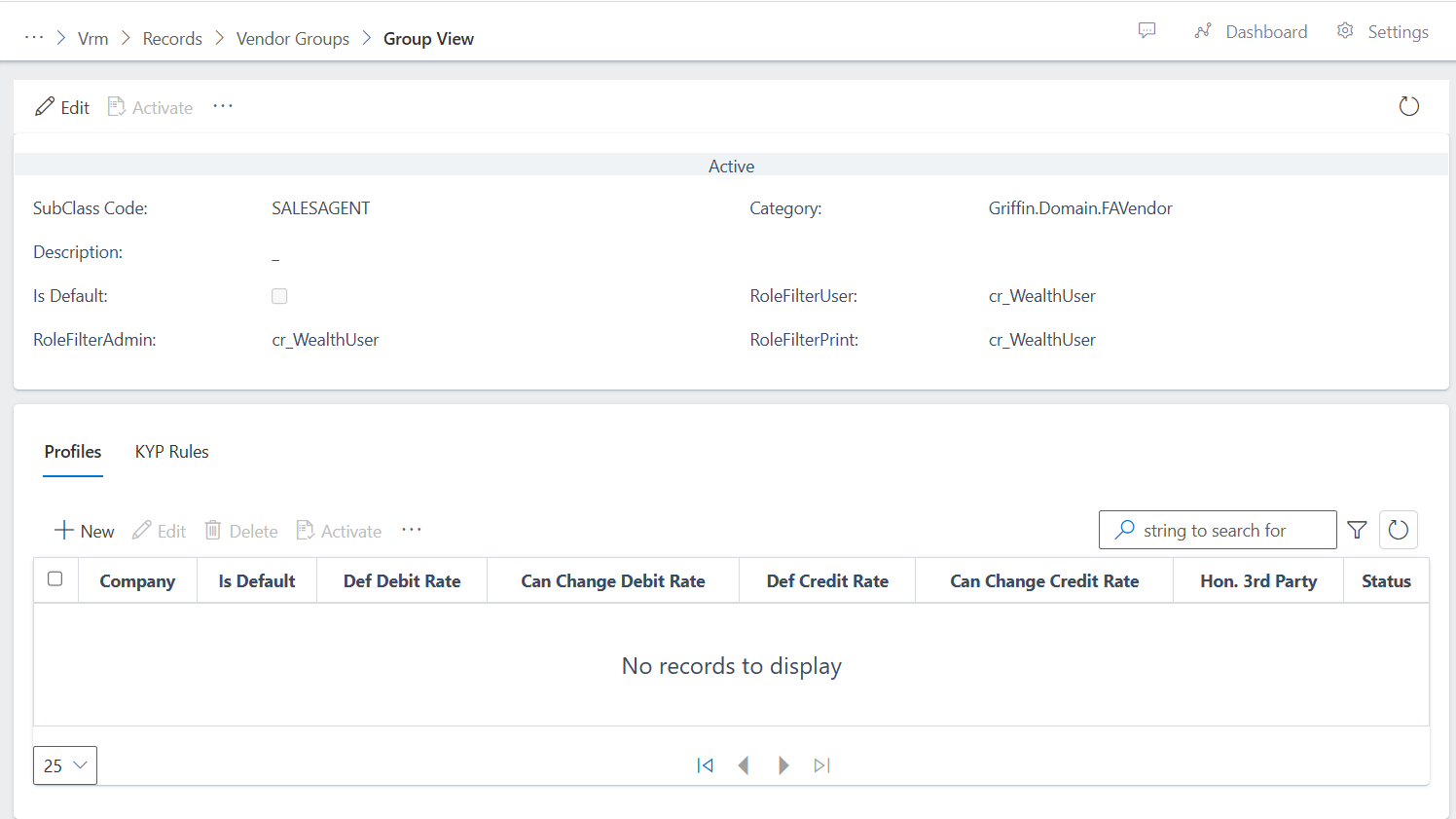
Also, to view the total information of a vendor group, you click on the name of the vendor group.
vendors ID
Fig 1.2 Vendor Group Name

vendor group Information view
Fig 1.3 Vendor Group Information View

More commands

You can also edit the basic information of the vendor group and you will also notice the three dots (…) after the activate command, you can click on it to access more command options as shown below.
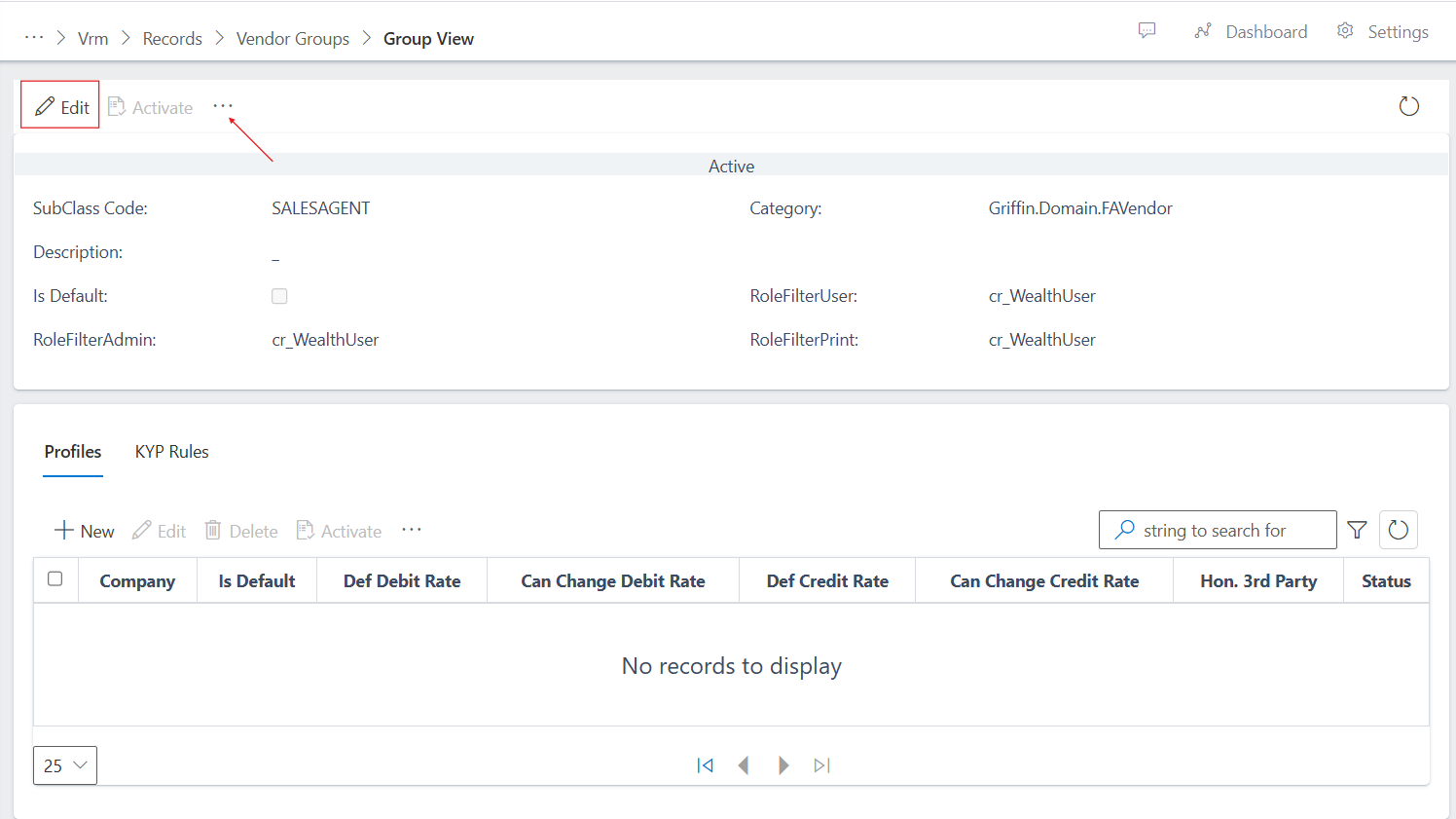
image showing more command options
Fig 1.4 image showing more command options

Creating a vendor group

To create vendor group, follow the steps below:
  • Navigate to the vendor groups section under the records sub-module of vrm module: see how to navigate in the section above.
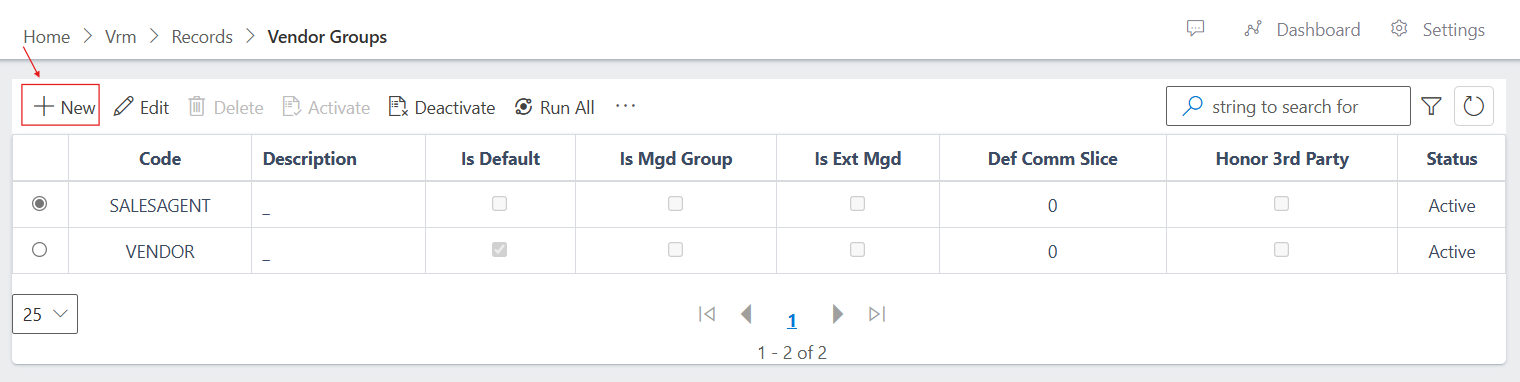
  • In the vendors section you will see the list of existing vendor groups if there are exsisting vendor groups and a button named “new” at the top left corner where you have a list of commands. click on the “new” button.
image showing new button
Fig 2.0 image showing new button

Enter vendor group details

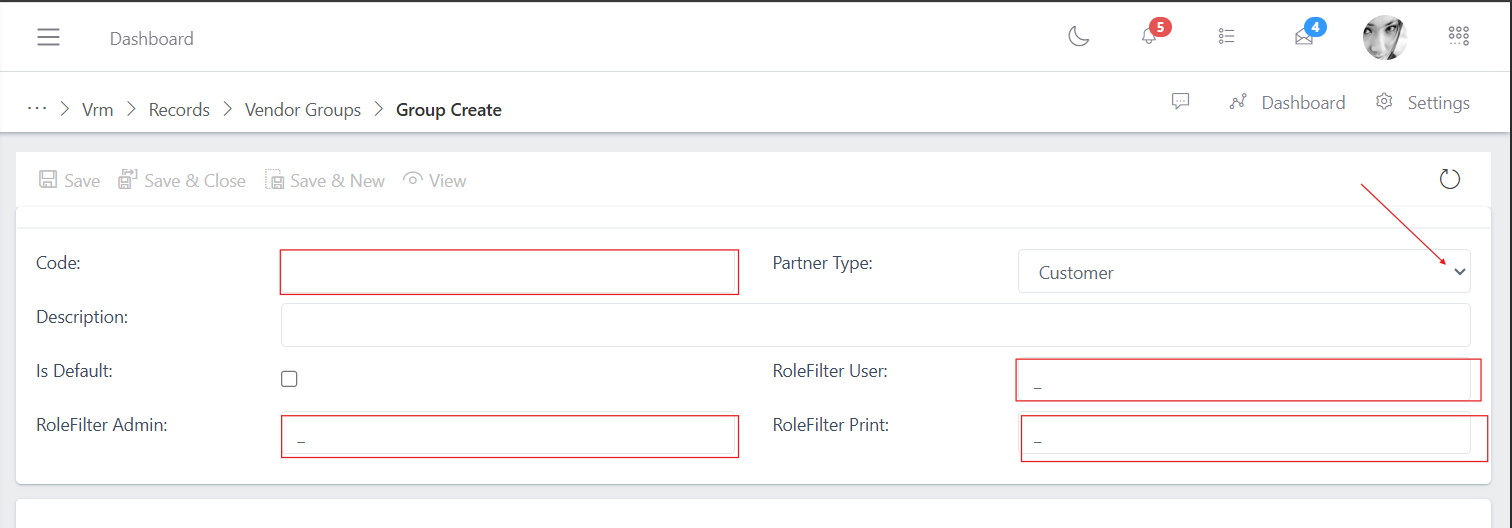
  • After clicking the new button you will see the vendor group creation form, note: make sure you fill in the form fields and every necessary details as shown in the image below, else the form will fail to save.
image showing vendor group creation form
Fig 2.1 image showing vendor group creation form

Save vendor group

After filling all the necessary details completely, click on the save button to save the vendor group information.
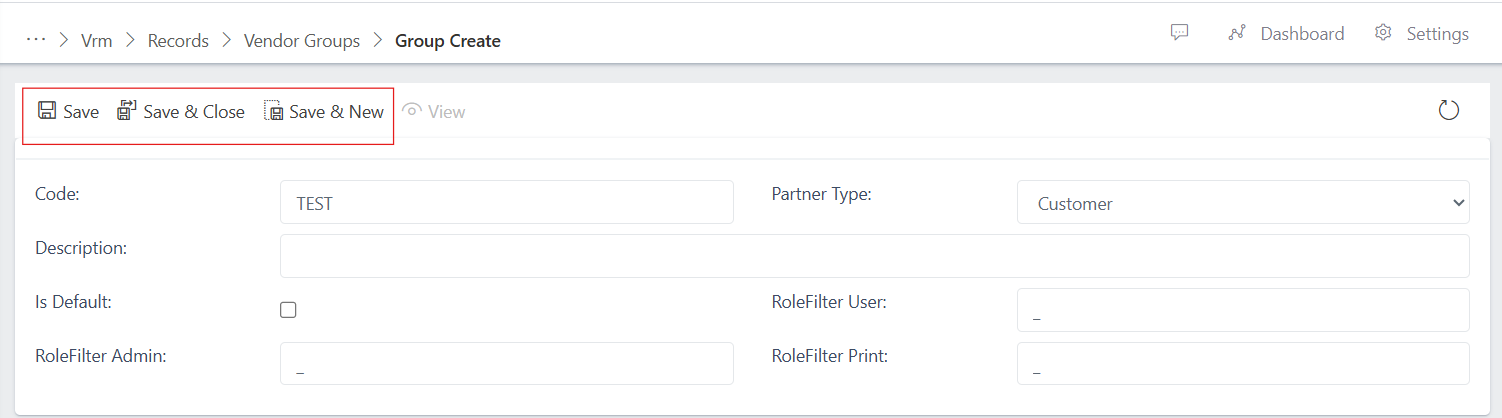
image showing vendor group save buttons
Fig 2.2 image showing vendor group save buttons

If you notice the image above you will see “save”, “save & new” and “save & close” buttons.
  • When you use the “save” button, it saves the vendor details only and still leaves you in the vendor details page.
  • When you use the “save & new” button, it saves the vendor details and automatically takes you to a page to create another vendor.
  • When you use the “save & close” button, it saves the vendor details and automatically takes you to the vendors view page (Where you have the list of vendor groups in the ERP)

Activating a vendor group

Whenever you save an entity for the first time, it assumes a pending status (see image below),
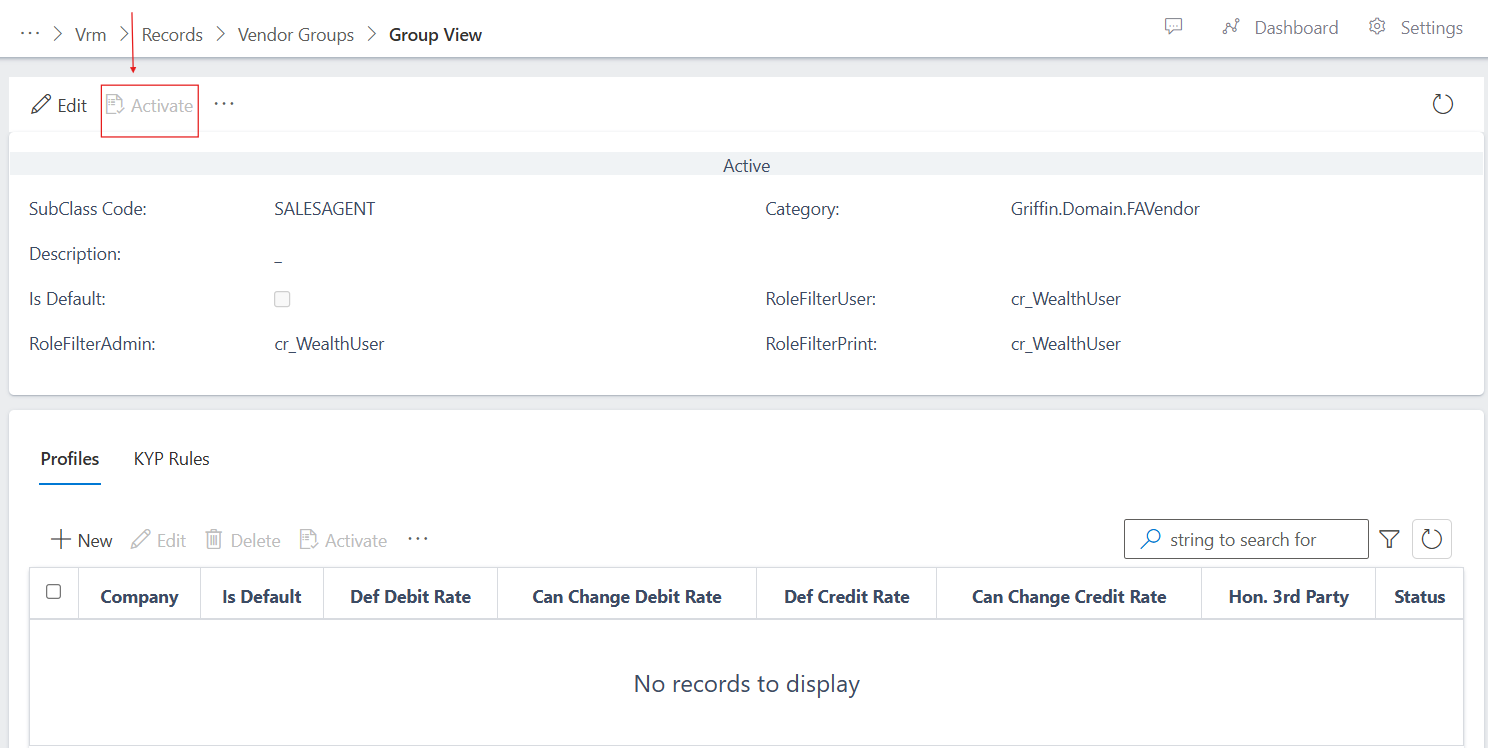
image showing vendor group in pending state
Fig 2.3 image showing vendor group in pending state

this is to allow whoever is in the operations to go through the vendor group information and assertain that the details are accurate before they go ahead to activate the vendor group.

To activate the vendor group you can either click on the view button: where it takes you to the vendor group information view and then you click the activate button as show in the images below:
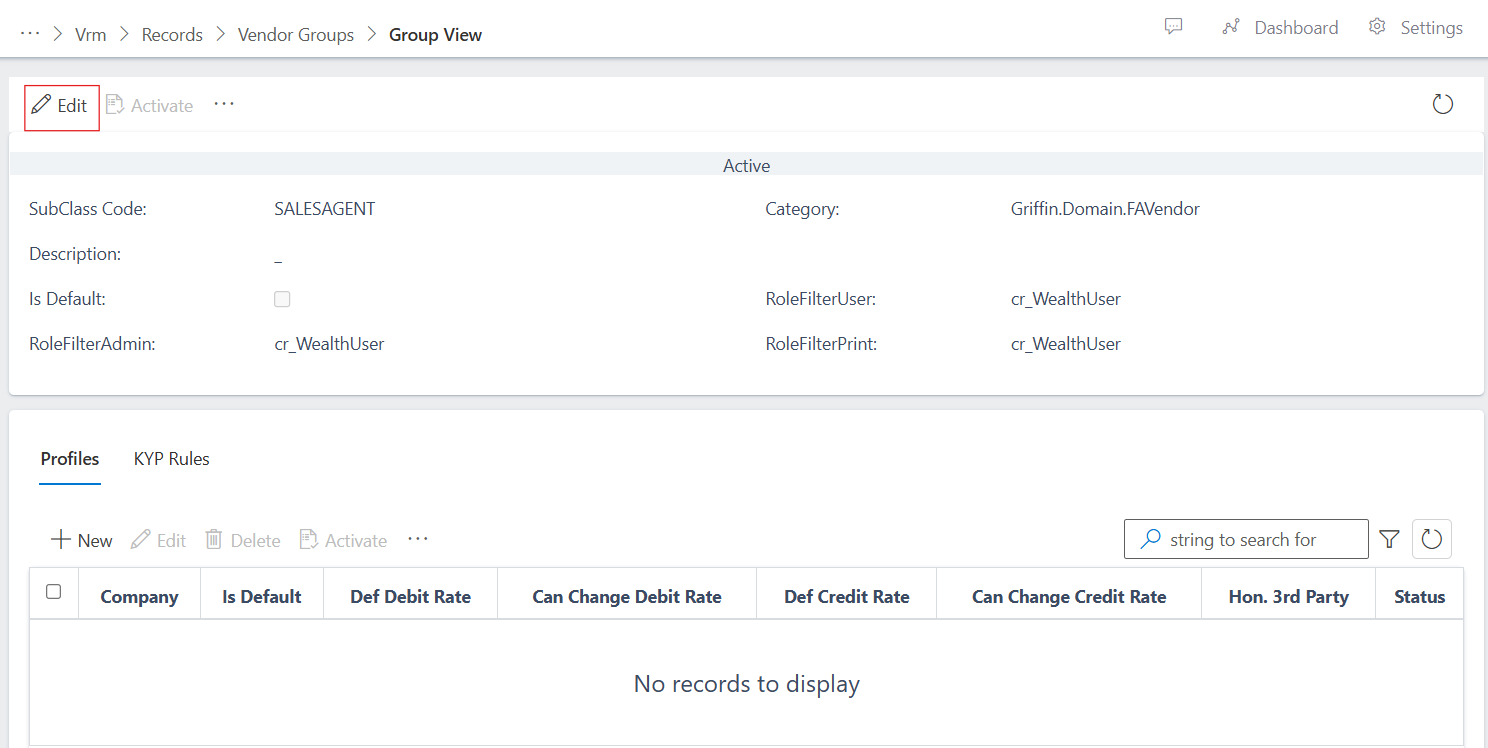
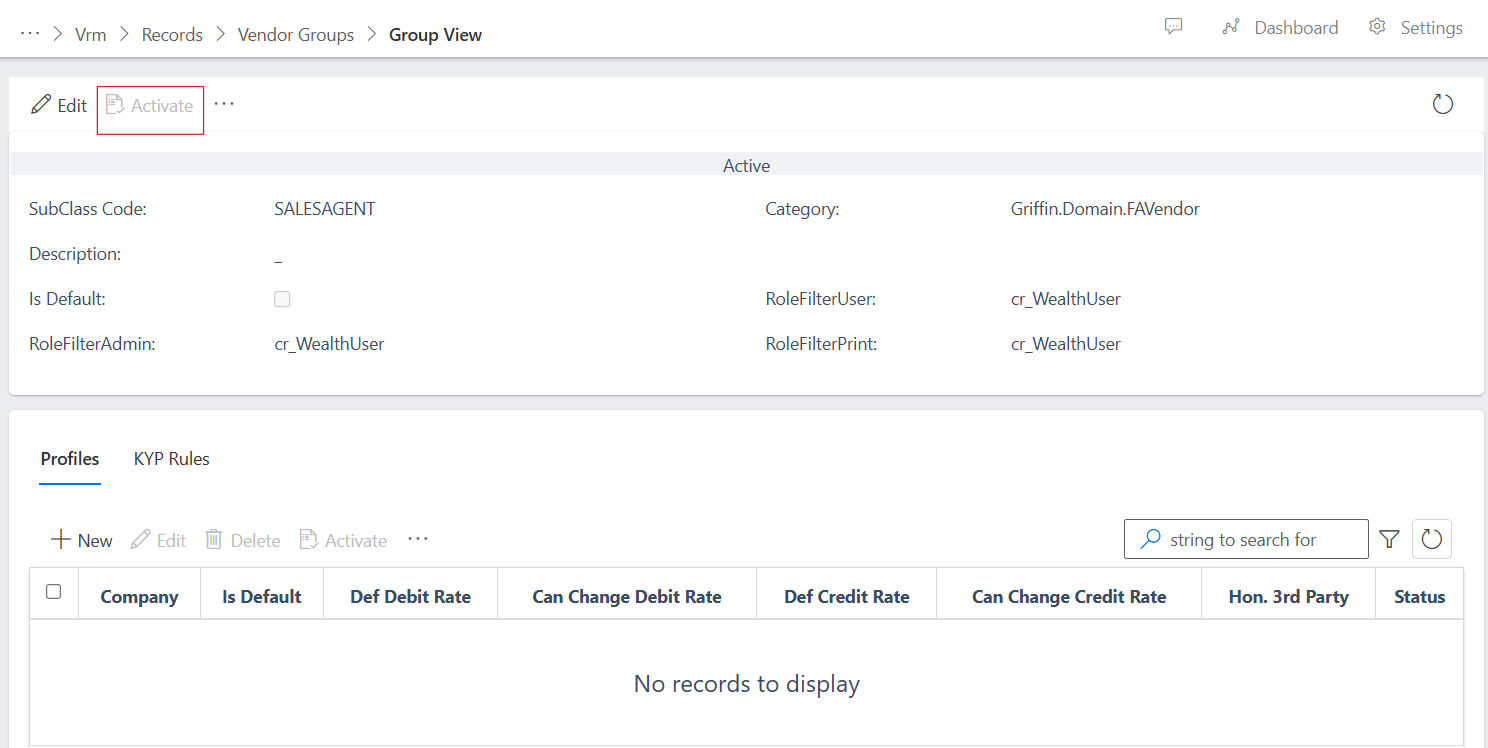
image showing vendor group view button
Fig 2.4 image showing vendor group view button

image showing vendor group activate button
Fig 2.5 image showing vendor group activate button

Alternatively you can also directly activate vendor groups from the vendor groups list view. This is usually the case when the operator initially clicks on the “save and close”, the app saves the vendor group details and then takes you to the vendor groups list where you will have to filter for “pending” since newly saved entities (vendor groups in this case) assumes a pending status or “all” to spool all entities irrespective of thier status. see image below:
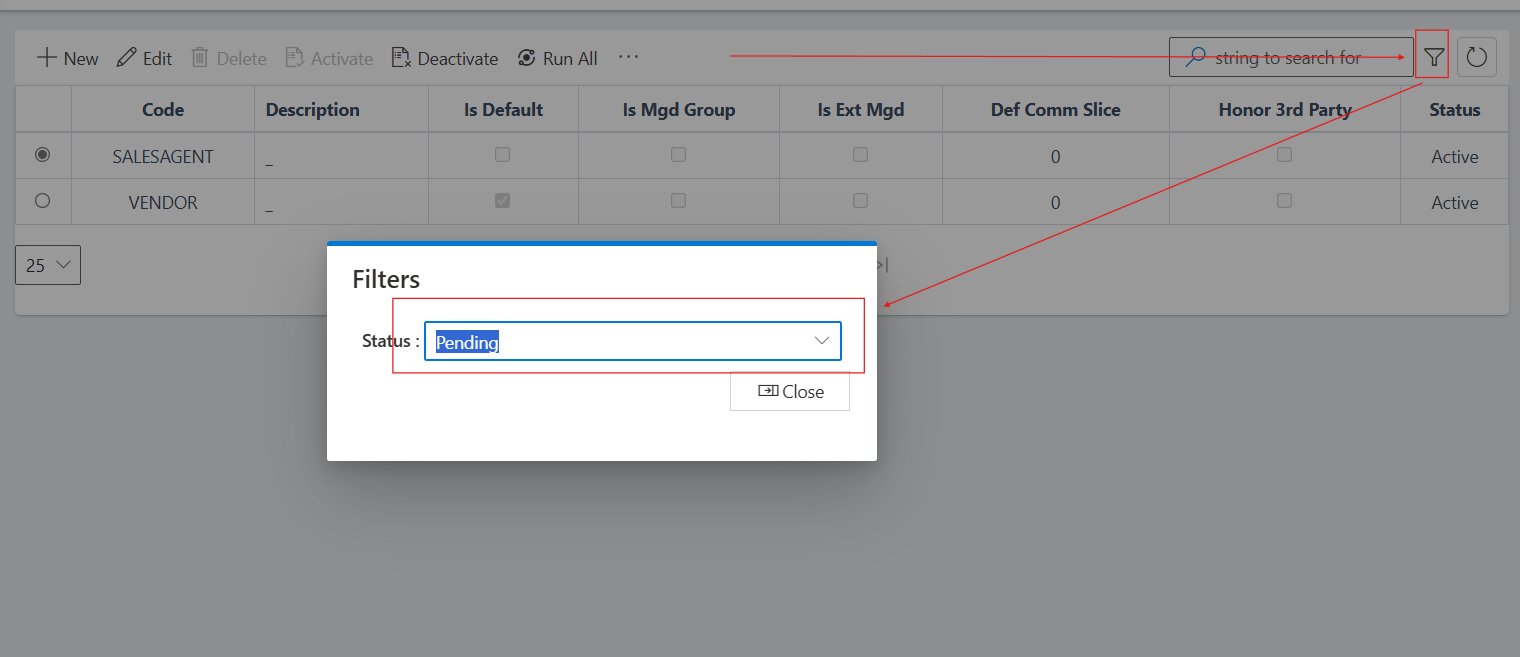
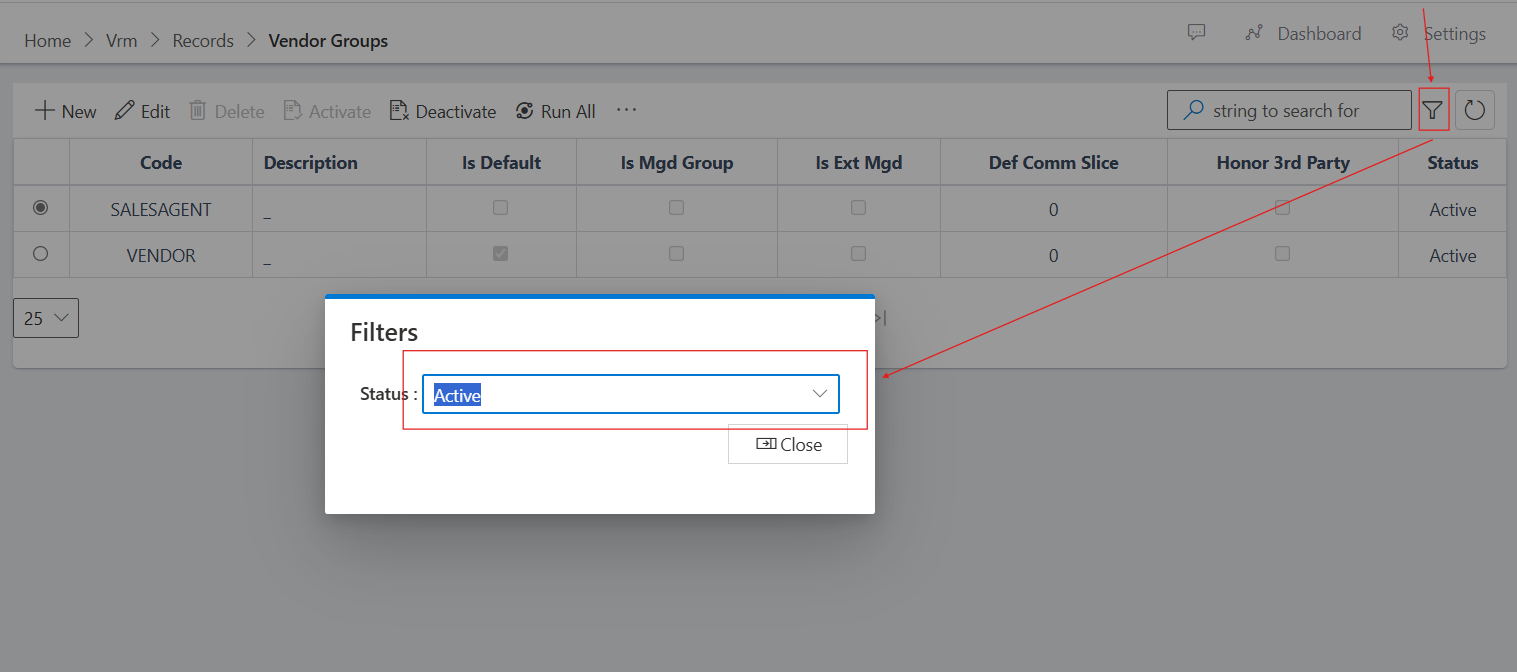
image showing vendor group list filtered for pending status
Fig 2.6 image showing vendor group list filtered for pending status

image showing vendor group list filtered for all status
Fig 2.7 image showing vendor group list filtered for all status

Now, to activate the BDC vendor group as shown in the image above, click on the radio button on the left hand side of the BDC vendor group and then click on the activate button above on the command bar area. see image below:
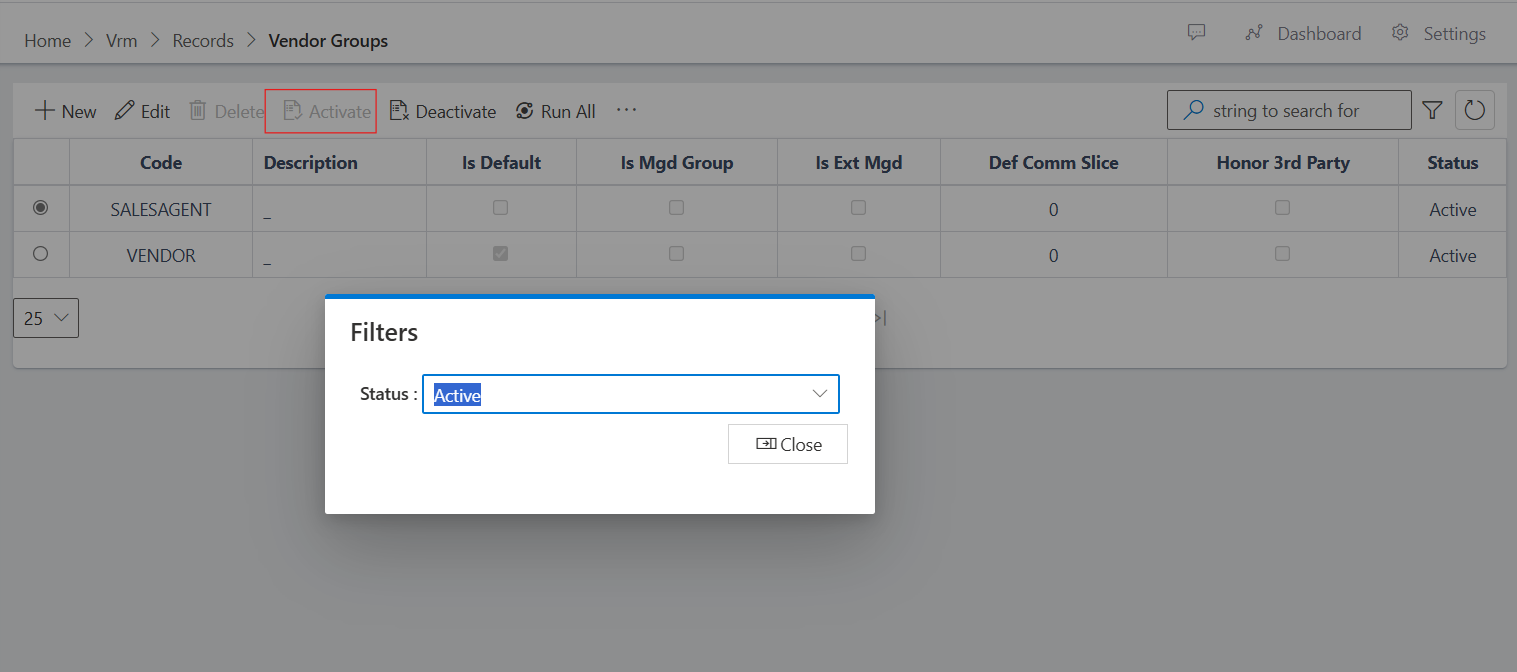
image showing activate button via vendor group list view
Fig 2.8 image showing activate button via vendor group list view

After clicking on activate, the status of the newly created vendor group changes from pending to active as shown below:
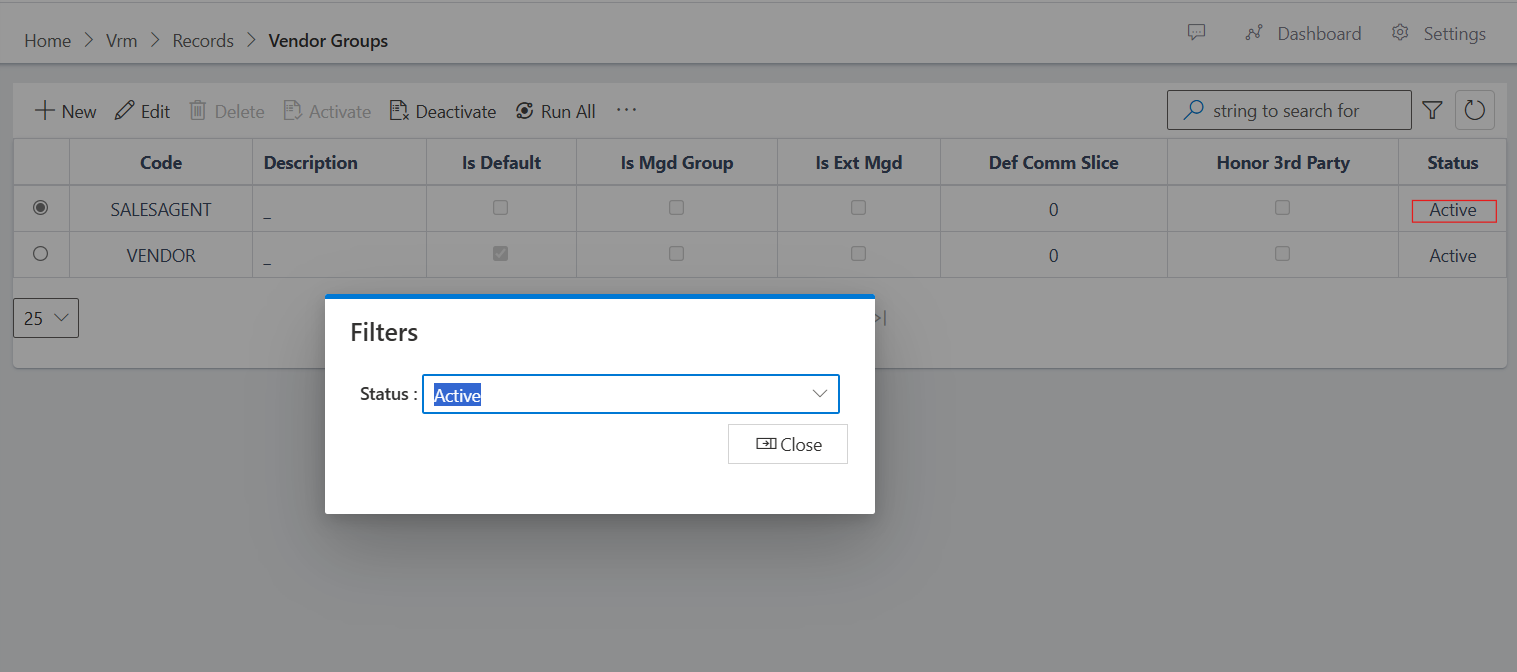
image showing activated vendor group
Fig 2.9 image showing activated vendor group

Adding a profile to a vendor group

A profile must be created for a vendor group in order to link the vendor group to the company that it will reside in within the app.
Note: This step is also very crucial in order to allow successful vendor onboarding when creating a vendor on the app, because the vendor group for the onboarding vendor will be required and if there is no matching company profile linked to the vendor group, the vendor onboaring details will fail to save.
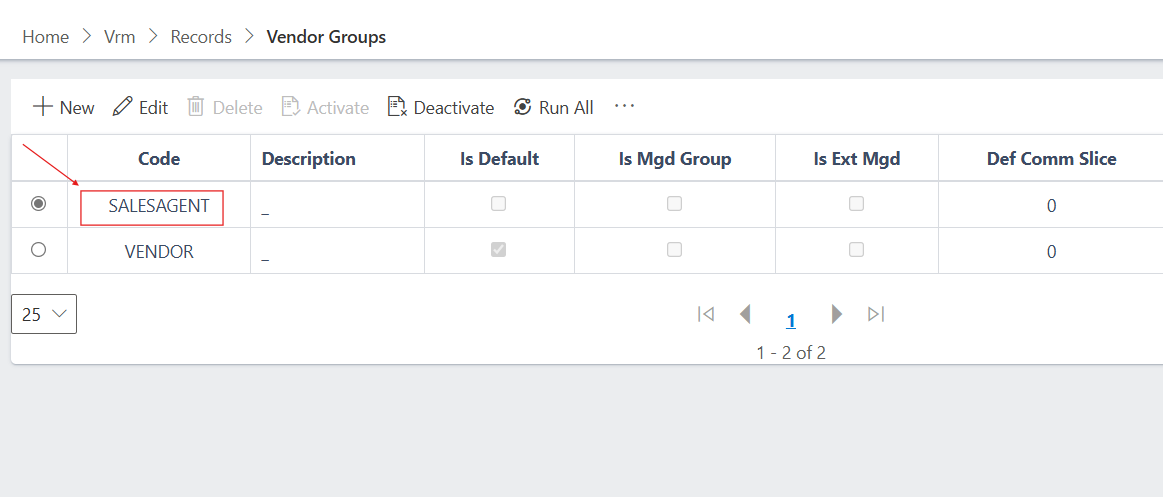
  • To add a profile to a vendor group, click on the vendor group name from the list of vendor groups. see image below,
image
Fig 2.10

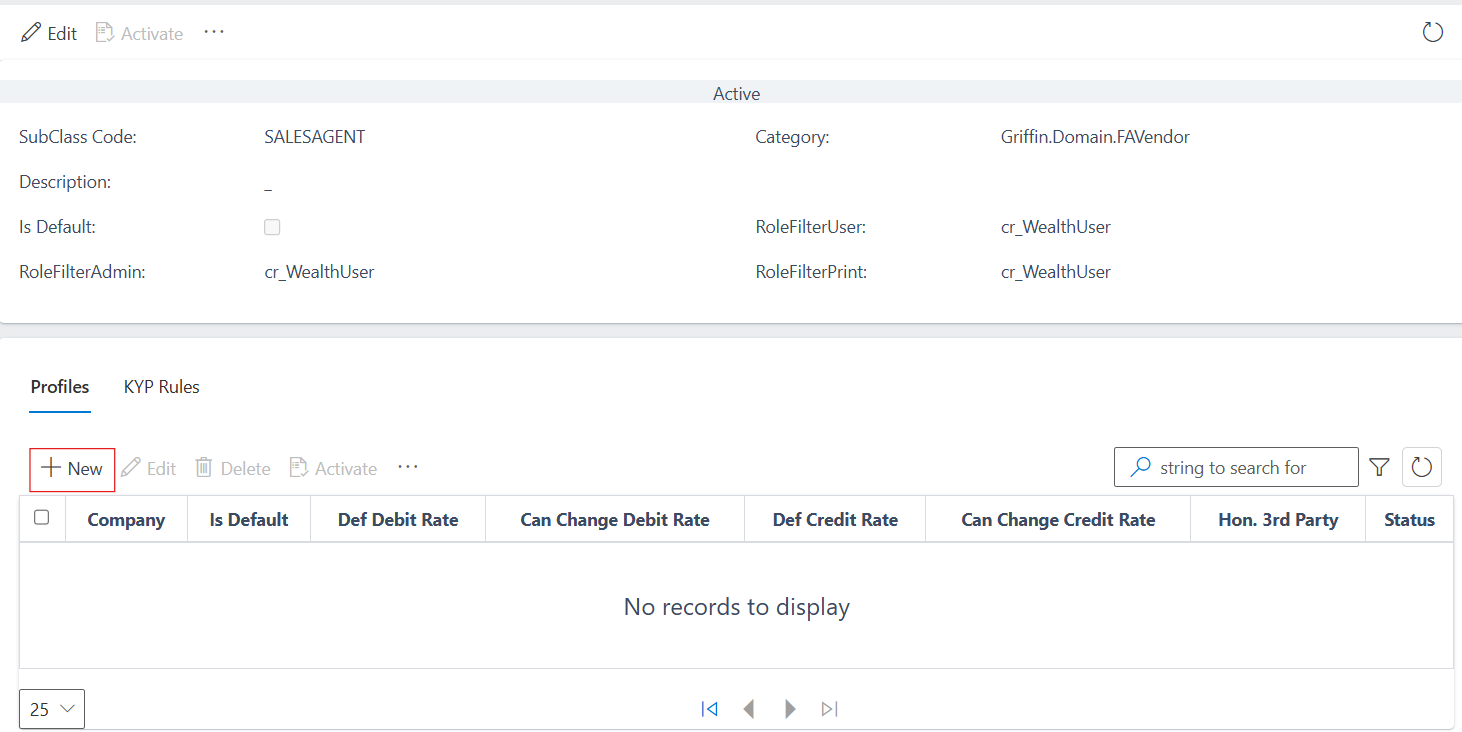
  • On the profile tab, click on the new button, see image below:
image showing new button to create vendor group profile
Fig 2.11 image showing new button to create vendor group profile

  • Notice that the company field is empty, click on the search icon to choose a company that you would like to link the vendor group to.
image showing search icon for company
Fig 2.12 image showing search icon for company

  • Now selected desired company from the list of companies, in this scenario we want to link BDC vendor Group to CNINB - Contonso Investment Bank
image showing list of companies
Fig 2.13 image showing list of companies

  • After selecting a company, click on the save button.
image showing activated vendor group
Fig 2.14 image showing button to save vendor group profile